
Are you ready to enjoy your favorite music, podcasts, or calls straight from your iPhone through your Pioneer car stereo? Connecting your iPhone to your car’s audio system can seem tricky, but it doesn’t have to be.
Whether you want crystal-clear sound or hands-free control while driving, this guide will show you simple steps to get your devices working perfectly together. Keep reading, and you’ll be cruising with seamless audio in no time.

Credit: www.ebay.com
Check Compatibility
Before you try to connect your iPhone to a Pioneer car stereo, it’s essential to check if both devices are compatible. Compatibility affects how smoothly your devices will pair and what features you can use. Understanding this can save you time and frustration.
Iphone Models Supported
Not every iPhone works perfectly with every Pioneer stereo model. Most Pioneer stereos support iPhones running iOS 10 or later, but some advanced features might need newer versions.
Here’s a quick look at typical compatibility:
- iPhone 5 and newer:Usually supported for basic audio playback and Bluetooth connection.
- iPhone 7 and newer:Often required for advanced features like Apple CarPlay.
- iPhone with iOS updates:Keep your iPhone updated for the best connection experience.
Have you checked your iPhone model and iOS version before trying to connect? It’s a simple step that many overlook.
Pioneer Stereo Features
Pioneer car stereos come with a variety of features, and not all support the same iPhone functions. Some models include Apple CarPlay, while others might only offer Bluetooth audio streaming.
Here are key features to look for:
- Apple CarPlay support:Allows you to use iPhone apps safely while driving.
- Bluetooth connectivity:Basic wireless music and call functions.
- USB ports:Enables wired connection and charging.
- App compatibility:Some stereos support Pioneer’s own apps that enhance iPhone integration.
Do you know which features your Pioneer stereo supports? Checking the manual or product specs can give you clear answers and set the right expectations.
Prepare Your Devices
Getting your iPhone ready to connect with your Pioneer car stereo is essential for a smooth experience. Without proper preparation, you might face connectivity issues or miss out on useful features. Let’s look at key steps to ensure both devices are primed for a flawless link.
Update Iphone Software
Keeping your iPhone’s software up to date is crucial. Updates often include bug fixes and improvements for Bluetooth and CarPlay, which directly impact how your phone interacts with your car stereo.
Check your iPhone’s settings by going to Settings > General > Software Update. If an update is available, download and install it before trying to connect.
Have you ever tried connecting only to find it doesn’t work because your phone is outdated? Updating prevents that frustration and ensures compatibility with the latest Pioneer stereo models.
Reset Pioneer Stereo Settings
Sometimes, your Pioneer stereo might hold onto old settings or pairings that interfere with new connections. Resetting the stereo can clear these conflicts and give you a fresh start.
Locate the reset option in your stereo’s menu, usually under Settings > System > Reset. Follow the prompts to reset without deleting important data like saved radio stations.
Resetting helped me solve a persistent connection glitch I faced. After the reset, my iPhone connected instantly without repeated pairing attempts. Consider this step if your stereo feels sluggish or unresponsive to new devices.
Connect Via Bluetooth
Connecting your iPhone to a Pioneer car stereo via Bluetooth offers a wireless and convenient way to enjoy music and calls. Bluetooth connection eliminates the need for cables, giving you a cleaner dashboard. Follow these simple steps to connect your devices quickly and easily.
Enable Bluetooth On Iphone
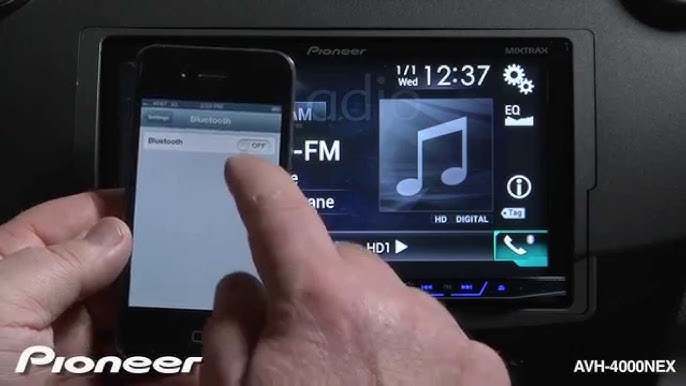
Open the Settings app on your iPhone. Tap on “Bluetooth” to access Bluetooth settings. Toggle the Bluetooth switch to the ON position. Your iPhone will start searching for nearby Bluetooth devices.
Pair With Pioneer Stereo
Turn on your Pioneer car stereo and access its Bluetooth menu. Select the option to pair a new device. On your iPhone, look for your Pioneer stereo name under available devices. Tap the stereo name to begin pairing. Confirm any passcodes that appear on both screens. Wait for a confirmation that the devices are connected.
Troubleshoot Connection Issues
Check that Bluetooth is enabled on both devices. Make sure your iPhone and stereo are close to each other. Restart your iPhone and the car stereo to refresh connections. Delete old Bluetooth pairings from your iPhone’s list. Reset the stereo’s Bluetooth settings if problems continue. Test the connection again after each step.

Credit: usa.pioneer
Connect Via Usb Cable
Connecting your iPhone to a Pioneer car stereo using a USB cable offers a direct and reliable way to play music. This method ensures clear sound quality and allows you to control your music from the car stereo. Follow these simple steps to get started and enjoy your favorite tracks on the road.
Use The Right Cable
Choose a Lightning to USB cable made for iPhones. Avoid cheap or damaged cables as they may not work properly. Ensure the USB end fits securely into the Pioneer stereo port. A good cable prevents connection issues and data transfer problems.
Set Pioneer To Usb Mode
Turn on your Pioneer stereo. Use the source or mode button to select “USB.” The screen should show that the stereo is ready to play from a USB device. If it does not switch automatically, check the stereo manual for specific instructions.
Access Iphone Media
Once connected, the stereo will recognize your iPhone as a media device. Use the stereo’s controls to browse music by artist, album, or playlist. You can also play, pause, or skip tracks directly from the car stereo. This keeps your focus on driving while enjoying your music.
Connect Via Auxiliary Input
Connecting your iPhone to a Pioneer car stereo via the auxiliary input is a straightforward way to enjoy your favorite music or podcasts without relying on Bluetooth or USB connections. This method is especially handy if your stereo or phone has limited wireless capabilities or if you want a quick, no-fuss setup. Let’s break down how you can get your audio flowing through the aux input in just a few simple steps.
Locate Aux Port
First, find the auxiliary port on your Pioneer car stereo. It usually looks like a small, round headphone jack and is often labeled as “AUX” or with a headphone icon. This port can be on the front panel, center console, or sometimes hidden inside the glove compartment or armrest.
Have you checked your stereo’s manual? It can save you time and frustration by showing the exact location. If you can’t spot it right away, try running your fingers along the stereo’s edges or nearby panels—you might feel the port before you see it.
Use Aux Cable
Next, grab a standard 3.5mm auxiliary cable. This cable has the same type of connector as most wired headphones. Plug one end into your iPhone’s headphone jack or use a Lightning-to-3.5mm adapter if your iPhone doesn’t have a headphone jack.
Plug the other end into the Pioneer stereo’s aux port. Make sure the connection is snug to avoid any crackling or dropouts. This simple cable acts as the bridge, carrying your phone’s audio directly to the car stereo’s speakers.
Adjust Audio Settings
Once connected, switch your Pioneer stereo’s input source to “AUX” using the stereo’s menu or buttons. This action tells the stereo to play audio coming from the auxiliary port instead of the radio or other sources.
On your iPhone, you may want to adjust the volume for the best sound quality. Start with a medium volume and then increase it both on your phone and stereo to prevent distortion. Have you noticed how some songs sound better at different volume levels? Experiment to find the sweet spot that suits your car’s acoustics.

Credit: usa.pioneer
Use Pioneer App Features
Using the Pioneer app can significantly enhance your experience when connecting your iPhone to a Pioneer car stereo. It offers seamless control and personalization options that make driving more enjoyable and convenient. Here’s how you can make the most of the app’s features.
Download Pioneer App
Start by downloading the official Pioneer app from the App Store. It’s free and designed to work smoothly with most Pioneer car stereo models. Once installed, open the app and connect it to your car stereo via Bluetooth or USB.
The app will guide you through the setup process, making it easy even if you’re not tech-savvy. Having the app ready means you can control your stereo without fumbling with buttons while driving.
Control Music And Calls
The Pioneer app lets you control your music directly from your iPhone screen. You can play, pause, skip tracks, and adjust volume without touching your stereo unit. This keeps your focus on the road while still managing your playlist.
Answering and ending phone calls through the app is just as simple. It integrates your phone’s call functions, allowing hands-free communication. Have you noticed how much safer it feels to manage calls this way during busy traffic?
Customize Audio Settings
The app offers detailed audio customization that can transform your car’s sound quality. You can adjust equalizer settings, bass, treble, and balance according to your preferences. This level of control is usually not available through the stereo’s physical buttons.
Imagine tuning your audio to perfectly match your favorite music style every time you drive. These personalized settings can be saved and easily switched, so your stereo always sounds just right for you.
Optimize Connection Quality
Optimizing the connection quality between your iPhone and Pioneer car stereo ensures clear sound and smooth playback. Good connection quality reduces interruptions and audio lag. Small adjustments can make a big difference in your listening experience.
Reduce Interference
Keep your iPhone and car stereo away from other electronics that cause signal disruption. Devices like chargers, GPS units, and other Bluetooth gadgets can create noise. Turn off unused wireless devices in your car to lower interference. Use a direct cable connection when possible to avoid wireless issues. This keeps the sound clean and stable.
Adjust Volume Levels
Set your iPhone’s volume to about 75% before connecting to the stereo. Avoid maxing out the volume on either device to prevent distortion. Use the car stereo’s volume control for final adjustments. This balance reduces audio crackles and keeps sound quality clear. Check volume settings regularly during playback for best results.
Update Firmware
Check for the latest firmware updates on your Pioneer car stereo. Updated software often fixes bugs and improves Bluetooth connection. Also, keep your iPhone’s iOS up to date to enhance compatibility. Visit the Pioneer website or use their app to download updates. Regular updates ensure your devices work smoothly together.
Common Problems And Fixes
Connecting your iPhone to a Pioneer car stereo should be straightforward, but sometimes issues pop up that can be frustrating. Identifying common problems and knowing how to fix them quickly can save you time and keep your drive enjoyable. Let’s look at some frequent hiccups and practical solutions.
Bluetooth Not Connecting
If your iPhone doesn’t connect via Bluetooth, start by checking if Bluetooth is enabled on both devices. Sometimes the connection gets stuck because the devices are already paired with something else. Try turning off Bluetooth on other nearby devices to avoid interference.
Restarting both your iPhone and the Pioneer stereo often clears temporary glitches. If that doesn’t work, delete the existing pairing on both devices and create a fresh connection. This simple reset can fix many pairing issues.
Wondering why your phone keeps dropping the connection? It might be a software update issue. Make sure your iPhone and stereo firmware are both up to date to avoid compatibility problems.
No Sound From Stereo
When your iPhone connects but no sound plays through the Pioneer stereo, first check the volume levels on both devices. Sometimes the car stereo volume is muted or too low without you realizing it.
Ensure the audio source on the stereo is set to Bluetooth or the correct input. If you accidentally left it on radio or AUX, you won’t hear your music. Also, confirm your iPhone isn’t set to silent or headphone mode.
If the problem persists, test with a different Bluetooth device. This helps determine if the issue is with the stereo or your iPhone. Have you tried rebooting your car’s stereo system? That can often restore sound functionality.
App Not Responding
Sometimes apps like Spotify or Apple Music don’t respond properly when connected to your Pioneer stereo. If the app freezes or won’t play, close it completely and reopen it on your iPhone. This can clear temporary bugs.
Check your internet connection if the app relies on streaming. Poor or no signal can cause buffering or failure to load songs. Downloading playlists for offline use can prevent this issue during your drive.
Have you noticed the app works fine without Bluetooth? That suggests a syncing issue. Re-pair your devices and ensure both app and iPhone software are updated to the latest versions for smoother performance.
Frequently Asked Questions
How Do I Pair My Iphone With A Pioneer Stereo?
To pair your iPhone with a Pioneer stereo, first enable Bluetooth on your iPhone. Then, access the Bluetooth settings on the Pioneer stereo. Select your iPhone from the list of available devices. Once paired, you can stream music and make calls through your car stereo.
Why Won’t My Iphone Connect To My Pioneer Stereo?
If your iPhone won’t connect, ensure Bluetooth is enabled on both devices. Check that the stereo is in pairing mode. Restarting both devices can resolve connectivity issues. Also, make sure the stereo firmware and iOS are up-to-date for compatibility.
Can I Use Siri With My Pioneer Car Stereo?
Yes, you can use Siri with a Pioneer car stereo. Ensure your iPhone is connected via Bluetooth or USB. Press the designated voice command button on the stereo. Speak your request clearly to activate Siri, allowing you to make calls or send messages hands-free.
How Do I Play Music From Iphone On Pioneer?
To play music, connect your iPhone via Bluetooth or USB to the Pioneer stereo. Select the iPhone as the audio source. Open your preferred music app on the iPhone and start playing. Your music will play through the car’s speakers seamlessly.
Conclusion
Connecting your iPhone to a Pioneer car stereo is simple and quick. Just follow the steps carefully for a smooth setup. Enjoy clear sound and easy control while driving. No need to struggle with complicated settings. Stay safe by keeping your focus on the road.
Playing music, making calls, and using apps becomes easier. This connection improves your driving experience every day. Give it a try and enjoy hands-free convenience on your trips.

