
Imagine cruising down the road, your favorite playlist filling the car, calls coming through crystal clear, and navigation guiding you without a hitch. Sounds perfect, right?
Connecting your Android phone to your car stereo can make all this happen—and more. But if you’ve ever struggled with confusing cables or frustrating Bluetooth setups, you’re not alone. This guide will walk you through simple, step-by-step ways to link your Android device to your car’s sound system quickly and effortlessly.
By the end, you’ll enjoy seamless music, hands-free calls, and a smarter drive every time you hit the road. Ready to unlock your car’s full potential? Let’s get started.

Credit: www.youtube.com
Prepare Your Devices
Before you connect your Android phone to your car stereo, it’s important to prepare both devices properly. This ensures a smooth connection and avoids frustrating interruptions during your drive. Taking a few simple steps can make all the difference in enjoying your favorite music or navigation without hassle.
Check Compatibility
Not all car stereos and Android phones connect the same way. Check if your car stereo supports Bluetooth, USB, or Android Auto. Look up your car model’s manual or the stereo’s specifications online to find supported connection options.
Also, verify your phone’s capabilities. Some older Android versions might not support certain features like wireless Android Auto. Asking yourself, “Does my phone and stereo speak the same language?” can save you time and confusion later.
Update Software
Both your phone and car stereo may need software updates for the best connection. Update your phone’s Android OS to the latest version available in settings. Similarly, some car stereos allow firmware updates—check the manufacturer’s website or the stereo’s menu.
Outdated software can cause connection failures or poor sound quality. I once struggled with frequent disconnections until I updated my phone and stereo firmware—after that, the connection was rock solid. Don’t skip this step; it’s often the key to smooth operation.
Charge Your Phone
Connecting your phone to your car stereo often consumes extra battery power, especially with Bluetooth or Android Auto running. Make sure your phone is fully charged before you start driving or keep a car charger handy.
Low battery can cause your phone to disconnect or reduce performance. Have you ever lost your GPS signal because your phone died mid-trip? Avoid that by charging up in advance.
Connect Via Bluetooth
Connecting your Android phone to your car stereo via Bluetooth lets you play music and make calls hands-free. Bluetooth is wireless, so no cables are needed. This connection is fast and easy once set up. Follow these simple steps to enjoy your favorite tunes and stay safe on the road.
Turn On Bluetooth
Open the Settings app on your Android phone. Find and tap the “Bluetooth” option. Switch Bluetooth to “On.” Your phone will start searching for nearby devices. Keep your phone screen active to avoid disconnecting.
Pair Devices
On your car stereo, open the Bluetooth menu or settings. Select “Add Device” or “Pair New Device.” Your car stereo will become visible to your phone. On your phone, look for your car’s name in the list of devices. Tap it to start pairing.
A code or PIN might appear on both screens. Confirm the code matches and accept the pairing request on both devices. Wait until the devices connect. Your car stereo may show a confirmation message.
Troubleshoot Connection Issues
Check if Bluetooth is active on both devices. Make sure your phone and car stereo are close together. Restart your phone and car stereo if connection fails. Remove old Bluetooth pairings from both devices to clear conflicts.
Update your phone’s software and car stereo firmware. Disable other Bluetooth devices nearby to avoid interference. If problems continue, consult your car’s user manual or phone support for help.
Connect Via Usb Cable
Connecting your Android phone to your car stereo using a USB cable is a simple and reliable way to enjoy music and apps on the go. This method often provides better sound quality than Bluetooth and allows access to your phone’s media and certain apps directly through the car’s interface.
Use The Right Cable
Choose a USB cable that fits your phone’s charging port. Most Android phones use a USB-C or micro-USB cable. Ensure the cable supports data transfer, not just charging. A poor-quality or charging-only cable will not connect your phone properly to the car stereo.
Enable Usb Connection Mode
After plugging the cable into your phone and car stereo, unlock your phone. You may see a notification asking for permission to connect. Select “File Transfer” or “Media Transfer Protocol (MTP)” mode. This setting allows the car stereo to access your phone’s media files.
Access Media And Apps
Use your car’s touchscreen or stereo controls to browse music, podcasts, or playlists stored on your phone. Some car systems also support apps like Google Maps or Spotify through Android Auto. Navigate menus smoothly to select your favorite media and enjoy hands-free control.
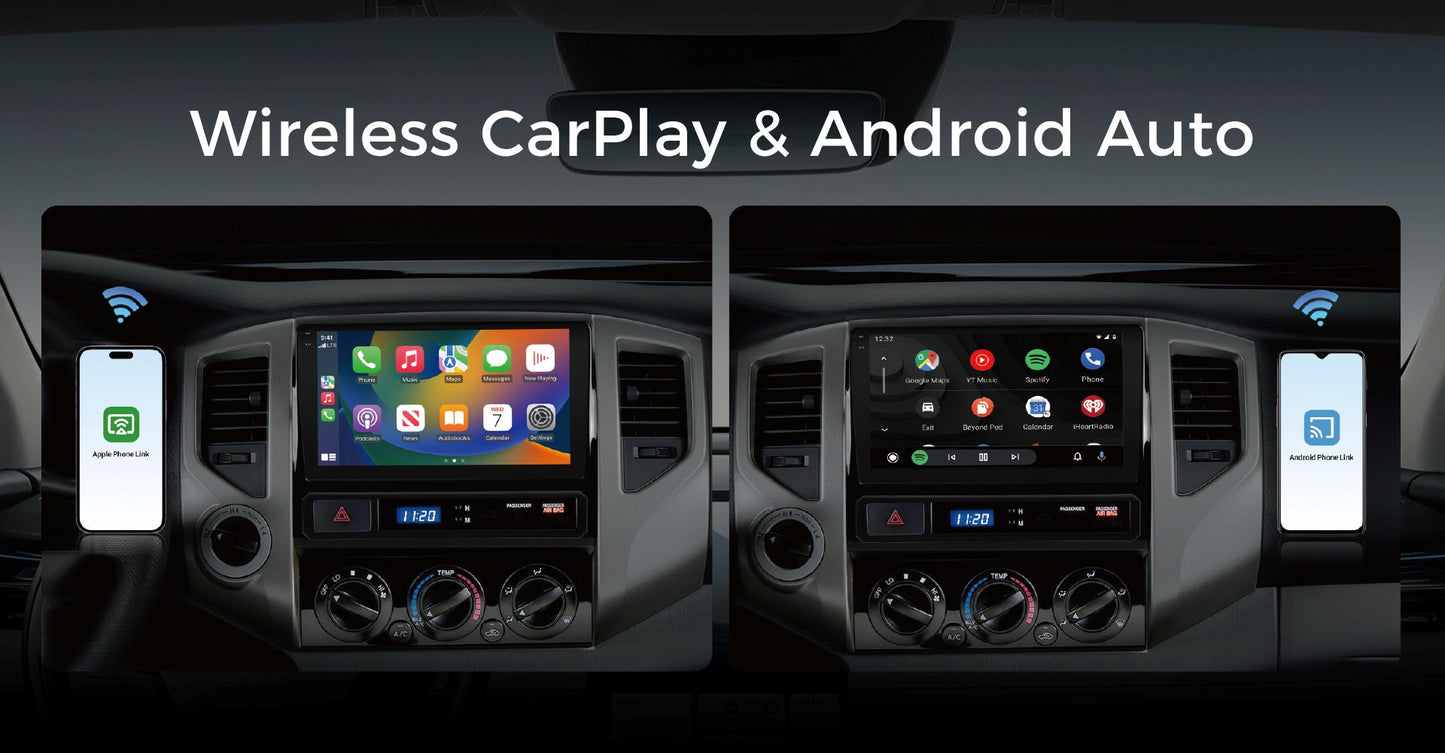
Use Android Auto
Using Android Auto is a smart way to connect your Android phone to your car stereo. It offers a safe and easy way to access apps, music, and navigation while driving. Android Auto works through a simple interface that shows on your car’s display, making controls quick and clear.
Install Android Auto App
First, check if your phone already has the Android Auto app. Most newer Android phones come with it pre-installed. If not, download it from the Google Play Store. The app is free and only takes a few minutes to install.
Make sure your phone’s software is up to date for the best performance. Also, check that your car stereo supports Android Auto. Many modern models do, but some older ones might not.
Set Up Android Auto
Start your car and connect your phone using a USB cable or Bluetooth, depending on your car’s system. The first time, the app will guide you through permission requests. Allow the app to access your phone’s features.
Follow the on-screen instructions to link your phone with the car stereo. You may need to agree to terms and enable notifications. Once set up, Android Auto will launch automatically when you connect your phone.
Navigate And Control
Use the touch screen on your car stereo or voice commands to control Android Auto. You can play music, get directions, or send messages without touching your phone. Voice control helps keep your eyes on the road.
The app supports popular apps like Google Maps, Spotify, and WhatsApp. You can customize the home screen to show your favorite apps for faster access.
Connect Via Auxiliary Cable
Connecting your Android phone to your car stereo with an auxiliary cable is simple. This method works well if your car stereo has a 3.5mm aux input. It offers clear sound without relying on Bluetooth or other wireless options. Follow these easy steps to enjoy your music or calls through the car speakers.
Locate Aux Port
Find the auxiliary port on your car stereo. It looks like a small round hole, usually labeled “AUX.” Common places include the front panel, center console, or near the gear shift. Sometimes it is inside the glove compartment or armrest. Use a flashlight if the space is dark.
Plug In The Cable
Take a 3.5mm auxiliary cable and plug one end into your phone’s headphone jack. If your phone lacks a headphone jack, use the correct adapter. Insert the other end of the cable into the car’s aux port. Make sure both ends fit securely to avoid loose connections.
Adjust Audio Settings
Turn on your car stereo and select the “AUX” input mode. On your Android phone, open the music or audio app you want to play. Raise the volume on both your phone and car stereo gradually. Adjust equalizer settings if your stereo has them for better sound quality.
Credit: www.vinlandautomotive.com
Common Issues And Fixes
Connecting your Android phone to your car stereo can sometimes bring challenges. Common issues may disrupt your music or calls. Understanding these problems helps you fix them quickly.
Connection Drops
Connection drops often occur due to weak Bluetooth signals or interference. Keep your phone close to the stereo to improve signal strength. Avoid other devices that use Bluetooth near your car. Restarting both the phone and stereo can also restore a stable connection.
Audio Quality Problems
Poor audio quality might result from low volume settings or dirty audio ports. Clean the headphone jack or USB port on your phone carefully. Check the car stereo’s audio settings and increase the volume if needed. Using high-quality cables can also improve sound clarity.
Phone Not Recognized
Your car stereo may fail to recognize your phone if Bluetooth is off or not paired correctly. Make sure Bluetooth is enabled on your Android device. Delete old Bluetooth connections on your stereo to avoid conflicts. Updating your phone’s software and the car stereo firmware can solve compatibility issues.
Tips For Safe Use
Connecting your Android phone to your car stereo can make driving more enjoyable and convenient. However, safety must always be your top priority. Here are some practical tips to keep your focus on the road while using your connected devices.
Minimize Distractions
Keep your phone setup simple before you start driving. Avoid fiddling with settings or playlists while on the road. If you need to change something, pull over safely or wait until you reach your destination.
Have you ever found yourself distracted by notifications or calls during a drive? Turning off non-essential alerts can help you stay focused. Use “Do Not Disturb” mode or set your phone to auto-reply to messages while driving.
Use Voice Commands
Voice commands are a great tool to keep your hands on the wheel and eyes on the road. Most Android phones support Google Assistant, which can play music, send messages, or navigate without touching your screen.
Try saying, “Hey Google, play my driving playlist” or “Navigate to the nearest gas station.” These simple commands save time and reduce distractions. Have you tried using voice control during your last drive? It can change how you interact with your phone.
Keep Software Updated
Make sure your Android phone and car stereo software are always up to date. Updates often fix bugs and improve compatibility, which helps avoid connection issues while driving.
Regular updates also enhance security, protecting your devices from vulnerabilities. Setting your phone to update automatically can save you the hassle and keep everything running smoothly.

Credit: www.youtube.com
Frequently Asked Questions
How Do I Connect My Phone Via Bluetooth?
To connect your Android phone via Bluetooth, first enable Bluetooth on both your phone and car stereo. Then, search for available devices on your phone. Select your car stereo from the list, and confirm the pairing request. Your phone should now be connected to your car stereo.
Can I Use A Usb Cable For Connection?
Yes, you can use a USB cable to connect your Android phone to your car stereo. Plug the USB cable into both your phone and the car stereo’s USB port. Your car stereo should recognize your phone as a media device, allowing you to play music and other audio files.
What If My Car Stereo Lacks Bluetooth?
If your car stereo lacks Bluetooth, consider using an auxiliary cable or a Bluetooth FM transmitter. An auxiliary cable connects directly from your phone’s headphone jack to the stereo. A Bluetooth FM transmitter connects to your phone via Bluetooth and transmits audio through a specific radio frequency.
Is Android Auto A Better Option?
Android Auto enhances your driving experience by mirroring your phone’s interface on the car stereo. It allows voice commands, navigation, and app access. If your car stereo supports Android Auto, it’s a great option for seamless integration and safer driving.
Conclusion
Connecting your Android phone to your car stereo is simple and useful. You can play music, make calls, and use apps safely. Just follow the steps carefully for a smooth setup. Most cars support Bluetooth or USB connections, making it easy to link devices.
Enjoy better sound and hands-free control while driving. Keep your phone updated and check your car’s manual for specific instructions. This small effort improves your driving experience every day. Try it today and stay connected on the road.

