How to Connect Mp3 Player to Car Stereo: Easy Step-by-Step Guide
Want to enjoy your favorite songs from your MP3 player through your car’s stereo? Connecting your MP3 player to your car stereo might seem tricky, but it’s easier than you think.
Imagine driving with your personal playlist blasting clearly, making every trip more fun. In this guide, you’ll learn simple, step-by-step ways to get your music playing without any hassle. Keep reading, and you’ll have your tunes ready to roll in no time.
Choosing The Right Connection Method
Choosing the right connection method for linking your MP3 player to your car stereo depends on the features your devices support and your personal preferences. Each option offers unique benefits and limitations that affect sound quality, ease of use, and setup time. Understanding these differences helps you pick the connection that fits your lifestyle and enhances your driving experience.
Auxiliary Cable Connection
Using an auxiliary (AUX) cable is one of the simplest and most reliable ways to connect your MP3 player to your car stereo. Just plug one end into your MP3 player’s headphone jack and the other into the car’s AUX input. This method offers clear audio quality without any lag or interference.
One drawback is the need for a physical wire, which can clutter your car’s interior. However, if your stereo has an AUX port, this connection is almost plug-and-play. Have you noticed how easy it is to just connect and start playing music without fussing over settings?
Bluetooth Pairing
Bluetooth lets you connect your MP3 player to your car stereo wirelessly, providing convenience and freedom of movement. Pairing is usually straightforward—enable Bluetooth on both devices, find your car stereo in the list, and connect.
Sound quality depends on the Bluetooth version and codec support, but it’s generally good enough for everyday listening. Keep in mind that Bluetooth can sometimes drop the connection or introduce slight delays. Does your car stereo support Bluetooth, or will you need an adapter?
Usb Port Setup
If your car stereo has a USB port, you can connect your MP3 player directly using a USB cable. This method often allows both playback and charging at the same time, which is a big plus on long drives.
Moreover, USB connections sometimes let you control your MP3 player through the car stereo’s interface, simplifying song selection. Consider this option if you want a neat setup without extra cables lying around.
Fm Transmitter Option
When other connection ports aren’t available, an FM transmitter can broadcast your MP3 player’s audio to your car stereo via an unused FM radio frequency. Plug the transmitter into your MP3 player, tune your car radio to the transmitter’s frequency, and enjoy your music.
This method is versatile but may suffer from static or interference depending on your location. Have you ever tried tuning into a clear FM channel while driving in busy areas? Finding a quiet frequency can be a challenge, but it’s a practical workaround when no direct connections exist.
Preparing Your Mp3 Player And Car Stereo
Preparing your MP3 player and car stereo is essential for a smooth connection. This process ensures both devices work well together. It helps avoid frustration and sound issues during playback.
Start by understanding the compatibility between your MP3 player and car stereo. Check the accessories you need for connection. Make sure both devices have enough power to operate properly.
Checking Compatibility
Check if your car stereo supports MP3 input. Look for USB ports, auxiliary (AUX) inputs, or Bluetooth options. Verify your MP3 player has compatible output ports.
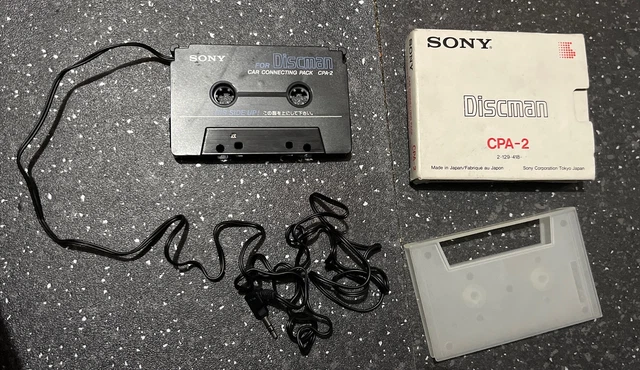
Some older car stereos may not support modern MP3 players. In such cases, consider adapters or alternative connection methods. Confirm audio formats supported by your car stereo for best sound quality.
Gathering Necessary Accessories
Collect all cables and adapters needed for connection. Common accessories include:
- 3.5mm AUX cable
- USB cable
- Bluetooth transmitter (if stereo lacks Bluetooth)
- FM transmitter (for stereos without AUX or USB ports)
Having these ready saves time and ensures a stable connection. Check that cables are in good condition without damage.
Powering Up Devices
Charge your MP3 player fully before connecting. A low battery can cause interruptions. Turn on your car stereo and select the correct input mode.
For Bluetooth connections, enable pairing mode on both devices. Keep devices close to maintain a strong signal. Proper power ensures continuous and clear music playback.
Connecting Via Auxiliary Cable
Connecting your MP3 player to a car stereo using an auxiliary cable is a simple and reliable way to enjoy your music. This method requires a basic 3.5mm aux cable, which most MP3 players and car stereos support. The process involves finding the right input, plugging in the cable, and setting your car stereo to the correct mode for audio playback.
Locating The Aux Input
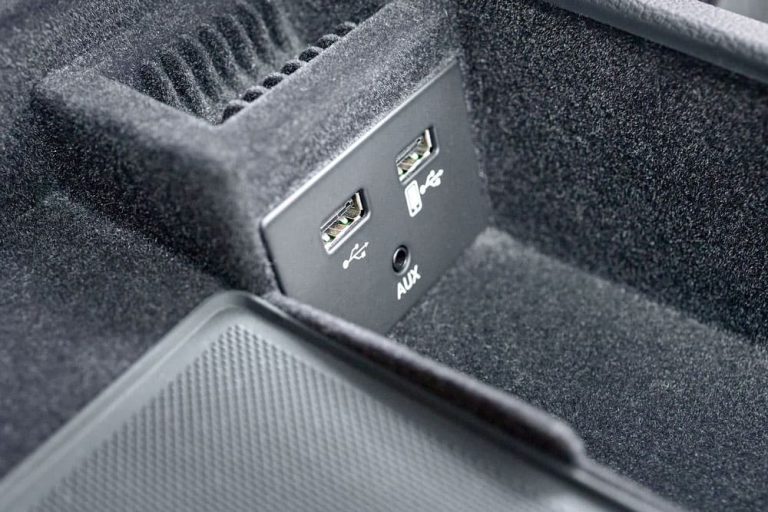
Look for a small, round port labeled “AUX” or with a headphone symbol. It is usually on the car stereo face, near the volume knob, or inside the center console. Some cars have the aux input in the glove compartment or armrest box. Check your car manual if you cannot find it.
Plugging In The Cable
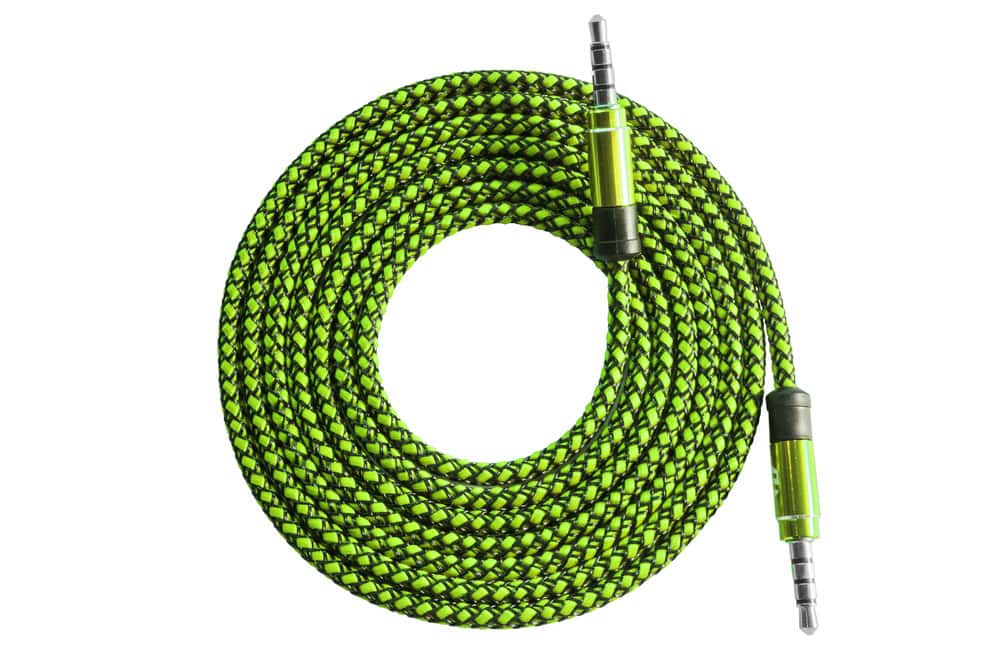
Use a 3.5mm auxiliary cable to connect the MP3 player to the car stereo. Insert one end into the headphone jack of your MP3 player. Plug the other end into the car’s aux input port. Ensure both ends are fully inserted for a clear sound connection. Avoid using damaged cables to prevent audio issues.
Adjusting Car Stereo Settings
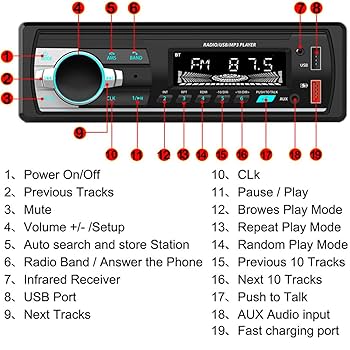
Turn on your car stereo and select the “AUX” or “Auxiliary” input mode. This switches the audio source to your MP3 player. Adjust the volume on both your MP3 player and car stereo for the best sound level. Pause or play music directly from your MP3 player for control.

Credit: manuals.plus
Pairing With Bluetooth
Pairing your MP3 player with your car stereo via Bluetooth offers a wireless and hassle-free way to enjoy your favorite tunes on the road. This connection eliminates the need for cables, giving you freedom while driving. Let’s look at how you can easily establish this connection.
Enabling Bluetooth On Mp3 Player
First, turn on the Bluetooth feature on your MP3 player. Most devices have a dedicated Bluetooth button or an option within the settings menu.
Look for a Bluetooth icon or navigate to Settings > Connectivity > Bluetooth. Activate it by toggling the switch to the “On” position.
If you don’t see the Bluetooth option, check your MP3 player’s manual to confirm it supports Bluetooth functionality.
Searching For Car Stereo Device
Next, make your car stereo discoverable by activating its Bluetooth pairing mode. This usually involves pressing and holding the Bluetooth or phone button on your stereo until the indicator light blinks.
On your MP3 player, select “Search for Devices”or “Scan”from the Bluetooth menu. Your car stereo’s name should appear on the list of available devices.
If your stereo doesn’t appear, try moving closer or restarting both devices. Sometimes, interference or previous pairings can prevent detection.
Confirming Pairing And Testing
Once your car stereo appears on the MP3 player’s screen, select it to start pairing. You might be prompted to enter a PIN; commonly, it’s “0000” or “1234.”
After successful pairing, your car stereo will indicate the connection with a sound or a solid Bluetooth light. Play a song on your MP3 player to test if the audio streams through the car speakers.
If you don’t hear sound, check the car stereo’s input source or volume settings. Have you noticed your connection drops sometimes? Try clearing old pairings to improve stability.
Using Usb Connection
Using a USB connection is one of the simplest ways to play music from your MP3 player through your car stereo. It offers clear sound quality and often allows you to control playback directly from the car’s dashboard. Let’s walk through how to make this connection smoothly and get your tunes playing in no time.
Finding The Usb Port
Look around your car’s dashboard, center console, or even inside the glove compartment to locate the USB port. Some cars have multiple ports, so choose the one labeled for media or audio if available. If you can’t find it, check your car’s manual or try the USB ports used for charging devices—they often support audio input too.
Connecting The Mp3 Player
Use a compatible USB cable to connect your MP3 player to the car’s USB port. Make sure the cable fits snugly at both ends to avoid interruptions. Once connected, your car stereo might automatically switch to USB mode, but if not, select “USB” or “Media” from the stereo’s input options.
Navigating Files On Car Stereo
Your car stereo will display your MP3 player’s folders and files, letting you browse through your music collection. Use the car’s control knobs, touchscreen, or buttons to scroll through songs, albums, or playlists. Think about how you organize your music—does your MP3 player have clear folder names? Proper organization will make finding your favorite songs much easier on the road.
Credit: stoller.com.tr
Setting Up Fm Transmitter
An FM transmitter allows your MP3 player to play through your car stereo without cables. It sends audio signals over an FM frequency. Setting up the transmitter correctly ensures clear sound and minimal interference. Follow simple steps to tune and match frequencies for the best experience.
Tuning The Transmitter Frequency
Start by turning on the FM transmitter. Use its controls to select a frequency. Choose a number that is not used by local radio stations. Look for a frequency with no static or voice interference. Many transmitters show the frequency on a small screen. Adjust the dial slowly to find a clear channel.
Matching Car Radio Frequency
Next, turn on your car radio. Set it to the exact frequency shown on the FM transmitter. Make small adjustments if the sound is unclear. Both devices must be on the same frequency to work. This step connects your MP3 player audio to the car stereo. Double-check the frequencies match perfectly for best results.
Optimizing Signal Quality
Signal quality depends on distance and interference. Keep the transmitter close to your MP3 player and car stereo. Avoid metal objects that block signals. Move your car away from tall buildings or power lines. Lower the volume on the MP3 player to avoid distortion. Test different frequencies if static appears. Clear sound means better listening pleasure.
Troubleshooting Common Issues
Connecting an MP3 player to a car stereo is usually simple. Problems can still happen. Knowing how to fix common issues saves time and stress. This section covers three common problems and how to solve them.
No Sound Output
Check the volume on both the MP3 player and car stereo. Make sure neither is muted. Confirm the cable or Bluetooth connection is secure. Try using a different audio cable. Test the MP3 player with headphones to ensure it works. Reset the car stereo if needed.
Connection Drops
Loose cables often cause connection drops. Replace worn or damaged cables. For Bluetooth, keep the devices close. Avoid obstacles like metal objects or walls. Turn off other Bluetooth devices nearby. Restart both the MP3 player and car stereo to refresh the connection.
Compatibility Problems
Check if the car stereo supports your MP3 player’s format or connection type. Older stereos may not work with newer devices. Look for an adapter or converter if needed. Update the car stereo’s firmware if possible. Use apps or software that match your device’s format.
Tips For Best Audio Experience
Getting a clear and rich sound from your MP3 player through your car stereo can make every drive more enjoyable. Small adjustments and mindful habits can elevate your audio experience significantly. Here are some practical tips to help you get the best sound quality while keeping your setup efficient and hassle-free.
Volume Adjustment
Set your MP3 player’s volume to about 75% before adjusting the car stereo’s volume. This prevents distortion caused by maxing out either device. You might find that a balanced volume on both devices delivers cleaner sound and protects your speakers.
Have you noticed how blasting the stereo sometimes makes music sound tinny? That’s usually distortion from pushing one device too hard. Keeping volumes moderate on both ends keeps the audio crisp and enjoyable.
Avoiding Interference
Interference can ruin your listening experience with static or buzzing noises. To reduce this, use shielded audio cables or a high-quality auxiliary cord. Avoid running cables near power sources or other electronic devices that emit electromagnetic signals.
Try repositioning the MP3 player and cords if you hear interference. Sometimes, even small changes in placement can clear up the sound dramatically. Have you checked if your car’s Bluetooth or radio signals might be clashing with your connection?
Maintaining Battery Life
Playing music through your car stereo can drain your MP3 player’s battery faster than usual. Save power by lowering screen brightness and turning off unnecessary apps. Consider carrying a car charger or a power bank to keep your device charged on longer trips.
Ever been stuck with a dead MP3 player mid-journey? Planning ahead with battery management keeps your music playing without interruption. What simple steps can you take to extend your device’s battery life during your drives?
Credit: autowiringpro.com
Frequently Asked Questions
How Do I Connect An Mp3 Player To My Car?
To connect an MP3 player, use an auxiliary cable or Bluetooth. Plug the cable into the car’s AUX port or pair the devices via Bluetooth. Follow your car stereo’s instructions for pairing or switching to AUX mode for seamless playback.
Can I Use Usb To Connect Mp3 Player?
Yes, if your car stereo has a USB port, you can connect an MP3 player using a USB cable. This method often provides better sound quality and charges your device simultaneously. Ensure your car stereo supports USB playback from external devices before connecting.
Why Won’t My Mp3 Player Connect To The Car Stereo?
Check if the auxiliary cable or Bluetooth is properly connected and paired. Ensure the car stereo is set to the correct input mode. Restart both devices to resolve minor connectivity issues. If problems persist, consult the user manuals or contact support for further assistance.
Is Bluetooth Connection Better Than Aux Cable?
Bluetooth offers wireless convenience and easy connectivity, while an AUX cable often provides better sound quality. Bluetooth may compress audio, affecting quality. If sound quality is a priority, use an AUX cable. For convenience, Bluetooth is a great option for seamless playback.
Conclusion
Connecting your MP3 player to a car stereo is simple and quick. Choose the right cable or adapter for your device. Plug it into your car’s AUX or USB port. Adjust the car stereo settings to play from your MP3 player.
Enjoy your favorite music while driving safely. With these easy steps, music travels with you everywhere. No extra tools or skills needed. Just follow the guide, and your songs will sound great on the road. Simple, fast, and fun.