
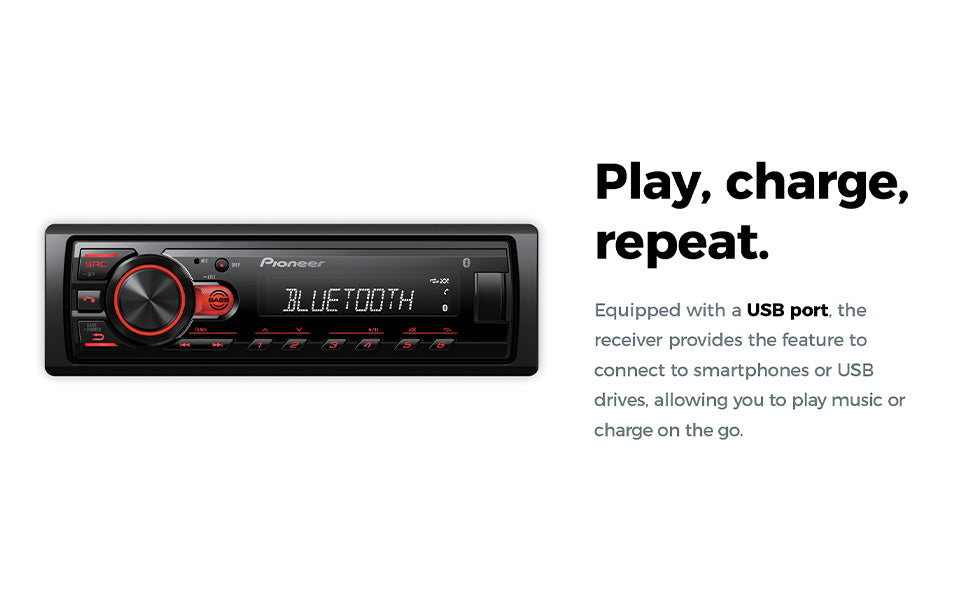
Are you struggling to get your Pioneer car stereo to play music from your phone or other devices? Turning on the AUX input might seem tricky at first, but once you know the simple steps, you’ll be enjoying your favorite tunes in no time.
In this guide, you’ll learn exactly how to activate the AUX mode on your Pioneer stereo quickly and easily. Keep reading, and you’ll never have to miss a beat on your drives again.
Locate Aux Input On Pioneer Stereo
Finding the Aux input on your Pioneer car stereo is the first step to playing music from your phone or other devices. This input lets you connect external audio sources easily, giving you more control over what you listen to while driving.
Sometimes, the Aux port isn’t obvious. It could be on the front, back, or even hidden behind a panel. Knowing exactly where to look saves time and frustration, especially if you want to get your music going quickly.
Check The Front Panel Of Your Pioneer Stereo
The most common spot for the Aux input is on the front of the stereo unit. Look for a small, round jack labeled “AUX” or with a headphone icon.
If you don’t see it immediately, check near the volume knob or below the display screen. Sometimes the port is tucked in a corner or blends in with other buttons.
Look Behind The Stereo Unit
If the front panel doesn’t have an Aux input, try looking behind the stereo. Some Pioneer models place the Aux port on the back, which means you’ll need to access it by removing the stereo from the dashboard.
Make sure your car is turned off before you do this. If you’re not comfortable with this step, a quick visit to a professional installer can help you find and use this input safely.
Check For An Auxiliary Input Panel Or Adapter
Some cars don’t have a direct Aux input on the stereo but instead offer it through a separate panel or adapter. These might be located near the glove box, center console, or armrest.
Sometimes, you’ll find an adapter cable that plugs into the stereo’s CD changer port and converts it to an Aux input. Check your car manual or ask a dealer if you’re unsure about this option.
Credit: www.diymobileaudio.com
Prepare Your Audio Device
Preparing your audio device is a key step before connecting it to your Pioneer car stereo via AUX. Proper preparation ensures smooth connection and clear sound. This section covers simple actions to get your device ready.
Check Your Device’s Audio Output
Make sure your device has a headphone jack or audio out port. Most smartphones, tablets, and MP3 players have a 3.5mm audio output. If your device lacks this port, consider using an adapter for compatibility.
Set The Volume To A Moderate Level
Adjust your device volume to a medium level before connecting. This prevents sudden loud noises that can damage your car speakers. You can fine-tune the volume later from both your device and stereo.
Turn Off Bluetooth And Other Audio Connections
Disable Bluetooth or other wireless audio connections on your device. This avoids interference and ensures the stereo uses the AUX input correctly. Wired connection often gives better sound quality.
Close Any Audio Apps Not In Use
Stop apps that play sounds in the background. Closing these apps prevents audio interruptions and improves playback through the AUX connection. Use only the app you want to listen to.
Prepare The Aux Cable
- Use a good quality 3.5mm AUX cable.
- Check for any damage or loose connectors.
- Keep the cable short to avoid tangling and signal loss.
Connect Aux Cable To Stereo And Device
Connecting an aux cable to your Pioneer car stereo and device is a straightforward way to enjoy your favorite tunes on the road. This connection lets you play audio from phones, tablets, or MP3 players directly through your car’s speakers. Paying attention to the correct ports and cable types ensures a smooth setup without frustrating interruptions.
Locate The Aux Input On Your Pioneer Stereo
Start by finding the aux input jack on your Pioneer stereo. It’s usually marked as “AUX” and looks like a small, round headphone port. Some models place it on the front panel, while others may hide it in the glove box or center console.
Not seeing an obvious aux port? Check your stereo’s manual or look for a small flap that covers the input. Knowing exactly where it is saves you time and avoids unnecessary guessing.
Choose The Right Aux Cable
Most aux cables have two 3.5mm male connectors, perfect for smartphones and standard audio devices. If your device uses a different port, like a Lightning connector for iPhones or USB-C for some Android phones, you might need an adapter.
Think about cable length too — too short means limited movement, too long can get tangled. Pick a cable that comfortably reaches from your device to the stereo without excess slack.
Connect Your Device To The Stereo
Plug one end of the aux cable into your device’s headphone jack or adapter. Then, connect the other end into the Pioneer stereo’s aux input. Make sure the connection is snug to avoid crackling sounds during playback.
Once connected, turn on your stereo and select the “Aux” input source. If you don’t see “Aux” on the display, try cycling through the input options until you find it. This simple step activates the stereo to receive audio from your device.
Test The Connection And Adjust Volume
Play some music or audio from your device to test the connection. If you don’t hear anything, double-check both ends of the aux cable and the stereo input selection. Adjust your device’s volume and the car stereo volume to get clear, balanced sound.
Ever noticed audio distortion at high volumes? That usually means one of the volumes is set too high. Adjust both for the best sound quality without straining the speakers or your ears.
Switching To Aux Mode On Pioneer Stereo
Switching to Aux mode on a Pioneer car stereo lets you play audio from external devices. This feature is handy for smartphones, MP3 players, or tablets. Understanding how to access Aux mode quickly enhances your in-car music experience.
Below are two common ways to switch to Aux mode on Pioneer stereos. Both methods are straightforward and require no special tools.
Using The Source Button
The easiest way to switch to Aux mode is by using the Source button. This button is usually located on the front panel of the stereo.
- Press the Source button repeatedly until the display shows “AUX” or “Auxiliary.”
- Connect your external device to the Aux input jack, often a 3.5mm port.
- Start playing audio from your device to hear it through the car speakers.
This method works well for quick switching without diving into settings.
Using The Menu Settings
Some Pioneer models allow switching to Aux mode via the menu settings. This is useful if the Source button doesn’t directly switch to Aux.
- Press the Menu or Setup button on the stereo.
- Navigate to the Input or Source section using the arrow keys.
- Select “Aux” from the list of available inputs.
- Confirm your selection, then exit the menu.
- Plug in your external device to start playing audio.
This method offers more control and works on various Pioneer stereo models.
Adjusting Volume And Sound Settings
Adjusting the volume and sound settings on your Pioneer car stereo is key to getting the best listening experience. Simply turning the volume up is not enough; fine-tuning the sound can make your music feel more alive and clear. Let’s look at how you can control volume and tweak equalizer settings effectively.
Volume Control
Most Pioneer car stereos have a straightforward volume knob or buttons that you can use to increase or decrease the sound level. Try adjusting the volume slowly to find a comfortable level without distortion or sudden loud bursts.
If you often switch between audio sources, remember that volume levels can vary. You might need to lower the volume when switching from radio to aux input because of different signal strengths.
Have you noticed how some songs sound louder than others even at the same volume? That’s where volume control combined with sound settings can really help balance your listening experience.
Equalizer Settings
Using the equalizer (EQ) on your Pioneer stereo lets you shape the sound to match your preferences. You can boost bass for a deeper sound or increase treble to make vocals clearer.
Most models offer presets like Rock, Jazz, or Pop, but you can also manually adjust frequencies. Try small changes at a time—raise the mid-range slightly if vocals sound muffled or lower the bass if the sound feels too boomy.
Don’t hesitate to experiment with the EQ settings during different types of music. What works for a rock song might not suit a podcast or classical track. Adjusting your EQ can transform your car ride into a personalized concert.
Troubleshooting Common Aux Issues
Auxiliary input issues on a Pioneer car stereo can stop your music from playing. Troubleshooting these common problems helps restore sound quickly. Understanding simple fixes saves time and frustration.
Check connections and settings carefully. Most issues come from loose cables or wrong stereo modes. Testing each part ensures you find the exact problem.
No Sound Output
Verify the aux cable is fully plugged into both devices. Loose connections cause no sound. Check the volume level on both the stereo and the connected device. The stereo must be set to Aux mode. Try a different aux cable to rule out a faulty wire.
Static Or Interference Noise
Static often comes from damaged cables or poor connections. Replace the aux cable with a high-quality one. Keep cables away from power wires and devices causing interference. Clean the aux jack gently to remove dirt or dust that blocks signals. Adjust the volume levels to avoid distortion.
Aux Not Recognized
Make sure the stereo is in the correct Aux input mode. Restart the stereo and the connected device. Some Pioneer models need the device to be active before recognition. Test the aux input with another device to check if the problem is with your phone or player. Update the stereo’s firmware if available for better compatibility.
Tips For Better Aux Audio Experience
Enhancing your Aux audio experience on a Pioneer car stereo can make every drive more enjoyable. Simple adjustments and good habits improve sound clarity and reduce interruptions. These tips help you get the best from your connection and music quality.
Use A High-quality Aux Cable
Choose a cable with strong connectors and thick insulation. Cheap cables often cause static or dropouts. A good cable keeps the sound clear and consistent.
Keep Volume Levels Balanced
Set your phone and stereo volumes to medium levels. Avoid maxing out either side to prevent distortion. Balanced volume preserves sound quality and protects your speakers.
Avoid Tangled Or Damaged Cables
Untangle your Aux cable before use. Bends and twists can damage the wire inside. Replace cables showing signs of wear to maintain good sound.
Clean The Aux Port Regularly
Dust and dirt can block the connection in the Aux port. Use a soft brush or compressed air to clean it gently. A clean port ensures a strong audio signal.
Minimize Interference From Other Devices
Keep your phone or music player away from other electronics. Some devices create noise that affects Aux audio. Reducing nearby interference improves sound clarity.
Use Equalizer Settings Wisely
Adjust the stereo’s equalizer to fit your music style. Avoid extreme bass or treble boosts. Proper equalizer settings enhance audio without distortion.

Credit: www.youtube.com

Credit: www.reddit.com
Frequently Asked Questions
How Do I Activate Aux On A Pioneer Car Stereo?
To activate AUX on a Pioneer stereo, press the “Source” or “SRC” button repeatedly. Stop when “AUX” appears on the display. Connect your device to the AUX port using an auxiliary cable for audio playback.
Why Won’t Aux Input Work On My Pioneer Stereo?
Check if the AUX cable is properly plugged into both the stereo and your device. Ensure the stereo is set to AUX mode. Also, verify your device’s volume is up and that the cable is not damaged.
Can I Use Aux With Bluetooth On Pioneer Stereos?
Yes, you can use AUX and Bluetooth but not simultaneously. Switching to AUX mode disables Bluetooth audio. To switch back, change the source to Bluetooth via the “Source” button.
Where Is The Aux Input Located On Pioneer Stereos?
The AUX input is usually on the front panel or inside the glove box. Some models have a rear AUX port. Consult your stereo’s manual for the exact location.
Conclusion
Connecting your Pioneer car stereo to AUX is simple. First, locate the AUX input on your stereo. Plug in your audio cable securely. Then, switch your stereo to AUX mode. Play your favorite music on your device. Adjust the volume to your liking.
Enjoy high-quality sound on the go. Repeat these steps whenever you want to use AUX. Now, you can easily enhance your car audio experience. Regular practice will make you more confident. Remember, a good setup ensures seamless audio enjoyment. Safe travels and happy listening!

