

If you want to enjoy hands-free calls and stream music effortlessly in your car, activating Bluetooth on your JVC car stereo is the first step. You might think it’s complicated, but it’s actually simple once you know how.
This guide will walk you through each step clearly and quickly, so you can connect your phone and start using Bluetooth without any hassle. Keep reading, and you’ll be ready to enjoy a safer, smarter drive in no time.
Locate The Bluetooth Button
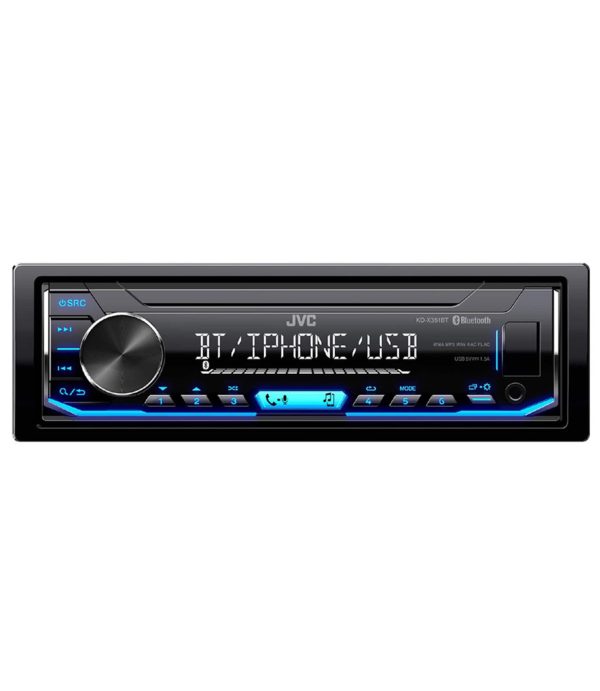
Finding the Bluetooth button on your JVC car stereo is the first task for wireless connection. This button activates the Bluetooth mode, allowing your phone or other devices to pair with the stereo. It often looks like a small symbol or is labeled clearly.
The location varies by model but is usually easy to spot on the front panel. Knowing where this button is saves time and makes the setup smoother.
Check The Front Panel
The Bluetooth button is often placed on the main control panel. Look near the volume knob or the central display screen. It might have a Bluetooth icon, which looks like a stylized “B” made of triangles.
Look For A Dedicated Bluetooth Key
Some JVC models have a button labeled “BT” or “Bluetooth.” This key is designed specifically to toggle Bluetooth on or off. Pressing it puts the stereo into pairing mode.
Use The Menu Button
If you don’t find a visible Bluetooth button, press the Menu or Setup button. Navigate through the options using arrow keys. Find the Bluetooth settings and activate it from there.
Consult The User Manual
The user manual shows exact locations and symbols for the Bluetooth button. It also explains how to activate Bluetooth on your specific JVC model. Manuals are available online if you don’t have a physical copy.
Access The Settings Menu
Accessing the settings menu on your JVC car stereo is the first step to activate Bluetooth. This menu lets you control many features, including Bluetooth connections. Knowing how to reach and use this menu makes pairing devices easier. Follow the on-screen guide carefully to find the right options.
Navigate Using The Display
Start by turning on your JVC stereo. Look for the “Menu” button on the front panel or remote. Press it to open the main settings screen. Use the dial or arrow keys to move through the options. Watch the display closely to see which menu you select. Stop at the “Settings” or “Setup” section. This area contains all system controls.
Select Bluetooth Options
Inside the settings menu, scroll to find “Bluetooth” or “BT” options. Select this choice by pressing the enter or OK button. You will see various Bluetooth features like pairing, device list, and connection status. Choose “Pair Device” to start linking your phone or other gadgets. Follow the instructions on the screen to complete the pairing process smoothly.
Pair Your Device
Pairing your device with the JVC car stereo allows hands-free calls and music streaming. This process links your phone to the stereo via Bluetooth. Follow simple steps to connect your phone quickly and safely.
Enable Bluetooth On Your Phone
Open your phone’s settings menu. Find the Bluetooth option and tap it. Switch Bluetooth on to make your device discoverable. Stay on this screen until the connection completes.
Search For Jvc Stereo
On your phone, look for available devices. The JVC stereo appears as a device name like “JVC” or a model number. Select the JVC stereo from the list. Wait for your phone to connect to the stereo.
Confirm The Pairing Code
A code shows on both your phone and stereo display. Check that both codes match exactly. Confirm the code on your phone to complete pairing. The devices connect and are ready to use.
Credit: sbrprosound.co.za
Troubleshoot Connection Issues
Experiencing trouble connecting your phone to the JVC car stereo’s Bluetooth can be frustrating. Often, the issue lies not with your device but with the stereo settings or compatibility. Troubleshooting these common problems can save you time and get your music or calls flowing smoothly again.
Reset The Stereo
Resetting your JVC stereo often clears any glitches that block Bluetooth connection. Look for a small reset button on the faceplate or check the manual for a combination of buttons to hold. After the reset, the stereo returns to factory settings, which can resolve persistent connection problems.
Remember, resetting erases all custom settings, so you’ll need to set up your preferences again. Have you noticed how a fresh start often fixes stubborn tech issues? This simple step can be your quickest fix.
Clear Paired Devices
Sometimes the stereo’s memory is full of old paired devices, which prevents new connections. Access the Bluetooth menu on your JVC stereo and remove any devices you no longer use. Clearing this list frees up space and minimizes interference.
If you regularly connect multiple devices, consider managing the list often. Do you keep track of your paired devices, or do you let them pile up? Taking control here can prevent many headaches.
Check Bluetooth Compatibility
Not all phones and devices work perfectly with every car stereo. Verify if your phone’s Bluetooth version matches the stereo’s supported profiles. Some older JVC models may not support the latest Bluetooth standards or certain codecs.
Consult your stereo’s manual or JVC’s website for compatibility details. If your device isn’t fully compatible, connection issues are likely. Ask yourself if your phone’s Bluetooth has updated recently or if you might need a software update to improve compatibility.
Use Bluetooth Features
Using Bluetooth features on your JVC car stereo opens up a world of convenience and safety. Once connected, you can enjoy wireless communication and entertainment without fumbling with wires. Let’s look at how you can make the most out of these features to enhance your driving experience.
Make Hands-free Calls
Hands-free calling lets you stay focused on the road while talking to friends, family, or colleagues. Your JVC stereo acts as a speakerphone, allowing you to answer or reject calls with simple button presses on the unit or your steering wheel.
To start, pair your phone with the stereo’s Bluetooth. After that, your recent calls and phonebook sync automatically if supported. This means you can dial contacts directly from the stereo display without touching your phone.
Have you noticed how much safer you feel when your hands stay on the wheel? Using the voice command feature can make calling even easier—just speak the name of the person you want to call. This keeps distractions low and control high.
Stream Music Wirelessly
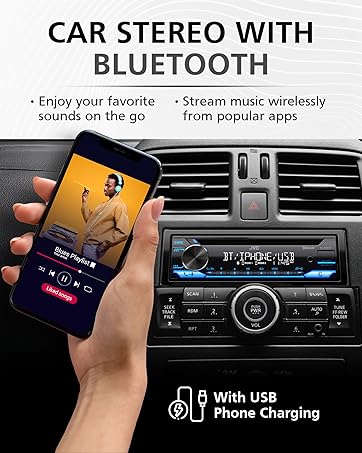
Streaming music from your phone or other Bluetooth devices is one of the best ways to enjoy your favorite tunes on the road. Once paired, your JVC stereo becomes a wireless audio receiver, letting you play playlists, podcasts, or radio apps effortlessly.
You can control playback right from the stereo’s interface—pause, skip tracks, or adjust volume without reaching for your phone. This smooth access keeps your attention on driving while still enjoying your soundtrack.
Imagine cruising down the highway with your favorite playlist flowing seamlessly. Don’t forget to explore different apps too; some provide enhanced sound quality or unique playlists that can refresh your daily drives.
Credit: www.amazon.com

Credit: manuals.plus
Frequently Asked Questions
How Do I Activate Bluetooth On My Jvc Stereo?
To activate Bluetooth on your JVC car stereo, first turn on the stereo. Then, press the “Bluetooth” button on the unit. Navigate to “Bluetooth” settings in the menu. Ensure Bluetooth is enabled on your mobile device. Search for the stereo’s Bluetooth name and connect.
Why Won’t My Jvc Stereo Bluetooth Connect?
If your JVC stereo Bluetooth won’t connect, ensure both devices have Bluetooth enabled. Check the stereo’s Bluetooth settings for device visibility. Restart both devices to reset connections. Ensure the stereo is not connected to another device. Update the firmware if necessary to resolve connectivity issues.
Can I Play Music Via Bluetooth On Jvc?
Yes, you can play music via Bluetooth on your JVC car stereo. Ensure your mobile device is paired with the stereo. Once paired, select the Bluetooth audio source on the stereo. Play music on your device, and it will stream through your car speakers.
How Do I Reset Bluetooth On Jvc Stereo?
To reset Bluetooth on your JVC stereo, first turn off the stereo. Then, press and hold the “Bluetooth” button for several seconds. This action will clear all paired devices. Reconnect your mobile device by following the initial pairing steps. This often resolves connectivity problems.
Conclusion
Activating Bluetooth on your JVC car stereo is simple and quick. Just follow the steps carefully to connect your device. Once paired, enjoy hands-free calls and wireless music easily. This makes driving safer and more fun. Keep your stereo’s manual handy for extra help.
Practice a few times to get comfortable with the process. Stay connected on the road without distraction. Bluetooth adds convenience to every drive. Try it today and hear the difference yourself.

