
Want to enjoy your favorite music, podcasts, or GPS directions right through your car’s speakers? Connecting your Android phone to your car stereo makes that possible—and it’s easier than you might think.
Whether you’re tired of fumbling with cables or want a smoother hands-free experience, this guide will walk you through simple steps to get your Android talking to your car stereo. By the end, you’ll be cruising with clear sound and full control right at your fingertips.
Ready to upgrade your drive? Let’s dive in.

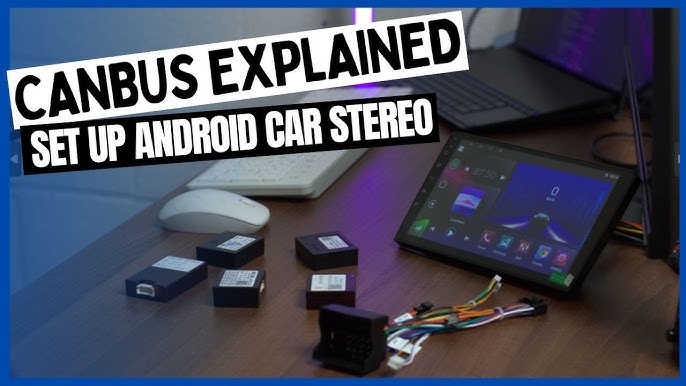
Credit: www.youtube.com
Choose Connection Method
Choosing the right connection method lets you enjoy music and calls safely. Different cars and phones support various ways to connect. Each method has pros and cons. Pick one that fits your car stereo and phone features.
Bluetooth Pairing
Bluetooth is a wireless option to link your phone and car stereo. It works without cables, giving freedom to move inside the car. Most newer cars and Android phones support Bluetooth. Pairing is simple and fast. It also handles calls and music streaming well.
Usb Cable Connection
Using a USB cable connects your phone directly to the car stereo. This gives a stable and fast connection. The car stereo can charge your phone while playing music. USB also supports advanced features like control from the car’s screen. A good choice for clear sound and easy control.
Auxiliary Input
The auxiliary input uses a 3.5mm audio cable to link your phone to the stereo. It is a basic, wired option. Almost all car stereos have an aux input. The sound quality depends on the cable and phone output. No phone charging or control from the stereo with this method.
Fm Transmitter
An FM transmitter sends audio from your phone to the car radio over a free FM frequency. It works for older cars without Bluetooth or aux input. You tune the car radio to the transmitter frequency to hear music. Sound quality may vary with interference.
Prepare Your Android Device
Preparing your Android device is key to a smooth connection with your car stereo. This step ensures your phone and car communicate correctly. It saves time and avoids connection problems. Follow these simple settings to get ready.
Enable Bluetooth And Wi-fi
Turn on Bluetooth to pair your phone with the car stereo. Bluetooth allows wireless audio and calls. Wi-Fi may be needed for some advanced features or apps.
- Go to Settings on your Android device.
- Tap on Bluetooth and switch it on.
- Check Wi-Fi and turn it on if your car supports Wi-Fi connection.
Keep both Bluetooth and Wi-Fi active during the connection process.
Check Usb Debugging Settings
USB Debugging helps your phone connect via cable if Bluetooth is unavailable. It enables data transfer and app communication.
- Open Settings and select About Phone.
- Tap Build Number seven times to unlock Developer Options.
- Go back to Settings and open Developer Options.
- Find USB Debugging and enable it.
Enable USB Debugging only when using a USB connection to your car.
Download Necessary Apps
Some car stereos require specific apps for full features. These apps enhance music, navigation, and hands-free calls.
- Check your car stereo manual for app recommendations.
- Download apps like Android Auto or the car brand’s app from Google Play Store.
- Install and open the app to complete setup.
Keep apps updated for better performance and compatibility.
Set Up Car Stereo
Setting up your car stereo is the key to a smooth connection between your Android device and your car’s audio system. It ensures that sound plays clearly and controls respond as expected. Taking a few moments to configure the stereo can save you frustration and improve your driving experience.
Access Stereo Settings
Start by turning on your car stereo and locating the settings menu. This is usually accessible via a “Menu” or “Setup” button on the stereo panel or touchscreen. Once inside, look for options related to connectivity or Bluetooth settings.
If you’re unsure where the settings are, check your car stereo’s manual or look online for your specific model. Navigating these menus might feel tricky at first, but it becomes second nature with a little practice. Have you ever stumbled upon a setting that completely changed how your stereo worked?
Activate Bluetooth Or Usb Mode
To connect your Android device, you need to activate either Bluetooth or USB mode on the stereo. Bluetooth mode lets you pair wirelessly, while USB mode requires a cable connection but often provides better sound quality.
In Bluetooth mode, select “Pair New Device” or a similar option, then make sure your Android’s Bluetooth is turned on and visible. In USB mode, simply connect your phone with a USB cable and select “USB” as the source on the stereo. Which method do you prefer for ease and sound quality?
Tune To Fm Frequency
If your stereo supports FM transmission from your phone, you’ll need to tune to the correct FM frequency. Find an empty frequency on your car stereo by scanning through the FM bands.
Then, set the same frequency on your Android device’s FM transmitter app or feature. This method is a handy workaround if your stereo doesn’t support Bluetooth or USB, but it might pick up some radio interference. Have you tried using FM transmission and noticed any signal issues during your drive?

Credit: getcartablet.com
Connect And Pair Devices
Connecting your Android device to your car stereo opens up a world of convenience and entertainment. Whether it’s streaming your favorite playlists or making hands-free calls, pairing your devices is the first step. Here’s how you can connect and pair your Android phone with your car stereo using several common methods.
Pair Via Bluetooth
Bluetooth is the most popular way to wirelessly connect your Android to your car stereo. Start by turning on Bluetooth on both your phone and car system. Look for your car’s Bluetooth name in the list of available devices on your phone and select it.
Next, confirm the pairing code on both devices if prompted. Once connected, your car stereo will typically save the device for automatic reconnection next time. Have you noticed how seamless hands-free calls become once Bluetooth is paired correctly?
Connect With Usb Cable
Using a USB cable provides a stable and fast connection between your phone and car stereo. Simply plug your phone into the car’s USB port with a compatible cable. Most modern car stereos detect the device instantly and switch to USB mode.
This method often allows you to control music directly from the car’s interface and even charge your phone simultaneously. If you want reliable audio without wireless interruptions, a USB connection is a solid choice.
Plug In Auxiliary Cable
If your car stereo has an auxiliary (AUX) input, you can connect your phone using a 3.5mm audio cable. Plug one end into your phone’s headphone jack or adapter, and the other into the AUX port on your car stereo.
This method is simple and works with almost any device, but it doesn’t support hands-free calls or device controls through the stereo. Think about whether you want just music playback or full integration before choosing this option.
Sync With Fm Transmitter
An FM transmitter is a handy tool if your car stereo lacks Bluetooth or AUX input. It plugs into your phone’s headphone jack or USB port and broadcasts your audio over an unused FM radio frequency.
Tune your car stereo to that frequency to hear your phone’s audio through the car speakers. While this method may involve some trial and error finding a clear frequency, it’s a practical solution for older car stereos.
Troubleshoot Common Issues
Connecting your Android device to your car stereo can sometimes hit a few bumps. Troubleshooting common issues quickly helps you get back to enjoying your music or navigation without frustration. Let’s dive into some practical ways to fix the most frequent problems you might face.
Connection Failures
If your phone doesn’t connect to the car stereo, first check the basics: Is Bluetooth turned on for both devices? Sometimes, simply turning Bluetooth off and on again on your phone and stereo resets the connection.
Clear any previous pairings on both devices. Old connections can block new ones. Also, make sure your car stereo is in pairing mode—this step is often overlooked.
Have you noticed your phone connecting to other devices but not your car? This could mean your stereo’s firmware needs updating. Check your car manufacturer’s website for updates or visit a dealer.
Audio Quality Problems
Crackling sounds or poor audio quality can ruin your listening experience. Start by inspecting the physical connection if you’re using an auxiliary cable—frayed or loose cables cause interference.
Bluetooth audio quality can degrade if your phone is too far from the stereo or if there are obstacles blocking the signal. Try moving your phone closer and removing any objects between the devices.
Also, check your phone’s audio settings. Some phones have sound enhancements that might conflict with your car’s audio system. Turning off equalizers or sound effects can improve clarity.
Device Compatibility
Not all Android devices work seamlessly with every car stereo. Your phone’s Android version and the stereo’s Bluetooth profile need to match for optimal performance.
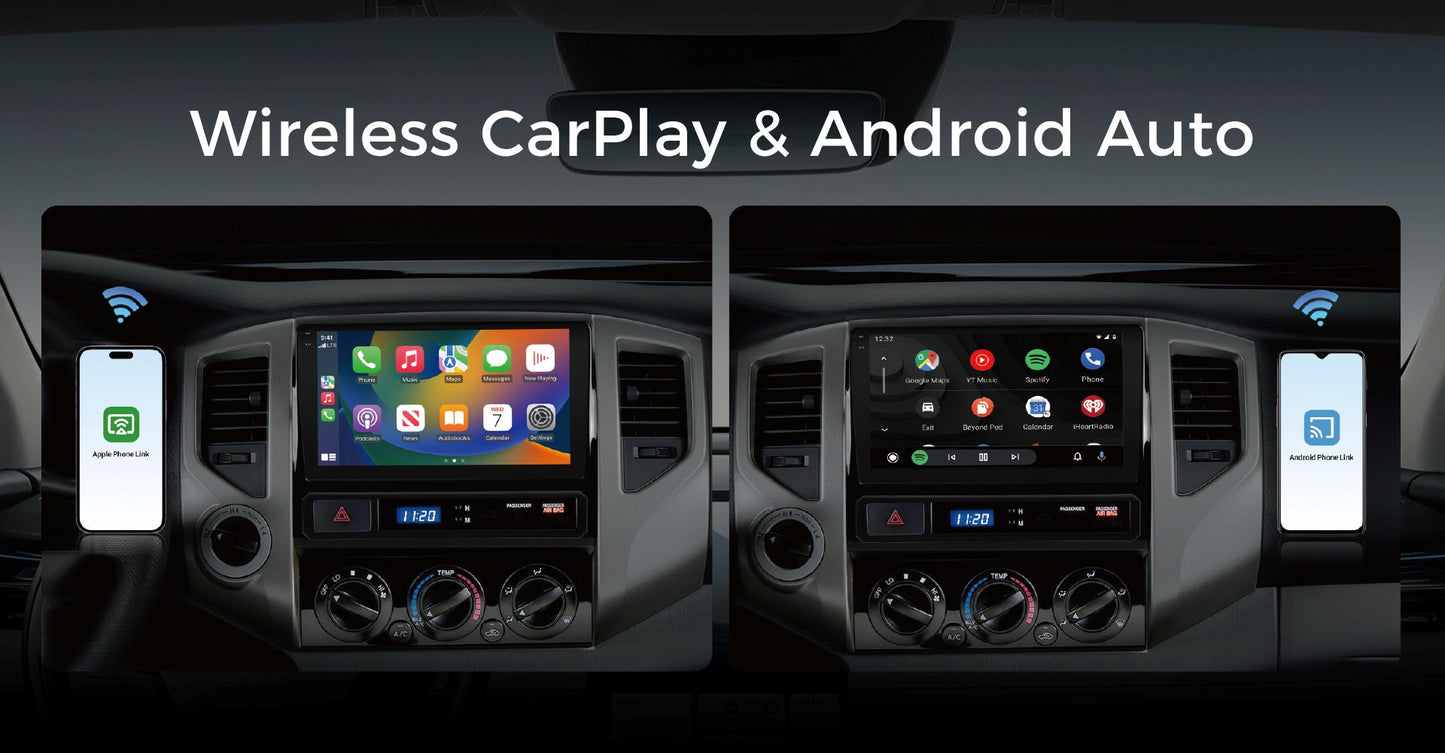
Consider whether your car stereo supports Android Auto or if it only accepts basic Bluetooth connections. This distinction changes how you connect and what features are available.
If your device isn’t compatible, you might explore alternative options like using a USB cable instead of Bluetooth or investing in a stereo system designed with broader device support.
Credit: www.vinlandautomotive.com
Enhance Audio Experience
Connecting your Android to a car stereo is just the start. To truly enjoy your music, enhance the audio experience. Clear sound, balanced bass, and crisp highs make every drive better. Fine-tuning audio settings can transform simple tunes into a rich sound journey. Small tweaks bring big changes in how your music feels inside the car.
Adjust Sound Settings
Most car stereos and Android devices offer built-in sound settings. Adjust the bass, treble, and balance to suit your taste. Set the fade to control sound distribution between front and back seats. Play with volume levels to avoid distortion at high sound. These simple adjustments improve clarity and richness without extra apps.
Use Equalizer Apps
Equalizer apps provide more control over your audio output. Choose from presets like rock, jazz, or pop. Customize the frequency bands to enhance specific sound ranges. Some apps include bass boosters and virtual surround sound. Use these tools to match your music style and car acoustics for better sound quality.
Maintain Device And Stereo
Keep your Android and car stereo updated for optimal performance. Clean audio ports and connectors to prevent sound issues. Use quality cables or Bluetooth connections to avoid interruptions. Regular maintenance stops audio glitches and keeps your music clear. Well-kept devices deliver consistent and strong sound every time.
Frequently Asked Questions
How Do I Connect My Android To A Car Stereo?
To connect your Android to a car stereo, use Bluetooth or an AUX cable. First, enable Bluetooth on your phone and car. Pair your devices via the car’s audio system. For AUX, plug the cable into both devices. Adjust settings to enjoy seamless audio playback.
Can I Use Usb To Connect Android To Car Stereo?
Yes, you can use a USB cable to connect. Plug the USB into your car’s port and phone. Your stereo may automatically detect the device. If not, switch to USB mode. This method also charges your phone while playing music.
What Apps Help Connect Android To Car Stereo?
Apps like Android Auto and Spotify connect your Android to car stereos. Android Auto provides navigation, calls, and music. Spotify allows music streaming directly through the stereo. Install these apps and follow instructions for seamless connectivity and entertainment during drives.
How Do I Fix Connection Issues With Car Stereo?
First, ensure Bluetooth is enabled on both devices. Restart your phone and car stereo. Delete existing pairings and reconnect. Check for software updates on both devices. If using a cable, inspect it for damage. Follow these steps to resolve most connection issues.
Conclusion
Connecting your Android to a car stereo is simple and quick. Use Bluetooth, USB, or an auxiliary cable to link devices. Each method lets you play music and make calls safely. Follow the steps carefully to avoid common issues. Enjoy clear sound and hands-free control while driving.
Keep your phone charged and software updated for best results. This small setup makes your trips more fun and convenient. Give it a try today!

