
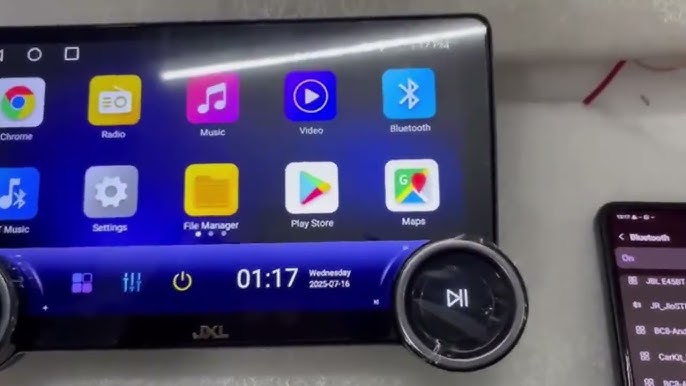
Are you tired of fumbling with cables every time you want to play music or take calls in your car? Connecting your Android phone to your Android car stereo can make your drive safer and more enjoyable.
Imagine controlling your playlists, maps, and calls right from your car’s screen without lifting your phone. In this guide, you’ll discover simple, step-by-step methods to link your devices quickly and effortlessly. Stick with me, and by the end, you’ll have a seamless connection that keeps your focus on the road and your favorite content just a tap away.

Credit: getcartablet.com
Prepare Your Devices
Getting your Android phone connected to your car stereo is easier when you prepare your devices properly. Taking a few moments to check compatibility, update software, and enable Bluetooth can save you from common connection headaches. Let’s make sure your setup is ready for a smooth pairing experience.
Check Compatibility
Not all Android phones and car stereos play nicely together. You need to confirm that your car stereo supports Android devices, especially if you want features like Android Auto. Look for compatibility details in your car stereo’s manual or the manufacturer’s website.
Ask yourself: does your stereo support Bluetooth, USB connections, or specific apps? Knowing this helps you pick the right connection method and avoid frustration later.
Update Software
Running the latest software on both your phone and car stereo can fix bugs and improve connection stability. Check for system updates on your Android phone by going to Settings > System > Software Update.
Car stereos often have firmware updates available on the manufacturer’s website. Applying these updates can add new features and ensure your devices communicate seamlessly.
Enable Bluetooth On Phone
Bluetooth is the most common way to connect your Android phone to a car stereo. Make sure it’s turned on before trying to pair. You can enable Bluetooth by pulling down the notification shade and tapping the Bluetooth icon or going to Settings > Connected Devices > Bluetooth.
Keep your phone visible to nearby devices during pairing. This simple step can prevent connection failures and speed up the process.
Credit: www.youtube.com
Pair Devices Via Bluetooth
Pairing your Android phone with your Android car stereo via Bluetooth allows easy music streaming and hands-free calls. The process is simple and requires just a few steps. Follow these instructions to connect both devices quickly.
Access Car Stereo Settings
Turn on your car stereo and open the settings menu. Look for the Bluetooth option in the menu. Select Bluetooth to start the pairing process. Make sure Bluetooth is enabled on the car stereo.
Search For Devices
On your Android phone, open the Settings app. Go to the Bluetooth section and turn Bluetooth on. Your phone will scan for nearby devices. Find your car stereo’s name in the list of available devices. Tap on it to begin pairing.
Confirm Pairing Code
A pairing code will appear on both the phone and car stereo screens. Check that the codes match exactly. Confirm the code on both devices to complete the connection. Once confirmed, the devices will pair and stay connected automatically in the future.
Use Usb Connection
Using a USB connection is a simple way to link your Android phone to your car stereo. It offers a stable connection and often better sound quality than wireless options. A USB connection also allows charging your phone while playing music or using apps through the car system.
Select Appropriate Cable
Choose a USB cable that fits both your phone and car stereo. Most Android phones use a USB-C or micro-USB port. Check your car stereo’s USB port type before buying a cable. A high-quality cable ensures fast data transfer and charging. Avoid cheap cables that may cause connection problems or slow charging.
Connect Phone To Stereo
Plug one end of the USB cable into your phone. Insert the other end into the car stereo’s USB port. The car stereo should detect the phone automatically. Your stereo may switch to USB mode or show a notification. If not, select the USB input manually on the stereo screen or control panel.
Grant Permissions On Phone
Your phone will ask for permission to share data with the car stereo. Tap “Allow” or “Trust” to enable the connection. This lets the car system access your music, contacts, and apps. Without permission, the stereo cannot play music or use phone features. Some phones may also request permission for Android Auto or similar apps.

Credit: www.youtube.com
Connect With Android Auto
Connecting your Android phone to your car stereo using Android Auto enhances your driving experience by providing seamless access to navigation, music, and calls. This connection keeps your focus on the road while offering easy control through your car’s display. Here’s how you can get started with Android Auto and solve common issues that may arise.
Install Android Auto App
First, check if your phone already has the Android Auto app installed. Most newer Android devices come with it pre-installed, but if you don’t see it, visit the Google Play Store.
- Open Google Play Store on your phone.
- Search for “Android Auto.”
- Tap Installand wait for the download to finish.
Once installed, you’re ready to move to the next step. Installing the app is quick and sets the foundation for a smooth connection.
Set Up Android Auto
After installing the app, launch Android Auto on your phone. You’ll see a welcome screen with terms and permissions to accept.
- Grant the necessary permissions for location, calls, and notifications.
- Connect your phone to the car stereo using a USB cable or Bluetooth, depending on your car’s setup.
- Follow on-screen prompts to complete the setup.
During setup, Android Auto may ask you to enable certain settings on your car stereo. If you’ve ever felt frustrated waiting to get your phone and car talking, this step simplifies the process.
Troubleshoot Connection Issues
If Android Auto doesn’t connect right away, don’t worry. Small hiccups are common but usually easy to fix.
- Ensure your USB cable supports data transfer; charging cables alone won’t work.
- Restart both your phone and car stereo system.
- Check that your phone’s Android Auto app is up to date.
- Disable any apps that might interfere, like battery savers or VPNs.
Have you ever wondered why sometimes your phone just won’t connect? Trying these quick fixes can save you time and keep your drive stress-free.
Stream Audio And Control Features
Connecting your Android phone to an Android car stereo lets you enjoy music and control features easily. Streaming audio and managing controls improve your driving experience. You get hands-free access to songs, voice commands, and navigation. These features keep your focus on the road and make trips more fun.
Play Music
After connecting, play music from your favorite apps like Spotify or Google Play Music. The car stereo shows song details and controls. Use the touch screen or steering wheel buttons to pause, skip, or rewind tracks. Streaming music through Bluetooth or USB provides clear sound without extra cables.
Use Voice Commands
Voice commands let you control your phone safely. Say simple phrases to play music, make calls, or send messages. Google Assistant works well with Android car stereos. Speak without taking your hands off the wheel or your eyes off the road. This feature helps keep driving safe and convenient.
Access Navigation
Use your car stereo’s screen to see maps and directions. Navigation apps like Google Maps or Waze work seamlessly. The stereo gives real-time traffic updates and reroutes. Voice guidance helps you reach your destination without distractions. This way, you stay on track and drive stress-free.
Troubleshooting Tips
Connecting an Android phone to an Android car stereo can sometimes face hiccups. Troubleshooting helps solve common issues quickly. Small fixes often restore smooth pairing and audio playback. Try these simple tips to get your devices working together again.
Restart Devices
Turn off your Android phone and car stereo. Wait for a few seconds before turning them back on. Restarting clears temporary glitches and refreshes system connections. This simple step often fixes pairing or audio problems.
Reset Bluetooth Settings
Open Bluetooth settings on your phone. Remove or forget the car stereo device from the list. Then, pair the devices again from scratch. Resetting Bluetooth clears previous errors and helps establish a fresh connection.
Consult Car Stereo Manual
Check the user manual of your car stereo for specific instructions. Manuals provide details on Bluetooth pairing and troubleshooting. Follow manufacturer tips for your exact model to ensure proper setup and operation.
Frequently Asked Questions
How Do I Connect My Android Phone To My Car Stereo?
To connect your Android phone to an Android car stereo, use Bluetooth or a USB cable. First, enable Bluetooth on both devices. Then, search for the car stereo in your phone’s Bluetooth settings. Alternatively, connect using a USB cable if your car stereo supports USB connections for media playback.
Can I Use Android Auto With My Car Stereo?
Yes, if your car stereo supports Android Auto, you can use it. Download the Android Auto app from the Google Play Store. Connect your phone via USB or Bluetooth. Follow on-screen instructions to set up and enjoy features like navigation, calls, and music.
Why Won’t My Phone Connect To My Car Stereo?
If your phone won’t connect, check Bluetooth settings on both devices. Ensure they’re discoverable and paired. Restart both devices to refresh connections. Check if your car stereo supports your phone model. Update software on both devices to the latest version for compatibility and performance improvements.
What Apps Are Compatible With Android Car Stereos?
Android car stereos support apps like Google Maps, Spotify, and Waze. These apps offer navigation, music streaming, and real-time traffic updates. Install apps from Google Play Store and sync them via Android Auto. Always ensure apps are updated for optimal performance and compatibility with your car stereo.
Conclusion
Connecting your Android phone to your car stereo makes driving more fun. You can play music, take calls, and use apps safely. Follow the steps carefully, and you will do it right. Remember to check your car stereo’s settings first.
Use a good cable or Bluetooth for best results. Enjoy hands-free control and better sound on the road. Keep your phone charged and updated for smooth connection. Drive safely and enjoy your favorite tunes easily. Simple steps lead to a better driving experience every time.

