

Want to play your favorite songs or take calls hands-free while driving? Connecting your Android phone to your car stereo makes this easy and safe.
But if you’re not sure how to do it, don’t worry—you’re in the right place. In this guide, you’ll learn simple steps to link your Android device to your car’s audio system. By the end, you’ll enjoy crystal-clear sound and stay connected on the road without distractions.
Keep reading to find out how to make your drive smarter and more fun.

Credit: www.amazon.ca
Prepare Your Android Phone
Preparing your Android phone is the first step to connect it to your car stereo. This ensures a smooth and stable connection. Proper setup avoids common issues like connection drops or unrecognized devices.
Check your phone settings and update software to keep everything compatible. Some phones require special options enabled for advanced connections. Follow simple steps to get your phone ready for pairing or USB linking.
Check Bluetooth And Usb Settings
Open your phone’s settings app. Go to Bluetooth and make sure it is turned on. Remove old or unused paired devices to avoid confusion. For USB, check the connection mode. Select “File Transfer” or “Media Transfer Protocol (MTP)” if available. This helps your car stereo recognize your phone quickly.
Update Phone Software
Go to Settings and find the “System” or “About phone” section. Tap “Software update” or “System update.” Install any available updates. Updates fix bugs and improve device compatibility. Keep your phone’s software current to avoid connection issues.
Enable Developer Options If Needed
Some car stereos need extra settings enabled on Android phones. Go to Settings, then “About phone.” Tap “Build number” seven times to unlock Developer Options. Return to Settings, find “Developer options,” and enable “USB debugging.” This can help when your phone is not detected by the car stereo via USB.

Credit: getcartablet.com
Identify Your Car Stereo Options
Before connecting your Android phone to your car stereo, it’s crucial to identify the options your stereo supports. Knowing these options helps you pick the easiest and most reliable connection method. It also prevents frustration from trying incompatible setups.
Bluetooth Compatibility
Check if your car stereo has Bluetooth functionality. Many modern vehicles come with built-in Bluetooth that lets you pair your phone wirelessly. This option offers convenience since you don’t need any cables, and it supports hands-free calls and audio streaming.
To verify Bluetooth support, look for a Bluetooth icon on the stereo or check your car manual. Have you ever tried pairing your phone only to realize the stereo doesn’t support it? That’s why this step saves time.
Auxiliary And Usb Ports
If Bluetooth isn’t available or reliable, look for auxiliary (AUX) or USB ports on your stereo. AUX ports let you connect your phone with a simple 3.5mm audio cable. USB ports often allow charging and audio playback, sometimes even phone control.
Many people overlook USB as a connection option, but it can offer better sound quality than AUX. Do you know where your stereo’s ports are located? Sometimes they hide behind a panel or inside the glove box.
Android Auto Support
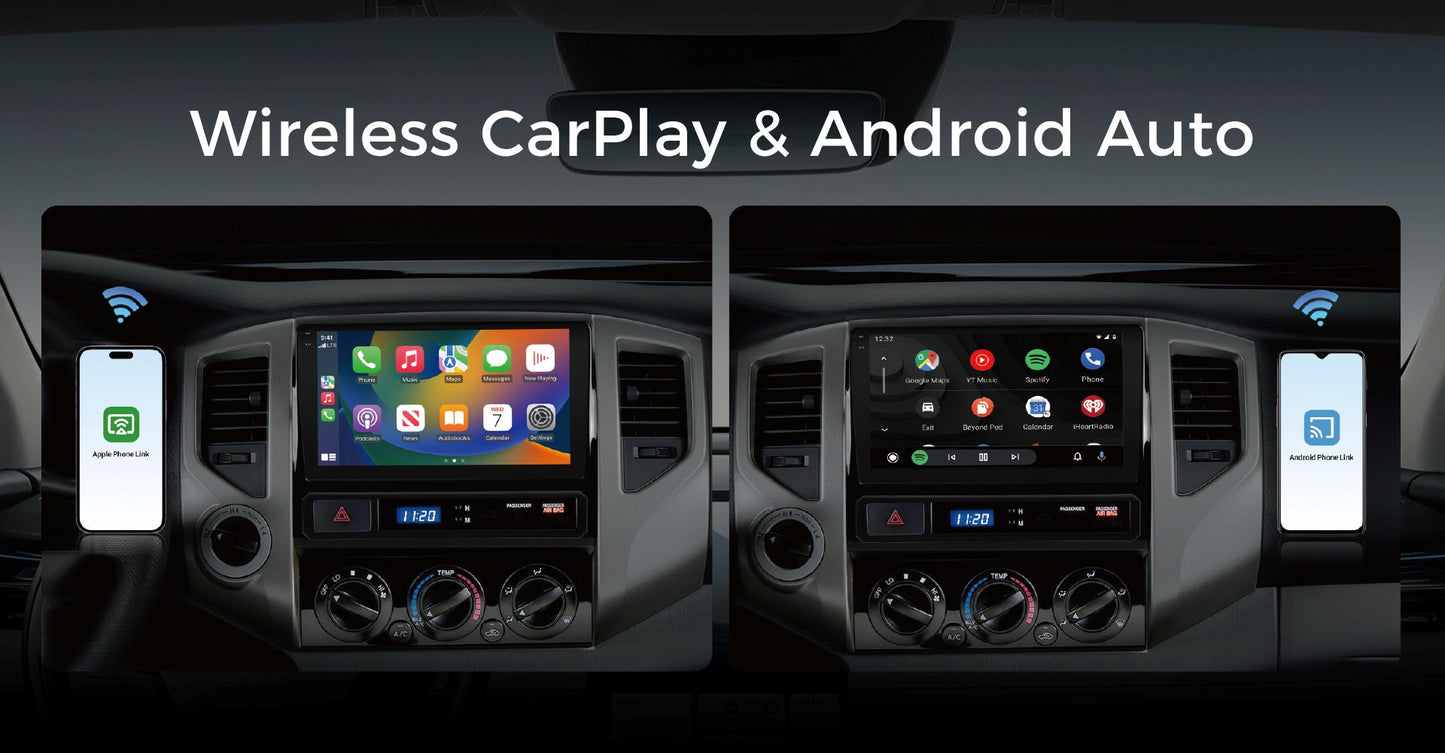
Android Auto is a system that mirrors your phone’s interface on the car stereo screen. If your stereo supports it, you can access navigation, music apps, and calls safely while driving. This requires either a USB connection or a compatible wireless setup.
Not all car stereos come with Android Auto, especially older models. Have you checked if your stereo has this feature? If yes, it often provides the most seamless and integrated experience for Android users.
Connect Via Bluetooth
Connecting your Android phone to your car stereo via Bluetooth offers a wireless and convenient way to enjoy music, make calls, and use navigation hands-free. The process is usually quick and user-friendly, but it can vary slightly depending on your car model and phone version. Let’s look at how to pair your devices and what to do if you hit a snag.
Pairing Your Phone With The Stereo
First, make sure your car stereo is in Bluetooth pairing mode. This option is often found in the stereo’s settings menu or via a dedicated button labeled “Bluetooth” or “Phone.” Check your car’s manual if you’re unsure where to find this.
On your Android phone, open Settingsand go to Bluetooth. Turn Bluetooth on if it’s off.
- Look for your car stereo’s name under available devices.
- Tap on the stereo name to start pairing.
- Confirm the pairing code if prompted on both devices.
Once paired, your phone and stereo will usually connect automatically whenever Bluetooth is enabled and you’re in the car. Have you noticed how some car stereos also sync your contacts and call history automatically? This feature makes hands-free calls much easier.
Troubleshooting Bluetooth Issues
Sometimes, Bluetooth connections can be tricky. If your phone doesn’t find the stereo or pairing fails, try these quick fixes:
- Turn off Bluetooth on both devices, wait a few seconds, then turn it back on.
- Restart your phone and your car stereo system.
- Clear previously paired devices from the stereo’s Bluetooth menu to avoid connection conflicts.
- Make sure your phone’s software and your car stereo’s firmware are up to date.
If your music skips or calls drop, interference could be the cause. Moving other Bluetooth devices away or turning off unnecessary connections might help. Have you ever wondered why Bluetooth still feels unreliable in some cars? Sometimes, it’s just about the quality of the stereo’s Bluetooth module.
Use Usb Cable Connection
Connecting your Android phone to your car stereo using a USB cable is one of the simplest and most reliable ways to enjoy your music, podcasts, and even hands-free calls. This method not only provides a stable connection but also often allows your car stereo to charge your phone simultaneously. Let’s look at how to get this set up properly.
Selecting The Right Cable
Choosing the correct USB cable is crucial for a smooth connection. Most Android phones use a USB-C or micro-USB port, so you need a cable that matches your phone’s charging port and your car stereo’s USB input.
Not all cables are created equal. A cheap or damaged cable can cause connection drops or slow data transfer, affecting audio quality. Look for cables labeled as “data transfer” cables, not just charging cables.
- Check your phone’s port type (USB-C or micro-USB).
- Confirm the car stereo’s USB input type (usually USB-A).
- Pick a cable with good build quality to avoid interference.
Configuring Usb Settings On Phone
Once you connect your phone to the car stereo with the USB cable, your phone may prompt you to select a USB mode. This step is important to ensure your stereo can access your phone’s media files.
You’ll typically see options like “Charging only,” “File transfer,” or “Media transfer protocol (MTP).” To play music through your car’s stereo, select “Media transfer” or “File transfer.”
If your phone doesn’t prompt you automatically, swipe down the notification bar and tap the USB connection notification to adjust the settings.
- Choose the media or file transfer mode, not just charging.
- Ensure your car stereo supports the selected USB mode.
- Check for any additional prompts on your stereo to confirm connection.
Have you ever connected a USB cable only to find your car stereo doesn’t recognize your phone? Double-checking these settings can save you that frustration and get your music playing faster.
Set Up Android Auto
Setting up Android Auto allows your Android phone to work seamlessly with your car stereo. This connection lets you use apps, make calls, and navigate safely. It improves driving with easy access to music and voice commands.
Download And Install Android Auto App
First, open the Google Play Store on your phone. Search for “Android Auto” in the search bar. Tap the app from the results and select “Install.” Wait for the download and installation to finish. If your phone runs Android 10 or later, Android Auto may already be built-in.
Connect Phone To Car Via Usb Or Bluetooth
Use a high-quality USB cable to connect your phone to the car’s USB port. Some cars support wireless Android Auto through Bluetooth. Check your car’s manual to see if wireless connection works. Follow the on-screen prompts to complete the connection. Allow permissions on your phone to share data with the car stereo.
Customize Android Auto Settings
Open the Android Auto app on your phone. Tap the menu icon to access settings. Adjust options like notification preferences, app permissions, and voice commands. Choose which apps show on your car display. Set your preferred map and music apps for quick access. Customizing settings helps make your driving experience smoother and safer.
Play Audio And Make Calls
Connecting your Android phone to your car stereo opens up a world of convenience. You can enjoy your favorite playlists without fumbling for your phone, and handle calls without taking your eyes off the road. Let’s see how you can easily play audio and make calls using this setup.
Streaming Music
Once your phone is paired with your car stereo via Bluetooth or USB, playing music is straightforward. Just open your preferred music app, like Spotify or Google Play Music, and hit play.
Your car stereo will automatically detect the audio and stream it through the speakers. This means you get clear sound without any extra cables or complicated settings.
Want to skip tracks or adjust volume? Use your car’s controls instead of your phone. This keeps your driving safe and your music uninterrupted.
Handling Phone Calls Safely
Answering calls through your car stereo lets you keep both hands on the wheel. When a call comes in, your car’s display often shows the caller’s info, making it easy to decide if you want to answer.
Use the built-in microphone and speakers to talk without holding your phone. This reduces distractions and helps you focus on driving.
Missed calls or voicemail notifications usually appear on your car’s screen too. This way, you never lose track of important conversations while on the move.
Troubleshoot Common Problems
Troubleshooting common problems can save time and frustration when connecting your Android phone to a car stereo. Issues may arise from different sources, but simple checks often fix them quickly.
Connection Failures
Connection failures happen if the phone and stereo do not pair correctly. Check Bluetooth settings on both devices. Make sure Bluetooth is turned on and visible. Restart both the phone and the car stereo to refresh connections. Remove old paired devices from the car’s Bluetooth list. Use a USB cable for a wired connection if Bluetooth fails. Verify that the cable and ports are not damaged.
Audio Playback Issues
Audio playback problems include no sound or poor sound quality. Check the car stereo volume and phone volume levels. Ensure the audio source on the stereo matches the connection type. Restart music or media apps on the phone. Clear cache and data of music apps if sound does not play. Try playing audio from different apps to find if one app causes the issue.
App Compatibility
Some apps may not work well with car stereos. Verify the app supports Android Auto or Bluetooth streaming. Update apps and the phone’s operating system regularly. Use apps designed for car use to avoid compatibility problems. Disable battery saver modes that may limit app functions. Test other apps to confirm if the problem is app-specific.
Credit: www.vinlandautomotive.com
Frequently Asked Questions
How Do I Connect My Android Phone To My Car Stereo?
To connect your Android phone, use Bluetooth or a USB cable. Enable Bluetooth on your phone and pair it with your car stereo. For USB connection, plug the cable into both your phone and stereo. Follow on-screen instructions to complete the setup.
Can I Use An Aux Cable For Connection?
Yes, you can use an AUX cable to connect your Android phone. Plug one end into your phone’s headphone jack and the other into your car stereo’s AUX input. Switch your car stereo to AUX mode to play audio from your phone.
Why Is My Phone Not Connecting To The Car Stereo?
Ensure Bluetooth is enabled on both devices and they are discoverable. Check if your phone or car stereo needs a software update. Restart both devices if issues persist. For USB connections, ensure the cable and ports are functioning properly.
Is It Possible To Connect Wirelessly Without Bluetooth?
Yes, you can use apps like Android Auto or car-specific apps. These apps connect via Wi-Fi or cellular data. Ensure your car stereo supports these apps for a seamless connection. Follow the app’s instructions for setup and use.
Conclusion
Connecting your Android phone to your car stereo is simple and useful. You can play music, make calls, and use apps safely while driving. Follow the steps carefully to avoid problems. Try Bluetooth, USB, or AUX cable methods to find what works best.
Enjoy clear sound and easy control on the road. Keep your phone charged and software updated for best results. Drive safe and stay connected with these easy tips.

