How to Connect Kenwood Car Stereo to Phone: Easy Step-by-Step Guide
Are you tired of fumbling with cables every time you want to play music from your phone in your car? Connecting your Kenwood car stereo to your phone can make your drive more enjoyable and hands-free.
But if you’re not sure where to start, this guide is made just for you. You’ll learn simple steps to link your devices quickly and effortlessly. Keep reading, and soon you’ll be streaming your favorite tunes or taking calls without missing a beat.
Credit: www.kenwood.eu
Preparing Your Kenwood Stereo
Preparing your Kenwood car stereo is essential before connecting it to your phone. This process ensures smooth pairing and better sound quality. Taking time to prepare avoids connection issues during your drive. Follow these steps to get your stereo ready for seamless integration with your device.
Check Compatibility
Confirm your phone works with the Kenwood stereo model. Look for Bluetooth or USB compatibility in the user manual. Some older Kenwood stereos may not support newer phone models. Verify if your phone’s operating system matches the stereo’s requirements. Compatibility ensures stable connection and full functionality.
Update Firmware
Check if the Kenwood stereo firmware is up to date. Updated firmware can fix bugs and improve device connections. Visit the Kenwood website to download the latest software. Follow the instructions carefully to install updates via USB or Bluetooth. This step enhances performance and adds new features.
Gather Necessary Accessories
Collect all tools and accessories needed for connection. Common items include USB cables, AUX cords, and Bluetooth adapters. Use original or high-quality cables to avoid connection problems. Keep your phone charger handy for longer trips. Having everything ready saves time and frustration during setup.
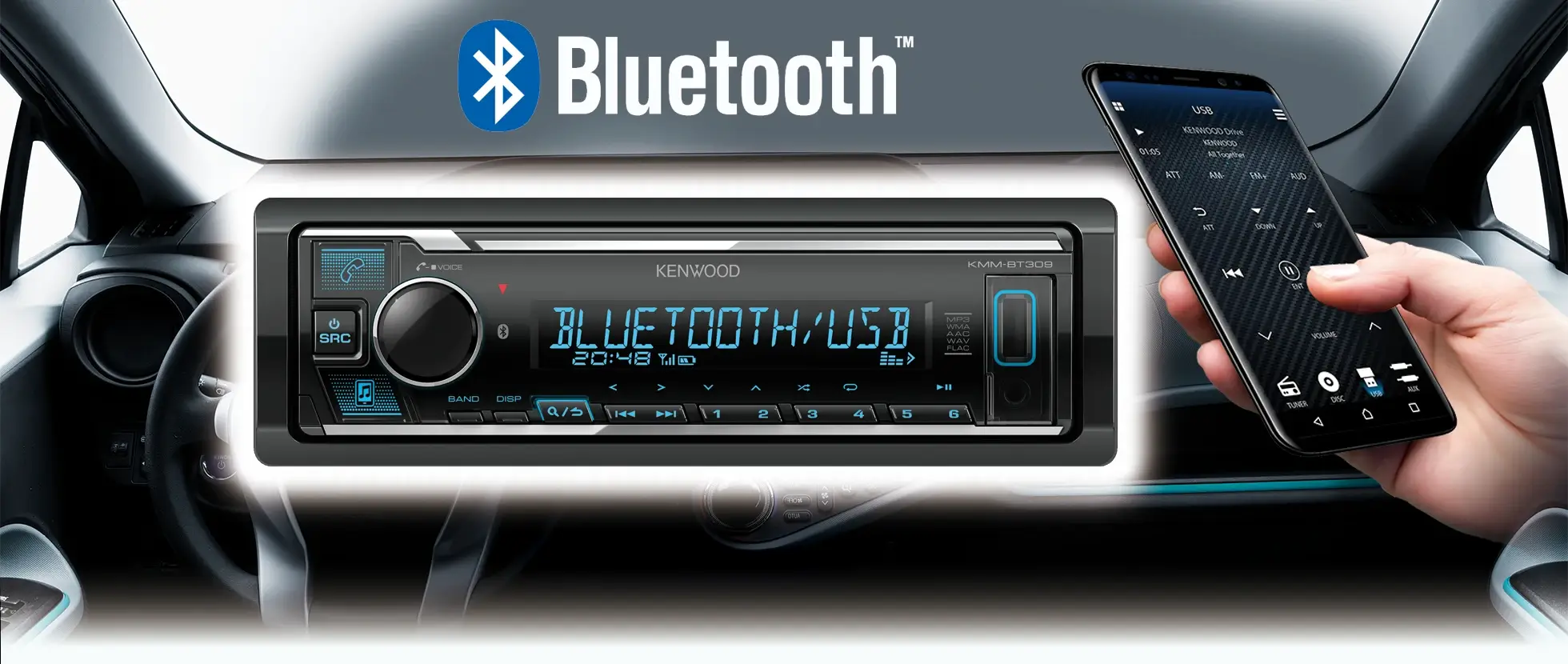
Connecting Via Bluetooth
Connecting your Kenwood car stereo to your phone via Bluetooth is a straightforward way to enjoy hands-free calls and stream your favorite music without any cables. This wireless connection offers convenience and keeps your car interior neat and clutter-free. Let’s walk through the key steps to get your devices talking smoothly.
Activate Bluetooth On Stereo
First, turn on your Kenwood stereo and access the Bluetooth settings menu. Usually, you can find this option by pressing the “Menu” or “Settings” button on the stereo’s display.
Look for a setting labeled “Bluetooth” or “BT,” then select “On” or “Activate.” Some models require you to enable pairing mode, which makes the stereo discoverable to your phone. Keep an eye on the screen; it may show a message like “Waiting for device” or “Pairing mode.”
Enable Bluetooth On Phone
Next, open the Bluetooth settings on your smartphone. This is typically found in the “Settings” app under “Connections” or simply “Bluetooth.”
Turn Bluetooth on, and your phone will start searching for nearby devices. Make sure your phone is close to the stereo to avoid connection issues. If you’ve connected your phone to other devices before, consider disabling those temporarily to prevent interference.
Pair Devices Successfully
Once your phone detects the Kenwood stereo, it will appear as a device name like “Kenwood” or a model number. Tap to select it.
Your phone and stereo might ask you to confirm a PIN code. This is usually “0000” or “1234,” but check your stereo’s manual if unsure. Confirm the code on both devices.
After pairing, your stereo should display a confirmation message, and your phone will show it as connected. Try playing a song or making a call to test the connection immediately. If you face any hiccups, turning Bluetooth off and on again on both devices often clears up minor glitches.
Using Usb Connection
Using a USB connection to link your Kenwood car stereo with your phone is one of the most reliable ways to enjoy your favorite music and apps on the road. It provides a stable connection and often supports faster data transfer compared to Bluetooth. Plus, it charges your phone while you drive, keeping your device powered up.
Select Usb Mode On Stereo
First, you need to make sure your Kenwood stereo is set to the correct USB mode. This setting allows the stereo to recognize your phone as a media device. On your stereo’s touchscreen, look for the source or input options and select “USB.”
If you don’t see the USB option immediately, check your stereo’s manual or settings menu to enable it. Sometimes, you may have to switch from “Charging Only” mode to “Media Transfer” mode on your phone for the stereo to detect the device properly.
Connect Phone With Usb Cable
Use a high-quality USB cable that supports data transfer, not just charging. Plug one end into your phone and the other into the USB port on your Kenwood stereo. You might notice that the phone prompts you to authorize the connection or select a USB mode—choose “File Transfer” or “Media Transfer Protocol (MTP).”
Have you ever used a cheap cable that only charged your phone but didn’t transfer music? Avoid this by testing your cable beforehand or using the one that came with your phone.
Access Media And Controls
Once connected, your Kenwood stereo should display your phone’s media files or compatible apps on its screen. You can navigate through playlists, artists, or albums using your stereo’s interface. Some Kenwood models also allow you to control playback, pause, skip tracks, or adjust volume directly from the stereo or steering wheel buttons.
Try playing different media types to see what works best for your setup. If your phone supports Android Auto or Apple CarPlay through USB, you’ll get even more control options and app access right on your stereo’s display.
Connecting With Aux Cable
Connecting your Kenwood car stereo to your phone with an aux cable is simple and effective. It allows you to play music directly from your device without wireless delays or interruptions. Follow these easy steps to set up a smooth audio connection.
Locate Aux Input
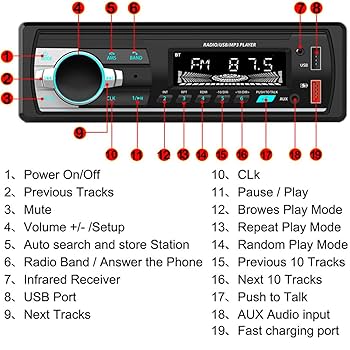
Find the aux input port on your Kenwood stereo. It usually looks like a small round hole labeled “AUX” or “Aux In.” This port is often on the front panel or near the USB and headphone jacks. Check your stereo’s manual if unsure.
Plug In Aux Cable
Use a 3.5mm aux cable to connect your phone to the stereo. Insert one end into your phone’s headphone jack or adapter. Plug the other end into the aux input port on the Kenwood stereo. Make sure both ends fit securely.
Adjust Audio Settings
Turn on your Kenwood stereo and set the input source to “Aux.” On your phone, play any audio track or app. Adjust the volume on both the stereo and phone for clear sound. Use your car stereo’s equalizer to improve audio quality if available.
Troubleshooting Connection Issues
Connection issues between your Kenwood car stereo and phone can be frustrating, especially when you just want to enjoy your music or make hands-free calls. These problems often have simple fixes, so don’t give up just yet. Let’s look at practical ways to troubleshoot and get your devices talking smoothly again.
Reset Bluetooth Settings
Sometimes, the Bluetooth connection gets stuck or corrupted. Resetting the Bluetooth settings on both your Kenwood stereo and phone can clear out old pairings and conflicts.
- On your phone, go to the Bluetooth menu and select “Forget” or “Unpair” the Kenwood device.
- On the Kenwood stereo, navigate to the Bluetooth settings and delete your phone from the paired devices list.
- After clearing both, try pairing them again from scratch.
This reset often resolves hidden glitches that block connections. Have you ever noticed your devices pairing better after a fresh start?
Check Cable Integrity
If you’re using a wired connection instead of Bluetooth, a faulty cable might be the culprit. Even small cracks or bends can disrupt the signal between your phone and stereo.
- Inspect the cable for visible damage like fraying or cuts.
- Try using a different cable that you know works well with other devices.
- Make sure the cable fits snugly into both your phone and stereo ports without wobbling.
Remember, not all cables support audio transfer—some are for charging only. Are you sure your cable is designed for audio?
Restart Devices
A quick restart can solve many tech issues by refreshing system processes. Turning off and on both your Kenwood stereo and phone clears temporary glitches that might block the connection.
- Turn off your phone and car stereo completely.
- Wait for about 30 seconds before turning them back on.
- Try connecting again once both devices have rebooted.
This simple step often surprises users with how effective it is. When was the last time you restarted your devices before troubleshooting?
Credit: www.kenwood.eu
Optimizing Audio Experience
Optimizing your audio experience with a Kenwood car stereo connected to your phone enhances every drive. Clear sound and easy controls make listening enjoyable and safe. Small adjustments can improve music quality and reduce distractions. Focus on sound settings, hands-free options, and notification management for the best results.
Adjust Equalizer Settings
Equalizer settings let you change sound frequencies. Tailor bass, treble, and midrange to fit your taste. Kenwood stereos offer presets like rock, jazz, or pop. Use these or create your own setting for clearer sound. Experiment with levels until music sounds balanced and rich.
Use Hands-free Features
Hands-free calling keeps your focus on the road. Connect your phone via Bluetooth to use voice commands. Answer calls without touching your phone. Use the stereo’s microphone for clear conversations. This feature increases safety and keeps your drive smooth.
Manage Phone Notifications
Phone notifications can interrupt your music and distract you. Use your phone’s settings to limit alerts while driving. Set notifications to silent or use “Do Not Disturb” mode. Some Kenwood models can read messages aloud. This helps you stay informed without losing focus.

Credit: apps.apple.com
Frequently Asked Questions
How Do I Pair My Phone With Kenwood Stereo?
To pair your phone with a Kenwood stereo, activate Bluetooth on both devices. Navigate to the Bluetooth settings on your phone, select your Kenwood stereo from the list, and confirm the pairing. Ensure the stereo is in pairing mode. Check the manual for specific instructions if needed.
Why Won’t My Kenwood Stereo Connect To My Phone?
Your Kenwood stereo may not connect due to Bluetooth being disabled or out of range. Ensure both devices are discoverable. Restart your phone and stereo, then attempt pairing again. Check for any pending firmware updates for the stereo to resolve connectivity issues.
Can I Use Kenwood Stereo With Android Auto?
Yes, many Kenwood stereos support Android Auto. Connect your Android phone via USB to the stereo. Follow prompts on both devices to complete the setup. Ensure your phone has the latest version of the Android Auto app for optimal performance and compatibility.
What App Do I Need For Kenwood Bluetooth?
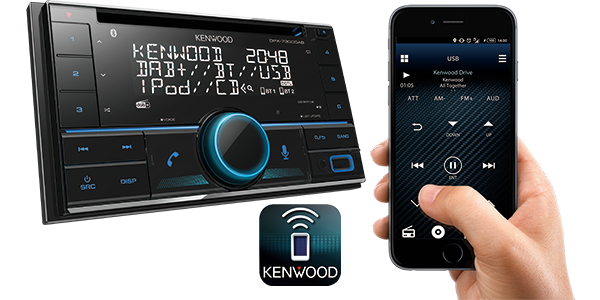
For enhanced control, download the Kenwood Remote app. It allows you to manage audio settings and control playback. The app is available for both Android and iOS devices. Ensure your phone is compatible and connected to the stereo for full functionality.
Conclusion
Connecting your Kenwood car stereo to your phone is simple and quick. Follow the steps carefully and enjoy hands-free calls and music. Make sure Bluetooth is on and devices are paired correctly. Adjust settings on both phone and stereo for the best sound.
This small setup improves your driving experience a lot. Stay safe and keep your focus on the road. Now, enjoy your favorite songs and calls without distractions.