
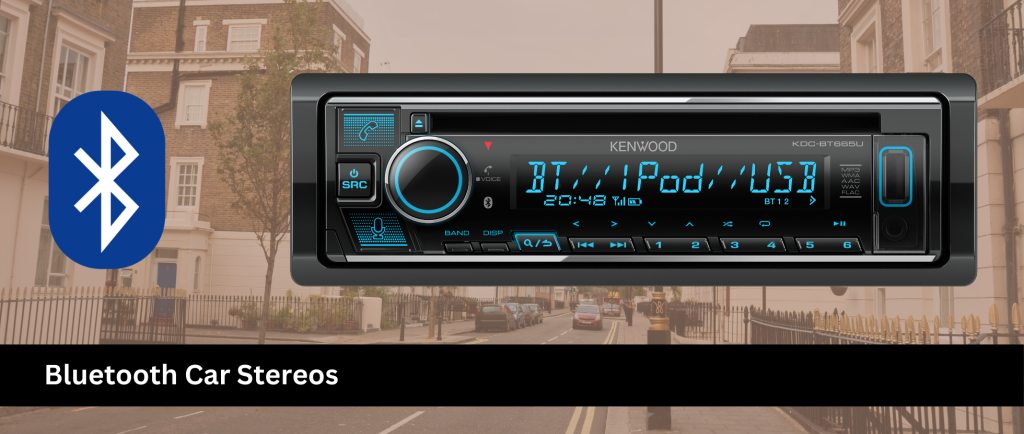
Want to enjoy your favorite music and take calls hands-free while driving? Connecting your iPhone to your Kenwood car stereo via Bluetooth is the easiest way to do that.
But if you’ve never done it before, it might feel a bit confusing. Don’t worry—you’re about to learn a simple, step-by-step method that anyone can follow. By the end of this guide, you’ll be able to stream music and use your phone safely, all without fumbling through complicated settings.
Ready to make your drive more enjoyable? Let’s get started!

Credit: kenwood.eu
Prepare Your Kenwood Stereo
Preparing your Kenwood car stereo is essential before connecting your iPhone via Bluetooth. This step ensures smooth pairing and clear audio playback. Proper preparation helps avoid common connection issues.
Start by confirming your stereo supports Bluetooth. Then power it on and access the Bluetooth settings. These actions set the stage for a quick and easy connection.
Check Bluetooth Compatibility
Verify if your Kenwood stereo has Bluetooth functionality. Look for a Bluetooth logo on the unit or check the user manual. Some older models may not support Bluetooth connection.
If your stereo supports Bluetooth, confirm the version. Newer versions offer better sound quality and connection stability. This information helps understand what features are available.
Power On And Access Settings
Turn on your Kenwood stereo. Wait for the main screen to appear.
Navigate to the settings menu. Look for Bluetooth or wireless options. Activate Bluetooth if it is off.
Enable the stereo’s pairing mode. This mode makes the stereo visible to your iPhone. Keep the stereo in this mode during the pairing process.
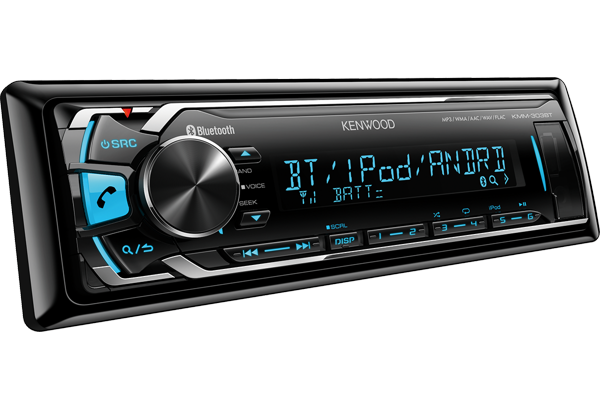
Credit: www.kenwood-electronics.co.uk
Enable Bluetooth On Iphone
Enabling Bluetooth on your iPhone is the first step to connect it to your Kenwood car stereo. Bluetooth allows your phone to communicate wirelessly with the stereo. This connection lets you play music, make calls, and use other features hands-free. The process is simple and quick.
Start by opening the Bluetooth settings on your iPhone. Then, make sure your device is discoverable so the Kenwood stereo can find it. Follow the steps below to get your iPhone ready for pairing.
Open Bluetooth Settings
Unlock your iPhone and go to the Home screen.
Find the “Settings” app and tap to open it.
Toggle the Bluetooth switch to turn it on. The switch will turn green.
Your iPhone will now search for nearby Bluetooth devices automatically.
Make Your Iphone Discoverable
Stay on the Bluetooth settings page.
Your iPhone becomes discoverable only while this page is open.
Keep your iPhone unlocked and the Bluetooth screen active.
This allows your Kenwood stereo to detect your iPhone during pairing.
Once discovered, you can select your iPhone on the Kenwood stereo to connect.
Pair Iphone With Kenwood Stereo
Pairing your iPhone with your Kenwood car stereo is the key to enjoying hands-free calls and streaming your favorite music effortlessly. This process is straightforward, but knowing exactly where to look on your stereo and your phone can save you time and frustration. Let’s break down how to make the connection seamless and reliable.
Search For Devices On Kenwood
Start by turning on your Kenwood car stereo and accessing the Bluetooth menu. Navigate to the option that allows you to search or scan for new Bluetooth devices.
The stereo will begin scanning for nearby devices actively broadcasting their Bluetooth signal. This step puts your Kenwood unit in pairing mode, ready to detect your iPhone.
Select Your Iphone
Once your iPhone appears on the Kenwood screen, select it to initiate the pairing process. Your iPhone’s name usually appears as “iPhone” or a personalized name you’ve set.
Ensure your iPhone’s Bluetooth is turned on and visible to nearby devices. Without this, your stereo won’t be able to detect it.
Confirm Pairing Code
A numeric code will pop up on both the Kenwood stereo display and your iPhone screen. Check that the codes match exactly.
Confirm the pairing on both devices by tapping “Pair” or “OK.” This verification step prevents accidental connections to other Bluetooth devices nearby.
After confirmation, your iPhone will be connected, and you can start enjoying wireless audio and calls through your Kenwood system immediately.
Troubleshoot Connection Issues
Connecting your iPhone to a Kenwood car stereo via Bluetooth should be seamless, but sometimes issues pop up. Troubleshooting these connection problems quickly can save you from frustration and get your music or calls flowing again. Let’s dive into practical ways you can fix common Bluetooth connection hiccups.
Restart Devices
Have you tried turning it off and on again? Restarting both your iPhone and Kenwood stereo can clear temporary glitches that block Bluetooth connections. Power off your iPhone, then turn off your car stereo completely.
Wait about 30 seconds before powering them back on. This simple step often resets communication channels and refreshes system settings, giving your devices a clean slate to pair properly.
Clear Previous Pairings
Old or conflicting Bluetooth connections can interfere with new pairings. Check your Kenwood stereo’s Bluetooth settings and remove any devices you no longer use or recognize. On your iPhone, go to Settings > Bluetooth, tap the “i” next to the Kenwood device, and choose “Forget This Device.”
This clears out clutter and prevents your devices from trying to connect to outdated profiles. After clearing, attempt pairing again as if it’s the first time—this often solves hidden conflicts.
Update Firmware
Outdated software can cause compatibility issues between your iPhone and Kenwood stereo. Visit the Kenwood website or use their app to check for the latest firmware updates for your model. Updating firmware can fix bugs and improve Bluetooth performance.
Also, ensure your iPhone’s iOS is up to date by going to Settings > General > Software Update. Keeping both devices current boosts their ability to communicate smoothly and reduces connection errors.
Use Bluetooth Features
Using Bluetooth features between your iPhone and Kenwood car stereo enhances your driving experience. You get seamless access to music, calls, and voice commands without touching your phone. Let’s look at how these features work and how you can make the most of them.
Stream Music
Once paired, your Kenwood stereo acts as a wireless speaker for your iPhone. You can stream playlists, podcasts, or any audio app directly through your car’s sound system.
Think about the last time you tried to play music from your phone’s speaker in the car—it just doesn’t compare. Bluetooth audio is clearer and more powerful, and you don’t need any cables cluttering your space.
Try switching between different music apps using your car stereo’s controls. How convenient is it to skip songs or adjust volume without reaching for your phone?
Make Hands-free Calls
Bluetooth connection allows you to take calls safely while driving. Your Kenwood system uses the car’s built-in microphone and speakers, so your hands stay on the wheel.
This feature helped me avoid distractions during a busy commute. Calls come through clearly, and you can answer or reject them using your stereo’s buttons.
Do you notice how much easier it is to stay focused on the road when you don’t have to hold your phone? It’s a simple way to make driving safer.
Access Siri
You can summon Siri through your Kenwood stereo without touching your phone. Just press the voice command button and speak your request out loud.
Siri can help you with directions, send messages, or play specific songs. This hands-free interaction keeps your eyes on the road and your mind on driving.
Have you tried asking Siri to read your messages or find a nearby coffee shop while driving? It’s like having a personal assistant in your car.
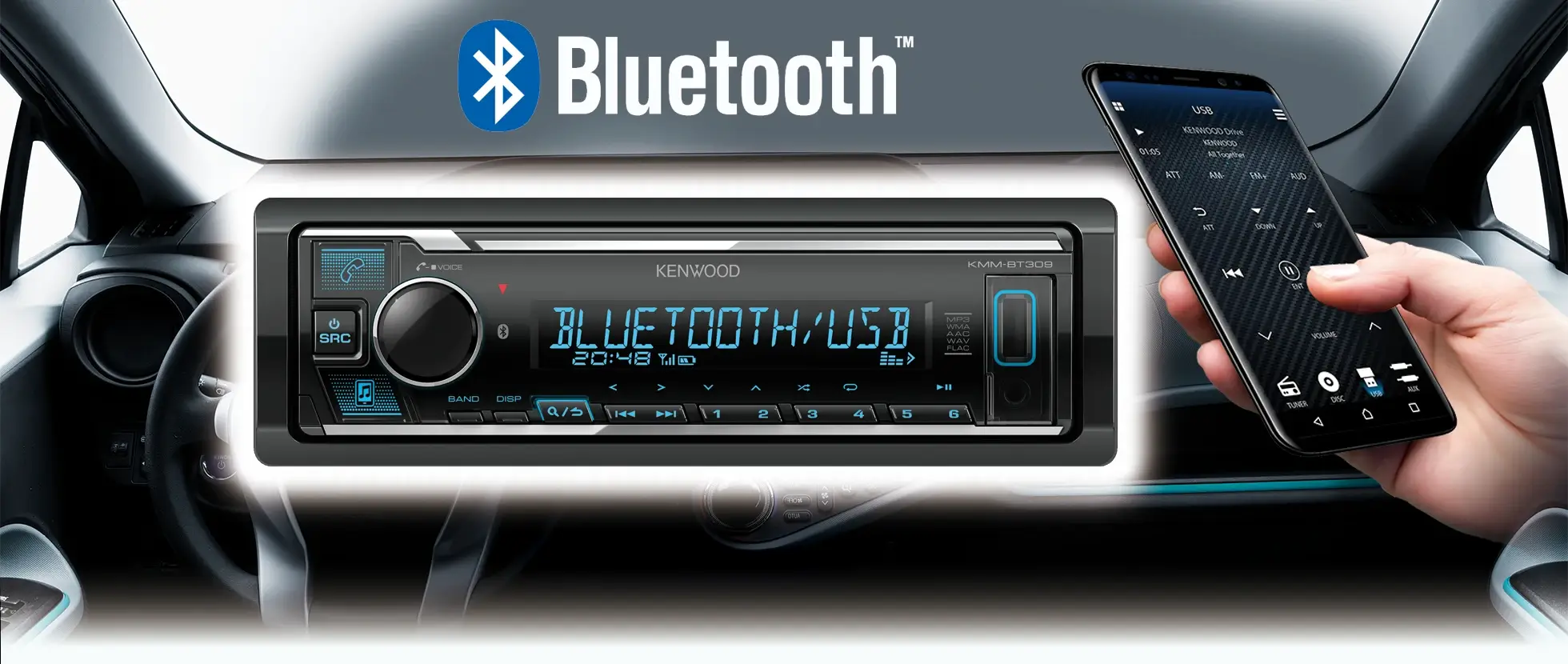
Credit: www.kenwood.eu
Frequently Asked Questions
How Do I Pair My Iphone With Kenwood?
To pair your iPhone with a Kenwood stereo, enable Bluetooth on your iPhone. Then, access the Bluetooth menu on your Kenwood stereo. Select your iPhone from the list of available devices and confirm the connection. Follow any on-screen prompts to complete pairing successfully.
Why Won’t My Iphone Connect To Kenwood Bluetooth?
If your iPhone isn’t connecting, ensure Bluetooth is enabled on both devices. Check if your Kenwood stereo is discoverable. Restart both devices and try pairing again. Ensure no other devices interfere. If issues persist, consult the user manual for troubleshooting steps.
Can I Play Music From Iphone On Kenwood?
Yes, you can play music from your iPhone on a Kenwood stereo via Bluetooth. Once connected, open your music app and select your preferred playlist or song. The audio should play through your Kenwood stereo, allowing you to enjoy your favorite tunes while driving.
How Do I Reset Kenwood Bluetooth Settings?
To reset Kenwood Bluetooth settings, access the Bluetooth menu on your stereo. Select the option to delete or clear paired devices. This will reset the Bluetooth settings. Re-pair your iPhone by following the standard pairing process to establish a fresh connection.
Conclusion
Connecting your iPhone to a Kenwood car stereo via Bluetooth is simple. Follow the steps carefully for a smooth setup. Pairing lets you enjoy music and calls hands-free. Stay safe and keep your focus on driving. Regularly update your devices for better connection.
Troubleshoot by restarting devices or checking settings. Enjoy the convenience of wireless audio in your car. This guide helps you stay connected on the road.

