How to Mirror My Phone to My Car Stereo: Easy Steps & Tips
Master Automotive Systems Engineer & Performance Vehicle Specialist at CarSpeedNest Automotive Testing Lab · ASE Certified Master Technician, Mobile Electronics Certified Professional (MECP Master), Certified Dyno Diagnostic Specialist · 14+ years in dyno testing, electronic sensor calibration, automotive wiring harnesses, and precision drivetrain maintenance
Have you ever wished you could see your phone’s screen right on your car stereo? Imagine having your favorite apps, maps, and music controls all within easy reach while you drive.
Mirroring your phone to your car stereo can make your trips safer and more enjoyable. But how do you do it? You’ll discover simple, step-by-step ways to connect your phone to your car’s display. Whether you have an Android or an iPhone, by the end of this guide, you’ll know exactly how to mirror your phone and take full control of your drive.
Keep reading to unlock the easy tricks that will change the way you drive forever.
Types Of Phone-car Connections
Connecting your phone to your car stereo can enhance your driving experience. It lets you play music, use navigation apps, and take calls hands-free. There are two main types of connections to mirror your phone to your car stereo: wired and wireless. Each type has its own benefits and setup process.
Wired Connections
Wired connections use cables to link your phone with the car stereo. The most common cable is the USB cord. This connection is simple and usually reliable.
- USB cable connects the phone directly to the stereo.
- Provides fast data transfer and charging at the same time.
- Less chance of signal interference or lag.
- Works with many car models and phone types.
Another wired option is the auxiliary (AUX) cable. It plugs into the headphone jack or adapter on your phone and the stereo’s AUX port. This option is easy but may not support screen mirroring features.
Wireless Connections
Wireless connections use Bluetooth or Wi-Fi to connect your phone to the car stereo without cables. These methods offer more freedom and convenience.
- Bluetooth connects audio for music and calls.
- Wi-Fi allows full phone screen mirroring in some systems.
- No cables needed, reducing clutter inside the car.
- Some car stereos support Apple CarPlay or Android Auto wirelessly.
Wireless connections depend on the strength of the signal. They may have slight delays or interruptions if the connection is weak. Still, they provide a neat and modern way to connect.

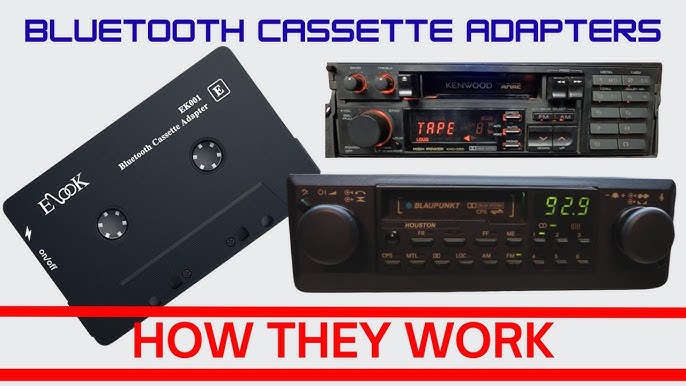
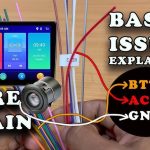
Credit: www.youtube.com
Preparing Your Phone And Car Stereo
Before you can enjoy your favorite apps and music through your car stereo, it’s important to prepare both your phone and the car system properly. This preparation ensures a smooth connection and prevents frustrating interruptions while you’re on the road. Let’s look at the key steps to get everything ready.
Check Compatibility
Not every phone works seamlessly with every car stereo. First, confirm if your car stereo supports phone mirroring features like Apple CarPlay or Android Auto. Check your car’s manual or the manufacturer’s website for compatibility details.
On your phone, ensure the model supports the mirroring technology you want to use. For example, older phones might not support the latest Android Auto or Apple CarPlay versions. Have you ever tried connecting your phone only to find it’s not supported? Avoid that hassle by verifying compatibility upfront.
Update Software
Outdated software on your phone or car stereo can cause connection failures. Make sure your phone’s operating system is up to date by checking the settings under Software Update. Most phones notify you when updates are available.
Similarly, your car stereo might need a firmware update. Visit the manufacturer’s website or use the car’s infotainment system to check for updates. Updated software often fixes bugs and improves connectivity, which means fewer headaches for you.
Enable Necessary Settings
Your phone and car stereo need the right settings enabled to communicate effectively. On your phone, activate Bluetooth and Wi-Fi, as many mirroring systems require both. Also, turn on permissions for the mirroring app to access your phone’s screen and data.
Within your car stereo settings, enable the phone mirroring or smartphone connection option. This might be labeled differently depending on the brand but look for terms like “Smartphone Link,” “Screen Mirroring,” or “CarPlay.” If you don’t see these options, double-check your car’s manual or settings menu.
Using Wired Methods
Using wired methods to mirror your phone to your car stereo offers a stable and fast connection. This approach reduces lag and ensures clear audio and video playback. It works well for drivers who want reliability without relying on wireless signals.
Wired connections usually require the right cable and compatible ports on both your phone and car stereo. These methods also draw power from the car, so your phone battery stays charged during use.
Connecting Via Usb Cable
Many car stereos support phone mirroring through a USB cable. Use the original or a high-quality USB cable for the best results. Plug one end into your phone and the other into the car’s USB port.
The car stereo will detect your phone and may prompt you to enable screen sharing or data transfer. Follow the on-screen instructions to start mirroring. This method often supports touch control from the car display.
- Use a USB-C or Lightning cable depending on your phone model.
- Enable USB debugging or data transfer mode on your phone if needed.
- Check your car stereo’s manual for compatibility with phone mirroring.
Using Hdmi Or Mhl Cables
Some phones and car stereos support HDMI or MHL connections for mirroring. These cables carry both video and audio signals with minimal delay. Connect your phone to the car stereo’s HDMI or MHL input port.
MHL cables usually require a special adapter to convert your phone’s charging port to HDMI. Once connected, switch the car stereo input to HDMI mode. Your phone screen should appear instantly on the car display.
- Confirm your phone supports MHL or HDMI output.
- Use an MHL adapter if your phone’s port is not HDMI.
- Switch your car stereo to the correct input source.

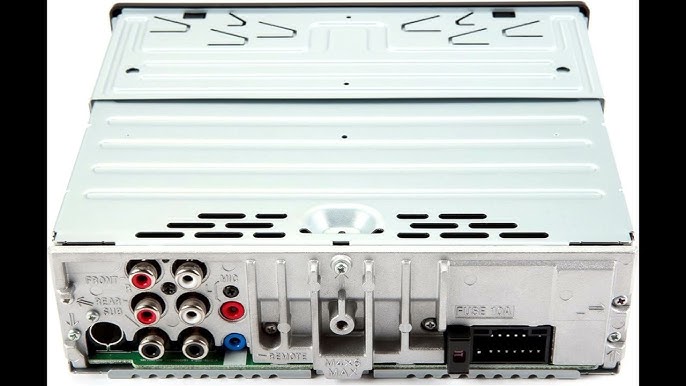
Credit: www.amazon.co.uk
Using Wireless Methods
Wireless methods offer a convenient way to mirror your phone to your car stereo. They eliminate the need for cables and keep your dashboard clutter-free. Connecting wirelessly also allows for easier control of apps and media through your car’s system. These methods work well with modern smartphones and many car models.
Bluetooth Mirroring
Bluetooth is a common wireless option for connecting phones to car stereos. It pairs your phone and stereo to stream audio and sometimes share basic screen content. Setup usually involves enabling Bluetooth on both devices and selecting the car stereo from the phone’s list of available devices.
Bluetooth works best for playing music, making calls, and using voice commands. It does not support full screen mirroring but provides a stable connection for audio functions. This option is widely compatible and easy to use for simple tasks.
Wi-fi Direct And Screen Mirroring Apps
Wi-Fi Direct allows phones to connect directly to car stereos without a router. This connection supports higher data transfer, enabling full screen mirroring of videos, maps, and apps. Many cars and smartphones support Wi-Fi Direct for this purpose.
Several screen mirroring apps use Wi-Fi Direct technology. Apps like MirrorLink, AirScreen, and ApowerMirror help send your phone’s display to the car stereo. These apps usually require installation on your phone and sometimes on the car’s system.
Wi-Fi Direct offers better video quality and responsiveness than Bluetooth. It is ideal for drivers who want to access navigation apps or watch videos on a compatible car display.
Using Apple Carplay And Android Auto
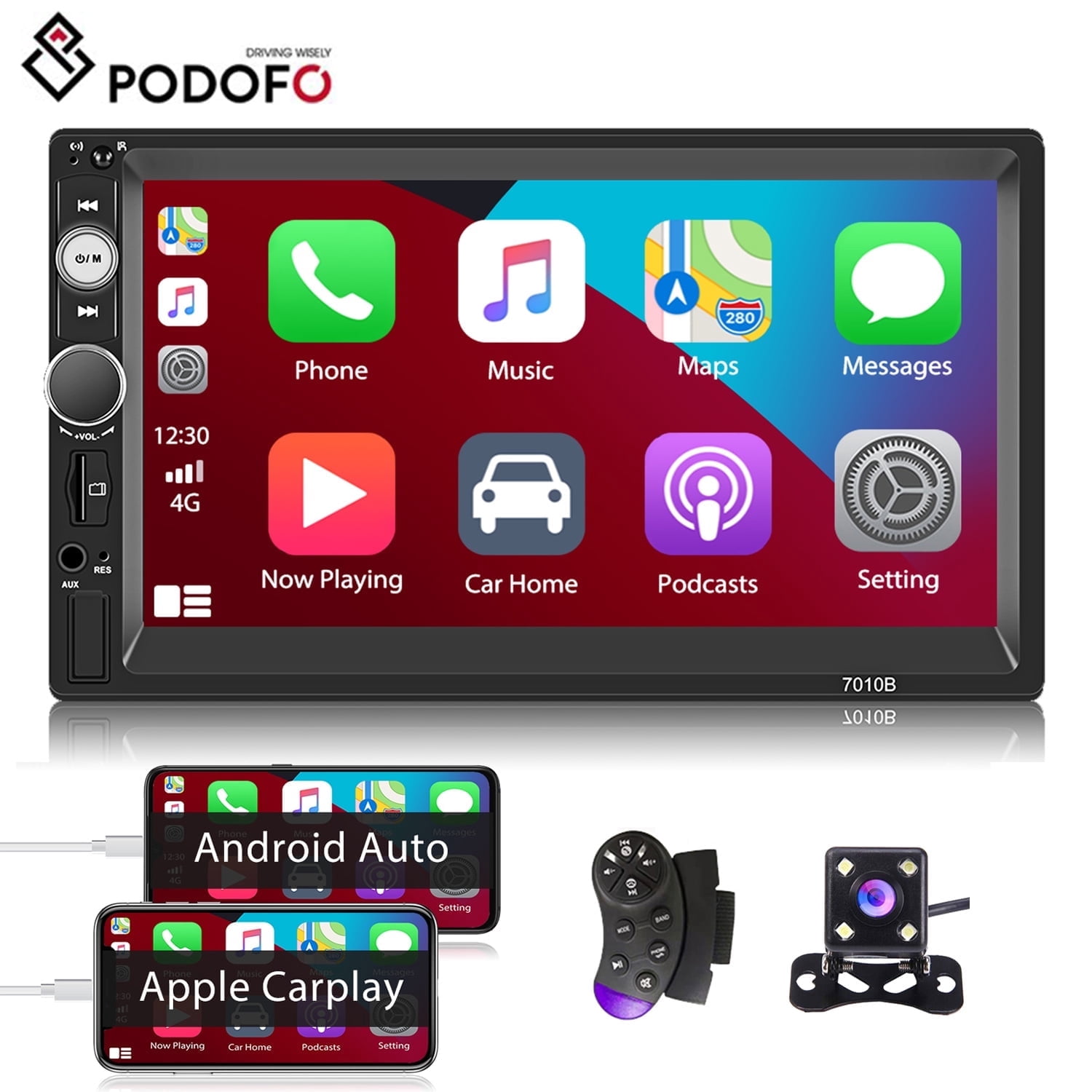
Apple CarPlay and Android Auto are built for wireless phone-to-car connections. They provide a seamless interface to control apps like maps, music, and messaging safely while driving. Both systems support wireless mirroring on compatible cars.
To use these features, enable Wi-Fi and Bluetooth on your phone and pair it with your car. The car stereo will then display a simplified version of your phone’s screen. This setup focuses on safe driving by offering large icons and voice controls.
Apple CarPlay works with iPhones, while Android Auto supports most Android phones. Both systems keep your phone connected and your attention on the road.
Troubleshooting Common Issues
Mirroring your phone to your car stereo can enhance your driving experience. Sometimes, issues arise that block smooth connection and performance. Troubleshooting these common problems helps restore the link quickly. Below are key areas to check and fix for better mirroring.
Connection Failures
Connection problems are common when pairing devices. Check these points to fix connection failures:
- Ensure Bluetooth or Wi-Fi is enabled on both devices.
- Restart your phone and car stereo system.
- Forget the car stereo on your phone’s Bluetooth list and reconnect.
- Verify both devices support the same mirroring protocol (e.g., Android Auto, Apple CarPlay).
- Keep devices close to avoid signal drop.
- Update software on both your phone and car stereo.
Audio Or Video Problems
Audio or video glitches can spoil the mirroring experience. Try these fixes:
- Check volume levels on both your phone and car stereo.
- Make sure the audio output is set to the car stereo.
- Restart the mirroring app or connection.
- Close other apps that may use audio or video resources.
- Test with different media files to rule out file corruption.
- Update the mirroring app to the latest version.
App Compatibility
Not all apps work perfectly with car mirroring systems. Consider the following:
- Use apps officially supported by your car stereo system.
- Check app permissions, especially for screen sharing and audio access.
- Update apps regularly to avoid bugs and compatibility issues.
- Use alternative apps if your preferred one is not supported.
- Consult your car’s manual for a list of compatible apps.
Tips For A Smooth Mirroring Experience
Getting your phone mirrored to your car stereo can transform your driving experience, but it only works well if everything runs smoothly. Small adjustments can make a big difference in how seamless and responsive the connection feels. Here are some practical tips to help you enjoy flawless mirroring without frustration or interruptions.
Optimize Network Connections
Your phone and car stereo often rely on Wi-Fi or Bluetooth to communicate. If your network is spotty, expect lag or disconnections. Try to keep your devices close to each other and away from sources of interference like other electronics or thick metal objects.
If you use Wi-Fi, connecting to a dedicated hotspot rather than a crowded public network can improve stability. Have you noticed that even a quick scan for nearby devices can slow things down? Turning off unnecessary connections like mobile data or other Bluetooth devices can help prioritize the mirroring link.
Keep Devices Updated
Software updates aren’t just about new features; they fix bugs and improve compatibility. Your car stereo and phone both benefit from running the latest firmware or operating system. I once struggled for weeks with connection drops until a simple update solved the problem completely.
Check regularly for updates from your phone manufacturer and car stereo provider. Don’t ignore the prompts—they can mean the difference between a frustrating experience and a smooth ride.
Manage Battery Life
Mirroring can drain your phone’s battery faster than usual, especially if you’re using GPS or streaming music simultaneously. Low battery modes might throttle performance or disable some functions, causing lag or disconnections.
Keep a charger handy or plug your phone into the car’s USB port to maintain power. Have you ever lost connection just when you needed your navigation most? Avoid that by monitoring your battery level before starting your trip.
Credit: www.walmart.com
Frequently Asked Questions
How Do I Connect My Phone To Car Stereo Wirelessly?
You can connect via Bluetooth or Wi-Fi if your car stereo supports it. Pair your phone with the car system in Bluetooth settings. For Wi-Fi, use apps like Apple CarPlay or Android Auto for seamless mirroring.
Which Apps Help Mirror Phone To Car Stereo?
Popular apps include Apple CarPlay, Android Auto, and MirrorLink. These apps allow you to display and control your phone’s screen safely on your car stereo. They support navigation, music, and calls while driving.
Can I Mirror My Phone Using A Usb Cable?
Yes, connecting your phone via USB to the car stereo often enables mirroring. Use the appropriate cable and enable phone mirroring or Android Auto/Apple CarPlay in your car’s system for instant connection.
Is Phone Mirroring Safe While Driving?
Phone mirroring is safe when used responsibly with voice commands or hands-free controls. Avoid interacting directly with the screen to minimize distractions. Use mirrored apps designed for driving to improve safety.
Conclusion
Mirroring your phone to your car stereo enhances driving experiences. Enjoy music, navigation, and calls with ease. The process is straightforward and boosts convenience. Most modern cars support phone mirroring features. Older models might need additional adapters. Check your car stereo’s compatibility first.
Follow the steps outlined in this guide. Practice patience during setup. Soon, you’ll enjoy seamless connectivity on the road. Stay safe and focused while driving. Always prioritize road safety above all. Happy driving with your newly mirrored setup!

Similar Posts