

Want to enjoy your favorite music, podcasts, or calls through your Kenwood car stereo using your Android phone? Connecting the two might seem tricky at first, but it’s easier than you think.
Imagine having crystal-clear sound and seamless control right from your car dashboard. In this guide, you’ll learn simple steps to link your Android device to your Kenwood stereo quickly and without hassle. Keep reading, and you’ll be driving with better sound and more convenience in no time.
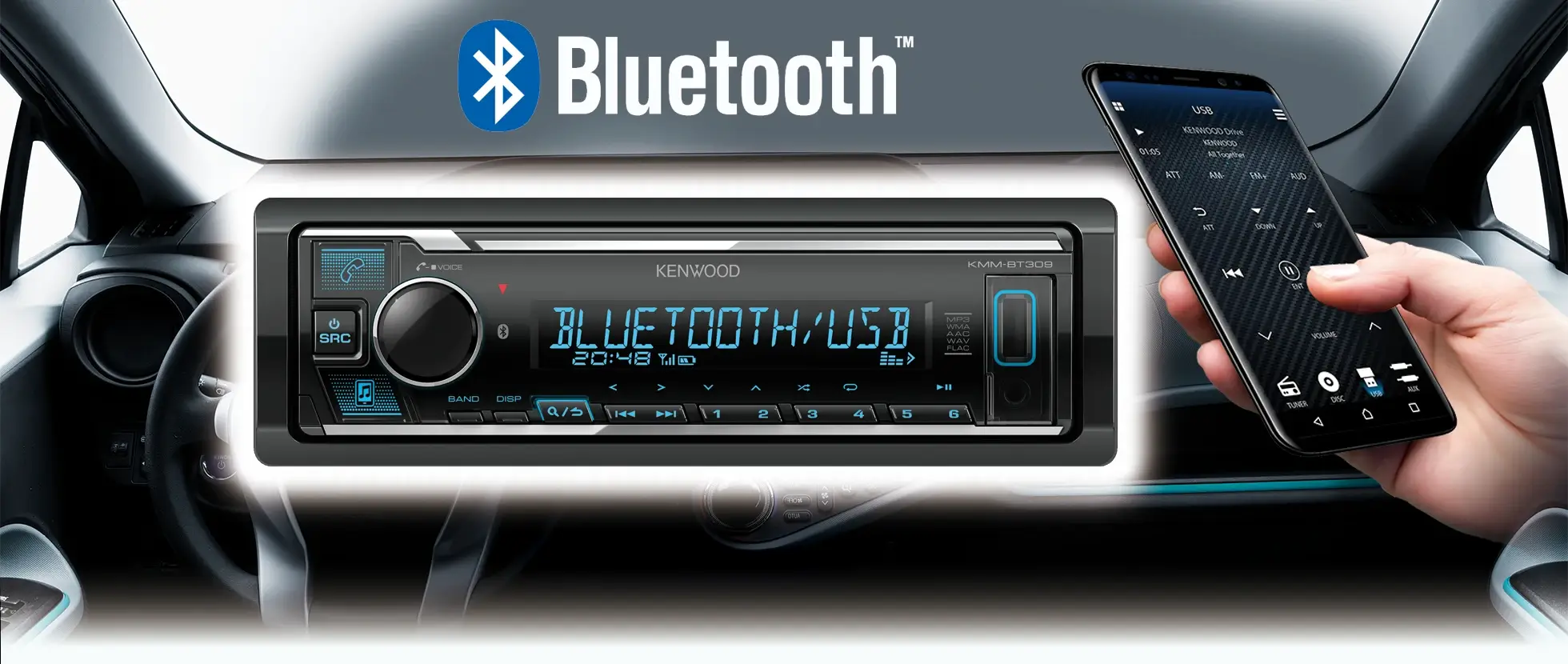
Credit: www.kenwood.eu
Prepare Your Devices
Preparing your devices is a key part of connecting your Android phone to a Kenwood car stereo. This step ensures a smooth and hassle-free experience. Taking time to get everything ready helps avoid common connection problems. It also saves time during the setup process.
Check Compatibility
Verify that your Kenwood car stereo supports Android devices. Some models only work with specific Android versions or features. Check the user manual or Kenwood’s website for compatibility details. Confirm your phone’s Android version matches the stereo’s requirements. Compatibility affects connection types like Bluetooth or USB.
Update Software
Keep your phone’s software up to date. Updates fix bugs and improve connection stability. Open your phone’s settings and check for system updates. Also, update the Kenwood stereo’s firmware if possible. Updated firmware enhances device communication and adds new features.
Gather Necessary Accessories
Prepare all items needed for the connection. Common accessories include:
- USB cable compatible with your phone
- Bluetooth headset or adapter (if using Bluetooth)
- Car charger to keep your phone powered
- Auxiliary cable for wired audio connection
Having these accessories ready speeds up the setup process. It also ensures you have the right tools for your preferred connection type.
Enable Bluetooth On Android
Enabling Bluetooth on your Android phone is the key to connecting it seamlessly with your Kenwood car stereo. Without activating this feature, your devices won’t be able to communicate. It’s a simple process that opens up a world of hands-free calls, music streaming, and easy navigation through your car’s audio system.
Turn On Bluetooth
Start by unlocking your Android phone and swiping down from the top of the screen to open the Quick Settings menu. Look for the Bluetooth icon; if it’s gray or dimmed, tap it to turn it blue or highlighted. This means Bluetooth is now active and ready to connect.
You can also go to Settings > Connections > Bluetoothand toggle the switch on. Staying in this menu helps you see available devices nearby, which is useful when pairing with your Kenwood stereo.
Make Device Discoverable
Turning on Bluetooth isn’t enough—you need to make your phone discoverable so your Kenwood stereo can find it. In the Bluetooth settings, look for an option labeled “Visible to nearby devices”or “Pair new device”. Enable this to allow your car stereo to detect your phone.
Keep in mind, your phone will only be discoverable for a limited time, typically a couple of minutes. Use this window to quickly select your phone on the Kenwood stereo screen. This small step prevents unnecessary device clutter and keeps your connection secure.
Set Up Kenwood Stereo
Setting up your Kenwood stereo is the first step to connect your Android phone. This process prepares the stereo for Bluetooth connection. It ensures smooth pairing and clear audio streaming. Follow simple instructions to activate the stereo’s Bluetooth feature. This setup will let your phone and stereo talk to each other easily.
Access Bluetooth Settings
Turn on your Kenwood stereo. Locate the menu or home button on the stereo panel. Press it to open the main menu. Find the Bluetooth settings option by scrolling through the menu. Select Bluetooth settings to open the Bluetooth menu. This menu controls all Bluetooth functions on the stereo. Make sure Bluetooth is turned on in this menu.
Activate Pairing Mode
In the Bluetooth menu, look for the pairing mode option. Activate pairing mode to make the stereo discoverable. The stereo will now search for nearby devices. Your Android phone can find the stereo in this mode. Pairing mode usually lasts a few minutes. If you miss this time, deactivate and reactivate pairing mode.

Credit: www.kenwood-electronics.co.uk
Pair Android Phone With Kenwood
Pairing your Android phone with a Kenwood car stereo lets you enjoy hands-free calls and music streaming. The process is simple and takes only a few moments. Follow the steps below to connect your devices smoothly.
Search For Devices
First, enable Bluetooth on your Android phone. Go to the Bluetooth settings menu and make sure it is discoverable. Next, turn on your Kenwood stereo and access its Bluetooth setup screen. Choose the option to search for new devices. Your phone and stereo will start scanning for each other.
Select Kenwood Stereo
After the search completes, a list of available devices appears on your phone. Look for the name of your Kenwood stereo in the list. Tap on it to select and begin the connection. Your phone will try to link with the stereo automatically.
Confirm Pairing Code
A pairing code will show on both your phone and Kenwood stereo screens. Check that the numbers match exactly. If they do, confirm the pairing on both devices. This step ensures a secure connection. Once confirmed, your phone and stereo will connect successfully.
Test The Connection
After successfully pairing your Android phone with your Kenwood car stereo, it’s time to test the connection. This step ensures everything works smoothly before you hit the road. Testing helps you catch any hiccups early, so you enjoy seamless audio and hands-free control.
Play Audio
Start by playing some music or a podcast from your phone. Check if the sound comes through your car speakers clearly and without delay. Adjust the volume on both your phone and the stereo to find the right balance.
If the audio cuts out or lags, try reconnecting or checking your Bluetooth settings. Sometimes, simply restarting your phone or stereo resolves minor glitches. Have you noticed how some apps work better than others with Bluetooth? Try different audio apps to see which one performs best.
Use Hands-free Features
Next, test the hands-free calling features. Make a call using your car stereo’s controls and listen for clear sound on both ends. Ensure your microphone picks up your voice well and that you can hear the other person without interference.
Try activating voice commands to see if your stereo responds accurately. This can help you stay focused on driving while managing calls or navigation. How confident do you feel using hands-free features while driving? Practicing this can boost your safety and convenience on the road.
Troubleshooting Tips
Connecting your Android phone to a Kenwood car stereo usually goes smoothly. Sometimes, issues happen. This section offers simple tips to fix common problems fast. Follow these easy steps to get your devices talking again.
Fix Connection Issues
Start by turning off Bluetooth on both devices. Wait a few seconds, then turn it back on. Make sure your phone is visible to other devices. Check if the Kenwood stereo is in pairing mode. Remove old Bluetooth connections on your phone to clear space. Try connecting again after these steps.
Reset Bluetooth Settings
Resetting Bluetooth can fix hidden errors. On your Android phone, go to Settings > System > Reset options. Choose “Reset Wi-Fi, mobile & Bluetooth.” This deletes all saved Bluetooth data. Reconnect your Kenwood stereo as a new device after the reset. This often solves stubborn connection problems.
Update Firmware
Firmware updates improve device performance. Check Kenwood’s website or app for your stereo’s latest firmware. Follow the instructions to install updates safely. Also, update your Android phone’s system if available. Updated software helps both devices work better together.

Credit: www.youtube.com
Frequently Asked Questions
How Do I Pair My Android With Kenwood Stereo?
To pair your Android with Kenwood, enable Bluetooth on your phone. Then, access the Bluetooth settings on your Kenwood stereo. Select your device from the list of available devices. Follow the on-screen instructions to complete the pairing process. Ensure both devices are within range for a stable connection.
Why Won’t My Kenwood Stereo Connect To Bluetooth?
If your Kenwood stereo won’t connect, check if Bluetooth is enabled on both devices. Ensure your Android is discoverable and within range. Restart both devices and attempt pairing again. Updating the stereo’s firmware may also help resolve connectivity issues. If problems persist, consult the user manual for further troubleshooting.
Can I Use Usb To Connect My Android Phone?
Yes, you can connect your Android phone via USB. Use a compatible USB cable to connect your phone to the stereo’s USB port. Ensure your phone is in the correct mode, such as “Media Transfer Protocol” (MTP). This allows you to play music and access files directly from your phone.
Does Kenwood Stereo Support Android Auto?
Yes, many Kenwood stereos support Android Auto. Ensure your stereo model is compatible with Android Auto. Connect your Android device using a USB cable. Follow the on-screen prompts to set up Android Auto. This feature allows you to access apps, navigation, and music safely while driving.
Conclusion
Connecting your Android phone to a Kenwood car stereo is simple and quick. Follow the steps carefully for the best results. Use Bluetooth or USB to enjoy music and calls hands-free. Keep your phone updated to avoid connection problems. Try different settings if the connection fails at first.
Enjoy clear sound and easy control during your drive. Stay safe by using your stereo without distractions. This guide helps you stay connected and entertained on the road.

