How to Connect Android to Car Stereo Usb: Easy Steps to Play Music
Master Automotive Systems Engineer & Performance Vehicle Specialist at CarSpeedNest Automotive Testing Lab · ASE Certified Master Technician, Mobile Electronics Certified Professional (MECP Master), Certified Dyno Diagnostic Specialist · 14+ years in dyno testing, electronic sensor calibration, automotive wiring harnesses, and precision drivetrain maintenance
Have you ever wanted to play your favorite songs from your Android phone through your car’s stereo using a USB connection? It sounds simple, but if you’re not sure how to do it, it can quickly become frustrating.
Connecting your Android device to your car stereo via USB lets you enjoy better sound quality, charge your phone at the same time, and even control your music directly from your car’s dashboard. In this guide, you’ll learn easy, step-by-step instructions to make the connection work smoothly every time.
Keep reading, and you’ll be ready to hit the road with your perfect playlist in no time.

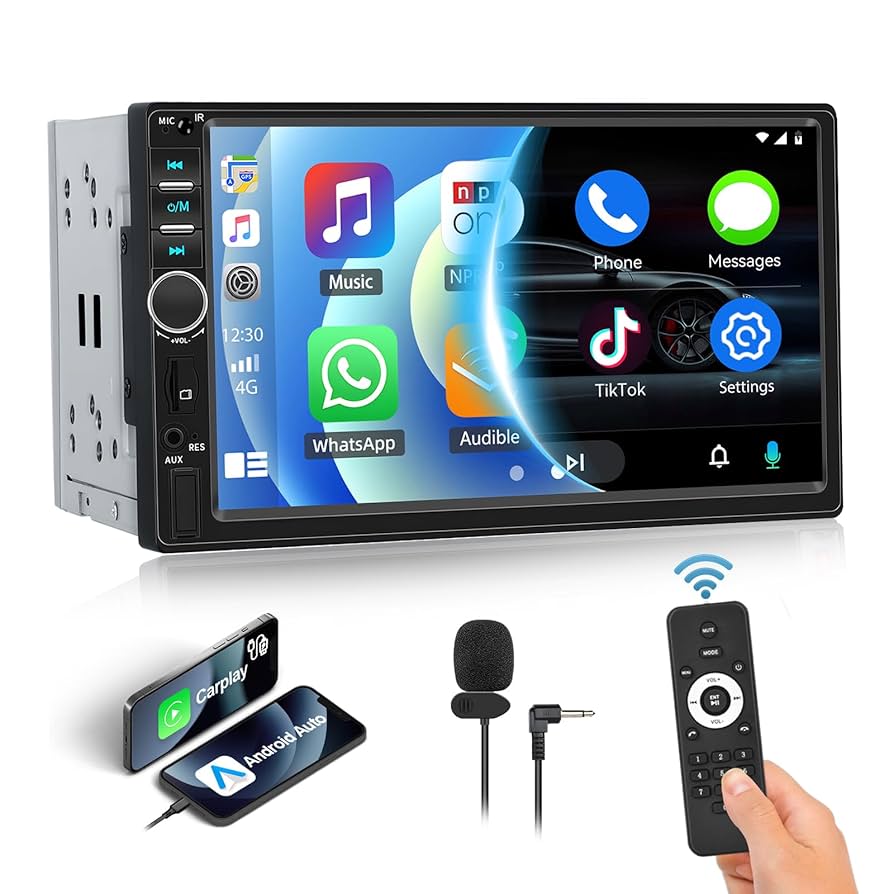
Credit: sztvcmall.en.made-in-china.com
Check Car Stereo Compatibility
Checking your car stereo’s compatibility is essential before connecting your Android device via USB. Not all car stereos support every USB type or audio format. Ensuring compatibility helps avoid connection issues and poor audio quality. This step saves time and frustration.
Identify Usb Port Type
Car stereos usually have different USB port types. Common types include USB-A, USB-B, and USB-C. Look at your stereo’s USB port shape to identify it. USB-A is rectangular and the most common. USB-C is smaller and oval-shaped, found on newer models.
Knowing the port type helps you pick the right cable or adapter. Some stereos may only support USB 2.0 or USB 3.0 speeds. Check the stereo manual or manufacturer website for details. Using the wrong cable can cause connection problems or slow data transfer.
Supported Audio Formats
Car stereos play audio files in specific formats. Common supported formats include MP3, WAV, AAC, and FLAC. Check which formats your stereo accepts before transferring music. Playing unsupported files can lead to errors or silence.
Some car stereos support lossless formats like FLAC for better sound quality. Others only handle basic formats like MP3. Consult the stereo’s specifications to know the compatible formats. Convert your audio files if needed for smooth playback.
Prepare Your Android Device
Preparing your Android device is key for a smooth connection to your car stereo USB. Setting up the right options helps your car recognize the device quickly. This makes music playback and file transfers easy and fast.
Check your phone settings before plugging it into the car USB. Some settings need to be enabled for proper communication between devices. Take a moment to adjust these settings for the best experience.
Enable Usb Debugging
USB debugging allows your car stereo to access your phone’s data safely. It helps in troubleshooting and improves connection stability. To enable USB debugging:
- Open the Settings app on your Android device.
- Scroll down and tap “About phone.”
- Find “Build number” and tap it seven times.
- Return to the main Settings menu.
- Tap “Developer options.”
- Toggle on “USB debugging.”
This mode lets your car stereo detect your device without issues. Keep USB debugging on only when connecting to trusted devices.
Select Proper Usb Mode
Choosing the right USB mode ensures your car stereo plays music or accesses files correctly. Your Android device offers several USB modes like:
- Charging only:Charges the phone but does not transfer data.
- File Transfer (MTP):Allows file sharing between your phone and the car.
- Audio Source (AUDIO):Streams music directly from the phone.
To select a USB mode:
- Connect your phone to the car USB port.
- Pull down the notification shade on your phone.
- Tap the USB connection notification.
- Choose “File Transfer” or “Audio Source” based on your need.
This step makes sure your car stereo can access your Android device as intended. Always select the mode that fits your use.
Connect Android To Car Stereo
Connecting your Android phone to your car stereo via USB is a straightforward way to enjoy your music, podcasts, and navigation with better sound quality and control. It lets you manage your audio directly from your car’s dashboard, making your driving safer and more enjoyable. Knowing the right tools and steps can save you time and frustration.
Use The Right Usb Cable
Not all USB cables are created equal. Using the cable that came with your phone or a high-quality replacement ensures a stable connection and fast data transfer.
Cheap or damaged cables often cause connection issues or slow charging. If your car stereo doesn’t recognize your phone, try switching cables before troubleshooting further.
Look for cables labeled “data sync” or “charging and data” to guarantee they support audio and control features, not just power.
Plug Into Car Usb Port
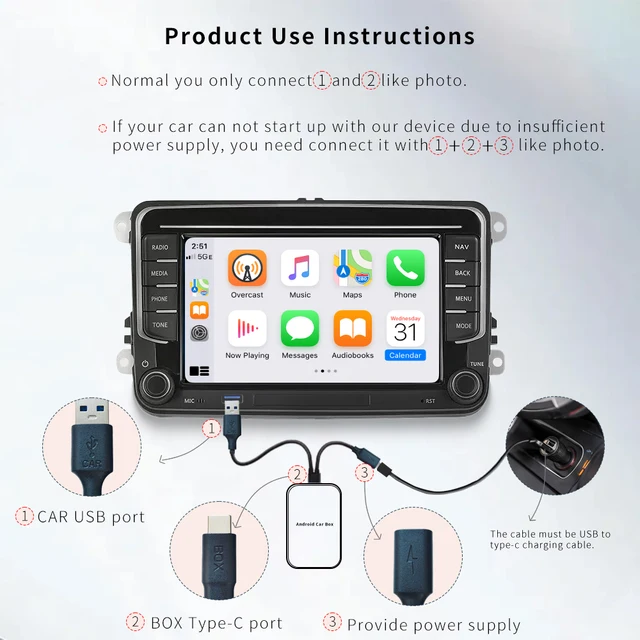
Locate the USB port in your car, usually found on the dashboard, center console, or near the gear shift. This port is designed to connect devices like your phone directly to the stereo system.
Simply plug your Android device into this port using the right USB cable. Your car stereo should automatically detect the phone and switch to USB mode.
If it doesn’t, check your car’s audio settings to select the USB input manually. Have you ever wondered why some cars don’t recognize certain phones? It often comes down to compatibility or the cable used.

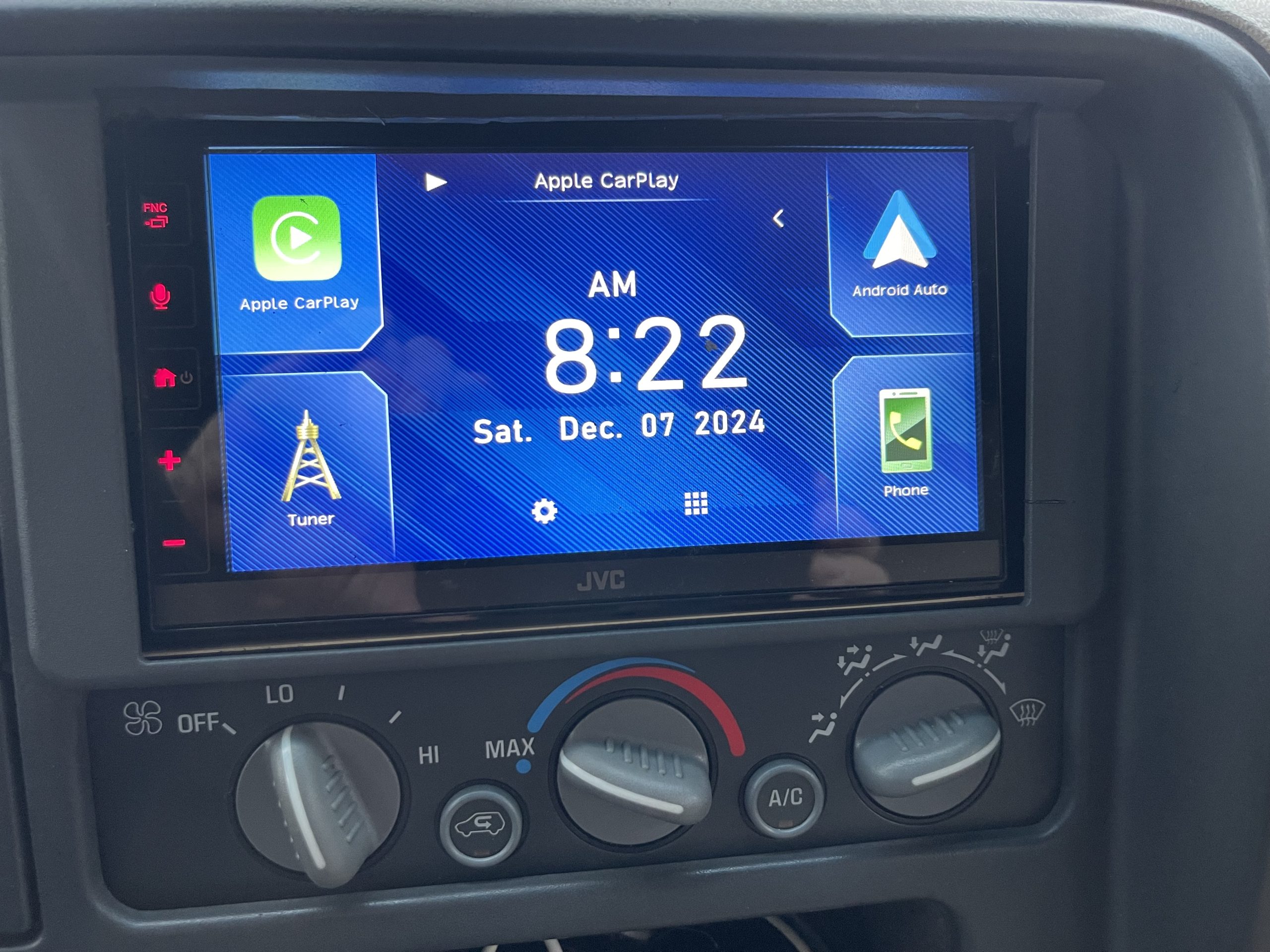
Credit: www.reddit.com
Configure Car Stereo Settings
Configuring your car stereo settings is essential for a smooth connection between your Android device and the car stereo via USB. Proper setup ensures clear audio playback and easy control over your music. Adjusting these settings helps your car stereo recognize the USB input and respond to playback commands.
Select Usb Source
First, access your car stereo’s input options. Look for the source or media button on the stereo panel. Press it until the display shows “USB” or a similar label. This action switches the stereo to accept audio from the connected Android device.
Some car stereos show a list of available inputs on the screen. Use the navigation buttons to find and select the USB source. Confirm your choice by pressing the enter or OK button. This step activates the USB connection for music playback.
Adjust Playback Controls
Once the USB source is active, test your playback controls. Use the stereo’s play, pause, skip, and rewind buttons to control the music. The car stereo should respond to these commands instantly.
If the controls do not work, check the settings menu on the stereo. Look for options like “USB control” or “media control” and ensure they are enabled. This setting allows the stereo to communicate with your Android device and control the playback.
Adjust the volume and sound settings to your preference. Some systems offer equalizer presets or manual sound adjustments. Tailoring these settings can improve your listening experience while driving.
Troubleshoot Connection Issues
Connecting your Android phone to a car stereo via USB can sometimes face hiccups. Troubleshooting these connection issues can save time and frustration. Simple checks often fix common problems quickly.
Check Cable And Ports
Inspect the USB cable for any visible damage or wear. A broken or frayed cable can stop data transfer. Try using a different cable known to work with your devices.
Look at the USB ports on both the car stereo and Android device. Dust or debris inside the port can block connection. Clean ports gently with a soft brush or compressed air.
Ensure the cable fits snugly into both ports. Loose connections cause intermittent or no communication between devices.
Restart Devices
Turn off the car stereo and Android phone. Wait for about 30 seconds before turning them back on. Restarting clears temporary glitches that may block USB connection.
After rebooting, plug the USB cable back in. This step often resets the connection and allows devices to recognize each other.
Update Firmware And Software
Check for software updates on your Android phone. Go to settings and look for system updates. Updated software improves compatibility and fixes bugs.
Look for firmware updates for your car stereo. Visit the manufacturer’s website or check the stereo’s settings menu. Keeping firmware current enhances device communication.
Applying updates can solve unseen issues that block USB connections between your Android and car stereo.
Credit: www.aliexpress.com
Alternative Ways To Play Music
Connecting your Android to a car stereo USB port is not the only way to enjoy music. Several alternative options offer easy and quick access to your favorite songs. These methods work well with most vehicles and require minimal setup. Each has its benefits depending on your car’s features and your device.
Bluetooth Audio Streaming
Bluetooth lets you play music wirelessly from your phone to your car stereo. Most modern cars have Bluetooth built-in. Pair your phone with the car’s system by turning on Bluetooth on both devices. Once connected, play music apps on your phone. The sound will come through the car speakers. This method avoids cables and keeps your phone free to move around.
Auxiliary Cable Connection
An auxiliary (AUX) cable is a simple way to connect your phone to the car stereo. Plug one end into your phone’s headphone jack or adapter. Connect the other end to the car’s AUX input. Select the AUX mode on your stereo. This method provides direct audio and good sound quality. It works without any wireless connection, so no pairing is needed.
Use Android Auto
Android Auto offers a smart and safe way to use your phone while driving. Connect your phone to the car via USB or Bluetooth. Android Auto shows apps on your car’s screen. You can control music, maps, and calls easily. It supports voice commands for hands-free use. This option improves both entertainment and safety on the road.
Frequently Asked Questions
How Do I Connect My Android To Car Usb?
To connect your Android to a car USB, use a USB cable compatible with your phone. Plug one end into your phone and the other into the car’s USB port. Ensure your car stereo is set to the correct input source.
Follow any on-screen prompts on your phone.
Why Won’t My Phone Connect To My Car Usb?
If your phone won’t connect, check the USB cable for damage. Ensure your car stereo supports USB connections and is set to the correct mode. Restart both your phone and car stereo. Update your phone’s software and try a different USB cable if the problem persists.
Can I Play Music From Android Via Usb?
Yes, you can play music from your Android through a car’s USB. Connect your phone using a USB cable and select the USB input on your car stereo. Open a music app on your phone to start playing music. Ensure your car stereo supports media playback via USB.
How Do I Enable Usb Debugging On Android?
To enable USB debugging, go to your Android’s “Settings” and tap “About Phone. ” Find “Build Number” and tap it seven times to enable Developer Options. Return to “Settings,” open “Developer Options,” and toggle on “USB Debugging. ” This may help in establishing a USB connection.
Conclusion
Connecting your Android to a car stereo via USB is simple and quick. Just follow the steps carefully to ensure a smooth link. This connection lets you play music, use apps, and charge your phone easily. Enjoy clear sound and better control while driving.
Keep your cables handy and your phone ready. Now, driving with your favorite tunes is stress-free and fun. Try it today and experience the convenience yourself.

Similar Posts