
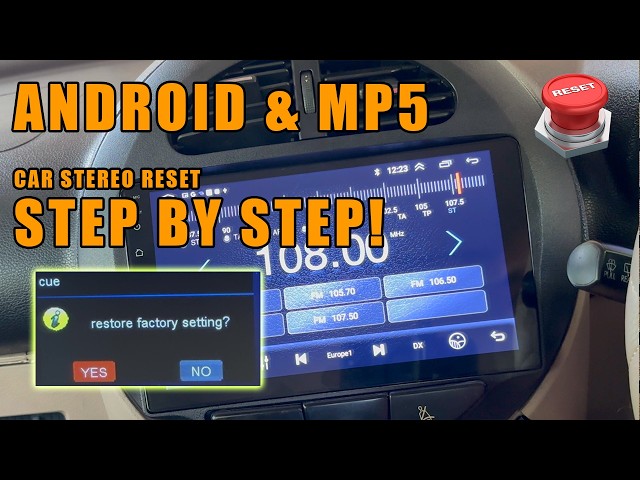
Is your Android car stereo acting up? Maybe the touchscreen is frozen, or the audio isn’t working right.
You don’t need to rush to a technician just yet. Resetting your Android car stereo can often fix these common problems quickly and easily. In this guide, you’ll learn simple steps to reset your device and get back to enjoying your music and navigation without hassle.
Keep reading—you’re just a few clicks away from solving your stereo issues for good.
Reasons To Reset Your Android Car Stereo
Resetting your Android car stereo can fix many problems. It helps clear errors and restore settings. Many users reset their devices to keep them running smoothly. Knowing why to reset can save time and stress.
Common Issues And Glitches
Android car stereos may freeze or stop responding. Apps may crash or fail to load. Sound may cut out or distort unexpectedly. Resetting can clear these glitches fast. It refreshes the system and removes minor bugs. This simple step often solves common problems.
Improving Performance
Over time, your stereo may slow down. Menus take longer to open. Buttons may lag when pressed. Resetting clears temporary files and frees memory. This can make the stereo feel faster and more responsive. It helps keep the system clean and efficient.
After Software Updates
Updates can change settings or cause conflicts. Some features may stop working properly. Resetting after updates ensures smooth operation. It resets configurations to match the new software. This avoids errors caused by old settings. Resetting prevents issues and improves stability.
Types Of Resets For Android Car Stereo
Resetting your Android car stereo can solve many common issues. Different types of resets address different problems. Knowing each reset type helps you choose the right one.
Soft Reset
A soft reset restarts the stereo without deleting any data. It clears minor glitches and temporary errors. This reset is quick and simple. Usually, you can perform it by holding the power button for a few seconds. Use a soft reset to fix freezing or slow response.
Factory Reset
A factory reset restores the stereo to its original settings. It removes all user data, apps, and custom settings. This reset solves serious software problems or errors. You must back up important data before doing it. Factory reset is done through the settings menu or a specific button combination.
Hard Reset
A hard reset is similar to a factory reset but done differently. It uses hardware buttons or a pinhole reset button on the device. This reset helps if the stereo is unresponsive or won’t turn on. It forces a complete reboot and wipes user data. Use a hard reset only when other resets fail.
Preparing For The Reset
Resetting your Android car stereo can fix glitches, improve performance, or clear personal settings. But before you hit that reset button, it’s smart to prepare carefully. Taking some simple steps beforehand can save you from frustration and data loss later on.
Backup Important Data
Your Android car stereo likely stores contacts, playlists, navigation favorites, and custom settings. Losing these can be annoying, especially if you’ve spent time setting them up just right.
Make sure to back up this data to your phone, cloud service, or a USB drive. You can usually export contacts and playlists through the stereo’s settings menu. Have you ever lost your favorite playlist after a reset? Avoid that by saving it now.
Check Power Supply
A reset requires a steady power supply to avoid interruptions. If your car’s battery is low or unstable, the reset process might fail or even damage the stereo system.
Before resetting, start your engine or ensure the battery is fully charged. This small step can prevent unexpected shutdowns that complicate the reset.
Gather Necessary Tools
Different car stereos might need different tools to access reset buttons or remove panels. You don’t want to be stuck looking for a tiny pin or screwdriver after you’ve started.
Common tools include a paperclip for pressing recessed reset buttons, a small flathead screwdriver, or the stereo’s user manual for guidance. Having everything ready makes the reset quick and hassle-free.
Step-by-step Soft Reset Guide
Resetting your Android car stereo can solve many common issues like freezing, lag, or sound glitches without wiping your personal settings. A soft reset refreshes the system quickly, helping you get back on the road with minimal downtime. Let’s look at practical ways to perform this soft reset effectively.
Using The Touchscreen Menu
Most Android car stereos offer a reset option right in the settings menu, making this the easiest way to refresh your system. Navigate to the Settingsor Systemsection on your stereo’s touchscreen.
- Look for options like Reset, Restart, or Soft Reset.
- Tap the reset option and confirm if prompted.
This process takes only a few seconds and doesn’t erase your data or preferences. Have you ever noticed how a simple restart often fixes glitches on your phone? The same applies here—it’s a quick fix that can save you a trip to the mechanic.
Physical Button Combination
If your touchscreen is unresponsive, a physical button reset is your next best option. Many car stereos have a hidden reset function activated by holding a combination of buttons.
- Identify the power, volume, or home buttons on your device.
- Press and hold two or more of these buttons simultaneously for about 10 seconds.
- Release the buttons once the screen turns off and the system restarts.
This manual approach forces the stereo to reboot without affecting your settings. Have you ever found yourself stuck in a frozen screen? This trick often gets the system running again quickly, avoiding frustration and delays.
Performing A Factory Reset
Performing a factory reset on your Android car stereo can solve many issues, from frozen screens to software glitches. It wipes out all your settings and returns the system to the state it was in when you first bought it. This process can feel intimidating, but it’s straightforward once you know where to look and what to expect.
Accessing Settings Menu
Start by turning on your car stereo and navigating to the main menu. Look for the Settingsicon, often represented by a gear symbol.
Within the settings, find the section labeled Systemor Device. This is where the factory reset option usually hides.
If your model has a touchscreen, use it to scroll through the menus carefully. On some models, you may need to press physical buttons to access the settings.
Confirming The Reset
Once you select Factory Reset, the system will ask for confirmation. This step prevents accidental resets.
Read the warning message carefully. It will tell you that all personal data, including saved radio stations and Bluetooth pairings, will be erased.
Are you sure you want to continue? Confirming this action often requires pressing a button labeled Yesor Reset. Take a deep breath and decide.
What Happens After Factory Reset
After the reset starts, your stereo will reboot automatically. This reboot can take a few minutes—don’t turn off your car or stereo during this time.
When the system powers back up, it will behave like it just came out of the box. You will need to set your language, connect to Bluetooth devices again, and re-enter any preferences.
Think of this as a fresh start. If you had persistent problems before, a factory reset can clear them up and make your stereo run smoothly again.

Credit: www.youtube.com
Hard Reset Options
Hard reset options are your go-to solutions when your Android car stereo acts up and the usual reset via settings doesn’t work. These methods force the system to restart and clear out any glitches that may be causing trouble. They might feel a bit drastic but often get your stereo back to normal fast.
Disconnecting The Battery
Disconnecting your car’s battery cuts power to the stereo completely, forcing a hard reset. This method is simple but effective, especially if your stereo is frozen or unresponsive.
Start by turning off your car and opening the hood. Use a wrench to loosen the negative terminal clamp and remove it carefully. Wait about 10 to 15 minutes to let any residual power drain before reconnecting the battery.
Remember, disconnecting the battery can reset other systems in your car too. So, be prepared to reset your clock, radio presets, and possibly your car’s security system afterward.
Using Reset Pins Or Buttons
Many Android car stereos come with a tiny reset button or pinhole. This button is specifically designed for hard resets without disconnecting the battery.
Locate the reset pinhole on the stereo’s face or side panel. Use a paperclip or a small pointed object to press and hold the button for about 5 to 10 seconds. You’ll usually see the screen go blank or the system restart, confirming the reset.
This option is less invasive and keeps your car’s other systems intact. Have you checked your stereo’s manual? It often reveals the exact location of the reset pin and special instructions for your model.
Troubleshooting After Reset
Resetting your Android car stereo can fix many issues, but it often wipes out your personalized settings. After a reset, your stereo might feel unfamiliar or incomplete. Troubleshooting these changes quickly will get your system back to how you like it, so you can enjoy your drive without hassle.
Reinstalling Apps
Apps you previously installed may disappear after a reset. Check your car stereo’s app store or Google Play Store to reinstall essential apps like navigation, music streaming, or vehicle diagnostics.
Keep a list of your favorite apps handy before resetting next time. This saves you from forgetting important tools that enhance your driving experience. Don’t rush the reinstall process; take time to update apps to their latest versions for better performance.
Reconnecting To Bluetooth And Wi-fi
Resetting often clears all Bluetooth and Wi-Fi connections. You’ll need to pair your phone or other devices again to restore hands-free calls and music streaming.
Make sure your phone’s Bluetooth is discoverable, then select your stereo from the list of devices. For Wi-Fi, enter your network credentials carefully. This reconnection step is crucial for smart features and updates to work properly.
Adjusting System Settings
Your preferred settings, like audio levels, display brightness, and time zones, will return to default after a reset. Spend some time customizing these settings to match your driving style and environment.
Adjust audio balance and equalizer settings to suit your car’s acoustics. Set the clock and date to avoid confusion during trips. Tweaking these details might seem small, but they make your car stereo feel like it’s truly yours again.
Credit: www.youtube.com
Tips To Avoid Future Issues
Resetting your Android car stereo can solve many issues, but preventing those problems from coming back is even better. Taking simple steps can keep your system running smoothly and extend its lifespan. Let’s look at some practical tips to avoid future issues and keep your stereo performing at its best.
Regular Software Updates
Keeping your car stereo’s software up to date is crucial. Updates fix bugs, improve performance, and add new features. Ignoring these updates can cause glitches or even make your stereo incompatible with newer apps or devices.
Check for updates regularly through the settings menu or the manufacturer’s website. Some systems allow automatic updates—enable this if available to save time. Have you ever skipped an update only to face unexpected crashes later? Staying current can prevent that headache.
Safe App Installation
Installing apps from unknown sources can introduce malware or cause conflicts that disrupt your stereo. Stick to official app stores like Google Play to ensure apps are safe and compatible.
Before downloading, read reviews and check the app’s permissions. Do you really need that flashy equalizer app, or could it be causing more harm than good? Limiting installations to trusted apps keeps your system stable and secure.
Proper Power Management
Power surges or improper shutdowns can damage your stereo’s hardware or corrupt its software. Avoid turning off your car abruptly or disconnecting the stereo while it’s running an update.
Using a quality car battery and fuse can protect your stereo from electrical issues. Ever lost settings or faced random resets? Managing power carefully helps maintain your stereo’s health over time.
Credit: deanauto.in
Frequently Asked Questions
How Do I Perform A Soft Reset On My Android Car Stereo?
To soft reset, press and hold the power button for 10 seconds. The system will reboot without erasing data. This fixes minor glitches and improves performance safely.
What Steps Reset Android Car Stereo To Factory Settings?
Access the settings menu, select “System,” then “Reset,” and choose “Factory data reset. ” Confirm to erase all data and restore original settings.
Will Resetting Android Car Stereo Delete My Saved Data?
Yes, a factory reset deletes saved apps, settings, and data. Back up important files before resetting to avoid data loss.
How Can I Reset Android Car Stereo Without A Touchscreen?
Use the physical reset button or press a combination of hardware buttons. Consult your stereo manual for the exact reset procedure.
Conclusion
Resetting your Android car stereo is easier than you think. Follow the steps carefully to ensure success. A reset can solve many common issues quickly. Always remember to back up important data first. This prevents loss of valuable information. Safety is key.
Work with clean hands and a stable environment. Feel more confident while handling your car stereo. Enjoy a seamless music experience. Troubleshooting becomes simpler with these handy tips. Resetting restores your stereo to its original settings. You now have the knowledge to tackle this task effortlessly.
Enjoy driving with a refreshed system!

