
Imagine driving with your favorite songs or important calls crystal clear through your car speakers. Wouldn’t that make every trip more enjoyable and safer?
If you’ve ever wondered how to connect your cell phone to your car speakers but felt stuck or overwhelmed, you’re in the right place. This simple guide will show you easy steps to get your phone and car working together seamlessly.
By the end, you’ll know exactly how to enjoy your music, podcasts, and calls without fumbling with wires or confusing settings. Ready to upgrade your drive? Let’s dive in!
Choose Connection Method
Choosing the right connection method for linking your cell phone to your car speakers can make a huge difference in sound quality and ease of use. Each option offers unique benefits and limitations, so it’s important to pick one that fits your car setup and personal preferences. Think about what features matter most to you—wireless convenience, sound clarity, or maybe compatibility with older car models.
Bluetooth Pairing
Bluetooth pairing is the most popular choice today because it lets you connect wirelessly. Most modern cars support Bluetooth, allowing you to stream music and take calls hands-free. However, pairing can sometimes be tricky if your phone or car system has compatibility issues.
Have you ever struggled with a device that won’t pair? Make sure your phone’s Bluetooth is visible and your car’s system is in pairing mode. Once connected, it’s seamless and frees you from cables cluttering your dashboard.
Auxiliary Cable
If you want a simple and reliable connection, an auxiliary (AUX) cable is a great pick. Just plug one end into your phone’s headphone jack and the other into the car’s AUX input. This method works with almost any car and phone, even older ones without Bluetooth.
Keep in mind, you’ll need to keep your phone close to the stereo, and cable tangling can be annoying. But the sound quality is usually better than FM transmitters, and setup is straightforward.
Usb Connection
Connecting your phone via USB offers both charging and audio playback through the car speakers. Many newer cars recognize your phone and allow control through the stereo interface. This setup is perfect if you want to keep your battery full while enjoying your favorite playlists.
However, some cars only support specific phone models or operating systems through USB. Double-check compatibility to avoid frustration.
Fm Transmitter
FM transmitters are a handy solution if your car stereo lacks modern input options. This device plugs into your phone and broadcasts the audio signal over an FM frequency, which your car radio can pick up. It’s a wireless option but depends heavily on finding a clear FM channel.
Sound quality may vary, and interference can happen in busy radio areas. Still, it’s a clever workaround for older cars without AUX or Bluetooth.
Cassette Adapter
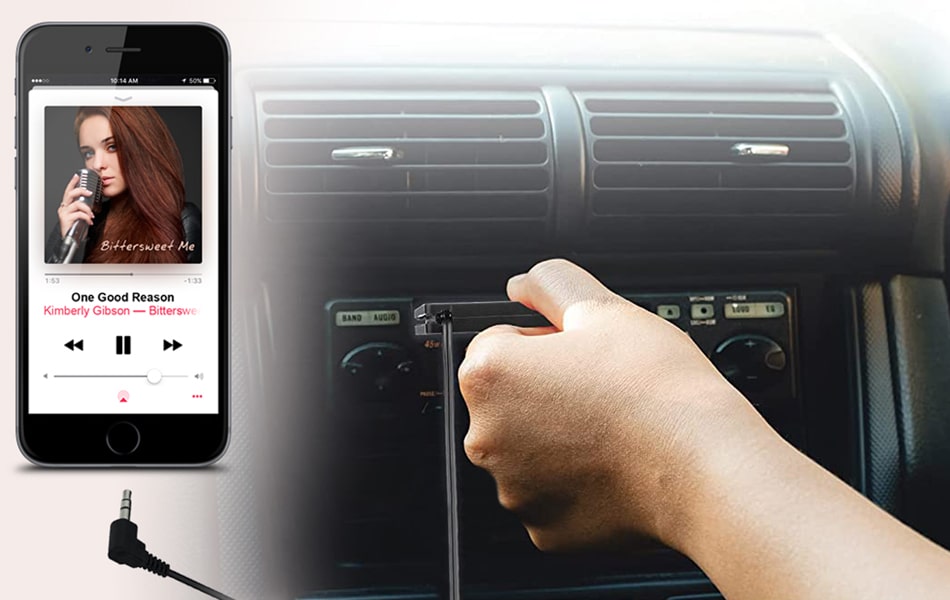
Believe it or not, cassette adapters can still connect your phone to car speakers in vehicles with a cassette player. The adapter looks like a cassette tape but has a cable that plugs into your phone’s headphone jack. It’s a niche option but perfect if your car is a classic model.
Sound quality is decent, and setup is easy, but it only works if your car has a cassette deck. Have you ever tried playing music through a cassette adapter? It might surprise you how well it performs despite its age.

Credit: www.amazon.ca
Prepare Your Devices
Preparing your devices is the first step to connect your cell phone to car speakers. This process ensures a smooth and clear audio connection. Proper preparation saves time and avoids frustration during setup.
Enable Bluetooth On Phone
Turn on Bluetooth in your phone’s settings. Bluetooth allows wireless audio streaming. Make sure your phone is visible to nearby devices. This step is essential for pairing with your car’s audio system.
Check Car Compatibility
Verify if your car supports Bluetooth or auxiliary input. Look for Bluetooth symbols or AUX ports on the dashboard. Consult the car manual for audio connection options. Some older models may need adapters for compatibility.
Gather Necessary Cables
Collect any cables needed for wired connections. Common cables include AUX cables or USB cords. Check the car’s audio input ports to know which cable fits. Having cables ready speeds up the connection process.
Connect Via Bluetooth
Connecting your cell phone to your car speakers via Bluetooth is one of the easiest ways to enjoy hands-free calls and music on the road. It eliminates the need for messy cables and lets you control your audio right from your phone or steering wheel. Let’s walk through the simple steps to get your devices talking smoothly.
Activate Car Bluetooth Mode
Start by turning on your car’s Bluetooth system. Usually, you can find this option in the infotainment menu or settings screen. Look for a label like “Bluetooth,” “Phone,” or “Connectivity” and select it to enable pairing mode.
Some cars require you to press and hold a specific button, such as “Phone” or “Pair,” until a light flashes or a message appears. This shows your car is ready to connect. Are you wondering if your car supports Bluetooth? Check the manual or the manufacturer’s website for confirmation.
Pair Phone With Car System
Now, open the Bluetooth settings on your phone. Make sure Bluetooth is switched on and your device is discoverable. Your car’s system should appear in the list of available devices, usually under the car’s make or model name.
Tap on the car’s name to start pairing. You may need to confirm a pairing code shown on both the car display and your phone. Once confirmed, your phone and car will connect automatically in the future, making it hassle-free every time you drive.
Troubleshoot Connection Issues
If your phone doesn’t connect, don’t give up just yet. First, turn off Bluetooth on both devices, then turn them back on. This simple reset can often fix minor glitches.
Another common issue is that your phone might be connected to another Bluetooth device. Check your phone’s paired devices list and disconnect any unnecessary connections. Also, make sure your phone’s software is up to date, as outdated versions can cause compatibility problems.
If problems persist, try deleting the car from your phone’s Bluetooth list and re-pairing it. Sometimes starting fresh clears hidden bugs. Have you ever experienced a stubborn connection? Patience and these quick fixes usually get you back on track fast.
Connect Using Auxiliary Cable
Connecting your cell phone to car speakers using an auxiliary cable is one of the simplest and most reliable ways to enjoy your favorite tunes on the road. This method doesn’t rely on Bluetooth or Wi-Fi, so you get a stable and clear sound without worrying about signal drops. If you have an older car or prefer a straightforward connection, an aux cable is a great choice.
Locate Aux Input In Car
First, find the auxiliary input port in your car. It usually looks like a small, round headphone jack and is often labeled “AUX.” This port can be on the dashboard, center console, or near the gear shift.
Sometimes, it’s hidden inside the glove compartment or under the armrest. If you have trouble spotting it, check your car’s manual or look for a symbol resembling headphones.
Plug In Cable Properly
Take one end of the auxiliary cable and plug it firmly into your phone’s headphone jack or the adapter if your phone lacks a headphone port. The other end goes into the car’s aux input.
Make sure both ends are pushed in completely to avoid loose connections, which can cause static or no sound at all. You’ll know it’s secure if you hear a click or feel resistance.
Adjust Car Audio Settings
After connecting the cable, switch your car’s audio system to “AUX” mode. This is often done by pressing a button labeled “AUX,” “Media,” or cycling through the source options.
Adjust the volume on both your phone and car stereo to find the perfect balance. Sometimes, starting with a low volume on your phone and increasing the car’s volume prevents distortion.
Have you noticed how some cars automatically switch to AUX mode when you plug in the cable? If yours doesn’t, keep your eyes on the display and select the input manually for the best experience.
Use Usb Connection
Using a USB connection to link your cell phone to car speakers offers a reliable and high-quality audio experience. Unlike Bluetooth, USB connections often provide clearer sound with less interference. Plus, they allow you to control your music directly from your car’s interface, making the whole process smoother and safer while driving.
Find Usb Port In Car
Start by locating the USB port in your car. Most modern vehicles have a USB port either on the dashboard, center console, or inside the glove compartment.
If you’re unsure where it is, check your car manual or look for a small rectangular slot labeled with a USB icon. Sometimes, the port might be hidden behind a cover or inside the armrest storage.
Connect Phone With Usb Cable
Once you find the USB port, grab your phone’s charging cable and plug it into both your phone and the car’s USB port.
Make sure your phone is unlocked and that you allow the car’s system to access your device if prompted. This step is crucial to enable music playback and file transfer.
Control Music From Car Interface
After connecting, your car’s infotainment screen will usually switch to the media player mode. You can browse playlists, albums, or podcasts directly from the car’s touch screen or control buttons.
Try using voice commands if your car supports them. This keeps your focus on the road while managing your music effortlessly.
Try Fm Transmitter Option
Trying an FM transmitter is a simple way to connect your cell phone to car speakers. It works by sending your phone’s audio through a radio frequency. Your car radio picks up this frequency and plays the sound through the speakers. This option suits cars without Bluetooth or auxiliary input.
Set Fm Frequency On Transmitter
First, power on the FM transmitter. Choose an unused FM frequency on the device. Avoid crowded stations to reduce interference. Use the transmitter’s buttons or dial to set the frequency. Make sure the frequency is clear on your car radio.
Tune Car Radio To Frequency
Turn on your car radio and switch to FM mode. Find the exact frequency set on the transmitter. Use the seek or tune button to match the frequency. Keep the signal strong and avoid static noise. The clearer the station, the better the sound quality.
Test Audio Quality
Play music or any audio from your phone. Listen carefully to the sound coming from the car speakers. Check for any buzzing or static sounds. Adjust the FM frequency if the sound is unclear. Move the transmitter or phone if needed to improve signal strength.
Use Cassette Adapter
Using a cassette adapter is a simple and effective way to connect your cell phone to car speakers, especially if your vehicle has an older stereo system. This tool mimics a cassette tape and plugs directly into your car’s cassette deck, allowing audio from your phone to play through the speakers. It’s a handy solution that doesn’t require Bluetooth or complex installations.
Insert Adapter Into Cassette Deck
Start by taking the cassette adapter and inserting it into your car’s cassette player just like you would a regular tape. Make sure it fits snugly and the deck pulls it in smoothly. If the tape player is a bit sticky or older, gently clean the slot first to avoid any damage or playback issues.
Connect Phone To Adapter
Next, connect the adapter’s cable to your phone’s headphone jack or use an appropriate adapter if your phone lacks one. Keep the cable length manageable to avoid tangling or pulling. This physical connection transmits the audio signal from your phone to the cassette adapter.
Play Audio Through Car Speakers
Once connected, play music, podcasts, or any audio from your phone. Adjust the car stereo to ‘Tape’ mode, and you should hear the sound through your car speakers. You may need to tweak the volume on both your phone and stereo for the best sound quality.
Optimize Audio Settings
Optimizing the audio settings is key to getting the best sound experience from your car speakers when connected to your cell phone. It’s not just about blasting the volume; it’s about clarity, balance, and minimizing distractions. By tweaking a few settings, you can make your favorite playlists sound richer and podcasts clearer during your drive.
Adjust Volume Levels
Start by setting your phone’s volume to about 75%—this avoids distortion while still delivering strong sound. Then adjust your car’s audio system volume for comfort without overwhelming background noise. If your car has separate volume controls for different inputs, fine-tune those to balance the sound perfectly.
Have you noticed some songs sound too loud or too soft? Instead of constantly changing the volume, try using the volume normalization feature on your phone or music app. This keeps levels consistent and saves your ears from sudden spikes.
Fine-tune Equalizer
Most phones and car stereos offer an equalizer (EQ) to adjust bass, mids, and treble. Play with these settings to match your music style and speaker quality. For instance, if your car speakers lack bass punch, increasing the low frequencies can add depth.
Don’t hesitate to experiment. Boosting treble might improve speech clarity during podcasts but could make music sound sharp. Aim for a balanced sound that suits your hearing preference and the type of audio you listen to most.
Minimize Interference
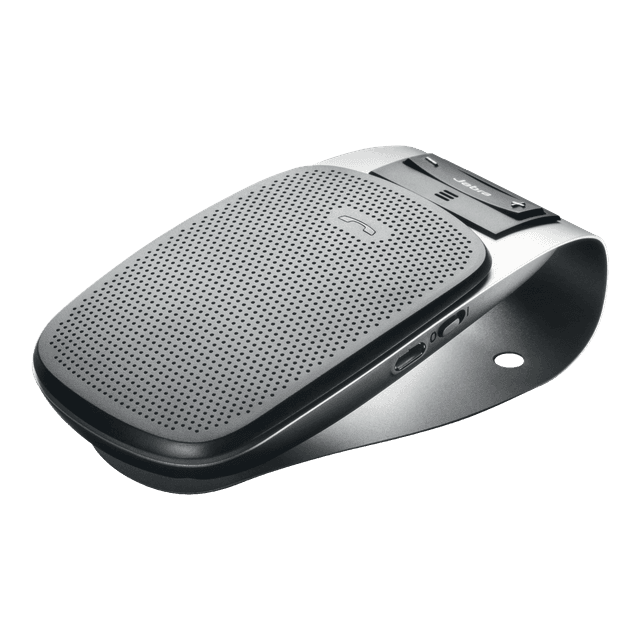
Audio interference can ruin your listening experience with static or dropouts. Make sure your phone’s Bluetooth connection is strong by keeping the device close to the car’s receiver. Remove or turn off other Bluetooth devices that might cause signal clashes.
Using a high-quality AUX cable instead of Bluetooth can also reduce interference if your car supports it. Have you ever noticed crackling noises when your phone is charging and playing music? Try using a different charger or unplugging it to see if that clears the sound.
Maintain Connection
Maintaining a steady connection between your cell phone and car speakers ensures clear sound and uninterrupted music. Small actions can keep the link strong. Proper care helps avoid sudden disconnections and audio drops.
Keep Devices Charged
Both your phone and car system need enough power to stay connected. Low battery can cause Bluetooth or cable issues. Charge your phone fully before trips. Use a reliable car charger to keep your phone powered while driving.
Update Software Regularly
Updates fix bugs and improve device compatibility. Check your phone’s system and car audio software often. Download the latest versions to avoid connection problems. Updated software helps your devices work smoothly together.
Reconnect After Restart
Sometimes the connection drops after turning off your car or phone. Restart both devices to refresh the link. Reconnect your phone to the car speakers manually if needed. This simple step often restores audio quickly.
Credit: www.jabra.com

Credit: www.youtube.com
Frequently Asked Questions
How Do I Connect My Phone To Car Speakers?
To connect your phone to car speakers, use Bluetooth or an auxiliary cable. For Bluetooth, ensure your phone’s Bluetooth is on and pair it with the car’s system. For auxiliary, connect your phone with an aux cable to the car’s audio input.
Can I Use A Usb Cable To Connect My Phone?
Yes, you can use a USB cable to connect. Plug the USB into your phone and the car’s USB port. This allows audio playback and sometimes charges your device. Ensure your car stereo supports USB audio input for seamless connection.
Why Won’t My Phone Connect To My Car?
If your phone won’t connect, check Bluetooth settings or cable connections. Make sure Bluetooth is enabled on both devices and they are discoverable. For wired connections, ensure the cable is not damaged. Restart your phone and car system if issues persist.
Is Bluetooth Better Than An Aux Cable?
Bluetooth offers wireless convenience, while aux cables provide stable audio quality. Bluetooth is suitable for hands-free calls and streaming music without cables. Aux cables offer a reliable connection without relying on battery or wireless signals, ensuring consistent sound quality.
Conclusion
Connecting your cell phone to car speakers is simple and useful. Choose the right method for your car and phone. Bluetooth is quick and wireless. Aux cables work with most cars. USB connections offer good sound quality. Test the connection before driving.
Enjoy clear music and hands-free calls safely. Keeping it easy makes your drive better. Try these steps today and listen with ease.

