
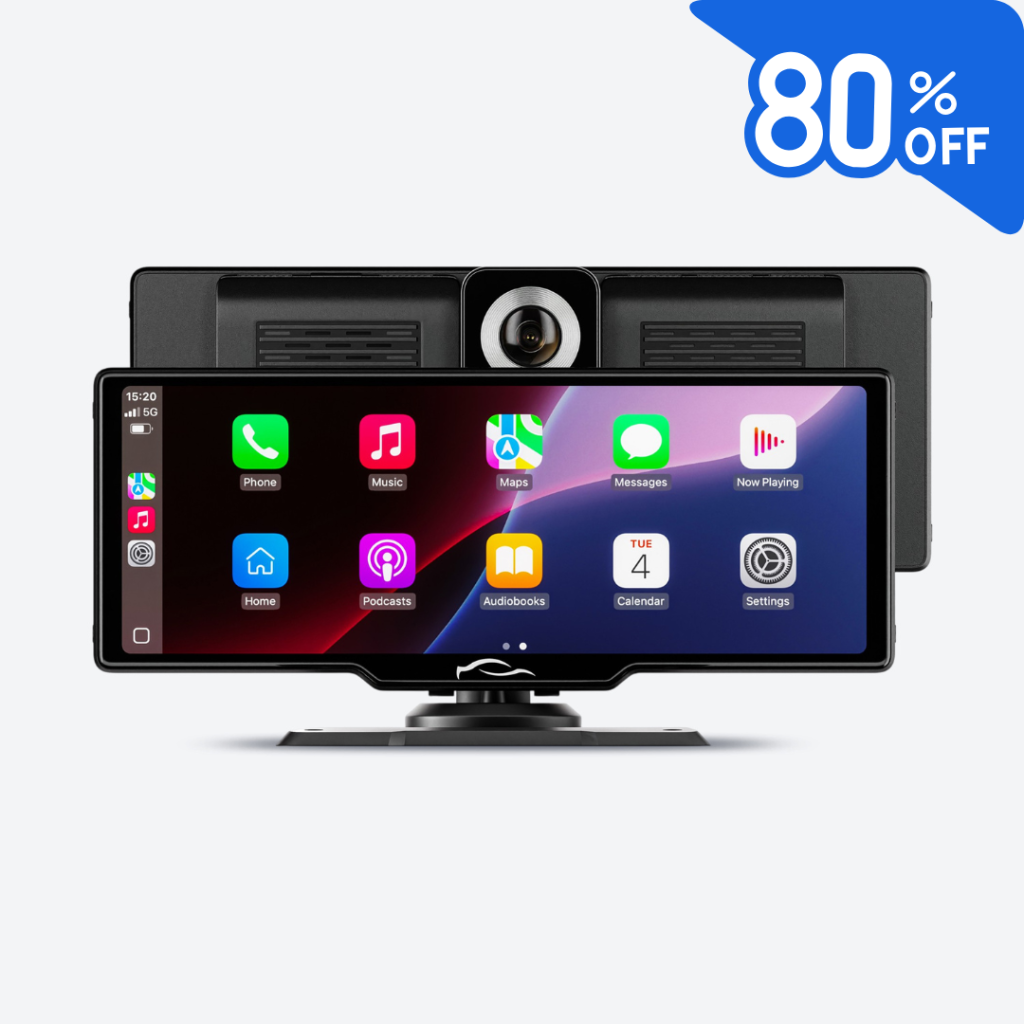
Imagine hopping into your car and instantly playing your favorite playlist or taking calls hands-free without fumbling with wires. Connecting your Android to your car stereo can make every drive smoother and more enjoyable.
But if you’ve ever felt stuck trying to figure out how to link your phone to your car’s audio system, you’re not alone. In this guide, you’ll discover simple, step-by-step ways to connect your Android device quickly and hassle-free. By the end, you’ll be ready to enjoy crystal-clear sound and full control right from your dashboard.
Let’s get your ride sounding just the way you want.

Credit: www.walmart.com
Prepare Your Devices
Before you dive into connecting your Android to your car stereo, it’s essential to prepare both devices properly. This preparation helps avoid frustration and saves you time. Making sure your devices are ready ensures a smooth and quick connection.
Check Compatibility
Not all car stereos support every Android device or connection method. Check if your car stereo supports Bluetooth, USB, or auxiliary input. You can find this info in your car stereo’s manual or manufacturer’s website.
Also, make sure your Android version supports the connection type. Older Android versions might have trouble pairing with newer stereo systems. Have you checked if your phone’s software is up to date lately? Updating it can improve compatibility.
Enable Bluetooth On Android
Bluetooth is the most common way to connect your phone wirelessly. Turn on Bluetooth by going to your phone’s Settings, then tap on Bluetooth, and toggle it on.
Keep your phone visible to nearby devices during pairing. This simple step often gets overlooked, but it makes a huge difference in quickly finding your car stereo. Are you familiar with how to scan for nearby Bluetooth devices on your phone?
Inspect Car Stereo Features
Look closely at your car stereo’s input options. Does it have Bluetooth, USB ports, or an AUX jack? Some modern stereos even support Android Auto, which can offer a better, safer user experience.
Knowing your stereo’s features helps you decide the best way to connect. For example, if your stereo supports Android Auto, using a USB cable might give you better sound quality and app access than Bluetooth. Have you tested your stereo’s different inputs to see which one works best?
Connect Via Bluetooth
Connecting your Android phone to your car stereo via Bluetooth is one of the easiest ways to enjoy hands-free calls and music while driving. It cuts down on cable clutter and lets you control your phone from your dashboard. The process is straightforward, but a few key steps ensure a smooth connection every time.
Pairing Your Phone With Stereo
Start by turning on Bluetooth on both your Android phone and your car stereo. On your phone, go to Settings > Bluetoothand make sure it’s discoverable.
Next, activate the pairing mode on your car stereo—this usually involves pressing the Bluetooth button or navigating the stereo’s menu. Look for your car’s name or model number under available devices on your phone.
Tap the correct device name to initiate pairing. You might be asked to confirm a PIN code displayed on the stereo screen; make sure the numbers match and press “Pair” on your phone.
Once connected, your phone will automatically link to the stereo when Bluetooth is enabled and both devices are in range. Have you noticed how this simple step can instantly improve your driving experience?
Troubleshooting Bluetooth Issues
If pairing doesn’t work right away, don’t get frustrated. First, check that both devices have the latest software updates installed, as outdated software can cause compatibility problems.
Try turning Bluetooth off and on again on your phone and stereo. Also, clear any old paired devices from your phone’s Bluetooth list—sometimes too many saved connections cause conflicts.
If you still can’t connect, restart both your phone and car stereo. Occasionally, a quick reboot resolves hidden glitches.
Still stuck? Consider resetting the car stereo’s Bluetooth settings to factory defaults and pairing fresh. Have you tried all these fixes before giving up on Bluetooth?
Use Usb Connection
Using a USB connection to link your Android phone to your car stereo is one of the most straightforward and reliable methods. It allows you to charge your device while streaming music or accessing apps directly through your car’s infotainment system. Let’s break down how you can easily set this up and what benefits you’ll enjoy.
Locate Usb Port In Car
First, find the USB port in your car. Most modern vehicles have it near the dashboard, center console, or inside the armrest compartment. If you can’t spot it, check your car’s manual or look for a small USB symbol near the ports.
Some cars offer multiple USB ports. Try to use the one labeled for media or smartphone connection, as it usually supports data transfer, not just charging. Have you noticed how sometimes the port at the back of the center console only charges devices but doesn’t connect for media? That’s a key detail to watch out for.
Enable Usb Debugging On Android
On your Android device, enabling USB debugging can improve the connection stability and allow your car stereo to communicate better with your phone. To do this, open Settings, then go to About phone. Tap on Build numberseven times until you see a message saying developer mode is enabled.
Next, navigate to Developer optionsin your settings menu and turn on USB debugging. Don’t worry if this sounds technical—it’s just a way for your phone to be more open to external connections. Remember to disable USB debugging after use if you’re concerned about security.
Benefits Of Usb Connection
- Stable Audio Quality:USB provides a direct digital connection, so your music sounds clearer without interference.
- Charging While Connected:Your phone battery won’t drain during long drives because the USB cable charges it simultaneously.
- Access to Apps:With USB, you can use Android Auto or similar apps to navigate, make calls, and send messages safely via your car’s display.
- Faster Data Transfer:Compared to Bluetooth, USB transfers data quicker, reducing lag in response time.
Have you ever tried streaming music over Bluetooth only to experience skips or delays? USB connections eliminate those frustrations, making your drive smoother and more enjoyable. Give it a try on your next trip and notice the difference yourself.
Connect With Auxiliary Cable
Connecting your Android phone to your car stereo using an auxiliary cable is simple and reliable. This method works with most vehicles and does not need Bluetooth or special apps. It provides clear sound and a stable connection for playing music or podcasts.
Find Auxiliary Input
Look for the auxiliary input on your car stereo. It is usually a small round port labeled “AUX” or “Line In.” Common locations include:
- The front panel of the stereo
- The center console
- The glove box or armrest compartment
The input uses a 3.5mm jack, the same size as most headphone plugs.
Plug And Play Setup
Take one end of the auxiliary cable and plug it into your phone’s headphone jack or adapter. Connect the other end to the car’s auxiliary input.
Switch your car stereo to the AUX mode. This allows the stereo to play sound from your phone.
Play music or audio on your phone. Adjust the volume on both devices for the best sound.
Utilize Android Auto
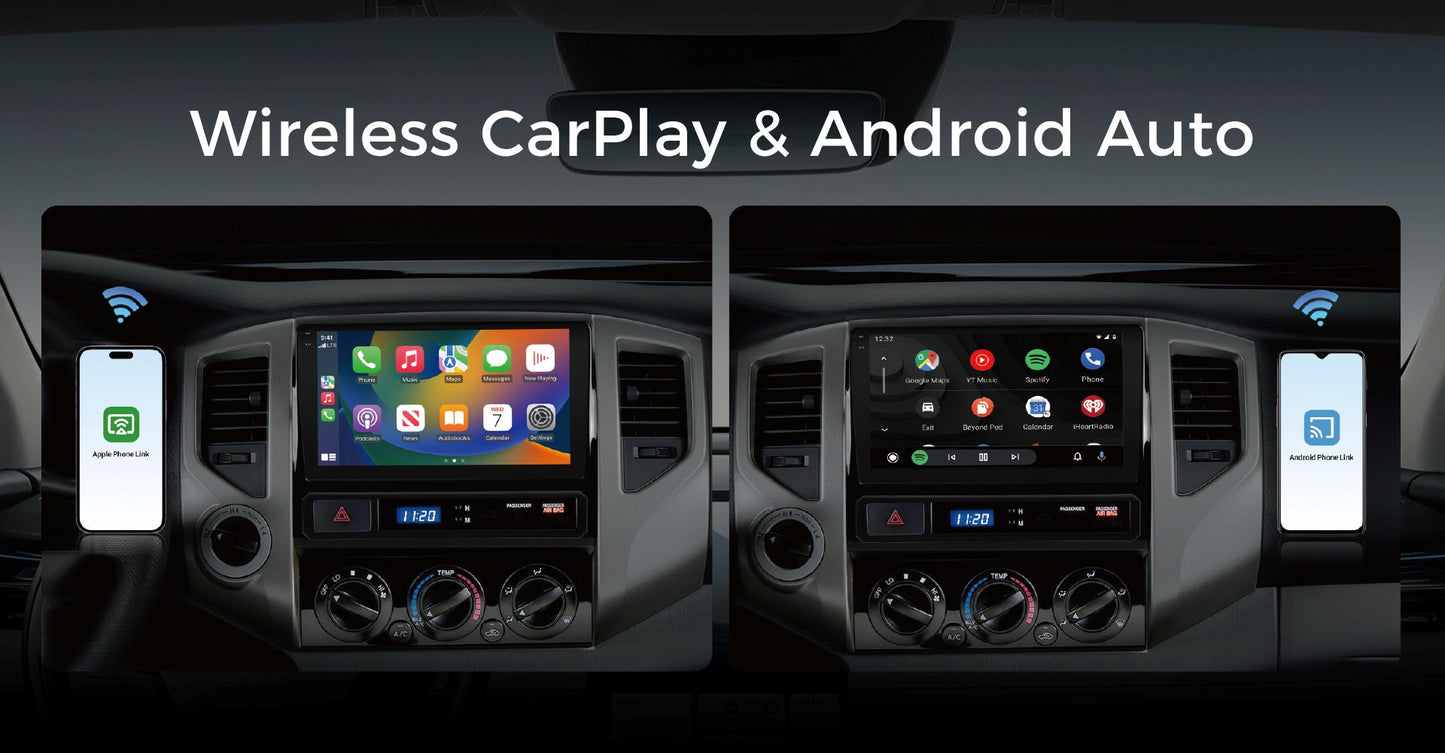
Utilizing Android Auto offers a simple way to connect your Android phone to your car stereo. It brings your favorite apps, navigation, and music directly to your car’s display. This system keeps you focused on the road and makes driving safer.
Install Android Auto App
Start by downloading the Android Auto app from the Google Play Store. Most newer Android phones come with Android Auto pre-installed. If your phone does not have it, open the Play Store, search for “Android Auto,” and tap “Install.”
Make sure your phone runs Android 6.0 or higher for the best experience. After installation, open the app to check for any updates or permissions required.
Set Up Android Auto
Connect your phone to your car using a USB cable or Bluetooth, depending on your car’s system. The app will prompt you to allow access to your phone’s data and apps. Agree to all permissions for full functionality.
Follow the on-screen instructions to complete the setup. You may need to select Android Auto as the source on your car stereo. Once set up, you can control apps like Google Maps, Spotify, and calls through your car display or voice commands.
Compatible Cars And Head Units
Android Auto works best with cars made after 2016. Many car brands support it, including Honda, Ford, Toyota, and Chevrolet. Check your car manual or manufacturer’s website for compatibility.
For older cars, aftermarket head units can add Android Auto support. Brands like Pioneer, Kenwood, and Sony offer these units. Installing one can upgrade your car’s stereo and bring Android Auto features.
Credit: www.vinlandautomotive.com
Optimize Audio Settings
Optimizing the audio settings after connecting your Android to your car stereo can dramatically improve your driving experience. It’s not just about hearing sound—it’s about hearing it clearly and comfortably. Small tweaks can make a big difference, so take a few minutes to adjust your setup.
Adjust Volume And Sound Quality
Start by setting the volume to a level that’s loud enough without causing distortion. Every car stereo handles volume differently, so avoid blasting your music right away. Instead, increase the volume gradually while playing your favorite track to find the sweet spot.
Next, check your equalizer settings on both your Android device and car stereo. Most phones have preset sound profiles like “Rock,” “Pop,” or “Jazz”—try them out to see which one suits your taste. Don’t hesitate to manually adjust bass, treble, and midrange frequencies to match your car’s acoustics.
Have you ever noticed that some songs sound muddy or tinny in your car? Tuning these settings can fix that by balancing the sound. Also, consider the placement of your car’s speakers; sometimes, repositioning or upgrading them can enhance clarity.
Manage Calls And Notifications
Receiving calls while driving should be safe and hassle-free. Make sure your Android’s Bluetooth settings prioritize call audio so you can hear callers clearly through the car stereo. You might want to disable notifications sounds or lower their volume to avoid interruptions during important conversations.
Many Android phones allow you to customize which notifications come through while connected to Bluetooth devices. Use these options to silence unnecessary alerts but keep important ones active. This way, you stay informed without constant distractions.
Have you tried voice commands for managing calls and messages? Using Google Assistant or your car’s built-in system can keep your hands on the wheel and eyes on the road. This feature often needs a bit of setup, but it’s worth the effort for safer driving.
Common Connection Problems
Connecting your Android phone to your car stereo can sometimes be tricky. Common connection problems may stop your device from pairing or playing audio correctly. Understanding these issues helps fix them quickly. Below are simple solutions to common problems you might face.
Fix Pairing Failures
Pairing failures happen when your phone and car stereo do not connect via Bluetooth. Try these tips:
- Turn off Bluetooth on both devices and turn it back on.
- Delete old Bluetooth connections from your phone and stereo.
- Restart your phone and your car’s stereo system.
- Make sure your phone is visible or in pairing mode.
- Check if your car stereo supports your phone’s Bluetooth version.
- Keep your phone close to the car stereo during pairing.
Resolve Audio Playback Issues
Audio playback problems may cause no sound or poor sound quality. Try these fixes:
- Ensure your phone’s volume is up and not muted.
- Check the car stereo volume and audio source settings.
- Disconnect and reconnect the Bluetooth connection.
- Close other apps playing audio on your phone.
- Update your phone’s software and car stereo firmware.
- Try using a different app to play audio.

Credit: www.youtube.com
Frequently Asked Questions
How Do I Pair My Android With My Car Stereo Via Bluetooth?
To pair, enable Bluetooth on both devices. On your car stereo, select your Android device. Confirm the pairing code on both screens. Once connected, your car stereo will play audio from your phone seamlessly.
Can I Use A Usb Cable To Connect Android To Car Stereo?
Yes, using a USB cable allows direct connection. It enables audio playback and charging simultaneously. Your car stereo must support USB input for this method to work.
What Apps Help Connect Android To Car Stereo Systems?
Apps like Android Auto and Bluetooth Auto Connect simplify connectivity. Android Auto provides navigation, calls, and music on your car display. Ensure your car stereo supports these apps for full functionality.
Why Isn’t My Android Connecting To My Car Stereo?
Check if Bluetooth is enabled on both devices. Ensure your car stereo is in pairing mode. Restart both devices if connection fails. Update your phone’s software and car stereo firmware if needed.
Conclusion
Connecting your Android to your car stereo is simple. Start with the right cable or Bluetooth setup. Follow the steps mentioned in this guide. Enjoy hands-free calls and music on the go. Remember to check your car’s manual for specific instructions.
Keep your phone charged for uninterrupted connectivity. Practice safe driving while using your phone. With these steps, enhance your driving experience effortlessly. Troubleshoot any issues with patience. Explore music apps for better sound quality. Enjoy a seamless connection every drive.
Stay connected and entertained safely on the road.

