
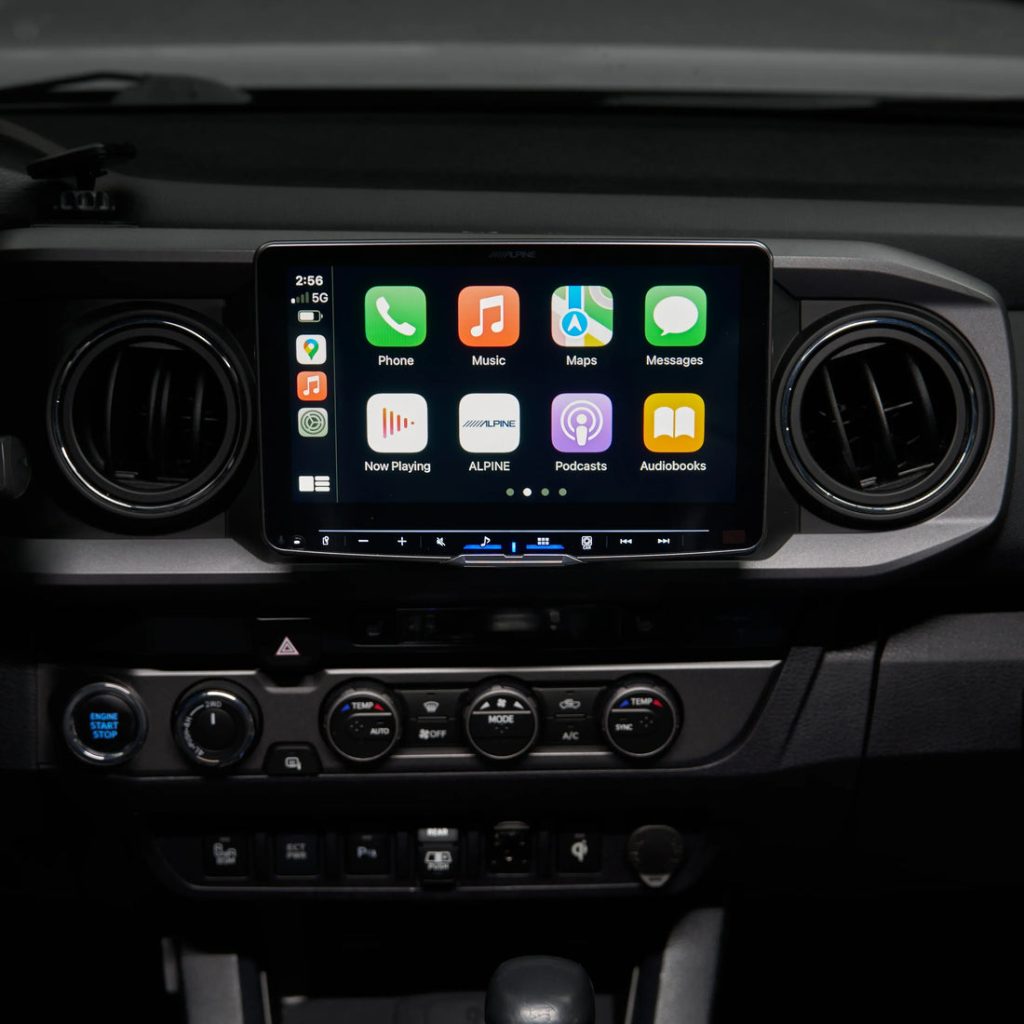
Are you ready to enjoy your favorite music and calls hands-free while driving? Connecting your Bluetooth Alpine car stereo can make your rides safer and more fun.
But if you’re unsure how to get started, don’t worry—you’re in the right place. This guide will walk you through simple, clear steps to connect your phone to your Alpine stereo quickly. By the end, you’ll be cruising with seamless sound and full control right from your car’s dashboard.
Let’s get your music playing without any hassle!
Preparing Your Alpine Stereo
Preparing your Alpine stereo is essential before connecting Bluetooth devices. It ensures smooth pairing and clear sound. Taking a few simple steps helps avoid connection issues. Follow these easy guidelines to get your stereo ready.
Check Bluetooth Compatibility
Confirm your Alpine stereo supports Bluetooth. Look for a Bluetooth logo on the unit or in the user manual. Some older models may not have Bluetooth features. Knowing compatibility saves time and frustration.
Power On The Stereo
Turn on your Alpine stereo using the power button. The display should light up and show the main menu. Keep the stereo powered on throughout the Bluetooth setup process. This helps your device detect the stereo easily.
Reset Previous Connections
Clear old Bluetooth connections from the stereo. This prevents interference with new devices. Access the Bluetooth settings and find the option to delete or forget paired devices. Resetting creates a fresh start for pairing your phone or other gadgets.
Activating Bluetooth On The Stereo
Activating Bluetooth on your Alpine car stereo is the first step to enjoying wireless audio streaming and hands-free calls. It’s a straightforward process, but knowing exactly where to find the settings and how to enable pairing mode saves time and frustration. Let’s dive into how you can get your stereo ready for a seamless Bluetooth connection.
Access Bluetooth Settings
Start by turning on your Alpine stereo and navigating to the main menu. Look for the “Settings” or “Setup” option on the display screen—this is usually accessed via a physical button or touchscreen.
Within the settings menu, you’ll find a Bluetooth section. Selecting this will take you to all Bluetooth-related options. If you don’t see it immediately, check under “Connectivity” or “Phone” settings. Your stereo might label it slightly differently depending on the model.
Once inside the Bluetooth settings, you’ll be able to manage devices and adjust preferences. This is where you control all your connections, so it’s worth exploring the options available here.
Enable Pairing Mode
After accessing Bluetooth settings, your next move is to activate pairing mode. This mode allows your stereo to become discoverable by other Bluetooth devices, such as your smartphone.
Look for an option that says “Pair Device,” “Add Device,” or “Search for Devices.” Selecting this will put your Alpine stereo into pairing mode, often indicated by a blinking Bluetooth icon or a message on the screen.
Keep in mind that pairing mode typically stays active for a limited time—usually a couple of minutes—so have your phone ready to connect as soon as you see the prompt. If you miss the window, simply select the pairing option again.
Have you ever struggled to find the right menu or button on your car stereo? This step-by-step approach helps avoid that frustration and makes connecting a quick, hassle-free task.
Connecting Your Device
Connecting your device to the Alpine car stereo is the key to enjoying hands-free calls and streaming your favorite tunes effortlessly. Getting this connection right saves you time and frustration, making every drive more enjoyable. Let’s walk through the simple steps to link your phone with the Alpine system.
Turn On Bluetooth On Your Phone
First, open the settings menu on your phone and find the Bluetooth option. Switch it on if it’s not already active. Your phone will start searching for nearby Bluetooth devices once it’s on.
Tip: Keep your phone close to the stereo to ensure a strong signal during the pairing process.
Search For Alpine Stereo
On your phone’s Bluetooth menu, look for a list of available devices. The Alpine stereo will appear with a name like “Alpine CDE-XYZ” or something similar. Select this option to start pairing.
If you don’t see the Alpine stereo, make sure the car stereo is in pairing mode—usually indicated by a blinking Bluetooth icon on the stereo display.
Pair And Confirm Connection
Once you select the Alpine stereo, your phone may ask for a PIN or confirmation. Commonly, the default PIN is “0000” or “1234.” Enter the code if prompted or simply accept the pairing request.
After confirmation, you’ll see a message saying the devices are connected. Test the connection by playing music or making a call through the stereo system.
Have you ever struggled with Bluetooth connections that drop unexpectedly? Ensuring your devices are fully updated can help prevent this issue. Keep your phone’s software current and check for Alpine stereo firmware updates to maintain a stable connection.

Credit: www.amazon.ca
Troubleshooting Connection Issues
Connection problems with your Alpine car stereo can be frustrating. Troubleshooting these issues helps restore smooth Bluetooth pairing. This section covers common fixes to get your stereo connected again.
Reset Bluetooth Settings
Resetting Bluetooth settings clears old pairings and errors. Start by turning off the stereo and your device’s Bluetooth. On the stereo, access the Bluetooth menu and find the reset option. Confirm the reset to erase previous connections. Turn both devices back on and try pairing again.
Update Stereo Firmware
Outdated firmware can cause connection problems. Check Alpine’s website for the latest firmware version for your model. Download the update and follow the instructions carefully. Installing new firmware improves compatibility and fixes bugs. Always keep your stereo software up to date for best performance.
Check Device Compatibility
Some devices may not fully support your Alpine stereo. Check the stereo’s manual for a list of compatible devices. Ensure your phone or tablet supports the Bluetooth version used by the stereo. Incompatible devices may connect but fail to stream audio properly. Using compatible devices avoids connection headaches.
Optimizing Bluetooth Audio
Optimizing Bluetooth audio on your Alpine car stereo enhances sound clarity and listening pleasure. Fine-tuning settings ensures the music matches your preference and the car’s acoustics. Managing connected devices also keeps the audio experience smooth and interruption-free.
Adjust Audio Settings
Access the Alpine stereo’s audio menu to customize sound output. Adjust bass, treble, and midrange to suit your music style. Balance and fade controls help position sound evenly throughout the car.
- Increase bass for deeper, richer lows
- Raise treble for clearer highs
- Modify midrange for vocals and instruments
- Use balance to shift sound left or right
- Fade shifts sound between front and rear speakers
These tweaks improve audio quality and personal comfort. Save your settings for quick access during future drives.
Manage Multiple Devices
Bluetooth allows several devices to connect, but only one plays at a time. Keep track of paired devices to avoid connection conflicts. Remove old or unused devices from the stereo’s list.
- Check the device list in Bluetooth settings
- Delete devices you no longer use
- Prioritize your main device for automatic connection
- Pause or disconnect other devices before playing music
This keeps your Alpine stereo connected to the right device instantly. It prevents interruptions and improves your listening experience on the road.

Credit: bawaruba.com

Credit: www.amazon.com
Frequently Asked Questions
How Do I Pair My Phone With Alpine Stereo?
To pair your phone with an Alpine stereo, activate Bluetooth on your phone. Then, navigate to the Bluetooth settings on your Alpine stereo. Select your phone from the available devices list. Confirm the pairing code if prompted. Once paired, you can enjoy wireless audio streaming and hands-free calls.
Why Won’t My Alpine Bluetooth Connect?
If your Alpine Bluetooth won’t connect, ensure both devices have Bluetooth enabled. Check if they are within a close range. Restart both your phone and stereo to reset connections. Also, remove any previous pairings and try connecting again. If issues persist, consult your stereo’s manual for troubleshooting tips.
How To Reset Alpine Stereo Bluetooth Settings?
To reset Bluetooth settings on an Alpine stereo, access the Bluetooth settings menu. Select the option to clear or reset paired devices. This will remove all previous pairings. After resetting, you can reconnect your phone or other devices by following the standard pairing process again.
Can I Connect Multiple Devices To Alpine Stereo?
Most Alpine stereos support connecting multiple devices, but only one can be active at a time. You can pair multiple devices with your stereo. However, you’ll need to manually switch between them for different functions like playing music or making calls.
Conclusion
Connecting your Bluetooth Alpine car stereo is simple and quick. Follow the steps carefully to pair your device with ease. Enjoy hands-free calls and wireless music while driving safely. Keep your stereo and phone updated for the best connection. Troubleshoot common issues by restarting devices or checking Bluetooth settings.
Stay connected and make your driving experience more enjoyable. Practice these steps a few times to gain confidence. Now, your car stereo is ready for seamless Bluetooth use every day.

