
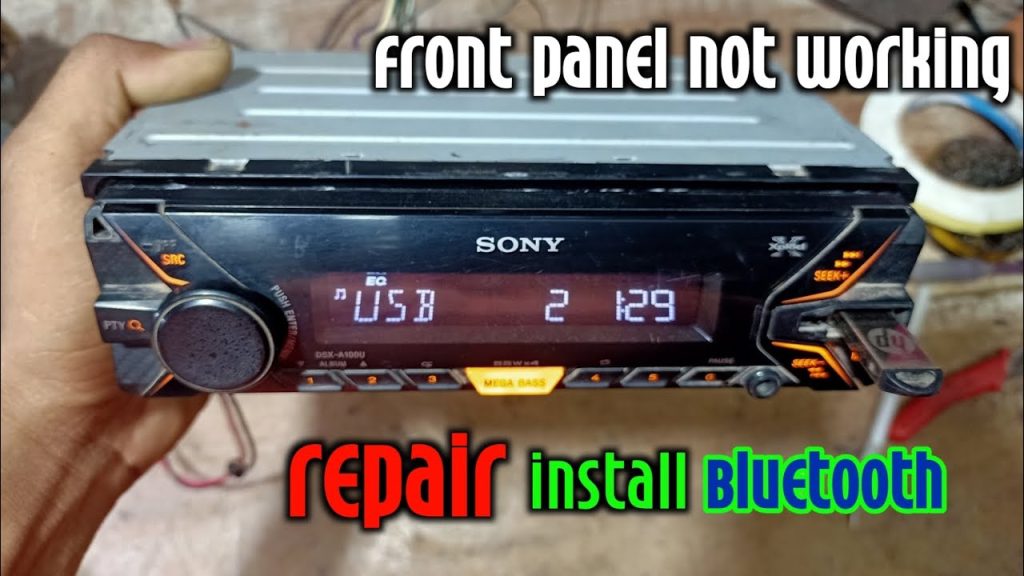
Are you tired of tangled wires and struggling to connect your phone to your car stereo? Setting up Bluetooth on your Sony car stereo can change the way you enjoy music and make calls while driving.
Imagine hands-free calls, seamless music streaming, and easy control right from your dashboard. This guide will walk you through simple, step-by-step instructions to get your Sony car stereo Bluetooth ready in no time. Keep reading—you’re just minutes away from a smarter, safer drive.
Credit: www.youtube.com
Prepare Your Sony Car Stereo
Preparing your Sony car stereo is the first step to enjoy Bluetooth connectivity. It ensures smooth setup and better performance. Taking time to prepare helps avoid frustration during the pairing process.
Check Compatibility
Start by confirming your Sony stereo supports Bluetooth. Look for the Bluetooth symbol on the unit or in the manual. Verify that your smartphone or device also supports Bluetooth connection. Compatibility ensures the devices can communicate without issues.
Gather Necessary Tools
Collect all tools before starting the setup. You may need:
- Car stereo manual
- Smartphone or Bluetooth-enabled device
- Car keys to power the stereo
- USB cable or auxiliary cable (optional)
- Pen and paper to note pairing codes
Having these ready saves time and keeps the process smooth. It also helps you follow instructions clearly.
Power On And Reset Stereo
Getting your Sony car stereo ready for Bluetooth connection starts with ensuring the device is properly powered on and, if necessary, reset. This helps clear any previous settings that might interfere with pairing new devices. A fresh start often solves many common connectivity issues.
Turn On The Device
To power on your Sony car stereo, press the power buttonusually located on the front panel or on the volume knob. You should see the display light up, indicating the unit is active. If nothing happens, check your car’s ignition and ensure the stereo is receiving power.
Sometimes, the stereo might seem unresponsive if the car battery is low or if the unit is in a standby mode. Try turning your car’s key to the accessory position to supply power without starting the engine.
Perform Factory Reset
Resetting your Sony car stereo to factory settings wipes out all saved preferences, including Bluetooth pairings. This is useful if the stereo isn’t connecting properly or if you want to start fresh.
To perform a factory reset, locate the reset button, often a small hole requiring a pointed object like a pen tip. Press and hold it for a few seconds until the display changes or resets.
If your model doesn’t have a physical reset button, check the settings menu for a “Factory Reset” or “Initialize” option. After resetting, you’ll need to set the time and other preferences again.
Have you noticed your stereo acting up after multiple Bluetooth attempts? Resetting can save you a lot of frustration and time.
Activate Bluetooth Mode
Activating Bluetooth mode on your Sony car stereo is essential for wireless audio streaming and hands-free calls. This mode allows the stereo to detect and connect with Bluetooth devices. Follow simple steps to access and enable the Bluetooth function. The process is quick and user-friendly.
Access Bluetooth Settings
Start by turning on your Sony car stereo. Look for the menu or settings button on the stereo panel. Navigate through the options until you find the “Bluetooth” or “Wireless” settings. Some models show a Bluetooth icon directly on the screen. Select this option to open Bluetooth settings.
In Bluetooth settings, you will see options like “Pair Device,” “Bluetooth On/Off,” and “Device List.” This area controls all Bluetooth-related features. Stay on this screen for the next step.
Enable Bluetooth Function
Within Bluetooth settings, locate the option to enable Bluetooth. This might be labeled as “Bluetooth On,” “Activate Bluetooth,” or similar. Use the stereo’s controls to turn this feature on. The stereo will start searching for nearby Bluetooth devices.
Once Bluetooth is active, your car stereo becomes visible to your phone or other devices. This step is necessary for pairing and connecting. Make sure your phone’s Bluetooth is also turned on to complete the connection process.
Pair Your Smartphone
Pairing your smartphone with your Sony car stereo is the key to a hands-free, wireless audio experience. It lets you play music, make calls, and use navigation apps effortlessly through your car’s sound system. Getting this setup right can save you from distractions and make every drive more enjoyable.
Enable Bluetooth On Phone
Start by turning on Bluetooth on your smartphone. This is usually found in your phone’s settings menu or quick access panel. Make sure your device is visible to nearby Bluetooth devices—this helps your Sony stereo detect your phone quickly.
Search For Sony Stereo
Next, open the Bluetooth menu on your Sony car stereo. It will scan for nearby devices and display a list of available options. Look for your phone’s name and select it to begin the pairing process. If your stereo doesn’t show your phone right away, try toggling Bluetooth off and on again on both devices.
Enter Pairing Code
Once your phone and stereo start connecting, you’ll be prompted to enter a pairing code. This code is often “0000” or “1234,” but check your stereo’s manual if unsure. After entering the code, confirm the connection on both devices. Have you ever noticed how a simple number can unlock a seamless music and call experience?
Test Connection And Audio
Testing the connection and audio ensures your Sony car stereo Bluetooth works perfectly. This step confirms the pairing is successful and the sound quality meets your expectations. It also helps detect any issues early, avoiding frustration during your drive.
Play Music From Phone
Start by opening a music app on your phone. Select a song or playlist you want to play. Make sure your phone is connected to the car stereo via Bluetooth. Press the play button and listen carefully.
If you hear the music clearly, the connection is good. No sound or choppy audio means you should check the Bluetooth settings again. Sometimes, restarting your phone or stereo helps fix minor glitches.
Adjust Audio Settings
Access the audio settings on your Sony car stereo. Look for bass, treble, balance, and fader controls. Adjust these to improve sound quality inside your car. Try small changes and listen after each adjustment.
Setting the balance and fader helps direct sound to your preferred speakers. Raise the bass for deeper sounds or increase treble for clearer highs. Keep the volume at a comfortable level to avoid distortion.

Credit: device.report
Troubleshoot Common Issues
Troubleshooting common issues with your Sony car stereo Bluetooth helps keep your drives smooth. Simple fixes often solve connection and sound problems quickly. Understanding these issues can save time and reduce frustration.
Connection Problems
Bluetooth may fail to connect due to device distance or interference. Keep your phone close to the stereo. Avoid obstacles like metal or walls between devices. Restart both the car stereo and your phone. Ensure Bluetooth is enabled on both devices.
Deleting old Bluetooth pairings can help. Clear the list on the car stereo and phone. Then, try pairing again from scratch. Check your phone’s software and stereo firmware for updates. Outdated software often causes connection errors.
Audio Quality Issues
Static or poor sound can come from weak Bluetooth signals. Move your phone closer to the stereo. Remove other Bluetooth devices that may cause interference. Adjust the car stereo’s audio settings for better sound.
Check the volume on both devices. Sometimes low volume on the phone affects output quality. Restart the audio app on your phone. Use a different app to test if sound improves. If distortion continues, reset the stereo to factory settings.

Credit: www.youtube.com
Frequently Asked Questions
How Do I Pair My Phone With Sony Car Stereo Bluetooth?
To pair your phone, turn on Bluetooth on both devices. Access the stereo’s Bluetooth menu, select “Add Device,” then choose your phone from the list. Confirm the pairing code if prompted. Your devices will connect automatically next time.
What Are The Steps To Enable Bluetooth On Sony Car Stereo?
Press the “Source” button on the stereo, then select “Bluetooth. ” If not active, go to settings and turn Bluetooth on. Ensure your phone’s Bluetooth is also enabled for successful connection and audio streaming.
How To Troubleshoot Sony Car Stereo Bluetooth Connection Issues?
Restart both the stereo and your phone. Delete old Bluetooth connections on your phone and stereo. Ensure devices are within range. Update your stereo’s firmware if available. Re-pair devices if problems persist.
Can I Connect Multiple Devices To Sony Car Stereo Bluetooth?
Most Sony car stereos support connecting one device at a time for audio playback. However, some models allow quick switching between paired devices. Check your stereo’s manual for specific multi-device support and connection features.
Conclusion
Setting up your Sony car stereo Bluetooth is simple. Follow each step carefully. Enjoy hands-free calls and music streaming. Check the manual for model-specific instructions. Make sure your phone is discoverable. Pairing devices boosts convenience and safety on the road.
Keep firmware updated for best performance. If issues arise, reset the Bluetooth settings. Reconnect devices and try again. Practice patience for a seamless connection. Once set up, enjoy your upgraded driving experience. Stay connected and entertained effortlessly. With these steps, your Sony car stereo Bluetooth setup is complete.
Drive safely and enjoy the journey!

