How to Connect My Mp3 Player to My Car Stereo: Easy Step-by-Step Guide
Do you want to enjoy your favorite tunes from your MP3 player while driving? Connecting your MP3 player to your car stereo might seem tricky, but it’s easier than you think.
Imagine hitting the road with your personal playlist filling the car, making every drive more enjoyable. You’ll discover simple, step-by-step ways to link your MP3 player to your car stereo quickly and hassle-free. Keep reading, and you’ll be rocking out in no time!

Credit: www.ebay.com
Check Your Car Stereo Inputs
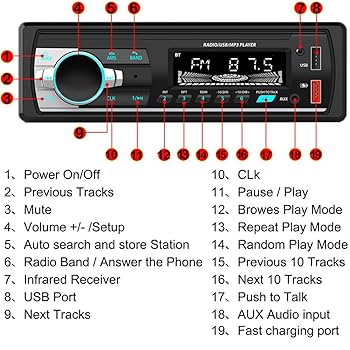
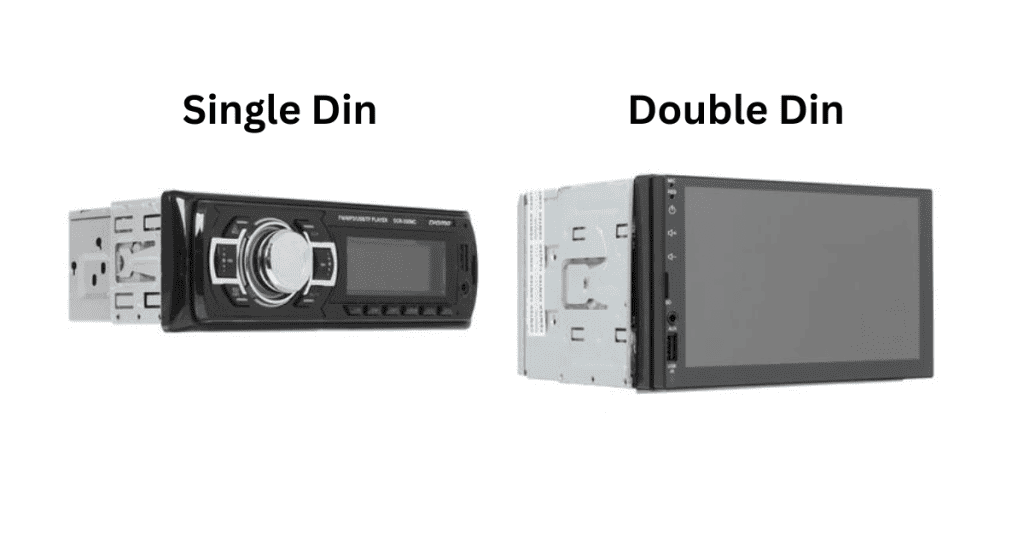
Checking your car stereo inputs is the first step to connect your MP3 player. Knowing what ports and options your car stereo has helps you choose the best connection type. Different cars come with various input methods. Some use cables, and some support wireless links.
Explore your car stereo’s panel and manual. Look for physical ports or wireless features. Understanding these inputs saves time and ensures a smooth setup. It also helps avoid buying the wrong accessories.
Identify Available Ports
Most car stereos have several types of input ports. Common ones include:
- 3.5mm Aux Input – A small headphone-style jack.
- USB Port – Allows digital connection and charging.
- RCA Inputs – Red and white colored audio connectors.
- CD Changer Port – Used in older models for extra devices.
- SD Card Slot – For playing music directly from memory cards.
Check the dashboard, glove box, or center console for these ports. The user manual often lists all available inputs clearly.
Wireless Connection Options
Many modern cars offer wireless audio connections. Bluetooth is the most common. It pairs your MP3 player or phone without cables. Some stereos also support Wi-Fi or NFC connections.
Bluetooth lets you stream music and control playback easily. No wires mean less clutter and more convenience. Verify your stereo’s settings menu for wireless options. If your car stereo lacks Bluetooth, consider an adapter that plugs into the aux or USB port.
Prepare Your Mp3 Player
Getting your MP3 player ready before connecting it to your car stereo can save you a lot of hassle. It ensures smooth playback and avoids interruptions during your drive. Taking a few minutes to prepare your device properly can make your music experience much better.
Charge And Update Device
First, make sure your MP3 player is fully charged. A low battery might cause the device to turn off unexpectedly, disrupting your music. I once started a long road trip only to have my MP3 player die halfway through because I forgot to charge it.
Besides charging, check if your device has any pending software updates. Updates can improve compatibility with car stereos and fix bugs that might interfere with playback. You can usually find update options in the settings menu or through the manufacturer’s website.
Select Suitable Audio Format
Not all car stereos support every audio format your MP3 player can handle. Common formats like MP3 and AAC are widely compatible, but others like FLAC or WAV might not work with your car stereo. Have you ever tried playing a song only to find it doesn’t show up on your car’s display?
Check your car stereo’s manual to see which audio formats it supports. Then, convert your music files to those formats if necessary. Many free software tools are available online to help with this conversion quickly and easily.
Use Auxiliary Cable Connection
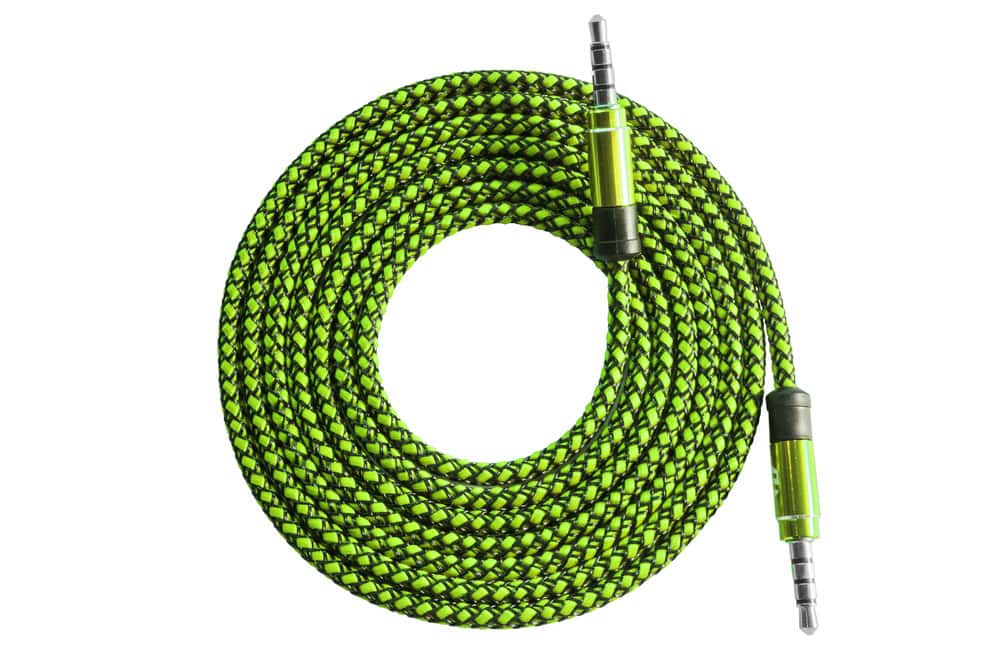
Using an auxiliary cable is one of the simplest ways to connect your MP3 player to your car stereo. It provides a direct audio link that often delivers clear sound without complex setup. This method works well with most car stereos and MP3 players that have a standard headphone jack or audio output.
Find The Aux Port
Locate the auxiliary port on your car stereo. It usually looks like a small, round hole labeled “AUX” or “Auxiliary.” This port accepts a 3.5mm audio cable, similar to a headphone plug. It can be on the front panel, center console, or inside the glove box. If unsure, check your car manual for the exact location.
Connect And Test Audio
Plug one end of the auxiliary cable into your MP3 player’s headphone jack. Insert the other end into the car’s aux port. Turn on your car stereo and set it to “AUX” mode. Play music on your MP3 player. Adjust the volume on both devices for clear sound. If you hear no sound, check the connections or try a different cable.
Connect Via Usb Port
Connecting your MP3 player to your car stereo through the USB port offers a simple and direct way to enjoy your music. This method allows your car stereo to read files directly from your device. No extra cables or adapters are needed if your car supports USB connections.
Locate Usb Input
First, find the USB port in your car. Common locations include:
- Center console
- Dashboard
- Glove compartment
- Armrest storage
Look for a small rectangular port labeled “USB.” It may have a symbol of a USB plug next to it.
Some cars have multiple USB ports. Choose the one meant for media playback.
Transfer And Play Music
Connect your MP3 player to the car’s USB port using a USB cable. Use the original cable for best results.
Your car stereo will detect the MP3 player as a media device. It may show the name of your device on the screen.
Use the car stereo controls to browse music folders or playlists stored on your MP3 player.
Press play to start the music. Volume and track changes can be done from the car stereo or steering wheel controls.
Pair Through Bluetooth
Pairing your MP3 player with your car stereo via Bluetooth offers a wireless, hassle-free way to enjoy your favorite music on the road. This connection lets you control playback without tangled cords, keeping your driving experience safe and enjoyable. Let’s look at how you can easily set up this connection.
Activate Bluetooth On Both Devices
Start by turning on Bluetooth on your MP3 player. Usually, you can find this option in the settings menu under “Connections” or “Wireless.” Make sure your device is discoverable so your car stereo can find it.
Next, activate Bluetooth on your car stereo. Some models have a dedicated Bluetooth button, while others require you to navigate through the menu. Check your car’s manual if you’re unsure where this setting is.
Have you ever noticed how some devices don’t show up immediately? If your MP3 player or car stereo doesn’t appear, try toggling Bluetooth off and on again to refresh the search.
Pair And Confirm Connection
Once both devices have Bluetooth active, your car stereo should display a list of available devices. Select your MP3 player from this list. You might be asked to enter a PIN code; common defaults are 0000 or 1234.
After entering the code, wait a few seconds for the devices to connect. You’ll usually see a confirmation message or hear a beep from the car stereo. Now, your MP3 player’s audio should play through your car speakers.
Remember, if the connection drops, try deleting the paired device from both your MP3 player and car stereo and repeat the process. Sometimes clearing old pairings solves stubborn connection problems.
Utilize Fm Transmitter
An FM transmitter is a simple tool to play music from your MP3 player through your car stereo. It sends your MP3 player’s audio as a radio signal. Your car stereo then picks up this signal on an FM frequency. This method works well if your car stereo lacks an auxiliary input or Bluetooth. Using an FM transmitter is quick and does not need any special cables.
Set Up The Transmitter
First, plug the FM transmitter into your MP3 player’s headphone jack or charging port. Some transmitters use USB or Bluetooth to connect. Power on the transmitter using your car’s cigarette lighter or built-in battery. Choose an FM frequency on the transmitter. Pick a channel with no radio stations to avoid interference. Keep the transmitter close to your MP3 player for the best signal.
Tune Car Stereo To Transmitter Frequency
Turn on your car stereo and set it to FM mode. Use the radio tuner to find the same frequency you set on the transmitter. Adjust the volume on both the stereo and MP3 player. If static or noise appears, try another frequency on the transmitter. Move around slightly to improve the signal if needed. Once the sound is clear, enjoy your music through the car speakers.
Troubleshoot Common Issues
Connecting an MP3 player to a car stereo can sometimes lead to small problems. These issues can stop music from playing or cause the connection to fail. Knowing how to fix common problems helps keep your music playing without stress.
No Sound Problems
Check the volume on both the MP3 player and car stereo. Make sure neither is muted. Confirm the cable or adapter is fully plugged in. Try using a different audio cable to rule out damage. Inspect the car stereo input source; set it to the correct mode like AUX or USB. Restart the MP3 player and the car stereo to refresh the connection.
Connection Drops
Loose or damaged cables often cause connection drops. Secure all cables firmly. Clean the audio jack and ports to remove dust. Avoid sharp bends in cables, which can cause breaks inside. For Bluetooth connections, keep the MP3 player close to the car stereo. Turn off other wireless devices to reduce interference. Restart both devices if the signal keeps dropping.
Compatibility Concerns
Check if the car stereo supports your MP3 player’s output type. Some stereos only work with specific cables or Bluetooth versions. Update the MP3 player’s software or firmware. Verify file formats on the MP3 player are supported by the car stereo. Use a converter or different player if formats are incompatible. Read the car stereo manual for detailed compatibility info.
Credit: www.santaclaritaautosound.com
Optimize Sound Quality
Optimizing sound quality enhances your music experience while driving. Clear and balanced audio keeps your favorite songs enjoyable. Simple adjustments can make a big difference in how your music sounds through the car stereo.
Adjust Equalizer Settings
Use the equalizer on your car stereo or MP3 player to balance sound frequencies. Increase bass for deeper lows or raise treble for clearer highs. Avoid extreme settings to prevent distortion.
Try these tips:
- Start with a flat equalizer (all settings neutral).
- Slowly adjust bass, midrange, and treble levels.
- Listen carefully after each change.
- Choose presets like “Rock,” “Pop,” or “Jazz” if unsure.
Maintain Device And Stereo
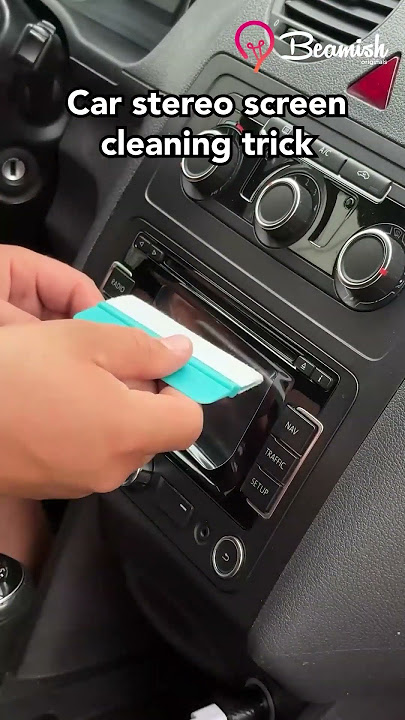
Clean your MP3 player’s headphone jack and car stereo inputs regularly. Dust and dirt can reduce sound quality. Use a soft cloth or compressed air for cleaning.
Keep your software updated for better compatibility and performance. Check cables and connectors for damage or loose connections. Replace worn parts to avoid audio issues.
Credit: autowiringpro.com
Frequently Asked Questions
How Do I Connect My Mp3 Player Via Aux?
To connect your MP3 player via AUX, use an AUX cable. Plug one end into the MP3 player’s headphone jack. Connect the other end to the car stereo’s AUX input. Set your stereo to the AUX mode. This allows your car speakers to play music from the MP3 player.
Can I Use Bluetooth For My Mp3 Player?
Yes, if your MP3 player and car stereo support Bluetooth. Enable Bluetooth on both devices. Pair them by selecting your car stereo from the MP3 player’s Bluetooth menu. Once paired, you can stream music wirelessly. Check the user manuals for detailed instructions on pairing your specific devices.
What If My Car Stereo Lacks An Aux Input?
If your stereo lacks an AUX input, consider using an FM transmitter. Connect the transmitter to your MP3 player’s headphone jack. Tune your car stereo and transmitter to the same FM frequency. This method wirelessly transmits audio from your MP3 player to the car stereo.
How Do I Maintain Audio Quality?
To maintain audio quality, use a high-quality AUX cable or Bluetooth connection. Avoid using low-quality FM transmitters. Check your MP3 player’s volume settings and ensure they’re not too high. This prevents distortion. Regularly clean your connectors to ensure a good connection and optimal sound quality.
Conclusion
Connecting your MP3 player to your car stereo is simple and quick. Choose the right cable or adapter for your devices. Make sure the connections are secure before playing music. Adjust the car stereo settings to find the correct input.
Enjoy your favorite songs while driving safely. Now, your music travels with you on every trip. Keep these easy steps in mind next time you want music on the road. Happy listening!