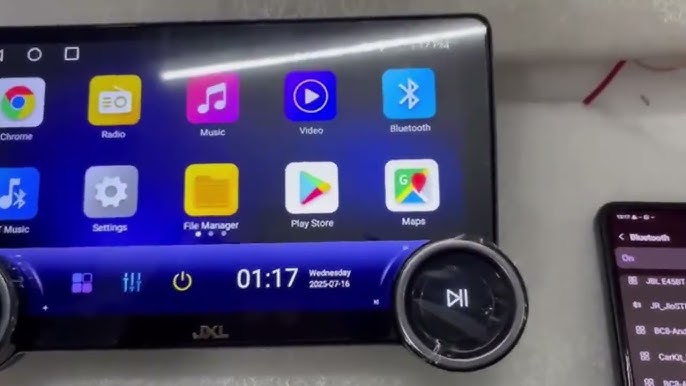

How to Connect Smartphone to Car Stereo: Easy Steps for Instant Play
Want to enjoy your favorite music, podcasts, or calls right through your car’s speakers? Connecting your smartphone to your car stereo is the best way to do that.
But if you’re not sure how to make the connection, it can feel confusing and frustrating. Don’t worry—this guide will walk you through simple, step-by-step methods to link your phone to your car stereo quickly and easily. By the end, you’ll be ready to drive with your perfect soundtrack playing loud and clear.
Keep reading to find out how!

Credit: www.amazon.com
Check Car Stereo Compatibility
Before you try to connect your smartphone to your car stereo, it’s crucial to check if your car stereo supports the type of connection you want to use. Compatibility varies widely depending on the make, model, and age of your car’s audio system. Ensuring your stereo can work with your phone saves you time and frustration, making the connection process smooth and effective.
Identify Available Connection Options
Start by looking at the physical and wireless connection options your car stereo offers. Common choices include:
- Bluetooth:Most modern car stereos support Bluetooth for wireless audio streaming and hands-free calls.
- Auxiliary (AUX) Input:A simple 3.5mm jack lets you plug your phone directly into the stereo.
- USB Port:This can charge your device and sometimes allows for music control through the stereo interface.
- Apple CarPlay or Android Auto:These systems provide a smart interface but require compatible head units.
Check which of these options your stereo supports. Not all cars have USB or Bluetooth, especially older models. If your stereo lacks these features, you might need an adapter or a new head unit.
Review Car Stereo Manual
Your car stereo manual is a goldmine for compatibility details. It lists all supported connection types, setup instructions, and special requirements. If you don’t have a physical copy, many manufacturers offer digital versions online.
Look for sections titled “Connecting External Devices” or “Bluetooth Setup.” They often include troubleshooting tips and compatibility notes specific to your stereo. Have you ever tried connecting your phone only to find the stereo can’t recognize it? Checking the manual first can prevent that frustration.
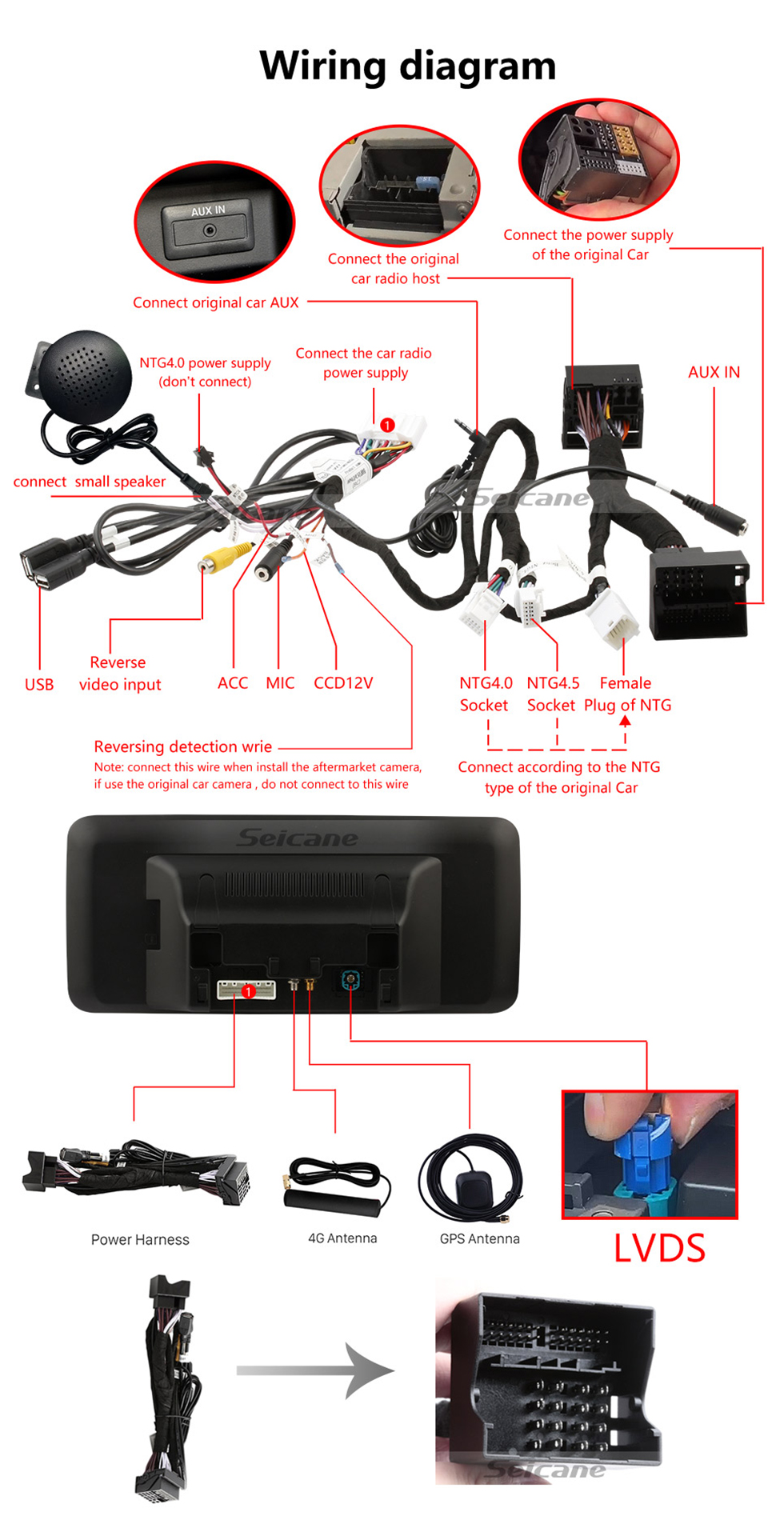
Credit: www.seicane.com
Use Bluetooth For Wireless Connection
Using Bluetooth to connect your smartphone to your car stereo offers a seamless and wireless way to enjoy music, take calls, and access navigation apps without tangled cables. It’s a convenient option that keeps your dashboard tidy and your focus on the road. Let’s walk through how to get your devices talking smoothly over Bluetooth.
Enable Bluetooth On Smartphone
Start by unlocking your smartphone and navigating to the settings menu. Look for the Bluetooth option and switch it on. If you’re using an iPhone, you’ll find it under “Settings” > “Bluetooth.” On Android devices, it’s usually under “Connections” or directly in the quick settings panel.
Once Bluetooth is enabled, your phone will begin searching for nearby devices. Keep your phone visible so your car stereo can detect it easily. Have you noticed how many devices crowd the Bluetooth list? It’s a good habit to clear old, unused connections to avoid confusion.
Pair Device With Car Stereo
Next, activate the pairing mode on your car stereo. This usually involves pressing a Bluetooth button or navigating through the stereo’s menu to “Add Device” or “Pair New Device.” Check your car manual if you’re unsure.
On your smartphone, select your car stereo’s name from the list of available devices. Sometimes, a PIN or confirmation code appears; enter it or confirm the pairing to establish the connection. Within seconds, your phone and stereo should be linked.
Did you know some car stereos remember multiple devices? This is handy if you share the car but can cause connection mix-ups. You might want to set your phone as the primary device for faster automatic connections.
Troubleshoot Bluetooth Issues
Bluetooth connections don’t always go perfectly on the first try. If your phone doesn’t detect the car stereo, make sure Bluetooth is active on both devices and the stereo is in pairing mode.
If you’ve paired before but the connection won’t establish now, try deleting the existing pairing from both your phone and car stereo. Then, repeat the pairing process fresh. This often fixes hidden glitches.
Interference from other wireless devices or low battery on either device can also cause drops or poor audio quality. Try moving away from other electronics or plugging your phone into a charger.
Have you encountered odd issues like audio cutting out or calls not routing through your stereo? Restarting your phone and car stereo can clear temporary bugs that block Bluetooth performance.
Connect Via Usb Cable
Connecting your smartphone to your car stereo via a USB cable is one of the simplest and most reliable ways to enjoy your music, podcasts, and calls on the road. This method not only provides a stable connection but often allows your car’s system to charge your phone simultaneously. Plus, it usually offers better sound quality compared to Bluetooth.
Select Compatible Usb Cable
Choosing the right USB cable is crucial for a smooth connection. Most modern smartphones use either a USB-C or Lightning cable, so check your phone’s charging port first. Using a cable designed for data transfer—not just charging—ensures your car stereo can read your phone’s media files.
Have you ever tried connecting with a cheap or worn-out cable only to find your music won’t play? That’s a sign you need a high-quality cable designed for data syncing.
Plug Into Car Stereo Usb Port
Locate the USB port on your car stereo, which is often found on the dashboard, center console, or inside the glove compartment. Plug your smartphone into this port using the selected USB cable.
Sometimes, cars have multiple USB ports—try the one labeled “media” or “USB” rather than just “charging.” This small detail can save you time and frustration.
Access Media Through Car Interface
Once connected, your car’s media interface should detect your smartphone automatically. Use the touchscreen or buttons to navigate through your phone’s music library, playlists, or podcasts.
If your car asks for permission to access your phone’s data, approve it to enable full functionality. Think about how convenient it is to control your music without fumbling with your phone while driving.
Utilize Auxiliary (aux) Input
Using the auxiliary (AUX) input is one of the simplest ways to connect your smartphone to your car stereo. It allows you to play music or podcasts directly through your car’s speakers with minimal setup. This method works well even if your car doesn’t have Bluetooth or USB connectivity, making it a reliable backup option.
Locate Aux Port In Car
First, find the AUX port in your car. It’s usually a small, round 3.5mm jack, similar to a headphone socket. Common places to look include the dashboard, center console, or inside the glove compartment.
If you’re unsure, check your car’s manual or look for a label that says “AUX” or “Audio In.” Some vehicles even have the port near the gear shift or armrest.
Use 3.5mm Audio Cable
Grab a 3.5mm audio cable, which has headphone-style connectors on both ends. Plug one end into your phone’s headphone jack (or use an adapter if your phone lacks a jack) and the other end into the car’s AUX port.
This physical connection ensures clear sound without delays or interruptions. Have you ever noticed how some wireless connections lag or skip? AUX cables usually avoid that problem.
Adjust Car Stereo Settings
After connecting, switch your car stereo’s input source to AUX. This is often done by pressing a button labeled “AUX,” “Source,” or “Media.”
Check your stereo’s display to confirm it’s set correctly. Now, play audio from your phone, and you should hear it through the car speakers. Want better control? Use your phone’s volume and car stereo volume together to find the perfect balance.
Explore Apple Carplay And Android Auto
Apple CarPlay and Android Auto transform your car stereo into a smart dashboard that connects seamlessly with your smartphone. These platforms let you access navigation, music, calls, and messages safely while driving. Imagine having your favorite apps and voice control right at your fingertips—making your drive both easier and more enjoyable.
Check For System Support
First, find out if your car stereo supports Apple CarPlay or Android Auto. Most models from recent years include this feature, but it’s best to check your car’s manual or manufacturer’s website. You can also look for the CarPlay or Android Auto logo on your stereo screen or dashboard.
Keep in mind that some systems require a wired connection through USB, while others offer wireless support. Knowing your stereo’s compatibility saves time and avoids frustration later on.
Set Up Smartphone Integration
Connect your smartphone to your car stereo using a USB cable or Bluetooth, depending on your system’s capability. On your iPhone, simply unlock your device and plug it in—CarPlay should launch automatically. For Android phones, download the Android Auto app if it’s not pre-installed, then follow the on-screen instructions to pair.
Don’t forget to grant necessary permissions on your phone for apps to function properly. Setting up can take a few minutes, but once done, it’s smooth sailing every time you get behind the wheel.
Use Voice Commands And Apps
Voice commands keep your focus on the road while accessing your phone’s features. Say “Hey Siri” or “OK Google” to start navigation, send messages, or play music hands-free. This reduces distractions and lets you interact naturally with your smartphone.
Explore apps designed for driving, like navigation tools, music streaming, and messaging platforms optimized for CarPlay and Android Auto. Which apps do you rely on most during your daily commute? Try using them with voice control next time you drive and notice how much safer and easier your trip becomes.

Credit: www.youtube.com
Troubleshoot Connection Problems
Connection problems between your smartphone and car stereo can be frustrating. These issues often stop music playback or hands-free calls. Troubleshooting helps identify and fix common problems. It saves time and improves your driving experience.
Reset Devices
Resetting both your smartphone and car stereo can clear temporary glitches. Power off your smartphone and car stereo completely. Wait for about 30 seconds, then turn them back on. This action refreshes connections and often solves pairing issues.
Update Software And Firmware
Outdated software or firmware can cause connection failures. Check your smartphone for the latest operating system updates. Also, visit the car stereo manufacturer’s website for firmware updates. Keeping both devices updated improves compatibility and fixes bugs.
Consult Manufacturer Support
Contacting support can help with persistent problems. Use official customer service channels for your smartphone or car stereo. Provide device models and describe the issue clearly. Experts can offer specific advice or suggest repairs if needed.
Frequently Asked Questions
How Do I Connect My Smartphone To Car Stereo Bluetooth?
To connect via Bluetooth, enable Bluetooth on both devices. Search for your car stereo on your phone’s Bluetooth list. Select it and confirm the pairing code if prompted. Once connected, you can play music and make hands-free calls through the car stereo.
Can I Use Usb To Connect Smartphone To Car Stereo?
Yes, USB connection is common for smartphones. Use a compatible USB cable to connect your phone to the car stereo. The stereo will recognize your device and allow music playback or charging. Some systems also support phone control via the car’s interface.
What Apps Help Connect Smartphone With Car Stereo?
Apps like Android Auto and Apple CarPlay improve connectivity. These apps provide safer access to music, navigation, and calls. They work via USB or Bluetooth and integrate your phone’s functions with the car stereo display.
Why Won’t My Smartphone Connect To Car Stereo?
Connection issues often stem from incompatible devices or outdated software. Ensure Bluetooth is enabled, devices are discoverable, and software is updated. Restarting both devices or resetting the car stereo’s Bluetooth settings can also solve connection problems.
Conclusion
Connecting your smartphone to your car stereo is simple. Follow the steps mentioned earlier for a smooth connection. Enjoy your favorite tunes or podcasts on the go. Remember to check compatibility between devices first. Use Bluetooth, USB, or auxiliary cable for the best results.
Each method has its own benefits. Choose what suits you best. Keep your smartphone charged to avoid interruptions. Safe driving requires focus, so adjust settings before driving. Now, enhance your driving experience with easy access to music. Enjoy the seamless blend of technology and convenience!