How to Get Google Maps to Talk Through Car Speakers: Easy Steps
Have you ever missed a turn because your phone’s navigation was too quiet or hard to hear over your car’s engine? Getting Google Maps to speak through your car speakers can solve that problem instantly.
Imagine clear, hands-free directions guiding you without distraction. You’ll learn simple, step-by-step ways to connect Google Maps audio directly to your car’s sound system. Keep reading, and you’ll never have to struggle with unclear directions while driving again.
Credit: www.crvownersclub.com
Connect Phone To Car Audio
Connecting your phone to car audio is essential for hearing Google Maps through your speakers. It enhances safety by allowing hands-free navigation. There are simple ways to link your phone and car audio. Choose the best connection based on your car and phone features.
Using Bluetooth
Bluetooth is the most common wireless option. Turn on Bluetooth on your phone and car system. Search for your car’s name in the phone’s Bluetooth menu. Select it to pair both devices. Confirm the pairing code if prompted. Once connected, set your car audio to Bluetooth mode. Google Maps voice will play through your car speakers automatically.
Using Auxiliary Cable
An auxiliary cable offers a direct wired connection. Plug one end into your phone’s headphone jack or adapter. Insert the other end into the car’s AUX input port. Switch the car audio to AUX mode. Your phone’s sound, including Google Maps, will come through the speakers. This method works even if Bluetooth is unavailable.
Using Usb Connection
Use a USB cable for both charging and audio. Connect your phone to the car’s USB port with the right cable. The car system may ask to allow data transfer. Accept the prompt. The audio will route through the car speakers. Some cars support additional features like app control or screen mirroring via USB. Google Maps voice navigation will come through clearly.
Adjust Google Maps Audio Settings
Adjusting Google Maps audio settings is key to getting clear, audible directions through your car speakers. Without the right setup, voice navigation might be too quiet or play through the wrong device, leading to missed turns and frustration. Let’s explore how you can control these settings to improve your driving experience.
Enable Voice Navigation
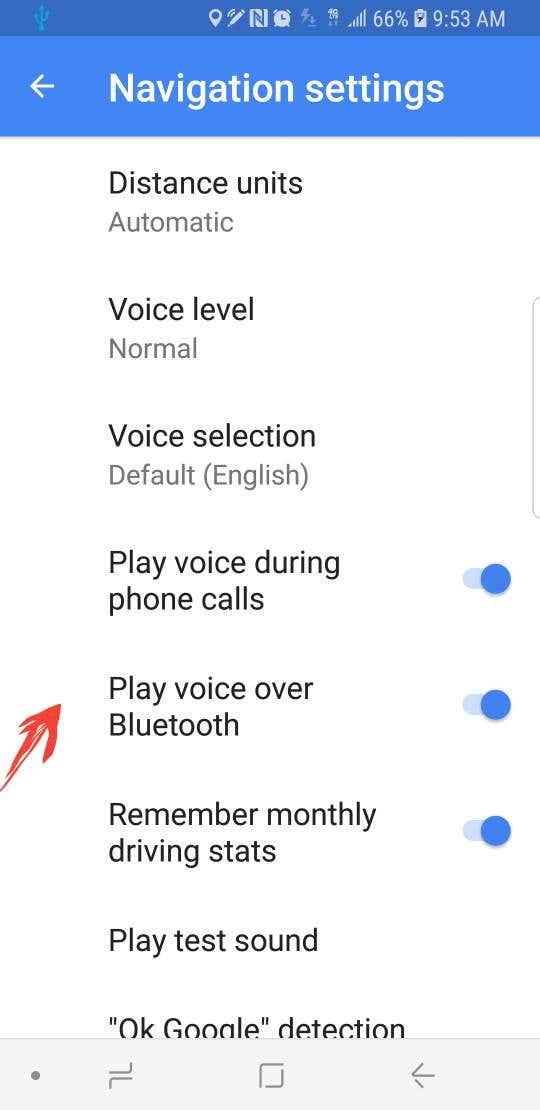
First, make sure voice navigation is turned on in Google Maps. Open the app, tap your profile icon, then go to Settings > Navigation settings. Here, check that Voice levelis set to either “Normal” or “Louder,” not “Muted.”
Sometimes, voice navigation is accidentally muted, especially if you’ve used the app silently before. Have you ever found yourself confused at a traffic light because your GPS was too quiet? Enabling voice navigation ensures you get real-time spoken directions without distractions.
Set Volume Levels
After enabling voice navigation, adjust the volume so it’s easy to hear over road noise and music. Google Maps uses your phone’s media volume for voice directions, so increase this volume while directions are playing.
- Start navigation and listen to a direction prompt.
- Use your phone’s volume buttons to raise or lower the sound.
- Test if the volume is balanced with your car audio.
Remember, turning up the volume on your phone is different from the overall car speaker volume. If you rely too much on your car stereo’s volume, you might miss an important turn.
Choose Audio Output
Google Maps can send voice directions to different audio devices, including your phone speaker, Bluetooth, or car’s infotainment system. To select where the voice comes from, tap the sound icon on the navigation screen and choose from these options:
- Phone Speaker:Directions play directly from your phone.
- Bluetooth:Voice routes through your car’s Bluetooth connection.
- Wired Headphones or Aux:If connected, audio will route here.
Sometimes the audio defaults to the wrong device. Have you noticed directions playing through your phone speaker when you expected them in the car? Manually selecting the correct output solves this issue and keeps your focus on driving.
Configure Car Audio System
Getting Google Maps to talk through your car speakers depends a lot on how your car audio system is set up. If the sound isn’t coming through clearly, or at all, the problem often lies in how the system is configured. Making sure your car audio system is properly aligned with your phone or navigation device is key to hearing those directions loud and clear.
Select Correct Input Source
Your car stereo needs to be set to the right input source to play Google Maps voice instructions. If you’re connected via Bluetooth, choose the Bluetooth audio option on your car’s head unit. For auxiliary cables or USB connections, switch to AUX or USB input accordingly.
Sometimes, your system defaults to the radio or CD player, so double-check this before blaming your phone. Have you ever missed a turn because your car was stuck on the wrong source?
Adjust Car Volume
It’s easy to overlook the volume settings. Make sure the volume on your car stereo is turned up enough to hear the directions clearly. Also, check the volume on your phone or navigation device; sometimes it’s set too low or muted.
Try increasing the volume gradually until the voice prompts are easy to hear without overpowering your music or other sounds. Remember, the right volume helps keep your focus on the road and not on fiddling with controls.
Check Mute And Sound Settings
If you still don’t hear anything, look for mute settings either on your car stereo or phone. Many car systems have a mute button that might have been accidentally pressed. Likewise, your phone’s Do Not Disturb or silent mode can block navigation audio.
Explore sound balance and fade settings as well. Sometimes, the audio may be directed to a speaker that’s not working or is turned off. Ensuring all speakers are active can make a big difference in hearing Google Maps clearly.
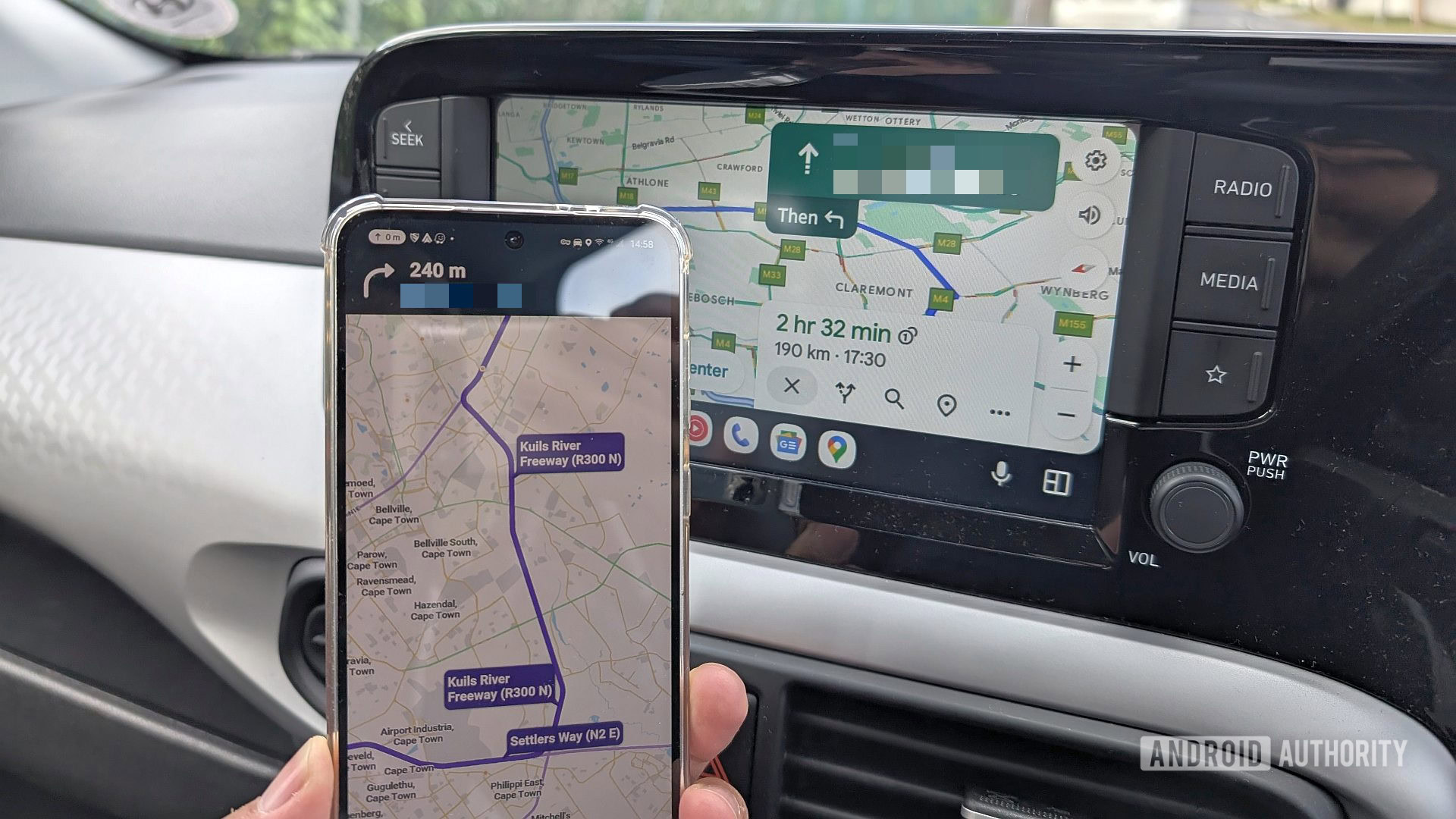
Credit: www.androidauthority.com
Troubleshoot Common Issues
Troubleshooting common issues helps keep Google Maps audio clear through car speakers. Problems like no sound, poor voice command detection, and audio cuts can disrupt navigation. Fixing these issues often involves checking settings and connections. Understanding what causes each problem speeds up the solution.
No Sound From Speakers
Check the car’s volume and mute settings first. Ensure the media source is set to Bluetooth or the correct input. Verify the phone volume is up and not muted. Restart the phone and car audio system to refresh connections. Confirm Bluetooth is paired and connected properly.
Voice Commands Not Heard
Make sure the microphone is not blocked or damaged. Speak clearly and close to the microphone. Check that voice recognition is enabled in Google Maps settings. Avoid noisy environments that interfere with voice detection. Update the Google Maps app for better performance.
Audio Cutting Out
Weak Bluetooth signals cause audio to cut out. Keep the phone close to the car system without obstacles. Remove other devices that may interfere with Bluetooth. Restart both the phone and car audio system. Update firmware for the car’s Bluetooth receiver if available.
Tips For Clear Navigation Audio
Clear navigation audio makes driving safer and less stressful. It helps you follow directions without missing turns or exits. Simple steps keep Google Maps’ voice instructions loud and clear through your car speakers. These tips improve your listening experience and keep your focus on the road.
Update Google Maps App
Keep Google Maps updated to get the latest voice features. Updates fix bugs and improve sound quality. Open the app store on your phone and check for updates regularly. Using an old version may cause audio issues or silence.
Keep Phone Software Updated
Phone updates include sound and connectivity improvements. Update your phone’s system to avoid conflicts with apps. Go to your phone’s settings and check for software updates. Updated software ensures smooth audio output to car speakers.
Use Do Not Disturb Mode While Driving
Do Not Disturb mode stops calls and notifications from interrupting navigation sounds. It keeps voice directions clear and easy to hear. Turn this mode on before driving. This reduces distractions and helps Google Maps talk clearly through your car speakers.

Credit: www.youtube.com
Frequently Asked Questions
How Do I Connect Google Maps To Car Speakers?
To connect Google Maps to your car speakers, use Bluetooth or an auxiliary cable. Ensure your phone is paired with the car’s audio system. Open Google Maps and start navigation. The voice directions should play through the car speakers if the connection is active and properly configured.
Why Isn’t Google Maps Talking Through My Car Speakers?
If Google Maps isn’t talking, check your phone’s Bluetooth connection and volume settings. Ensure the car audio is set to the correct input source. Sometimes, updating the Google Maps app or restarting your phone resolves the issue. Verify that the audio guidance setting in Google Maps is enabled.
Can I Use Google Maps Offline With Car Speakers?
Yes, you can use Google Maps offline and still get directions through car speakers. Download the map area in advance. Once downloaded, the offline map will provide navigation. Connect your phone to the car’s audio system via Bluetooth or auxiliary cable to hear directions through the speakers.
How To Improve Google Maps Sound Quality In Car?
To improve sound quality, ensure your phone and car audio system are properly connected. Increase the volume on both devices. Check for any updates on your Google Maps app. Adjust the equalizer settings on your car audio system for better clarity.
Ensure your phone isn’t in silent or do-not-disturb mode.
Conclusion
Getting Google Maps to talk through your car speakers makes driving safer. Clear voice directions help you focus on the road. Connecting your phone to the car’s audio system is simple. Follow the steps to set up Bluetooth or use an auxiliary cable.
Adjust volume so you hear every instruction without distraction. Test the connection before your trip to avoid issues. This small change can improve your driving experience. Enjoy hands-free navigation and keep your eyes on the road. Stay safe and reach your destination easily with clear voice guidance.