How Can I Play My iPhone in My Car Stereo: Easy Step-by-Step Guide
Do you want to enjoy your favorite iPhone music or podcasts through your car’s stereo? Connecting your iPhone to your car sound system can turn every drive into a great experience.
But if you’re not sure how to do it, don’t worry—you’re in the right place. This guide will show you simple, effective ways to play your iPhone in your car stereo. Keep reading to discover easy steps that will get your music blasting in no time.
Connect Via Bluetooth
Connecting your iPhone to your car stereo via Bluetooth is one of the easiest and most convenient ways to play music, take calls, or use navigation hands-free. This wireless connection frees you from tangled cables and lets you control your audio directly from your car’s system or your phone. Let’s break down how to set it up, keep it working smoothly, and fix common issues if they arise.
Enable Bluetooth On Iphone
Start by unlocking your iPhone and opening the Settingsapp. Tap on Bluetoothand toggle the switch to turn it on. Your iPhone will automatically start searching for available devices nearby.
Keep your phone’s screen active during this process to avoid any interruptions. This makes sure your car stereo appears in the list of devices quickly and reliably.
Pair With Car Stereo
Make sure your car stereo’s Bluetooth is discoverable—check your car’s manual if you’re unsure how to activate pairing mode. Once your stereo shows up on your iPhone’s Bluetooth list, tap on its name to connect.
Some cars may ask you to confirm a code displayed on both the stereo and your phone. Confirm the code to complete pairing. After the first successful connection, your devices usually reconnect automatically whenever you’re in the car.
Troubleshoot Connection Issues
If your iPhone doesn’t connect or keeps dropping the connection, try turning Bluetooth off and back on your phone. Restarting your car stereo can also clear up temporary glitches.
Sometimes, deleting the device from your iPhone’s Bluetooth list and pairing again helps. Check for software updates on both your iPhone and car stereo; outdated software can cause compatibility problems.
Have you ever wondered why your Bluetooth sometimes disconnects right when you need it most? Keeping your devices updated and restarting them regularly can save you from frustrating interruptions.

Credit: wi-fiplanet.com
Use An Auxiliary Cable
Using an auxiliary cable is one of the simplest ways to play your iPhone through your car stereo. It offers a direct, reliable connection that doesn’t rely on Bluetooth or Wi-Fi. This method works well even with older car models that don’t support wireless features.
Locate Aux Input In Car
First, find the auxiliary input port in your car. It usually looks like a small, round headphone jack and is often labeled as “AUX.”
Check near the car stereo, center console, or even inside the glove compartment. If you can’t find it, consult your car’s manual—it’s often easier than it sounds.
Connect Iphone With Aux Cable
Once you locate the input, grab a 3.5mm auxiliary cable. Plug one end into your iPhone’s headphone jack or Lightning-to-3.5mm adapter if your phone lacks a headphone jack.
Then, connect the other end to the car’s AUX port. Make sure the cable is securely plugged in to avoid any audio dropouts.
Adjust Car Stereo Settings
Next, turn on your car stereo and select the “AUX” or “Auxiliary” input mode. This setting tells the stereo to play audio from the connected device.
Play a song or podcast on your iPhone to check if the sound comes through the car speakers. Adjust the volume on both your iPhone and car stereo for the best experience.
Utilize Usb Connection
Using a USB connection is one of the simplest and most reliable ways to play your iPhone through your car stereo. It delivers clear audio quality and often allows your car’s system to recognize your iPhone as a media source automatically. Plus, it can charge your device while you drive, so your phone stays powered up for the whole trip.
Find Usb Port In Vehicle
Start by locating the USB port in your car. Most modern vehicles have a USB input near the dashboard, center console, or inside the armrest compartment. If you’re unsure, check your car’s manual or look for a small rectangular port labeled with a USB icon.
Some older models might only have USB ports for charging, so it’s worth confirming if your car supports audio input via USB. This step ensures you know exactly where to plug in your iPhone without any guesswork.
Connect Iphone With Lightning Cable
Once you find the port, connect your iPhone using a Lightning to USB cable. It’s best to use the original Apple cable or a certified one to avoid connection issues. Plug the Lightning end into your iPhone and the USB end into your car’s USB port.
You might notice your iPhone asking for permission to trust the connected device. Tap “Trust” to allow your car stereo to access your music library and apps. This small action opens up a seamless connection between your phone and car system.
Control Music Through Car Interface
After connecting, your car stereo should automatically switch to the USB audio source. Now, you can control music playback directly through your car’s interface. This means you can browse playlists, skip tracks, or pause songs without touching your phone.
Some vehicles even display album artwork, song titles, and artist information, making it easier to choose what you want to hear. Have you ever noticed how much safer it feels to keep your eyes on the road while controlling music through your car’s screen?
Play Via Carplay
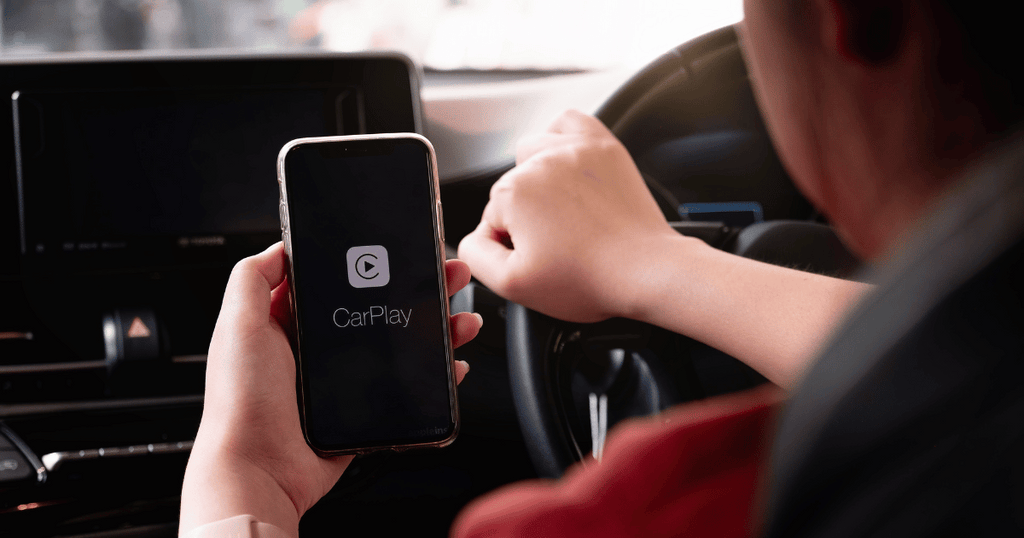
Playing your iPhone through your car stereo using CarPlay offers a seamless and safe way to enjoy music, navigation, and calls while driving. This system integrates your iPhone’s features directly into your car’s infotainment display. It’s designed to minimize distractions, letting you focus on the road while still accessing your favorite apps.
Check Carplay Compatibility
Not all cars support CarPlay, so the first thing you need to do is verify if your vehicle is compatible. Most newer car models from major brands include CarPlay, but you can check your car’s manual or the manufacturer’s website to be sure.
You can also visit Apple’s official CarPlay webpage, which lists all compatible car models. If your car stereo supports CarPlay, it usually means you can connect your iPhone either wirelessly or with a USB cable.
Set Up Carplay On Iphone
Setting up CarPlay is quick and straightforward. Start by connecting your iPhone to your car using a USB cable or via Bluetooth if your car supports wireless CarPlay.
Once connected, your iPhone will prompt you to enable CarPlay. Make sure Siri is turned on because CarPlay relies heavily on voice commands for safer use while driving.
After activation, your car’s display should show the CarPlay interface, giving you access to your apps and features. You can customize which apps appear on CarPlay through your iPhone’s settings under “General” > “CarPlay.”
Navigate Carplay Features
CarPlay offers more than just music playback. You can use it to get turn-by-turn directions, make hands-free calls, send messages, and listen to podcasts or audiobooks.
Try using voice commands by pressing the voice control button on your steering wheel or holding the home button on the CarPlay screen. This keeps your hands on the wheel and eyes on the road.
Have you noticed how much easier it is to manage your drives when everything you need is just a voice command away? Experiment with different apps on CarPlay to find which ones improve your driving experience the most.
Stream Through Fm Transmitter
Streaming your iPhone through an FM transmitter is a simple way to enjoy your favorite music, podcasts, or calls using your car’s existing stereo system. This method doesn’t require any special cables or Bluetooth compatibility with your car, making it a versatile choice for many drivers.
Choose An Fm Transmitter
Look for an FM transmitter with good reviews and features that suit your needs. Some models come with USB charging ports, hands-free calling, and easy-to-read displays. Make sure the transmitter is compatible with your iPhone’s connector or supports Bluetooth if you prefer wireless streaming.
Keep in mind the transmitter’s frequency range. A wider range lets you find a clear channel on your car radio, avoiding interference from local stations. I once struggled with a cheap transmitter that only had a few frequencies, resulting in constant static. Investing a bit more saved me from that frustration.
Tune Car Radio To Transmitter Frequency
After plugging in and powering on your FM transmitter, it will broadcast on a specific frequency. Use your car radio to tune into the exact same frequency, which acts like a private radio channel between your phone and stereo.
Scan through the frequencies to find one that’s free of other radio signals. This step is crucial because overlapping frequencies cause static or interruptions. Have you noticed how some radio stations suddenly get noisy while driving? Avoid that by selecting a clear channel before hitting the road.
Play Music From Iphone
Once your car stereo and FM transmitter are synced, open your preferred music app on your iPhone. Play songs, playlists, or podcasts as you normally would. The sound will transmit through your car’s speakers, letting you enjoy high-quality audio without any extra cables.
Try adjusting the volume on both your iPhone and car stereo for the best sound balance. Sometimes, turning up the phone volume too high can cause distortion, so find the sweet spot. Have you ever experienced unexpected audio glitches? This simple volume tweak often fixes it instantly.

Credit: aluratek.com
Use Cassette Adapter
A cassette adapter offers a simple way to play iPhone audio through an older car stereo. This device fits into the cassette player slot and connects to the iPhone via a headphone jack or Lightning connector. It sends sound from the phone to the car’s speakers using the cassette player as a bridge.
This method works well for cars without Bluetooth or auxiliary inputs. It requires no power source and uses the car’s existing cassette player. The adapter provides clear audio and easy control from the phone.
Identify Cassette Player In Car
Check your car stereo for a cassette slot. It looks like a narrow rectangular opening. Older vehicles commonly have cassette players.
Make sure the slot is clean and free from damage. This ensures the adapter fits well and functions properly.
Connect Cassette Adapter To Iphone
Plug the cassette adapter into the car’s cassette slot. Insert it gently until fully seated. Connect the adapter’s cable to your iPhone’s headphone jack or Lightning port.
Use the correct connector for your iPhone model. Some adapters come with multiple connectors for compatibility.
Play Audio Through Cassette Player
Turn on the car stereo and select the cassette player mode. Start playing music or audio from your iPhone. The sound will play through the car speakers.
Adjust volume on both the iPhone and the car stereo for the best sound. Pause or skip tracks directly from the iPhone.
Optimize Audio Settings
Optimizing your audio settings can dramatically improve the sound quality when playing your iPhone through your car stereo. It’s not just about cranking up the volume; fine-tuning specific settings helps you enjoy clearer, richer audio without distortion or delay. Let’s look at some key adjustments you can make.
Adjust Volume Levels
Start by balancing the volume between your iPhone and car stereo. If your phone’s volume is too low, the sound may become weak or muffled. Conversely, maxing out your phone’s volume and then increasing the car stereo can cause distortion.
Try setting your iPhone volume to about 70-80% and then adjust the car stereo volume to your preferred level. This often results in cleaner sound and better control. Have you noticed how small tweaks like this make a big difference in your listening experience?
Manage Equalizer Settings
Equalizer (EQ) settings allow you to customize the bass, midrange, and treble frequencies to match your music style and car acoustics. Your iPhone comes with built-in EQ presets, but you can also create a custom profile to suit your taste.
- Boost bass slightly if your car speakers feel weak in low frequencies.
- Reduce treble if the sound feels too sharp or harsh.
- Experiment with midrange to bring out vocals and instruments clearly.
Take a moment to test different EQ settings while playing your favorite tracks. What adjustments make your music sound more vibrant and balanced in your car?
Reduce Audio Latency
Audio latency can cause a delay between what you hear and what’s happening on your iPhone, especially when using Bluetooth connections. This lag can make videos and calls feel out of sync, ruining the experience.
To minimize latency, connect your iPhone using a wired option like an AUX cable or Lightning to USB if your car supports it. Some car stereos and Bluetooth devices support low-latency codecs like aptX, so check if your setup includes these.
Have you noticed a difference when switching from Bluetooth to a wired connection? Reducing latency ensures your audio stays in perfect sync, making every drive more enjoyable.

Credit: aluratek.com
Frequently Asked Questions
How Do I Connect My Iphone To Car Stereo?
You can connect your iPhone to your car stereo using Bluetooth, an auxiliary cable, or a USB connection. For Bluetooth, ensure it’s enabled on both devices. For auxiliary or USB, plug the cable into your iPhone and the car’s respective port.
Can I Use Apple Carplay In My Car?
Yes, if your car supports Apple CarPlay. Connect your iPhone using a USB cable or wirelessly if supported. Once connected, CarPlay allows you to access apps, make calls, and use navigation directly from your car’s display.
What Do I Need For Bluetooth Connection?
To connect via Bluetooth, ensure both your iPhone and car stereo have Bluetooth capabilities. Turn on Bluetooth on your iPhone and pair it with your car’s system. Follow the pairing instructions on your car’s display to complete the connection.
Is There A Way To Play Iphone Music In Car?
Yes, you can play iPhone music using Bluetooth, USB, or an auxiliary cable. Connect your iPhone to the car stereo using one of these methods. Once connected, select your preferred music app and start playing your favorite tunes.
Conclusion
Playing your iPhone through your car stereo is simple and convenient. Use Bluetooth, a USB cable, or an auxiliary cord to connect. Each method offers clear sound and easy control. Choose the option that fits your car and phone best.
Enjoy your favorite music, podcasts, or calls on the road. Stay safe and keep your focus while driving. With these easy steps, your iPhone becomes a great car companion. No hassle, just good sound and fun driving.