
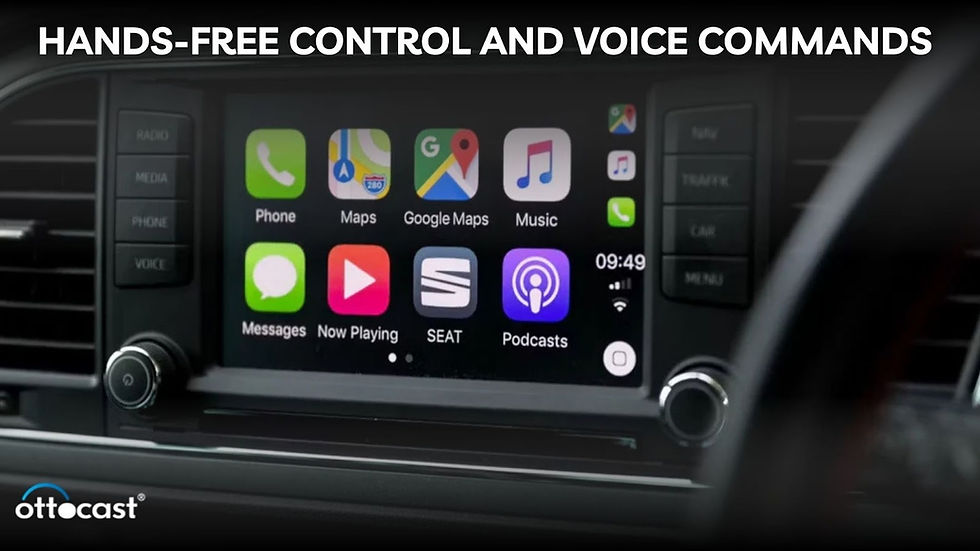
Want to enjoy your favorite iPhone music through your car stereo but not sure how to connect them? You’re not alone.
Whether you’re driving to work or hitting the road for a trip, having your music play clearly in your car can make all the difference. You’ll discover simple and effective ways to stream your iPhone’s music directly through your car stereo.
By the end, you’ll be ready to transform your drive with seamless sound that keeps you motivated and entertained. Keep reading, and let’s get your music playing loud and clear!

Credit: wi-fiplanet.com
Connect Via Bluetooth
Connecting your iPhone to your car stereo via Bluetooth is a simple way to enjoy music wirelessly. It lets you play songs without any cables. Most modern cars support Bluetooth, making this method popular.
Bluetooth connection provides clear sound and easy control from your car’s dashboard. It also allows hands-free calls, adding safety while driving. Follow the steps below to pair your devices and fix common issues.
Pairing Iphone With Car Stereo
Start by turning on your car stereo’s Bluetooth mode. Usually, this option is in the settings or media menu.
- Open the Settings app on your iPhone.
- Tap “Bluetooth” and make sure it is on.
- Look for your car’s name under “Other Devices.”
- Tap your car’s name to start pairing.
- Confirm the code on both devices if prompted.
- Once connected, your iPhone will show “Connected” next to the car’s name.
Now, your music will play through the car stereo when you use any music app.
Troubleshooting Bluetooth Issues
Sometimes, Bluetooth may not connect or drop the signal. Try these fixes:
- Turn Bluetooth off and on again on your iPhone.
- Restart your car stereo and iPhone.
- Delete the car stereo from your iPhone’s Bluetooth list and pair again.
- Check if your car stereo needs a software update.
- Make sure your iPhone and car stereo are close and no obstacles block the signal.
- Reset network settings on your iPhone if problems persist (Settings > General > Reset > Reset Network Settings).
Following these steps usually fixes common Bluetooth connection problems.
Use A Usb Cable
Using a USB cable to play iPhone music through your car stereo offers a direct and reliable connection. It allows for high-quality audio and often enables control of your music via the car’s dashboard. This method can be a game-changer if you want clear sound without worrying about Bluetooth interruptions or battery drain.
Selecting The Right Cable
Not all USB cables are created equal. To get the best sound and seamless connection, choose a cable that supports both power and data transfer. A simple charging cable might not work if it lacks data pins.
Look for:
- Apple-certified Lightning to USB cables for iPhones
- Durable materials to avoid frequent replacements
- Length that suits your car setup without excess slack
Have you ever used a cheap cable only to find your music skips or won’t connect? Investing in a quality cable saves you from that frustration.
Playing Music Through Usb Connection
Once you have the right cable, plug your iPhone into the car’s USB port. Your car stereo should recognize the device immediately.
To start playing music:
- Switch your stereo input to USB mode
- Use your car’s touchscreen or buttons to browse playlists, albums, or songs
- Control playback directly from the car’s interface or your iPhone
One surprising benefit is that charging happens simultaneously, so your phone battery won’t drain during long drives. Have you noticed how much easier it is to manage playlists this way compared to Bluetooth? This setup keeps you focused on driving and lets your music flow uninterrupted.
Auxiliary Cable Setup
Using an auxiliary cable to play iPhone music through your car stereo is a straightforward and reliable method. This setup lets you connect your phone directly to the car’s audio system, ensuring clear sound without worrying about Bluetooth connections or compatibility issues.
Connecting With Aux Cable
Start by finding the auxiliary input port in your car, usually labeled “AUX” or represented by a headphone icon. Plug one end of the aux cable into your iPhone’s headphone jack or Lightning-to-3.5mm adapter if your iPhone doesn’t have a headphone jack.
Next, insert the other end of the cable into the car’s auxiliary input. Make sure both ends are securely connected to avoid interruptions in sound quality. You might notice a slight delay or static if the connection isn’t snug.
Adjusting Car Stereo Settings
Once connected, switch your car stereo to the “AUX” or “Auxiliary” input mode. This option is usually found by pressing the “Source” or “Media” button on your dashboard or infotainment screen.
Adjust the volume on both your iPhone and the car stereo for the best balance. Sometimes, you’ll need to increase your phone’s volume to get clear sound without distortion. Have you noticed how different cars handle volume levels differently? Tuning both devices helps you get the crispest audio experience.

Credit: www.youtube.com
Apple Carplay Features
Apple CarPlay offers a safe and easy way to use your iPhone in the car. It shows your phone’s apps on the car’s display. This lets you control music, navigation, and messages without handling your phone. CarPlay keeps your focus on driving while enjoying your favorite tunes.
Activating Carplay
Start by connecting your iPhone to the car using a USB cable or Bluetooth. Some cars support wireless CarPlay, so check your car’s manual. Once connected, the CarPlay icon appears on the car’s screen. Tap it to open the interface. You might need to allow CarPlay access on your iPhone the first time. After setup, CarPlay starts automatically when you connect your phone.
Navigating Music Apps
CarPlay supports popular music apps like Apple Music, Spotify, and Pandora. Use the car’s touchscreen or voice commands to play songs. You can:
- Browse playlists and albums
- Search for artists or songs
- Control playback with pause, skip, or rewind
Siri helps by taking voice commands. Just say “Play my favorite playlist” or “Skip this song.” This lets you keep your hands on the wheel and eyes on the road.
Streaming With Fm Transmitter
Streaming your iPhone music through your car stereo is simple with an FM transmitter. This device sends audio signals from your phone to your car radio via an FM frequency. It works well if your car stereo does not support Bluetooth or auxiliary inputs. Using an FM transmitter lets you enjoy your playlists without extra cables or complicated setups.
Setting Up The Fm Transmitter
First, plug the FM transmitter into your iPhone’s headphone jack or charging port. Some models use Bluetooth to connect wirelessly. Turn on the transmitter and select an unused FM frequency. Choose a frequency that has no radio stations playing to avoid interference. Keep the transmitter close to your phone for a strong signal.
Tuning Car Radio To Transmitter
Switch your car radio to FM mode. Tune the radio to the same frequency set on the FM transmitter. You may need to fine-tune both the transmitter and the radio for clear sound. Once matched, play music on your iPhone. The audio will broadcast through the car speakers. Adjust the volume on both devices for the best experience.
Using Third-party Apps
Using third-party apps can transform how you play iPhone music through your car stereo. These apps often offer features that go beyond the basic music player, like improved sound quality, seamless playlists, and easy device connection. Choosing the right app and tweaking its settings can make your drive more enjoyable and your music sound clearer.
Best Apps For Car Music
- Spotify:Offers a huge library and offline playlists. Its car mode simplifies controls for safer driving.
- Apple Music:Works smoothly with iPhones and supports lossless audio playback for better sound.
- Pandora:Great for discovering new songs with personalized stations based on your taste.
- Audible:If you prefer audiobooks or podcasts, Audible integrates well and plays through your car stereo.
- SoundCloud:Perfect for exploring indie music and remixes not found on mainstream platforms.
Have you ever noticed how much easier it is to control music with an app designed for driving? These apps often provide larger buttons and voice commands to keep your focus on the road.
App Settings For Optimal Playback
Adjusting app settings can significantly improve your music experience. Start by enabling high-quality streaming or download options if your app supports them. This reduces compression and improves sound clarity.
Check if the app has an equalizer. Customize it to boost bass or treble based on your car’s audio system. This small tweak can change how vibrant your music feels.
Don’t forget to enable offline mode if you have limited data or poor signal areas. It ensures your playlists play without interruptions while driving.
What’s your favorite music genre to listen to in the car? Tailoring your app settings to your genre can make every drive feel like a personal concert.
Improving Sound Quality
Improving sound quality enhances your music experience in the car. Clear and balanced audio makes drives more enjoyable. Small tweaks can make big differences in how your music sounds. Focus on adjusting settings and reducing noise for the best output.
Adjusting Equalizer Settings
The equalizer controls the bass, midrange, and treble of your music. Adjust these to suit your taste and car acoustics. Boost bass for deeper sounds or raise treble for clearer vocals. Many car stereos and iPhone apps have built-in equalizers. Experiment with presets or create your own custom settings. Avoid extreme boosts to prevent distortion and speaker damage.
Reducing Interference And Noise
Interference causes unwanted static or humming sounds in your music. Keep cables and devices away from power sources and antennas. Use shielded cables for connections to block noise. Turn off or move away from devices that cause radio interference. Lower the volume slightly to reduce background noise. Regularly clean your car stereo and connectors to maintain clear sound.
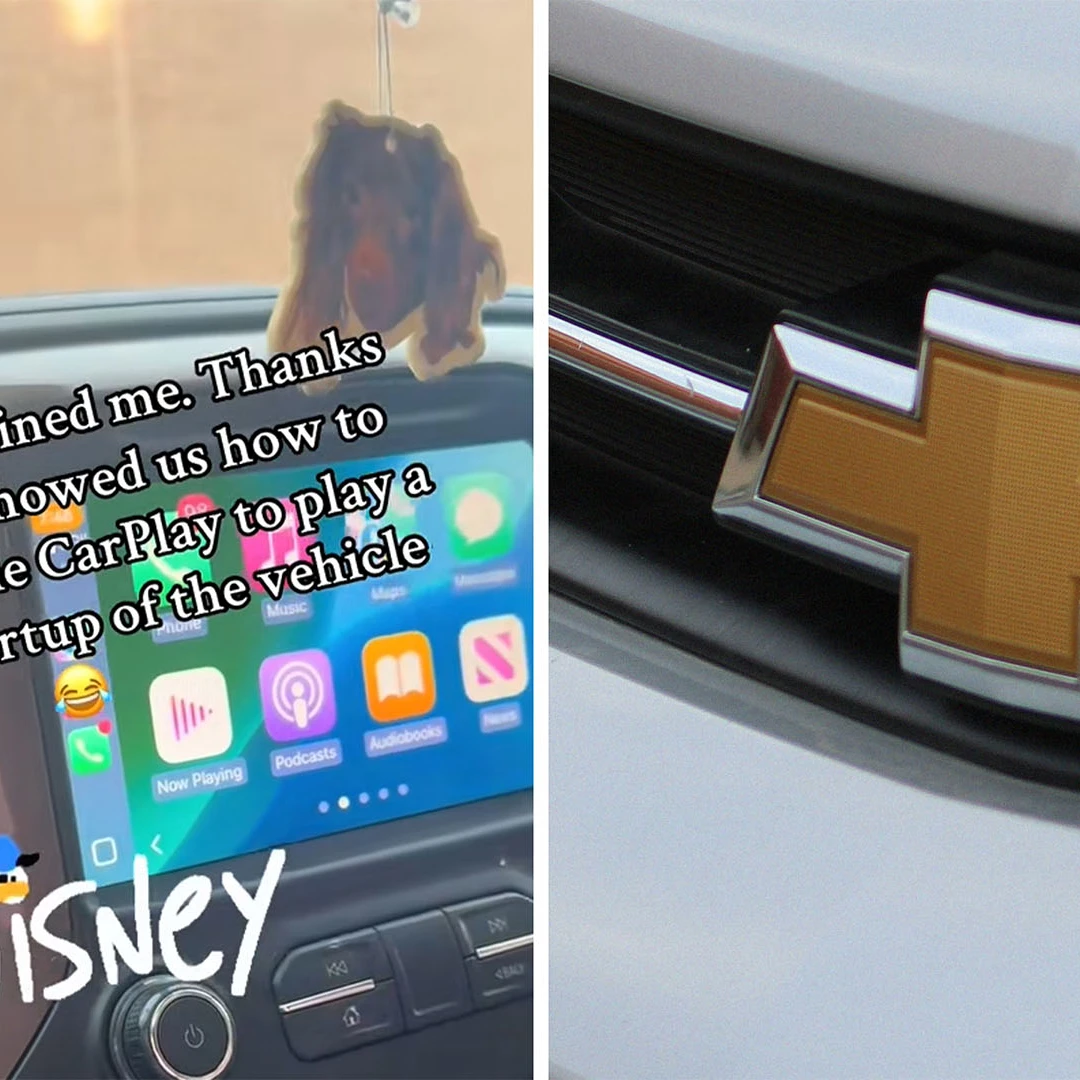
Credit: www.motor1.com
Common Problems And Fixes
Playing iPhone music through your car stereo should be simple. Sometimes, problems occur. These issues can interrupt your listening experience. Understanding common problems helps fix them fast. This section covers common troubles and easy fixes. Keep your music flowing smoothly on the road.
Connection Drops
Connection drops happen often. Bluetooth or cable connections may fail. This causes music to stop suddenly.
- Check if Bluetooth is on and paired correctly.
- Restart your iPhone and car stereo system.
- Move closer to the car stereo to avoid signal loss.
- Remove other Bluetooth devices that might interfere.
- Inspect the cable for damage if using a wired connection.
- Update your iPhone and car stereo software for better compatibility.
Audio Delay Issues
Audio delay means sound lags behind video or controls. This can be annoying during calls or videos.
- Turn off and on Bluetooth to reset the connection.
- Use a wired connection to reduce delay.
- Close other apps that use audio to free resources.
- Check car stereo settings for audio sync options.
- Keep your iPhone and stereo firmware updated.
Frequently Asked Questions
How Can I Connect Iphone To Car Stereo Wirelessly?
You can connect your iPhone to the car stereo via Bluetooth. Enable Bluetooth on both devices, pair them, and play music seamlessly.
What Is The Best Way To Play Iphone Music In Car?
Using a Lightning to USB cable is the best way. It ensures high-quality sound and charges your iPhone simultaneously.
Can I Use Apple Carplay To Play Music In Car?
Yes, Apple CarPlay allows you to control music from your iPhone. Connect via USB or wireless CarPlay for an integrated experience.
How Do I Play Iphone Music Through Auxiliary Input?
Use a 3. 5mm audio cable to connect your iPhone’s headphone jack to the car’s AUX port. Play music directly.
Conclusion
Enjoying music in your car is simple with an iPhone. Connect via Bluetooth for wireless sound. Use an AUX cable for a direct link. Or, try a USB connection for clear audio. Each method is easy to set up. Just follow the steps.
Soon, your favorite tunes will play through your car stereo. No more silent drives. Every journey becomes a musical adventure. Explore these options and enjoy the ride. With these tips, turn your car into a mobile concert. Safe travels and happy listening!

