
Imagine stepping into your car and instantly connecting your phone to your Sony car stereo without any hassle. No more fumbling with cables or confusing menus.
You want clear music, hands-free calls, and seamless control right at your fingertips. This guide will show you exactly how to pair your phone with your Sony car stereo quickly and easily. Keep reading, and you’ll be enjoying your favorite tunes and calls on the road in no time.
Prepare Your Devices
Preparing your devices is the first step to pair your phone with a Sony car stereo. This step ensures both devices can communicate without issues. Get ready before starting the pairing process for a smoother connection.
Check Compatibility
Not all phones work with every Sony car stereo model. Check your car stereo manual or Sony’s website for supported phones. Make sure your phone’s Bluetooth version matches the stereo’s requirements. This prevents connection problems later.
Enable Bluetooth On Phone
Bluetooth must be turned on for your phone to connect. Open your phone’s settings and find the Bluetooth option. Toggle the switch to activate Bluetooth. Keep your phone visible to nearby devices during pairing.
Turn On Car Stereo
Power on your Sony car stereo. Set it to Bluetooth or pairing mode. This allows the stereo to search for your phone. Follow your stereo’s instructions to enter the correct mode if needed.

Credit: device.report
Start Pairing Process
Starting the pairing process is the first step to connect your phone with the Sony car stereo. This step allows both devices to recognize each other. You need to activate Bluetooth on both the stereo and your phone. Follow simple actions to begin pairing smoothly.
Access Bluetooth Settings On Stereo
Turn on your Sony car stereo. Look for the “Settings” or “Setup” button on the stereo panel. Use the control knob or touch screen to open the Bluetooth menu. Select “Bluetooth Settings” or “Phone connection.” Choose “Pair New Device” or “Add Device.” The stereo will now be ready to connect.
Search For Devices On Phone
Open the Bluetooth settings on your phone. Turn on Bluetooth if it is off. Tap on “Search for Devices” or “Scan.” Your phone will display a list of nearby Bluetooth devices. Look for your Sony car stereo’s name in the list. Tap on it to start pairing.
Connect Devices
Connecting your phone to a Sony car stereo is a straightforward process that opens up a world of convenience and safety while driving. This step is essential for hands-free calls, streaming music, and accessing your favorite apps through your car’s audio system. Let’s look at how you can easily connect your device and make the most of your Sony car stereo’s capabilities.
Select Car Stereo On Phone
After turning on Bluetooth on your phone, you need to find your Sony car stereo in the list of available devices. Usually, the stereo will appear with a name like “Sony Car Audio” or a similar model number. Make sure your car stereo is in pairing mode; you can check this in the stereo’s user manual or on the display screen.
Tap the stereo’s name on your phone to start the connection. If it doesn’t show up immediately, refresh the Bluetooth device list. Patience here pays off because some devices take a few seconds to become visible.
Confirm Pairing Code
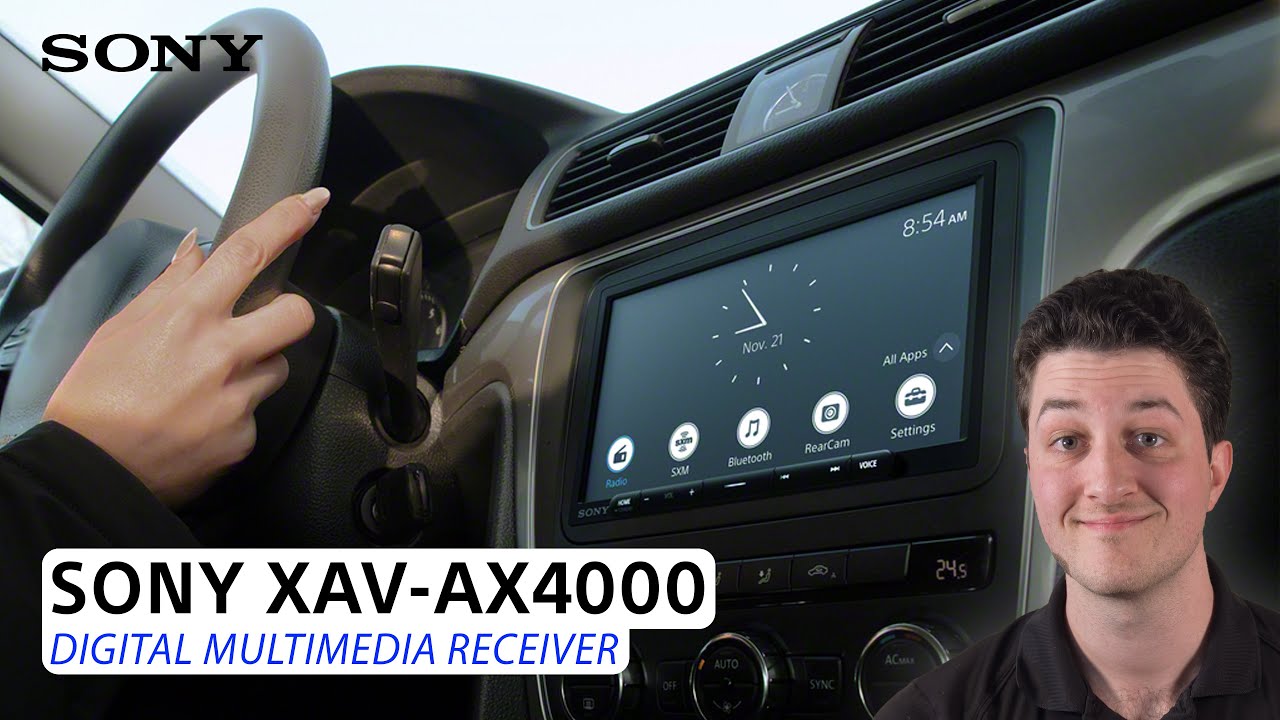
Once you select the car stereo on your phone, a pairing code will appear on both your phone and the stereo screen. This code ensures you’re connecting to the right device, preventing accidental pairing with someone else’s car stereo nearby.
Check that the numbers match exactly, then confirm the pairing on both devices. If the codes don’t match, cancel and try selecting the device again. This step is crucial for your security and to avoid connection errors.
Have you ever thought about how many steps are involved in something as simple as connecting your phone to your car stereo? Paying attention to these small details can save you a lot of frustration on the road.
Credit: www.youtube.com
Troubleshoot Connection Issues
Connection problems can stop your phone from linking with your Sony car stereo. These issues cause frustration during your drive. Troubleshooting helps fix these problems fast. Try simple fixes first to save time and effort.
Reset Bluetooth Settings
Resetting Bluetooth clears old data that may cause errors. On your phone, go to Bluetooth settings. Find your car stereo in the device list. Remove or forget this device. Then, turn Bluetooth off and on again. Try pairing your phone with the stereo once more. This refresh often solves hidden connection problems.
Restart Devices
Restarting your phone and car stereo refreshes their systems. Power off your phone fully, then turn it back on. Do the same for your car stereo. This simple step often fixes bugs that block Bluetooth. After rebooting, try to pair devices again. Restarting helps clear temporary glitches quickly.
Update Firmware
Firmware updates improve device performance and fix bugs. Check if your Sony car stereo has a new update available. Visit Sony’s official website or use the stereo’s update feature. Follow instructions carefully to install the latest firmware. Also, update your phone’s software to the newest version. Keeping both devices updated boosts connection stability.
Maximize Stereo Features
Maximizing the features of your Sony car stereo enhances your driving experience. Connecting your phone unlocks many useful functions. These features improve safety and entertainment on the road.
Use Hands-free Calling
Hands-free calling lets you talk without holding your phone. The stereo uses the car’s microphone and speakers for clear sound. This keeps your focus on driving and your hands on the wheel. You can answer or end calls using stereo buttons or voice commands. This feature reduces distractions and makes calls safer.
Stream Music
Streaming music from your phone gives access to playlists and apps. Use Bluetooth to play songs wirelessly through the stereo. Control playback, pause, skip tracks, and adjust volume from the stereo panel. Enjoy high-quality sound and a wide music selection on every trip. Streaming saves space by not needing physical media like CDs.
Adjust Audio Settings
The Sony stereo allows you to customize sound settings easily. Adjust bass, treble, and balance to suit your taste. Use preset equalizer modes like rock, pop, or jazz for quick changes. Fine-tuning audio improves clarity and richness. These settings help create the perfect sound environment for your car.

Credit: www.youtube.com
Frequently Asked Questions
How Do I Start Pairing My Phone With Sony Car Stereo?
Turn on Bluetooth on your phone and Sony car stereo. Access the stereo’s Bluetooth menu and select “Add Device” or “Pair Phone. ” Your phone will find the stereo; select it to connect and follow any on-screen prompts to complete pairing.
What If My Phone Doesn’t Connect To Sony Car Stereo?
Ensure Bluetooth is enabled on both devices. Restart your phone and stereo. Delete previous pairings if needed. Try pairing again. Check for software updates on your phone or stereo for improved compatibility and connection stability.
Can I Pair Multiple Phones With Sony Car Stereo?
Yes, Sony car stereos often support multiple device pairings. However, only one phone can be actively connected and used at a time for calls or music playback. Switch between devices via the stereo’s Bluetooth menu when needed.
How Do I Disconnect My Phone From Sony Car Stereo?
Open the Bluetooth settings on your phone or stereo. Select the connected Sony car stereo or phone, then choose “Disconnect” or “Forget Device. ” This stops the connection until you pair again manually.
Conclusion
Pairing your phone with a Sony car stereo is easy. Follow the steps closely. Ensure Bluetooth is activated on both devices. Check for any error messages. Troubleshooting is simple if you face issues. Make sure the devices are compatible. Enjoy seamless connectivity for calls and music.
Driving becomes more enjoyable with hands-free functionality. Safe and convenient. Regularly update your devices for optimal performance. A few simple steps enhance your driving experience significantly. Stay connected on the road with ease. Enjoy the journey with your favorite tunes.
Your Sony car stereo is ready to serve.

