How to Connect Auxiliary Cable to Car Stereo: Easy Guide
Do you want to play your favorite music from your phone or MP3 player through your car’s speakers? Connecting an auxiliary cable to your car stereo is one of the easiest ways to enjoy crystal-clear sound on the road.
But if you’ve never done it before, the process might seem confusing. Don’t worry—this guide will walk you through every simple step so you can start jamming to your playlist in no time. Keep reading, and you’ll be amazed at how quickly you can transform your car into a personal concert hall.
Check Your Car Stereo Compatibility
Checking your car stereo compatibility is crucial before connecting an auxiliary cable. This ensures a smooth connection and avoids damage to your device or stereo. Different car models support different types of audio inputs. Knowing what your stereo supports saves time and frustration.
Some car stereos have a dedicated auxiliary input, while others may require adapters or different connection methods. Identifying the right port helps you connect your device quickly and enjoy your music without interruptions.
Locate The Auxiliary Input
Start by looking at your car stereo’s front panel. The auxiliary input often looks like a small, round headphone jack. It usually has the label “AUX” or a headphone icon near it.
If you don’t see anything on the front, check the center console or near the gear shift. Sometimes, the input is hidden in the glove compartment or armrest storage.
Identify Compatible Ports
Common compatible ports include:
- 3.5mm AUX jack
- USB ports with audio support
- Bluetooth connectivity (for wireless connection)
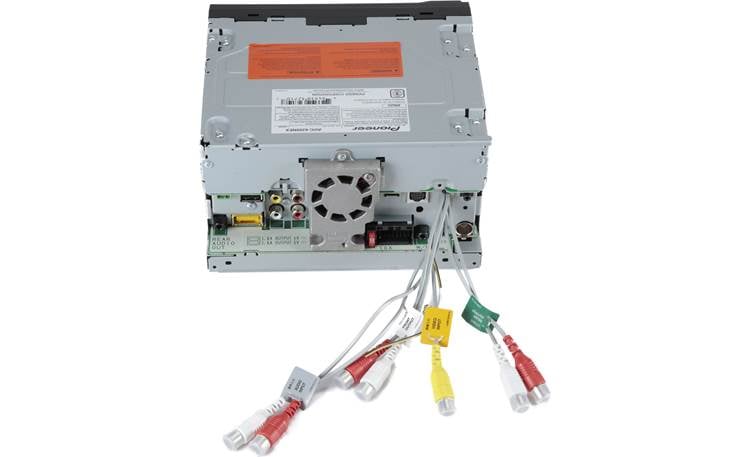
Some older car stereos may not have a 3.5mm AUX input but could have CD changer ports or RCA inputs. In such cases, you might need an adapter cable to connect your device.
Checking your car stereo manual helps confirm which ports support auxiliary input. This step avoids damage and ensures the best audio quality.

Credit: aluratek.com
Choose The Right Auxiliary Cable
Choosing the right auxiliary cable is important to connect your device to the car stereo. The cable type affects sound quality and compatibility. Picking the correct cable ensures a smooth connection without interruptions. Focus on the cable’s jack size, length, and build quality. Use a cable that fits both your car stereo and audio device perfectly.
Standard 3.5mm Jack
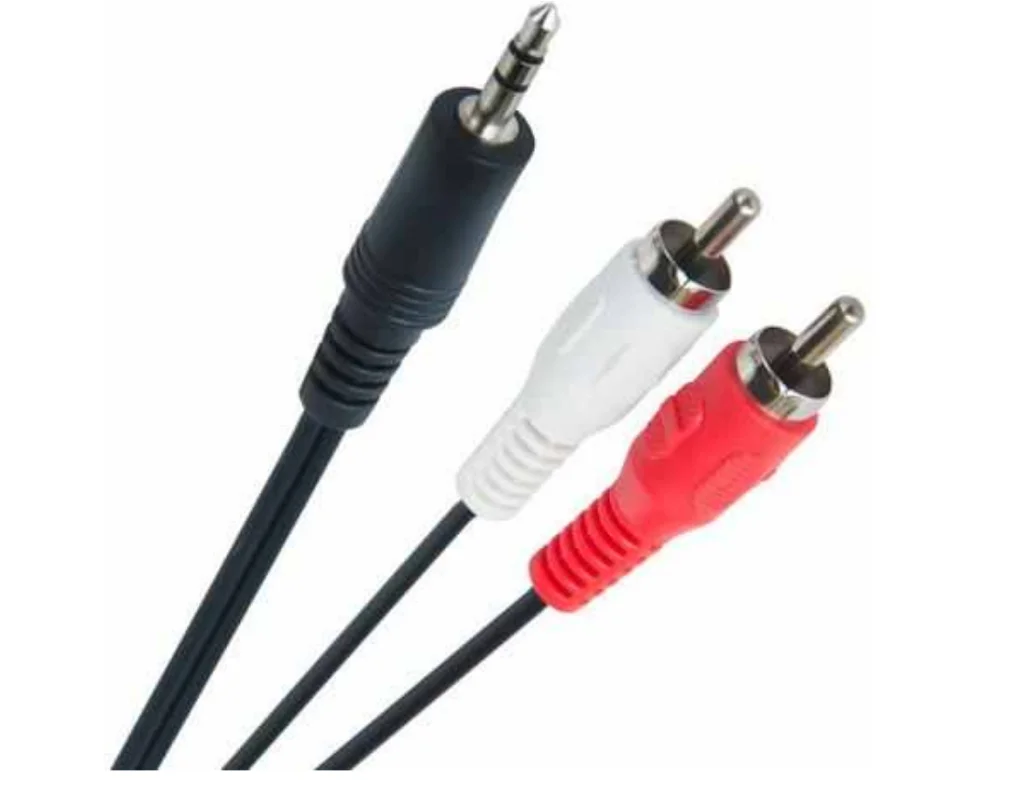
The most common auxiliary cable uses a 3.5mm jack. This small, round plug fits most phones, tablets, and car stereos. It carries clear audio and is easy to find. Almost all car stereos have a 3.5mm auxiliary input port. The cable usually has two male connectors, one for the device and one for the stereo. Choose a cable with good shielding to reduce noise and interference.
Alternative Cable Types
Some cars use different cable types for auxiliary input. Older cars might have RCA inputs, which use red and white plugs. Others might use a USB port or a 6.35mm (1/4 inch) jack. Some newer cars support Bluetooth or USB audio instead of auxiliary cables. Check your car stereo manual to know which cable fits best. Having the right cable ensures better sound and fewer connection issues.
Prepare Your Devices
Preparing your devices before connecting an auxiliary cable ensures a smooth and safe setup. It helps protect your car stereo and device from damage and avoids sudden loud sounds. Taking a few simple steps will make your listening experience better and trouble-free.
Turn Off The Stereo And Device
Switch off your car stereo before plugging in the auxiliary cable. This prevents electrical shorts and unexpected noise bursts. Also, turn off your phone or music player to avoid interference. Connecting devices while powered down keeps everything safe and ready for a clean start.
Adjust Volume Settings
Set the volume on both your car stereo and device to low. This avoids loud blasts of sound when you connect the cable. Gradually increase the volume once the connection is secure. Keeping volume low at first protects your ears and your speakers.
Credit: www.subaruoutback.org
Connect The Auxiliary Cable
Connecting an auxiliary cable to a car stereo is a quick way to play music from your device. The process only takes a few seconds. This connection provides clear sound without the need for Bluetooth or other wireless options.
Start by identifying the correct ports on both the car stereo and your audio device. Auxiliary cables usually have a 3.5mm jack on both ends. Make sure both devices are turned on and ready to play audio.
Plug Into Car Stereo
Locate the auxiliary input on your car stereo. It is often labeled as “AUX” or “Auxiliary.” This port is usually near the radio controls or on the dashboard.
Take one end of the auxiliary cable and gently insert it into the car stereo’s auxiliary input. Push it in until you feel it click or fit snugly. Avoid forcing the cable to prevent damage.
Plug Into Audio Device
Find the headphone jack or audio output on your device. This could be a smartphone, MP3 player, or tablet. The port looks like a small round hole.
Insert the other end of the auxiliary cable into the device’s audio output. Ensure it fits securely to avoid sound interruptions. Once connected, play audio from your device to test the connection.
Set Car Stereo To Auxiliary Mode
Setting your car stereo to auxiliary mode is essential for playing audio through an auxiliary cable. This step lets your stereo recognize the external device connected via the aux port, so you can enjoy music, podcasts, or calls from your phone or media player. Without switching to auxiliary mode, your car’s audio system won’t pick up the sound from the cable.
Using The Stereo Controls
Most car stereos have a dedicated button or knob to switch between audio sources. Look for buttons labeled “AUX,” “Source,” or “Media” on your dashboard or steering wheel controls.
Press the button repeatedly until you see “Auxiliary” or “AUX” displayed on the screen. Sometimes, you may need to press and hold the button for a couple of seconds. If your stereo has a touchscreen, tap the source icon and select “Aux” from the list.
It’s helpful to familiarize yourself with these controls before hitting the road. Have you noticed how some stereos display confusing abbreviations? Take a moment to test the buttons so you’re confident about switching inputs quickly.
Troubleshooting Input Selection
If your stereo doesn’t switch to auxiliary mode or you don’t hear any sound, double-check the cable connection first. A loose plug can prevent the stereo from detecting the input.
Sometimes, older car stereos may not automatically recognize the aux input. In this case, manually cycle through all available source options. If auxiliary mode isn’t appearing, consult your car manual to confirm your stereo supports aux input.
Another tip: turn the volume up on both your car stereo and the connected device. Low volume on either end can make it seem like the connection isn’t working. Have you ever assumed a cable was faulty, only to find the volume was just too low?
Test Audio Playback
Once you’ve connected the auxiliary cable to your car stereo, it’s time to test the audio playback. This step is crucial to ensure everything works smoothly. Testing helps you catch any issues early and get the best sound experience on your drive.
Play Music From Device
Start by opening your favorite music app or playlist on your device. Press play and listen carefully to the sound coming from your car’s speakers. If you don’t hear anything, double-check that the auxiliary cable is securely plugged into both your device and the stereo’s aux input.
Is your device volume turned up? Sometimes the device volume is muted or too low even if the car stereo is loud. Also, make sure the car stereo is set to the “AUX” input mode; otherwise, it won’t receive the signal.
Adjust Sound Settings
Once the music plays, take a moment to adjust your car stereo’s sound settings. Try tweaking the bass, treble, and balance controls until the audio sounds just right for you. Don’t forget to check the volume levels on both the stereo and your device.
Have you noticed any static, buzzing, or uneven sound? These can often be fixed by repositioning the cable or cleaning the aux port. Sometimes, simply adjusting the equalizer settings on your device or stereo can dramatically improve the sound quality.
Troubleshoot Common Issues
Troubleshooting common issues when connecting an auxiliary cable to your car stereo can save you a lot of frustration. Understanding what might go wrong helps you fix problems quickly and get back to enjoying your music. Let’s look at some typical issues and how you can resolve them.
No Sound Or Low Volume
If you plug in your auxiliary cable but hear no sound or very low volume, start by checking the volume on both your car stereo and the connected device. Sometimes, the device’s volume is turned down or muted without you realizing it.
Another thing to try is switching the input source on your car stereo to AUX mode manually. Some stereos don’t switch automatically, which can cause silence even when everything is connected properly.
Have you ever overlooked the mute button on your device or stereo? It’s a simple fix but often missed. Make sure all mute settings are off and volume levels are adequate.
Static Or Poor Audio Quality
Static noise or distorted sound usually points to interference or a damaged cable. Try moving the cable away from other electronic devices like chargers or power cords that might cause interference.
Check the cable for visible signs of wear or kinks. A bent or frayed cable can reduce sound quality significantly. Replacing the cable with a new, high-quality one often solves this problem.
Sometimes, poor audio quality comes from a loose connection inside the auxiliary port itself. Gently clean the port with a dry, soft brush to remove dust and debris that might block a proper connection.
Cable Connection Problems
If your auxiliary cable isn’t fitting snugly into the ports, it might be the wrong size or damaged. Most car stereos use a 3.5mm jack, but double-check your stereo’s manual to be sure.
Try plugging the cable into a different device to see if the problem persists. If it fits well elsewhere, the issue may be with your car’s auxiliary port, which might need professional repair.
Loose connections can also be caused by dirt or lint inside the jack. Use compressed air or a toothpick carefully to clean the port and improve the connection.

Credit: www.youtube.com
Maintain Your Auxiliary Connection
Maintaining a strong and reliable auxiliary connection can save you from frustrating interruptions during your drives. Small habits and regular care make a big difference in how well your auxiliary cable performs over time. By paying attention to both the cable and the car stereo port, you ensure your music or podcasts play smoothly every time you plug in.
Cable Care Tips
Your auxiliary cable is a simple tool, but it needs gentle handling to last. Avoid bending it sharply near the connectors; this common mistake causes internal wires to break. Instead, coil the cable loosely when storing it to prevent stress on the ends.
Check your cable regularly for any visible damage like frayed wires or exposed metal. Using a damaged cable can cause poor sound quality or even harm your car stereo. If your cable feels stiff or doesn’t fit snugly, it might be time to replace it.
Have you ever noticed static or crackling sounds? This often signals a loose or worn cable connection. You can test this by gently wiggling the cable while music is playing—if the sound cuts in and out, the cable isn’t secure or could be damaged.
Regular Port Cleaning
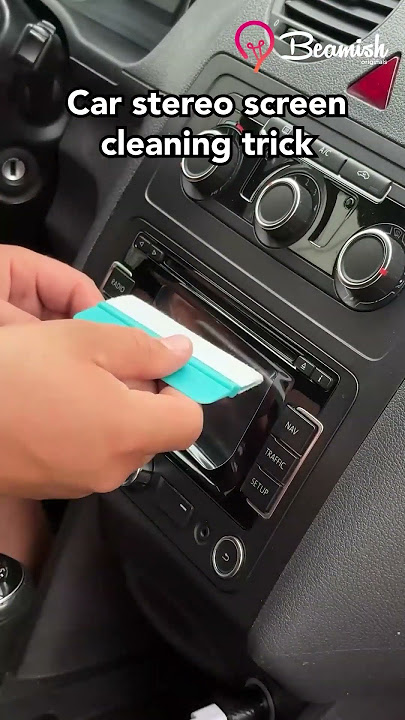
Dust and debris tend to accumulate inside your car’s auxiliary port, blocking a clean connection. A quick cleaning session can dramatically improve audio quality and connection stability. Use a can of compressed air to blow out dirt without damaging the delicate internal parts.
If you don’t have compressed air, a soft, dry brush or a cotton swab can also work—but be gentle to avoid pushing debris deeper inside. Avoid using liquids or harsh chemicals, as these can cause corrosion or electrical problems.
Consider cleaning your port every couple of months, especially if you often drive with windows open or in dusty environments. Does your audio sometimes cut out only in certain locations? Dirt inside the port might be the culprit.
Frequently Asked Questions
How Do I Connect An Auxiliary Cable To My Car Stereo?
Plug one end of the auxiliary cable into your device’s headphone jack. Insert the other end into the car stereo’s AUX input. Select the AUX mode on the stereo. Play audio from your device to hear it through the car speakers.
What Type Of Auxiliary Cable Works With Car Stereos?
A standard 3. 5mm male-to-male auxiliary cable works with most car stereos. Ensure both your device and stereo have compatible AUX ports. High-quality cables reduce interference and provide better sound clarity during playback.
Can I Use Bluetooth Instead Of An Auxiliary Cable?
Yes, Bluetooth offers wireless audio connection but requires a Bluetooth-enabled stereo. AUX cables provide a direct, reliable connection without pairing or signal loss. Choose based on convenience and stereo compatibility.
Why Is My Auxiliary Cable Not Working With My Car Stereo?
Check if the cable is fully plugged in and not damaged. Confirm the stereo is set to AUX mode. Test with another device or cable to rule out hardware issues. Clean ports if necessary to ensure proper contact.
Conclusion
Connecting an auxiliary cable to your car stereo is simple and quick. Just plug one end into your device and the other into the car’s AUX port. Adjust the stereo to AUX mode, then play your favorite music. This method lets you enjoy clear sound without extra tools.
No need for complex steps or expensive equipment. Try it today and hear the difference in your car’s audio. Easy, fast, and effective. Your music travels with you, wherever you go.