How to Connect Android Car Stereo to Steering Wheel Controls: Easy Guide
Master Automotive Systems Engineer & Performance Vehicle Specialist at CarSpeedNest Automotive Testing Lab · ASE Certified Master Technician, Mobile Electronics Certified Professional (MECP Master), Certified Dyno Diagnostic Specialist · 14+ years in dyno testing, electronic sensor calibration, automotive wiring harnesses, and precision drivetrain maintenance
Are you tired of losing control over your music and calls the moment you switch to a new Android car stereo? Imagine keeping all your steering wheel controls fully functional without any hassle.
Connecting your Android car stereo to your steering wheel controls not only makes driving safer but also keeps your focus where it belongs—on the road. In this guide, you’ll discover simple, step-by-step methods to link your stereo and steering controls effortlessly.
Keep reading, and you’ll gain the confidence to upgrade your car audio system without losing the convenience you rely on every day.
Preparing Your Car Stereo And Controls
Before you dive into connecting your Android car stereo to your steering wheel controls, it’s crucial to prepare both your stereo system and your car’s existing controls. This preparation ensures a smooth installation and helps avoid common headaches like compatibility issues or wiring confusion.
Checking Compatibility
Not all Android car stereos work seamlessly with every steering wheel control system. You need to verify that your stereo supports the specific protocols used by your car’s controls. Look for compatibility details in the stereo’s manual or product listing, focusing on supported control modules or brands.
Sometimes, manufacturers provide a list of compatible vehicles or control adapters. If you can’t find this information, online forums and user reviews often reveal real-world compatibility experiences.
Gathering Necessary Tools
Having the right tools on hand saves time and frustration. Common tools you’ll need include wire strippers, crimp connectors, electrical tape, and a multimeter. A steering wheel control interface module is often required to bridge the communication between your car and the new stereo.
Don’t forget a screwdriver set to remove panels and access wiring. If you’re unsure about any tool, check out video tutorials to see them in action.
Understanding Your Car’s Wiring
Every car’s wiring harness is unique, and understanding it is key to a successful connection. Start by locating the wiring diagram for your vehicle, which you can usually find in the service manual or online.
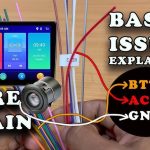
Identify the wires related to steering wheel controls—these are often color-coded but can vary by manufacturer. Using a multimeter can help confirm the correct wires by testing for voltage or continuity as you press buttons on your steering wheel.
Have you ever tried connecting something without fully understanding how it works? Taking time here prevents mistakes that could damage your stereo or car electronics.
Identifying Steering Wheel Control Wires
Identifying the steering wheel control wires is key to connecting your Android car stereo. These wires send signals from your steering wheel buttons to the stereo system. Knowing their location and function ensures smooth integration and control.
Locating Control Wires
Start by removing the steering wheel cover carefully. Look for the wiring harness behind the wheel. Control wires usually come in pairs or small groups. Check your car’s manual for wire color codes. If unavailable, use an online wiring diagram for your vehicle model. Locate wires that connect directly to the steering wheel buttons.
Using A Multimeter For Testing
A multimeter helps confirm the control wires. Set the multimeter to measure voltage or continuity. Press the steering wheel buttons while testing each wire. Look for changes in voltage or a beep indicating continuity. Test each wire separately to identify its function. This step prevents wrong connections and protects your stereo.
Labeling Wire Functions
Once identified, label each wire clearly. Use small tags or colored tape for easy recognition. Mark functions like volume up, volume down, next track, and previous track. Keep a list of wire colors and their functions. Proper labeling saves time during installation and future troubleshooting.
Connecting The Steering Wheel Controls
Connecting your Android car stereo to the steering wheel controls lets you keep your focus on the road while managing music and calls. It enhances safety and convenience, but the process requires careful handling of wiring and adapters. Knowing how to link these controls properly will save you time and frustration.
Using A Control Interface Adapter
A control interface adapter acts as the middleman between your steering wheel buttons and the Android stereo. These adapters are designed to interpret signals from your car’s controls and translate them into commands the stereo understands.
Choosing the right adapter depends on your car’s make, model, and stereo brand. Some adapters plug directly into the stereo’s wiring harness, while others connect through the vehicle’s CAN bus system.
Have you checked if your stereo brand offers a compatible adapter? Using a dedicated adapter simplifies the process and prevents damage to your car’s electronics.
Wiring The Adapter To The Stereo
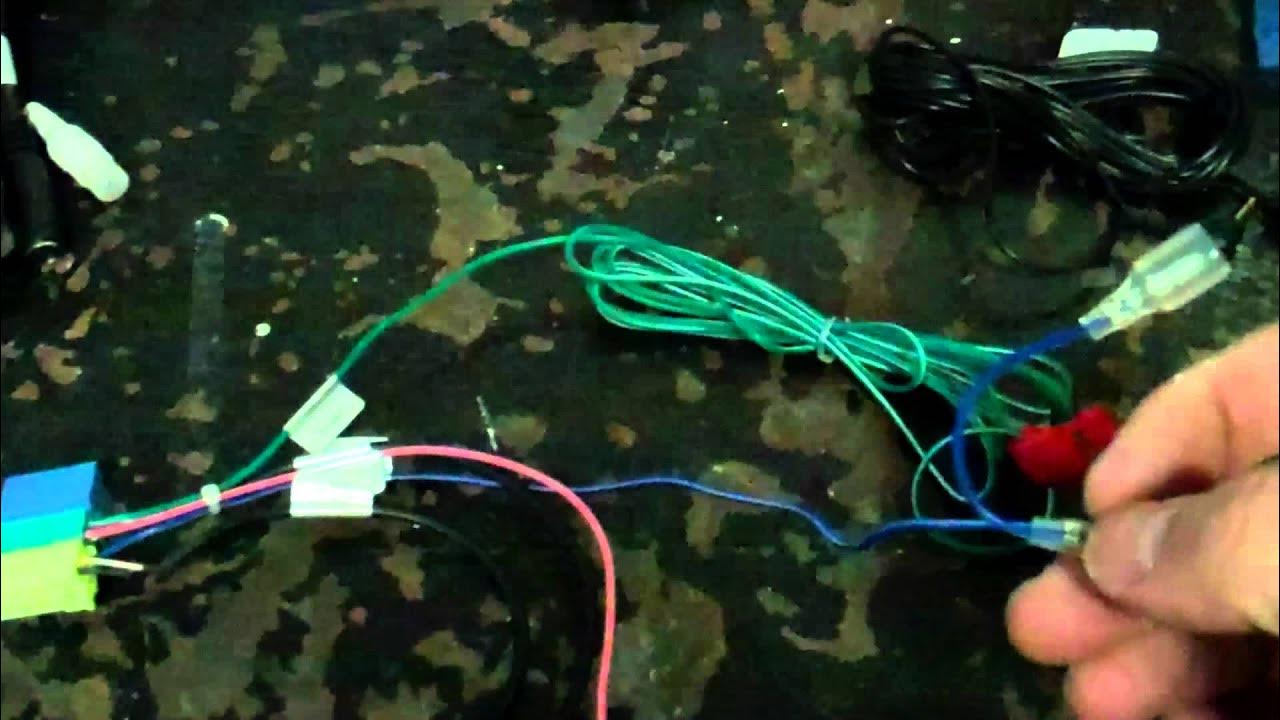
Once you have the adapter, the next step is wiring it to your Android stereo. Typically, the adapter will come with a wiring diagram or color-coded cables.
Match the adapter’s wires with the stereo’s steering wheel control input wires. This connection often involves linking ground, power, and signal wires carefully.
Use a multimeter to confirm wire functions before connecting. This avoids shorts and ensures each button on your steering wheel works as intended.
Securing Connections Safely
Loose or exposed wires can cause malfunctions and pose safety risks. After wiring, wrap the connections with electrical tape or use heat shrink tubing for insulation.
Secure the adapter and cables with zip ties to prevent them from moving around while driving. Double-check all connections for tightness and stability.
Have you tested each button after securing the wiring? Testing now prevents trouble on the road later.
Credit: www.cruzetalk.com
Frequently Asked Questions
How Do I Connect Steering Wheel Controls?
To connect steering wheel controls, use an adapter compatible with your Android car stereo. Follow the manufacturer’s instructions for wiring and setup. Ensure the stereo and adapter are compatible with your vehicle model for seamless integration. This setup allows you to control stereo functions without removing your hands from the wheel.
Can I Use Steering Wheel Controls With Any Stereo?
Not all stereos support steering wheel controls. Check if your Android stereo is compatible with your car’s system. You may need a specific adapter to enable this functionality. Compatibility ensures smooth operation and maintains safety by allowing you to control the stereo while driving.
Do I Need An Adapter For Steering Wheel Controls?
Yes, an adapter is often necessary to connect steering wheel controls to an Android car stereo. The adapter bridges the gap between your car’s controls and the stereo system. Ensure the adapter is compatible with both your vehicle and stereo model for effective integration.
Why Aren’t My Steering Wheel Controls Working?
If steering wheel controls aren’t working, check connections and compatibility. Ensure the adapter is properly installed and configured. Sometimes, software updates or resetting the stereo can resolve the issue. Refer to the user manual or consult a professional for troubleshooting assistance.
Conclusion
Connecting your Android car stereo to steering wheel controls improves driving safety and ease. Follow the steps carefully to ensure correct wiring and setup. Test the controls before driving to avoid distractions. Use the right adapter or interface for compatibility.
This simple upgrade helps you keep focus on the road. Enjoy better control over music and calls without taking hands off the wheel. Take your time, and the process will be smooth and rewarding.

Similar Posts