How to Connect Iphone to Car Stereo Via Usb: Easy Step-by-Step Guide
Master Automotive Systems Engineer & Performance Vehicle Specialist at CarSpeedNest Automotive Testing Lab · ASE Certified Master Technician, Mobile Electronics Certified Professional (MECP Master), Certified Dyno Diagnostic Specialist · 14+ years in dyno testing, electronic sensor calibration, automotive wiring harnesses, and precision drivetrain maintenance
Want to play your favorite music or podcasts from your iPhone through your car’s stereo? Connecting your iPhone to your car via USB is one of the easiest and most reliable ways to do it.
But if you’ve never done it before, it might feel confusing or frustrating. Don’t worry—you’re about to discover a simple, step-by-step guide that will have your music playing clearly through your car speakers in no time. Keep reading to unlock the hassle-free method that makes every drive more enjoyable.
Check Compatibility
Before you connect your iPhone to your car stereo via USB, it’s essential to check if your devices are compatible. Compatibility affects not only whether your devices can connect but also the quality of the connection and available features. Ensuring compatibility upfront saves you time and frustration during setup.
Car Stereo Usb Support
Not all car stereos support USB connections for audio playback. Check your car stereo’s manual or manufacturer website to confirm if it has a USB port specifically designed for media input. Some older models may have USB ports, but they might only support charging or limited functions.
Look for terms like “USB audio,” “iPod/iPhone compatible,” or “CarPlay support.” If your stereo supports Apple CarPlay, your iPhone connection will be smoother and offer more features like Siri and navigation. Have you ever tried plugging in your phone only to realize the stereo doesn’t recognize it? Avoid that hassle by confirming USB support first.
Iphone Model Requirements
Different iPhone models have varying capabilities when connecting to car stereos. Generally, any iPhone running iOS 7 or later can connect via USB, but some features require newer models or updated software.
- Older iPhones may only support basic audio playback.
- Newer models and iOS versions unlock additional features like CarPlay.
- Check that your iPhone’s iOS is up to date for the best compatibility.
Think about your current iPhone—does it support the features your car stereo offers? If you have an iPhone 6 or later, chances are your device will work well. However, if your phone is older, some functionalities might be limited or unavailable.
Cable And Adapter Needs
The right cable or adapter is crucial for a successful connection. Using an Apple-certified Lightning to USB cable ensures a stable connection and avoids compatibility issues.
If your car stereo has a USB-C port instead of a standard USB-A, you might need a USB-C to Lightning cable. Also, some cars require a specific adapter to interface correctly with Apple devices.
Have you checked your cable lately? Sometimes, a worn-out or non-certified cable can cause connection problems. Investing in quality cables can make a big difference in your listening experience.

Credit: www.amazon.com
Prepare Your Devices
Preparing your devices is the first step to connect your iPhone to a car stereo via USB. This stage ensures smooth connection and prevents interruptions during playback. Taking a few simple actions can save time and avoid frustration.
Start by making sure your iPhone has enough power. A low battery can cause connection problems or stop music playback unexpectedly. Also, check your USB cable for any damage or wear. A faulty cable might not work correctly or could damage your devices.
Finally, it is important to turn off the car stereo before plugging in the USB cable. This helps the system recognize your iPhone and avoids possible errors. These easy steps prepare both your iPhone and car stereo for a quick and stable connection.
Charge Your Iphone
Ensure your iPhone battery is above 20% before connecting. A low battery can cause the device to disconnect. Use a charger if needed to avoid interruptions. A fully charged phone supports stable data transfer and music playback.
Inspect Usb Cable Condition
Check the USB cable for any visible damage. Look for frayed wires, bent connectors, or loose ends. Use a certified Apple Lightning cable for best results. A good cable ensures reliable connection and fast charging.
Turn Off Car Stereo
Power off the car stereo before connecting the iPhone. This allows the system to detect the device properly. Avoid plugging in while the stereo is on to prevent errors. Turn it back on after the connection is secure.
Connect Iphone To Stereo
Connecting your iPhone to your car stereo via USB lets you enjoy your favorite music, podcasts, and navigation apps through your car’s sound system. This direct connection also allows your car to charge your phone while playing audio. The process is straightforward, but a few simple steps can ensure a smooth and reliable link between your devices.
Plug In Usb Cable To Iphone
Start by grabbing a compatible USB cable for your iPhone. Most recent iPhones use a Lightning to USB cable, but if you have a newer model, it might support USB-C. Check your cable before you start to avoid interruptions.
Connect the USB end that fits your iPhone securely into your phone’s charging port. You should feel a snug fit without forcing it in. This connection is crucial as it transmits both data and power.
Insert Usb Cable Into Car Stereo Port
Next, locate the USB port on your car stereo. It’s usually found near the dashboard, center console, or inside the glove compartment. If you’re unsure, consult your car’s manual to find the exact location.
Plug the other end of the USB cable into the car stereo’s USB port. Once connected, your car’s infotainment system should recognize the iPhone almost instantly. You might see a prompt on your car’s display asking for permission to access your phone’s data — tap “Allow” to continue.
Have you noticed how some car stereos automatically switch to the USB input once you plug in your iPhone? If yours doesn’t, just select the USB source manually on your stereo. This little trick saved me time and hassle on a recent road trip.

Credit: cabletimetech.com
Set Car Stereo To Usb Mode
Getting your iPhone to play through your car stereo via USB is straightforward once you set the stereo to the right mode. This step is crucial because the car stereo needs to recognize the USB connection as the input source before it can play your music or podcasts. Let’s dive into how you can switch your car stereo to USB mode quickly and easily.
Access Input Source
First, you need to access the input source menu on your car stereo. Usually, this is done by pressing a button labeled “Source,” “Mode,” or sometimes “Input” on your stereo panel or steering wheel controls. If you’re unsure, check your car stereo manual for the exact button.
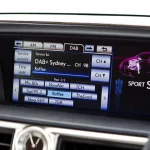
Once you press the button, a list of available input options should appear on the stereo display. You might see options like FM, AM, AUX, Bluetooth, and USB. Navigating this menu is simple—use the dial, arrow keys, or touchscreen, depending on your stereo model.
Select Usb Option
After you have the input source menu open, scroll through the options until you find “USB.” Select it by pressing the appropriate button or tapping the screen. This action tells your stereo to switch its input to the USB port where your iPhone is connected.
At this point, if your iPhone is properly connected with a USB cable, the stereo should recognize it and start playing audio files stored on your device or from apps like Apple Music. If it doesn’t connect immediately, try unplugging and replugging the USB cable or restarting your iPhone. Have you noticed any differences in how your car stereo handles USB connections compared to Bluetooth? It’s something worth testing to find what works best for your setup.
Enable Iphone Permissions
Enabling the right permissions on your iPhone is essential to successfully connect it to your car stereo via USB. Without granting access, your car won’t recognize your device, and you’ll miss out on playing music, using navigation, or making hands-free calls. Let’s focus on the simple actions you need to take to ensure your iPhone communicates smoothly with your car’s system.
Unlock Iphone Screen
Your iPhone must be unlocked to establish a connection with your car stereo. If your screen is locked, the car’s system often won’t detect your device or may show an error message. Just enter your passcode, use Face ID, or Touch ID to unlock the phone before plugging it in.
Think about the last time you tried to connect your phone and it didn’t work—did you check if the screen was locked? This small step saves you a lot of frustration.
Allow Car Access To Iphone
Once your iPhone is connected via USB, you’ll likely see a pop-up asking if you “Trust This Computer” or “Allow Access.” This message appears because your iPhone needs permission to share data with the car stereo. Tap Allowto grant access.
If you accidentally tap “Don’t Allow,” your car won’t be able to read your music library or contacts. You can reset this permission by going to Settings > General > Reset > Reset Location & Privacyon your iPhone.
Have you noticed how many devices ask for permission but you just tap through? Being cautious here ensures your car stereo works as intended without compromising your privacy.

Credit: aluratek.com
Play Audio From Iphone
Playing audio from your iPhone through your car stereo using a USB connection is simple and enhances your driving experience. It lets you enjoy your favorite playlists, podcasts, or audiobooks with clear sound and easy control. Connecting via USB also charges your phone, so your music never stops unexpectedly.
Choose Music Or Audio App
Once your iPhone is connected to the car stereo via USB, open the music or audio app you prefer on your phone. This could be the native Apple Music app, Spotify, Audible, or any other app you use for audio. Pick your playlist, album, or podcast episode and start playing.
Not all car stereos automatically switch to the USB source. Sometimes you need to manually select the USB input on your stereo’s interface. If your stereo supports it, the screen may even display the song title and artist, making it easier to navigate your music.
Control Playback Via Stereo
Most modern car stereos allow you to control playback directly from the stereo’s buttons or touchscreen. You can play, pause, skip tracks, or adjust volume without touching your iPhone. This keeps your focus on driving and your hands on the wheel.
However, some older car stereos might have limited control options. In those cases, you’ll still be able to listen through the speakers but may need to manage playback on your phone. Check your stereo’s manual to understand what controls are available.
Have you noticed how much safer it feels to control music from the stereo rather than fumbling with your phone? This small convenience can make a big difference during your daily commute or road trips.
Troubleshoot Connection Issues
Connection issues between your iPhone and car stereo can be frustrating. Troubleshooting helps identify and fix common problems quickly. Follow simple checks to restore a smooth connection via USB.
Check Cable And Ports
Examine your USB cable for any visible damage or wear. Use only Apple-certified cables to ensure compatibility. Inspect the USB ports on both your iPhone and car stereo. Clean any dust or debris gently with a soft brush. Try connecting with a different cable to rule out a faulty wire.
Restart Devices
Power off your iPhone and car stereo completely. Wait for about 30 seconds before turning them back on. Restarting resets temporary glitches that block connections. Reconnect the USB cable after both devices are fully powered on. This simple step often solves many connection problems.
Update Software
Check for the latest iOS version on your iPhone. Go to Settings > General > Software Update to see if updates are available. Update your car stereo’s firmware if possible. Software updates fix bugs and improve device compatibility. Keeping both devices updated ensures a stable USB connection.
Frequently Asked Questions
How Do I Connect My Iphone To My Car Stereo?
To connect your iPhone to your car stereo via USB, use an Apple-approved USB cable. Plug one end into your iPhone and the other into your car’s USB port. Your car’s stereo system should automatically recognize the device. Follow on-screen prompts to enable media playback.
Why Won’t My Iphone Connect To My Car Stereo?
If your iPhone won’t connect, check the USB cable for damage. Ensure the cable is Apple-approved. Verify that the car stereo supports USB connections. Restart both your iPhone and car stereo system. Check for any software updates on your iPhone that may be required.
Can I Play Music From Iphone Via Usb?
Yes, you can play music from your iPhone via USB. Connect your iPhone using a USB cable to the car stereo. Once connected, select the USB input on your stereo. Your iPhone’s music library will be accessible, allowing you to play your favorite tracks seamlessly.
Do All Cars Support Iphone Usb Connections?
Not all cars support iPhone USB connections. Check your car’s manual to confirm compatibility. Older models may not have USB ports or necessary software support. For best results, ensure your car stereo system is updated. Alternatively, use an auxiliary cable or Bluetooth if USB is unavailable.
Conclusion
Connecting your iPhone to your car stereo via USB is simple and quick. Just use the right cable and follow the steps carefully. This lets you play music, use apps, and charge your phone while driving. Enjoy better sound and hands-free control on the road.
Keep your cable handy and your settings ready. Driving becomes safer and more fun with easy phone access. Try it today and hear the difference.

Similar Posts