How to Connect Iphone to Car Stereo Without Aux: Easy Wireless Tricks
Master Automotive Systems Engineer & Performance Vehicle Specialist at CarSpeedNest Automotive Testing Lab · ASE Certified Master Technician, Mobile Electronics Certified Professional (MECP Master), Certified Dyno Diagnostic Specialist · 14+ years in dyno testing, electronic sensor calibration, automotive wiring harnesses, and precision drivetrain maintenance
Have you ever wanted to play your iPhone music through your car stereo but realized there’s no aux input? It can be frustrating when your favorite tunes don’t come through clearly or at all.
But don’t worry—you don’t need an aux cable to connect your iPhone to your car stereo. You’ll discover simple, effective ways to get your music blasting without extra wires. Keep reading, and you’ll be enjoying your playlists on the road in no time.

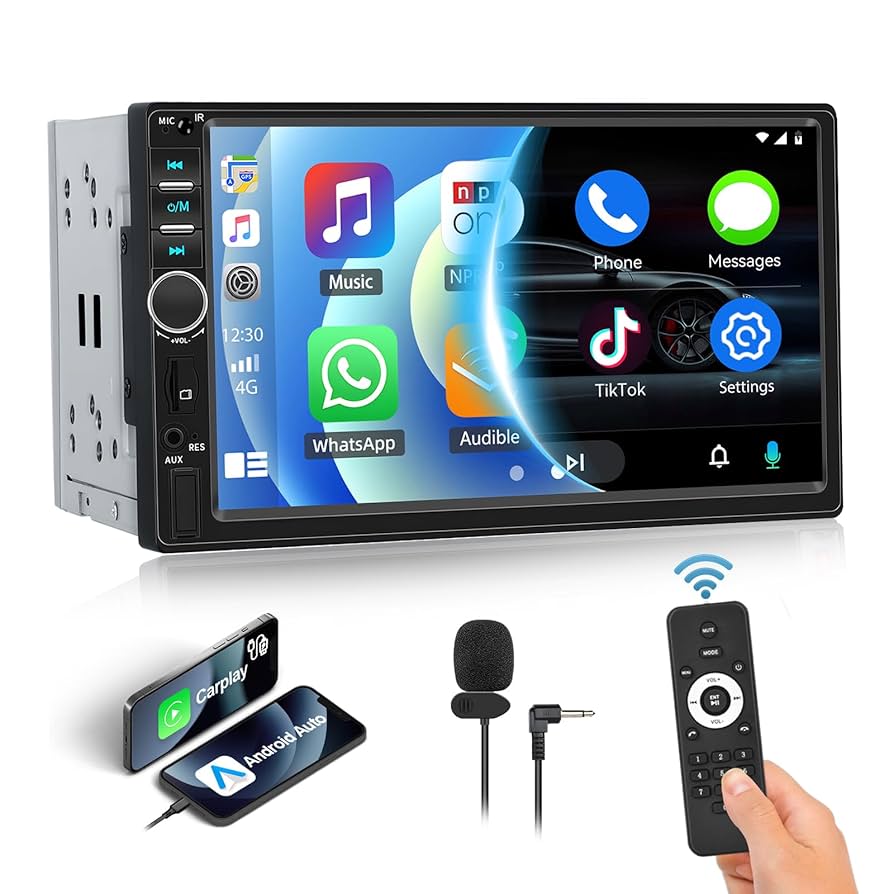
Credit: www.amazon.com
Wireless Connection Methods
Wireless connection methods offer a convenient way to link your iPhone to your car stereo. These options do not require any cables or aux inputs. They provide clear sound and easy control while driving. Wireless connections keep your car interior neat and free from tangled wires.
Several wireless technologies let your iPhone communicate with your car stereo. Each has its own setup process and benefits. Choose the one that fits your car model and personal preference for the best experience.
Bluetooth Pairing Steps
Bluetooth is the most common wireless way to connect your iPhone to a car stereo. Most cars support Bluetooth audio streaming. Follow these steps to pair your devices:
- Turn on your car stereo and enable Bluetooth mode.
- Open the Settings app on your iPhone and tap Bluetooth.
- Make sure Bluetooth is on and wait for your car stereo to appear.
- Select your car stereo from the list of available devices.
- Confirm the pairing request by matching the PIN or code if prompted.
- Once paired, your iPhone will connect automatically in the future.
You can now play music, take calls, and use voice commands hands-free.
Using Apple Carplay Wirelessly
Apple CarPlay offers a smarter way to use your iPhone in the car. Some newer vehicles support wireless CarPlay, which works over Wi-Fi and Bluetooth.
To connect wirelessly with Apple CarPlay:
- Start your car and enable wireless CarPlay on the stereo system.
- Open Settings on your iPhone, go to General, then CarPlay.
- Select your car from the list of available connections.
- Follow on-screen instructions to complete the setup.
Wireless CarPlay lets you access maps, messages, music, and apps easily. It keeps your attention on the road with voice control.
Connecting Via Wi-fi Direct
Wi-Fi Direct creates a direct wireless link between your iPhone and car stereo. It offers faster data transfer than Bluetooth.
To connect using Wi-Fi Direct:
- Enable Wi-Fi Direct on your car stereo through its settings menu.
- On your iPhone, open Settings and tap Wi-Fi.
- Look for your car stereo’s Wi-Fi Direct network and join it.
- Enter the password if required by the car stereo.
- Your iPhone will now connect and stream audio wirelessly.
This method is less common but useful in some car models for high-quality audio.

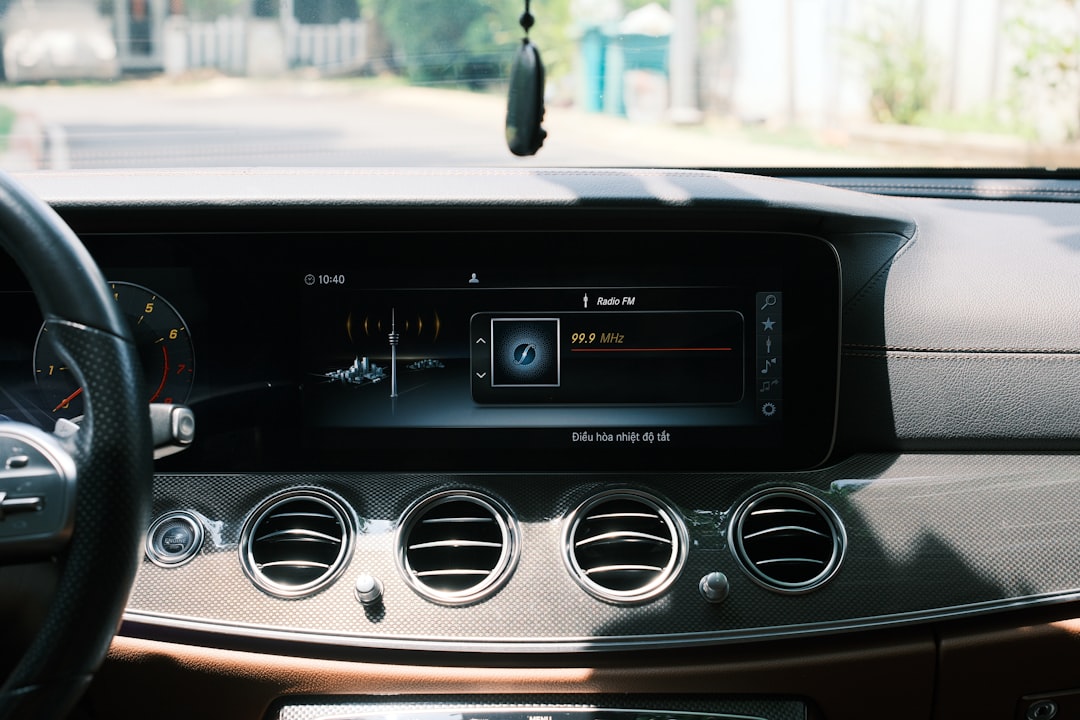
Credit: www.reddit.com
Third-party Adapters
Third-party adapters offer smart solutions when your car stereo lacks an aux input. These devices bridge the gap between your iPhone and your car’s audio system without needing physical cables. They are easy to use, usually affordable, and can significantly improve your driving soundtrack experience.
Bluetooth Fm Transmitters
Bluetooth FM transmitters connect to your iPhone wirelessly and broadcast audio through an unused FM radio frequency in your car. You simply tune your car stereo to that frequency to hear your music or calls. Many models come with USB ports for charging and even support hands-free calling.
One tip: find a transmitter with a clear signal and minimal interference. I once struggled with static until I adjusted the frequency to a quieter station, which made a huge difference. Would you try changing stations to get the best sound quality?
Wireless Audio Receivers
Wireless audio receivers plug into your car’s auxiliary port or CD changer input and connect to your iPhone via Bluetooth. They act as a middleman, streaming your phone’s audio directly to your car stereo without cables from your phone to the car. This option is great if your stereo has an aux input but you want to avoid wires hanging around.
Look for receivers with easy pairing and stable connections. My favorite one reconnects automatically each time I get in the car, saving me from fumbling with settings. Wouldn’t it be nice to just hop in and play your tunes?
Compatibility Tips
- Check if your car stereo supports the connection type required by the adapter.
- Make sure your iPhone’s iOS version is compatible with the adapter’s Bluetooth or app requirements.
- Read user reviews to learn about any pairing issues or audio lag before buying.
- Consider the power source for the adapter—some plug into the cigarette lighter, others need USB power.
Choosing the right adapter means understanding your car’s system and your iPhone’s capabilities. Have you checked your stereo model before buying an adapter? Taking a few minutes now can save frustration later.
Car Stereo Compatibility
Understanding your car stereo’s compatibility is crucial when connecting your iPhone without using an aux cable. Not all stereos support wireless connections or newer technologies, so knowing what your system can do saves you time and frustration. Let’s look at key factors that determine if your stereo can link up smoothly with your iPhone.
Checking Built-in Bluetooth
Most modern car stereos come with built-in Bluetooth, but some older models might not have this feature. To check, look for a Bluetooth logo on the stereo or search the user manual for Bluetooth capabilities. If your stereo supports Bluetooth, you can pair your iPhone directly without any extra devices.
Have you ever tried pairing your phone only to find your stereo doesn’t recognize it? It’s a common issue when Bluetooth isn’t enabled or the stereo’s Bluetooth version is outdated. Make sure your stereo supports the latest Bluetooth profiles like A2DP for audio streaming to get the best experience.
Firmware Updates
Updating your car stereo’s firmware can unlock new features and improve compatibility with devices like the iPhone. Manufacturers often release updates that fix bugs or add support for newer phone models and software versions.
Check the manufacturer’s website or your stereo’s settings menu for available updates. Installing the latest firmware might be the difference between a frustrating connection attempt and seamless streaming.
Model-specific Features
Different stereo models have unique features that affect how you connect your iPhone. Some support Apple CarPlay, which allows a direct, wireless connection with enhanced control and display options.
Others might offer proprietary apps or wireless adapters designed for their system. Knowing your stereo’s exact model and researching its capabilities can help you discover the best way to connect your phone without aux cables. Have you explored what your stereo can do beyond basic Bluetooth?
Troubleshooting Connection Issues
Connecting your iPhone to a car stereo without an aux cable can sometimes lead to connection hiccups. These issues can be frustrating, especially when you just want to enjoy your favorite playlist on the road. Understanding common problems and how to fix them can save you time and stress.
Common Bluetooth Problems
Bluetooth is the most popular way to connect your iPhone to your car stereo without an aux cable. However, it can run into issues like devices not pairing, audio cutting out, or your phone not showing up on the car’s Bluetooth list.
- Check device compatibility:Not all car stereos support every Bluetooth profile. Make sure your car’s system is compatible with your iPhone model.
- Remove old pairings:Sometimes, too many paired devices can confuse the system. Delete unused devices from both your iPhone and car stereo.
- Update firmware:Your car stereo or iPhone might need a software update to fix bugs affecting Bluetooth connections.
Have you noticed your Bluetooth disconnecting only in certain spots? That could hint at interference or signal problems.
Resetting Network Settings
Resetting your iPhone’s network settings often clears up stubborn connection issues. This action removes all saved Wi-Fi, Bluetooth, and VPN settings, so be prepared to reconnect to your networks afterward.
- Go to Settings > General > Transfer or Reset iPhone > Reset > Reset Network Settings.
- Enter your passcode and confirm the reset.
- After the reset, pair your iPhone with your car stereo again.
This step helped me fix a persistent Bluetooth issue that no amount of toggling could solve. It’s like giving your phone a fresh start without deleting personal data.
Interference And Signal Tips
Bluetooth signals can be affected by interference from other electronic devices or physical obstacles inside your car. This interference can cause choppy audio or connection drops.
- Keep other Bluetooth devices away or turn them off while driving.
- Avoid placing your phone in areas blocked by metal objects or thick cases.
- Try moving your phone closer to the stereo to improve signal strength.
Have you checked if your car’s USB ports or charging cables are causing interference? Sometimes, poorly shielded cables can disrupt Bluetooth signals.
By exploring these troubleshooting tips, you’ll likely find a smoother, more reliable connection between your iPhone and car stereo. What’s the most surprising fix you’ve found for tech issues on the road?
Maximizing Audio Quality
Maximizing audio quality is key for a great listening experience in your car. Clear sound makes every drive more enjoyable. Small tweaks can boost your iPhone’s connection to your car stereo without using an aux cable.
Optimizing Bluetooth Settings
Start by checking your iPhone’s Bluetooth settings. Turn off other Bluetooth devices nearby to avoid interference. Keep the iPhone close to the car stereo for a stronger signal. Update your iPhone and car system software to the latest versions. This ensures better compatibility and sound quality. Adjust the equalizer on your iPhone to match your music style. Many apps offer sound settings for clearer audio.
Reducing Audio Lag
Audio lag makes sound and video feel out of sync. To reduce lag, avoid using apps that require heavy processing. Close background apps to free up memory. Some car stereos have a “low latency” mode—enable it if available. Restart your iPhone and stereo system regularly to clear temporary glitches. A stable connection reduces delays and improves sound timing.
Alternative Wireless Technologies
Bluetooth is common, but other wireless options can enhance sound. Apple CarPlay wireless connects your iPhone directly to the car stereo. It supports higher quality audio and faster response. Wi-Fi-based connections offer stronger signals and less interference. Some car stereos support NFC pairing for quick setup. Explore these options if Bluetooth audio quality is not enough.

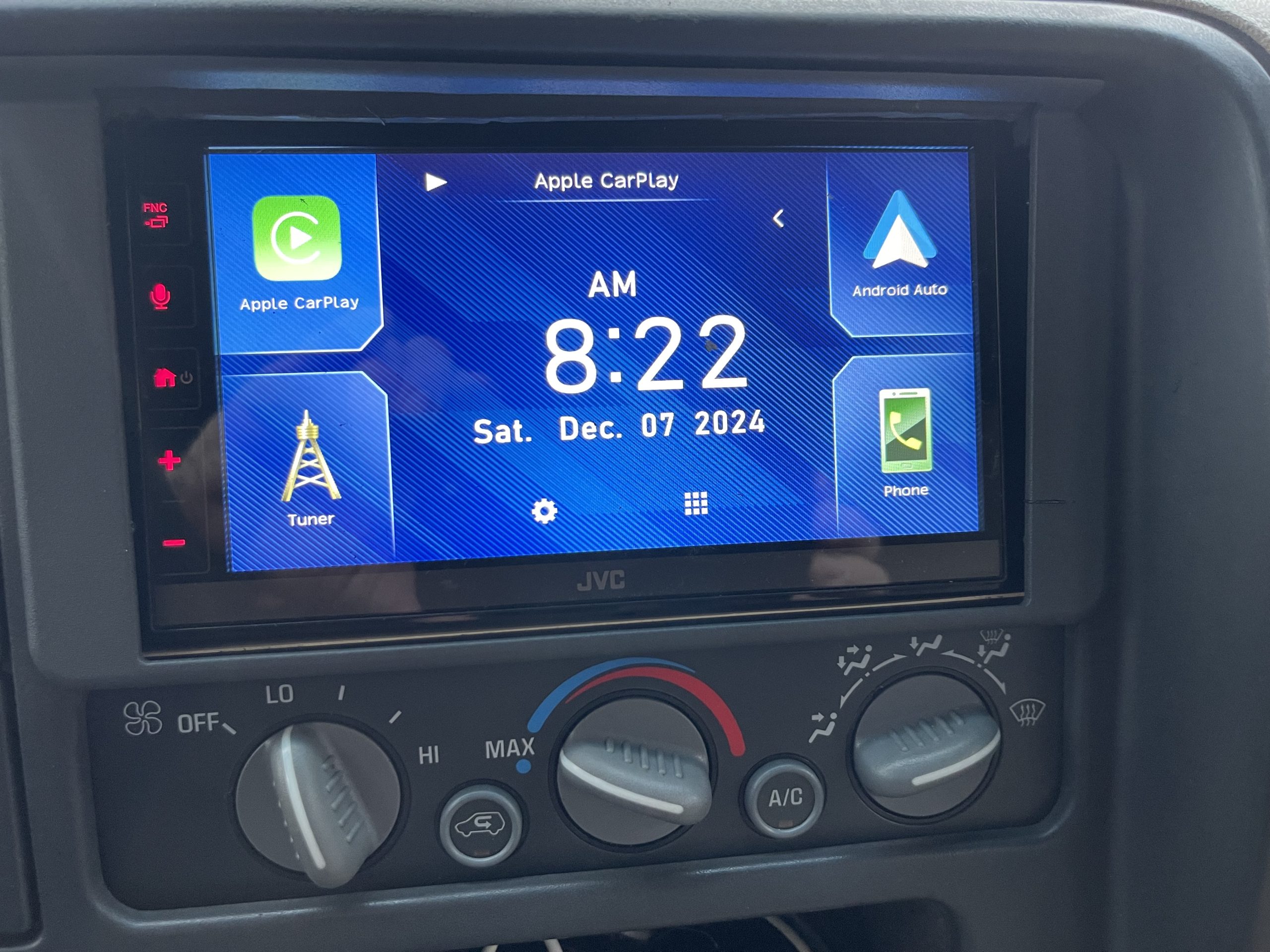
Credit: aluratek.com
Frequently Asked Questions
Can I Connect Iphone To Car Stereo Via Bluetooth?
Yes, you can connect your iPhone to your car stereo using Bluetooth. Ensure Bluetooth is enabled on both devices. Pair the devices by selecting your car stereo from the list on your iPhone. Once connected, you can play music and make calls wirelessly.
How Do I Use A Fm Transmitter For Iphone?
An FM transmitter plugs into your iPhone and broadcasts audio to your car stereo via FM radio. Set the transmitter to an unused FM frequency. Tune your car stereo to the same frequency. Play audio on your iPhone, and it should play through your car speakers.
What Is Apple Carplay, And How Does It Work?
Apple CarPlay is a feature that integrates your iPhone with your car’s infotainment system. It allows you to make calls, send messages, and use apps like Maps. Connect your iPhone using a USB cable or wirelessly if supported. Access CarPlay through your car’s display.
Is There A Wireless Option To Connect Iphone?
Yes, if your car stereo supports it, you can connect wirelessly via Bluetooth or Apple CarPlay. Ensure both devices are compatible and follow the pairing instructions. This allows you to enjoy music and calls without any cables.
Conclusion
Connecting your iPhone to a car stereo without an aux cable is simple. Use Bluetooth, USB, or FM transmitters for easy music streaming. Each method fits different car models and budgets. Try what works best for your setup. Enjoy hands-free calls and clear sound on the road.
Stay safe and keep your drive fun with your favorite tunes. Technology makes car audio more flexible than ever. No aux? No problem.

Similar Posts