How to Play Music from Phone to Car Stereo: Easy & Quick Methods
Imagine hitting the road with your favorite songs playing loud and clear through your car’s stereo. But how do you get music from your phone to your car without hassle?
If you’ve ever struggled with tangled wires, confusing setups, or poor sound quality, this guide is for you. You’re about to discover simple, effective ways to connect your phone to your car stereo—so you can enjoy every beat, every lyric, and every moment of your drive.
Keep reading, and you’ll learn easy steps that anyone can follow to make your music experience in the car better than ever.

Credit: www.binize.com
Connect Via Bluetooth
Connecting your phone to the car stereo via Bluetooth offers a wireless and convenient way to play music. It eliminates the need for cables and lets you control your tunes directly from your phone or car display. Most modern cars support Bluetooth pairing, making it easy to stream your favorite songs during drives.
Pairing Your Phone With Car Stereo
Start by turning on Bluetooth on your phone. Then, enable Bluetooth on your car stereo system. Your car stereo will appear as a device to connect to on your phone.
- Open the Bluetooth settings on your phone.
- Look for your car stereo name in the list of available devices.
- Select the car stereo to begin pairing.
- Confirm the pairing code on both devices if prompted.
- Once paired, your phone will connect automatically in the future.
After pairing, open your favorite music app and play songs. The audio will stream through your car’s speakers.
Troubleshooting Bluetooth Issues
Sometimes Bluetooth may not connect or experience interruptions. Try these tips to fix common problems.
- Make sure Bluetooth is enabled on both phone and stereo.
- Restart your phone and car stereo system.
- Delete old or unused Bluetooth connections from your phone.
- Move your phone closer to the car stereo to improve signal.
- Check your phone’s volume and media playback settings.
- Update your phone’s software and car stereo firmware if possible.
If issues persist, consult your car’s manual for specific Bluetooth support steps.
Use An Auxiliary Cable
Using an auxiliary (aux) cable is one of the simplest ways to play music from your phone through your car stereo. It offers a direct, reliable connection without the need for Bluetooth or internet access. If you want clear sound and straightforward setup, an aux cable might be your best option.
Finding The Aux Input
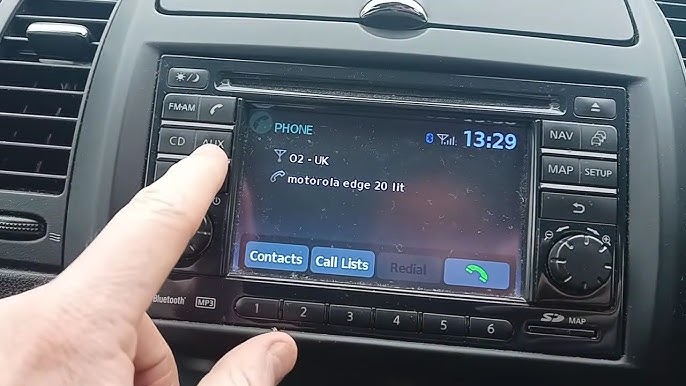
Look around your car’s dashboard or center console for a small, round port labeled “AUX” or “Aux In.” It often looks like a headphone jack and is usually 3.5mm in size. Sometimes, it might be hidden inside the glove box or center armrest, so don’t forget to check those spots too.
If you don’t see any label, check your car manual or search online using your car’s make and model. Some older or basic models might not have an aux input, so knowing this beforehand saves you time.
Connecting And Playing Music
Grab a 3.5mm aux cable — these are inexpensive and widely available. Plug one end into your phone’s headphone jack or adapter, and the other end into the car’s aux input. Make sure the connection is firm to avoid static or interruptions.
Next, switch your car stereo to the “AUX” mode. This tells the system to play audio from the aux input rather than the radio or CD player. Open your favorite music app on your phone, hit play, and enjoy your tunes through the car speakers.
Have you ever noticed how some aux cables cause static? Using a high-quality cable and keeping it away from charging cords can improve sound clarity. Also, keep your phone’s volume at a moderate level to avoid distortion. This simple setup lets you control your music easily without complicated pairing or apps.
Utilize Usb Connection
Utilizing a USB connection is one of the most straightforward ways to play music from your phone through your car stereo. It offers a reliable, high-quality audio experience without the interruptions you might get from Bluetooth connections. Plus, it often charges your phone while playing music, which is a handy bonus during long drives.
Linking Phone With Usb Cable
Start by plugging a compatible USB cable into your phone and the car’s USB port. Make sure the cable supports data transfer, not just charging. Many people overlook this detail and end up frustrated when their music doesn’t play.
Once connected, your phone may prompt you to allow access or select a USB mode. Choose options like “File Transfer” or “Media Transfer” if asked. This step is crucial to establish a proper link between your phone and the car stereo.
Accessing Music Through Car Interface
After the connection is set, use your car stereo’s interface to navigate to the USB source. This might be labeled as “USB,” “Media,” or “Music” depending on your car’s system. You’ll see your phone’s music files organized by playlists, albums, or artists.
Try scrolling through your music using the car’s touchscreen or control knobs. Notice how the interface often displays song titles and album art, making it easier to find what you want. Have you ever found a forgotten favorite song this way?
Connecting via USB also lets you control playback with your car’s buttons, which means less distraction while driving. This setup can be a real game-changer for your daily commute or road trips, offering clear sound and easy access to your favorite tunes.
Leverage Android Auto Or Apple Carplay
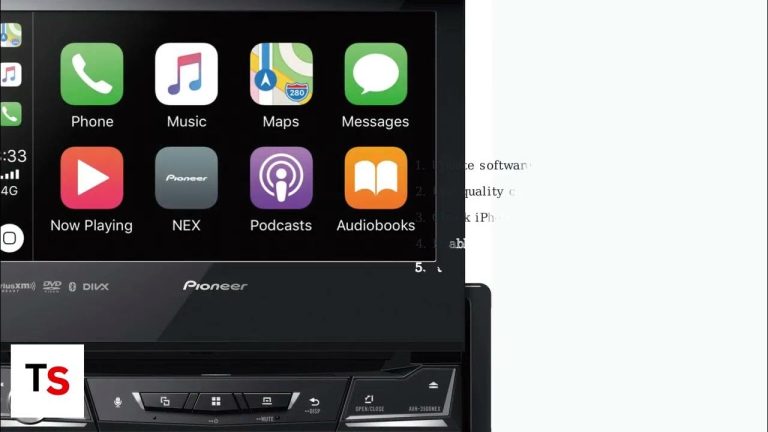
Leverage Android Auto or Apple CarPlay to play music from your phone to your car stereo easily. These systems connect your phone to the car’s display. You can control music, maps, and calls safely while driving. Both Android Auto and Apple CarPlay offer a simple and smart way to enjoy your favorite tunes on the road.
Setting Up Android Auto
First, check if your car supports Android Auto. Most newer cars do. Download the Android Auto app from the Google Play Store if it’s not already installed. Use a USB cable to connect your phone to the car’s USB port. Follow the on-screen instructions on your phone and car display. Allow necessary permissions for access to your music and apps. Once connected, use the car’s touchscreen or voice commands to play music from apps like Spotify or Google Play Music.
Using Apple Carplay Features
Make sure your car supports Apple CarPlay. Connect your iPhone via Lightning cable or wirelessly if supported. The CarPlay interface appears on the car’s display. Use Siri voice commands or the touchscreen to control your music. Play songs from Apple Music or other compatible apps. You can also create playlists, skip tracks, and adjust volume hands-free. Apple CarPlay keeps your focus on driving while enjoying your music safely.
Cast Music With Fm Transmitter
Casting music from your phone to your car stereo using an FM transmitter is a simple way to enjoy your favorite songs while driving. An FM transmitter sends audio signals from your phone to your car’s FM radio. This lets you play music without needing a direct cable connection. It works well in cars without Bluetooth or auxiliary input.
FM transmitters are compact and easy to use. You just plug them into your phone or cigarette lighter, then tune your car radio to the same frequency. This creates a wireless link between your phone and car stereo. It’s a popular choice for many drivers who want a hassle-free music experience on the road.
Choosing The Right Fm Transmitter
Pick an FM transmitter that matches your phone’s connection type. Some use Bluetooth, while others connect via a headphone jack or USB. Check if the transmitter supports your phone model and operating system.
Look for features like:
- Clear signal transmission to reduce static
- Adjustable frequency settings
- Built-in microphone for hands-free calls
- Easy-to-read display and controls
Choose a transmitter with good reviews for reliability and sound quality. It should be easy to set up without complicated instructions.
Tuning And Playing Music
Turn on your car radio and set it to an unused FM frequency. This frequency should be free of local radio stations to avoid interference.
Next, power on the FM transmitter and match its frequency to your car radio. The device will send audio signals from your phone to the car stereo on this channel.
Open your phone’s music app and play a song. The sound will come through your car speakers. Adjust the volume on both your phone and car stereo for the best experience.
If you hear static or poor sound, try changing the FM frequency on both devices. Keep adjusting until the music plays clearly.

Credit: aluratek.com
Stream Via Wi-fi Or Apps
Streaming music from your phone to the car stereo using Wi-Fi or apps offers clear sound and easy control. This method avoids cables and gives you fast access to playlists and radio stations. Many modern car stereos support Wi-Fi connections and come with special apps for seamless music streaming.
Using Dedicated Car Stereo Apps
Many car brands offer apps designed to connect your phone with the stereo. These apps let you browse music, control volume, and switch tracks directly from your phone or car screen.
- Download the app recommended by your car manufacturer.
- Open the app and follow the setup instructions.
- Connect your phone to the car stereo via Wi-Fi or Bluetooth inside the app.
- Use the app interface to play music from your phone or streaming services.
Dedicated apps improve sound quality and reduce connection drops. They provide a user-friendly way to enjoy music safely while driving.
Connecting Over Wi-fi Network
Some car stereos create their own Wi-Fi network for your phone to join. This connection is faster and more stable than Bluetooth.
- Turn on the car stereo’s Wi-Fi mode.
- On your phone, open Wi-Fi settings and connect to the car’s network.
- Open your favorite music app on the phone.
- Play music and listen through the car stereo speakers.
This method also supports higher audio quality and less interference. It works well for streaming services and local music files stored on your phone.
Tips For Better Sound Quality
Getting the best sound quality from your phone to your car stereo can make every drive more enjoyable. Small changes in settings can create a noticeable difference in how your music sounds. Here are some straightforward tips to help you improve the audio experience without needing expensive equipment.
Adjusting Car Stereo Settings
Your car stereo has built-in options that can enhance sound quality. Start by adjusting the equalizer to match the type of music you listen to. If you like bass-heavy tracks, increase the bass levels but be careful not to overpower other frequencies.
Also, check the balance and fade controls to ensure sound is evenly distributed between speakers. Sometimes the sound leans too much to one side or focuses only at the front or back. Fine-tuning these settings can make your music feel more immersive.
Have you ever noticed how some presets sound too sharp or muffled? Instead of relying solely on presets, try manual adjustments. It might take a few tries, but it’s worth it to find the sweet spot that suits your car’s acoustics.
Optimizing Phone Audio Output
Your phone’s audio settings play a big role in sound quality. Check if your music app offers a built-in equalizer and experiment with it. Sometimes enabling high-quality audio streaming or downloading lossless files can improve clarity.
Turn off any volume limiters or sound enhancements that reduce audio quality. These features are meant to protect your ears but can dull the sound when playing through your car stereo. Adjust your phone’s volume to a healthy but strong level before it reaches the car system.
Have you tried using different connection methods like Bluetooth, AUX, or USB? Each can affect sound quality. USB connections often deliver better audio than Bluetooth, so test which method sounds best in your setup.

Credit: www.reddit.com
Frequently Asked Questions
How Can I Connect My Phone To Car Stereo?
You can connect your phone to a car stereo via Bluetooth, AUX cable, or USB connection. Most modern cars support Bluetooth pairing. For older models, use an AUX cable or purchase an FM transmitter. Once connected, you can play music directly from your phone through the car speakers.
Why Isn’t My Phone Connecting To Car Bluetooth?
Your phone might not connect if Bluetooth is disabled or the stereo is already paired with another device. Ensure Bluetooth is enabled on both devices. Also, restart your phone and stereo. If issues persist, consult your car’s manual or contact customer support for further assistance.
Can I Play Music Using A Usb Cable?
Yes, you can play music using a USB cable if your car stereo supports USB input. Connect your phone to the stereo using a compatible USB cable. Select the USB mode on your car stereo. Your phone will then play music through the car speakers.
What Is An Fm Transmitter For Car Audio?
An FM transmitter is a device that broadcasts audio from your phone to your car stereo via FM radio frequencies. It’s useful for cars without Bluetooth or AUX input. Simply plug it into your phone and set it to an unused FM frequency, then tune your car stereo to that frequency.
Conclusion
Playing music from your phone to your car stereo is simple and fun. Use Bluetooth, AUX cable, or USB to connect easily. Make sure your phone and car stereo are compatible. Adjust volume and controls for the best sound. Enjoy your favorite songs while driving safely.
Try different methods to find what works best. Keep your devices charged and ready for the road. Music makes every trip more enjoyable and relaxing. Start playing your tunes and enjoy the drive today!