
How to Connect Pioneer Car Stereo to iPhone: Easy Step-by-Step Guide
Are you struggling to get your Pioneer car stereo to work with your iPhone? You’re not alone.
Connecting these two can seem tricky at first, but once you know the simple steps, it becomes quick and hassle-free. Imagine enjoying your favorite playlists, podcasts, and calls with crystal-clear sound while you drive. Keep reading, and you’ll learn exactly how to make your Pioneer stereo and iPhone work perfectly together—no tech headaches, just smooth music and easy control.
Check Compatibility
Checking compatibility is the first key to connect your Pioneer car stereo to your iPhone. Both devices must support each other’s connection features. Without compatibility, the connection may fail or work poorly.
Compatibility includes knowing your Pioneer model and the iPhone model along with its iOS version. This helps avoid issues with Bluetooth or wired connections. It also ensures that features like hands-free calling and music streaming work smoothly.
Identify Your Pioneer Model
Look at the front panel of your car stereo for the model number. It often starts with letters like DEH, FH, or AVH. Write it down or take a photo for easy reference.
Check the user manual or the original box if you have it. You can also find the model number on the Pioneer website using your car stereo’s serial number.
Knowing your exact model helps find the right connection method. Different models may support Bluetooth, USB, or Apple CarPlay in different ways.
Confirm Iphone Model And Ios Version
Open your iPhone’s Settings and tap “General.” Then tap “About.” You will see your iPhone model name and iOS version here.
Some Pioneer stereos only support certain iPhone models or iOS versions. Older stereos may not work well with the latest iOS updates.
Updating your iPhone to the latest iOS version can improve compatibility. But first, check if your Pioneer stereo supports that iOS version.

Credit: www.ebay.com
Gather Required Accessories
Before connecting your Pioneer car stereo to your iPhone, gathering the right accessories is essential. Without the proper tools, you might face connectivity issues or poor audio quality. Having everything ready ensures a smooth and enjoyable experience every time you hit the road.
Lightning To Usb Cable
The most straightforward way to connect your iPhone to a Pioneer stereo is with a Lightning to USB cable. This cable lets you charge your phone while playing music, giving you dual benefits.
Make sure the cable is MFi-certified. This guarantees compatibility and prevents connection drops.
Think about the length you need. A longer cable offers flexibility in how you place your phone inside the car.
Bluetooth Adapter Options
If your Pioneer stereo doesn’t have built-in Bluetooth, a Bluetooth adapter is a great alternative. These adapters plug into the stereo’s AUX or USB port, enabling wireless connection with your iPhone.
There are several types to consider:
- Plug-and-play adaptersthat require no setup.
- Adapters with built-in microphonesfor hands-free calls.
- Devices supporting advanced audio codecsfor better sound quality.
Choosing the right adapter depends on your stereo’s input options and your audio needs. What features matter most to you—simplicity, call quality, or sound fidelity?
Connect Via Bluetooth
Connecting your Pioneer car stereo to your iPhone via Bluetooth allows wireless music streaming and hands-free calls. This method avoids cables and offers easy control directly from your car’s dashboard. The process involves turning on Bluetooth on your iPhone, pairing it with the stereo, and fixing common connection issues if they occur.
Enable Bluetooth On Iphone
Open the Settings app on your iPhone. Tap on “Bluetooth.” Switch the Bluetooth toggle to the ON position. Your iPhone will start searching for nearby devices. Keep this screen open while you connect your stereo.
Pair With Pioneer Stereo
Turn on your Pioneer car stereo and enter Bluetooth pairing mode. Look for the stereo’s name on your iPhone’s Bluetooth device list. Tap the stereo name to start pairing. Enter the PIN if your stereo asks for one. Wait for the confirmation that devices are connected.
Troubleshoot Connection Issues
- Ensure Bluetooth is enabled on both devices.
- Restart your iPhone and car stereo.
- Forget the stereo on your iPhone and pair again.
- Check if the stereo supports your iPhone model.
- Keep devices close to avoid signal problems.
- Update your iPhone and stereo firmware if possible.
Credit: www.crutchfield.ca
Connect Via Usb Cable
Connecting your Pioneer car stereo to your iPhone using a USB cable is a straightforward way to enjoy your music without wireless interruptions. This method not only charges your phone but also allows seamless audio playback and control directly from the stereo interface. Ready to get your favorite playlists playing with crystal-clear sound? Let’s dive into the simple steps.
Plugging In The Cable
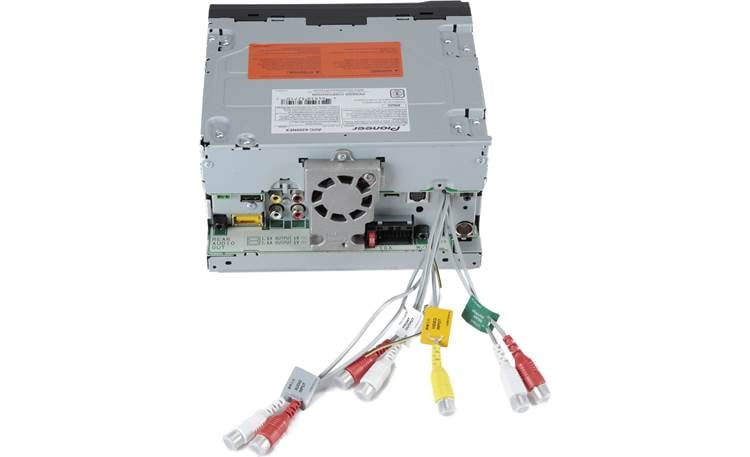
Start by locating the USB port on your Pioneer car stereo. It’s usually on the front panel or inside the glove compartment for some models. Use a Lightning to USB cable that’s compatible with your iPhone to connect the two devices.
Make sure the cable is fully inserted into both the iPhone and the stereo port. Loose connections can cause interruptions or prevent the stereo from recognizing your phone. Have you noticed any difference in sound quality when using a wired connection versus Bluetooth?
Selecting Usb Mode On Stereo
Once the cable is connected, power on your Pioneer stereo. Navigate to the source or input menu and select “USB” as the audio source. This tells the stereo to look for an external device connected via the USB port.
Some models may automatically switch to USB mode when a device is connected, while others require you to manually select it. If you don’t see the USB option right away, try unplugging and reconnecting the cable or check your stereo’s manual for specific instructions.
Accessing Iphone Music
After selecting USB mode, your stereo should recognize your iPhone as an external music source. You can now browse your music library using the stereo’s touchscreen or physical controls. Playlists, artists, albums, and songs will appear on the stereo display.
Controlling playback through the stereo is convenient, especially when driving, as it minimizes distractions. Do you find it easier to navigate your music through your car stereo rather than your phone? Connecting via USB makes this possible with better sound clarity and stable connection.
Use Pioneer App Features
Using the Pioneer app features can make connecting your iPhone to your Pioneer car stereo much easier and more enjoyable. The app offers a direct way to control your music and settings without fumbling through the stereo’s physical buttons. This hands-on control can improve your driving experience by keeping your focus on the road while still managing your audio preferences.
Download Pioneer App
Start by downloading the official Pioneer app from the App Store. The app is free and designed specifically for Pioneer car stereos, ensuring smooth compatibility.
Once installed, open the app and follow the on-screen instructions to pair it with your car stereo. This usually involves connecting your iPhone to the stereo via Bluetooth or USB cable.
Keep your app updated to access the latest features and improvements. Have you ever missed out on features just because you didn’t update your apps? This is one place where staying current pays off.
Control Music And Settings
The Pioneer app lets you control your music directly from your iPhone screen. You can browse playlists, skip tracks, and adjust volume without using the stereo’s physical controls.
Beyond music, the app allows you to tweak sound settings like bass, treble, and balance. This means you can customize your audio experience on the fly, even while driving.
Imagine adjusting your equalizer for a clearer voice during a podcast or boosting bass for your favorite songs—all without taking your eyes off the road.
Optimize Audio Settings
Optimizing your audio settings enhances the sound experience from your Pioneer car stereo. Fine-tuning these settings helps create clear, balanced music. Adjusting the audio allows the best match with your car’s acoustics and your personal taste.
Adjusting Equalizer
The equalizer controls different sound frequencies. Use it to boost bass, reduce treble, or balance midrange sounds. Pioneer stereos often have preset equalizer modes like Rock, Jazz, or Pop.
Try these tips:
- Start with a flat or neutral setting.
- Increase bass for deeper sound in music.
- Raise treble for clearer vocals and instruments.
- Adjust midrange for better overall balance.
Experiment with settings until the music sounds natural and clear.
Managing Volume And Sound Quality
Set the volume at a comfortable level to avoid distortion. High volume can reduce sound quality and damage speakers.
Use the Pioneer stereo’s sound enhancement features. Look for options like:
- Loudness control to boost low and high sounds at low volumes
- Time alignment to sync sound from different speakers
- Dynamic range control for balanced loud and soft sounds
Adjust these settings carefully to keep sound clear and rich. Small changes make a big difference in how music feels inside your car.
Common Problems And Fixes
Connecting your Pioneer car stereo to your iPhone should be smooth, but sometimes problems pop up. These issues can interrupt your music or calls, making your drive less enjoyable. Knowing the common problems and how to fix them will save you time and frustration.
Connection Drops
Have you noticed your connection suddenly cutting out? This usually happens because of weak Bluetooth signals or interference from other devices. Try moving your phone closer to the stereo and turning off other Bluetooth gadgets nearby.
Another fix is to delete the existing Bluetooth pairing on both your iPhone and the Pioneer stereo, then pair them again. This refresh often clears up hidden glitches causing the dropouts. Also, check if your stereo has a firmware update that improves connection stability.
Audio Playback Issues
Is your music skipping, or does the sound cut out randomly? This can be caused by low volume settings on your iPhone or stereo, or even incompatible audio formats. Make sure both devices’ volumes are turned up and not muted.
Sometimes, restarting both the stereo and your iPhone can clear temporary bugs affecting playback. If problems persist, check your audio app settings—some apps limit playback quality when connected to Bluetooth devices. Have you tried switching to a different music app to see if the issue continues?
Software Updates
Keeping both your Pioneer stereo and iPhone updated is key to avoiding compatibility problems. Software updates often fix bugs and improve Bluetooth connection features. Check your stereo’s manual or Pioneer’s website for update instructions.
On your iPhone, go to Settings > General > Software Update to see if a new iOS version is available. Updating may feel like a hassle, but it can solve mysterious connection troubles you didn’t expect. How long has it been since you last checked for updates on your devices?

Credit: device.report
Frequently Asked Questions
How Do I Pair My Iphone With Pioneer Stereo?
To pair your iPhone with a Pioneer stereo, activate Bluetooth on both devices. Search for available devices on your iPhone and select your Pioneer stereo. Confirm the connection by entering the pairing code if prompted. Once connected, you can enjoy music and calls seamlessly.
Why Is My Pioneer Stereo Not Connecting?
Ensure both devices have Bluetooth enabled and are discoverable. Check that your iPhone is not connected to other devices. Restart both devices and try connecting again. Update your stereo and iPhone software for compatibility. If issues persist, consult the user manual or contact Pioneer support.
Can I Use Apple Carplay With Pioneer Stereo?
Yes, most modern Pioneer stereos support Apple CarPlay. Connect your iPhone using a compatible USB cable to the stereo. Follow the on-screen prompts to enable CarPlay. Once set up, you can access apps, make calls, and use Siri through your stereo’s display.
Does Pioneer Stereo Support Wireless Carplay?
Some Pioneer stereo models support wireless CarPlay. Check your stereo’s specifications to confirm compatibility. If supported, connect your iPhone via Bluetooth and Wi-Fi. Follow the setup instructions to enable wireless CarPlay. Enjoy a seamless, cable-free experience with your car stereo.
Conclusion
Connecting your Pioneer car stereo to your iPhone is simple and quick. Follow the steps carefully to avoid common mistakes. Use Bluetooth or a USB cable for the best connection. Once connected, enjoy your music and calls safely while driving.
Keep your phone updated for smooth performance. Practice these tips to get the most out of your car stereo. Stay focused on the road and have a great driving experience every time.