How to Connect Spotify to Car Stereo: Easy Steps for Instant Music
Master Automotive Systems Engineer & Performance Vehicle Specialist at CarSpeedNest Automotive Testing Lab · ASE Certified Master Technician, Mobile Electronics Certified Professional (MECP Master), Certified Dyno Diagnostic Specialist · 14+ years in dyno testing, electronic sensor calibration, automotive wiring harnesses, and precision drivetrain maintenance
Want to enjoy your favorite Spotify playlists while driving without any hassle? Connecting Spotify to your car stereo can turn every trip into a great experience.
Whether you’re stuck in traffic or cruising down the highway, having your music ready to play makes all the difference. In this guide, you’ll learn simple, step-by-step ways to link Spotify to your car’s audio system quickly and easily. Keep reading, and soon you’ll be in control of your music with just a tap or voice command.
Check Your Car Stereo Compatibility
Before you try to connect Spotify to your car stereo, it’s crucial to check if your car’s audio system can actually support the connection method you want to use. Not all car stereos work the same way, and knowing what features your stereo has will save you time and frustration. This step ensures you pick the right approach for a smooth listening experience on the road.
Bluetooth Connectivity
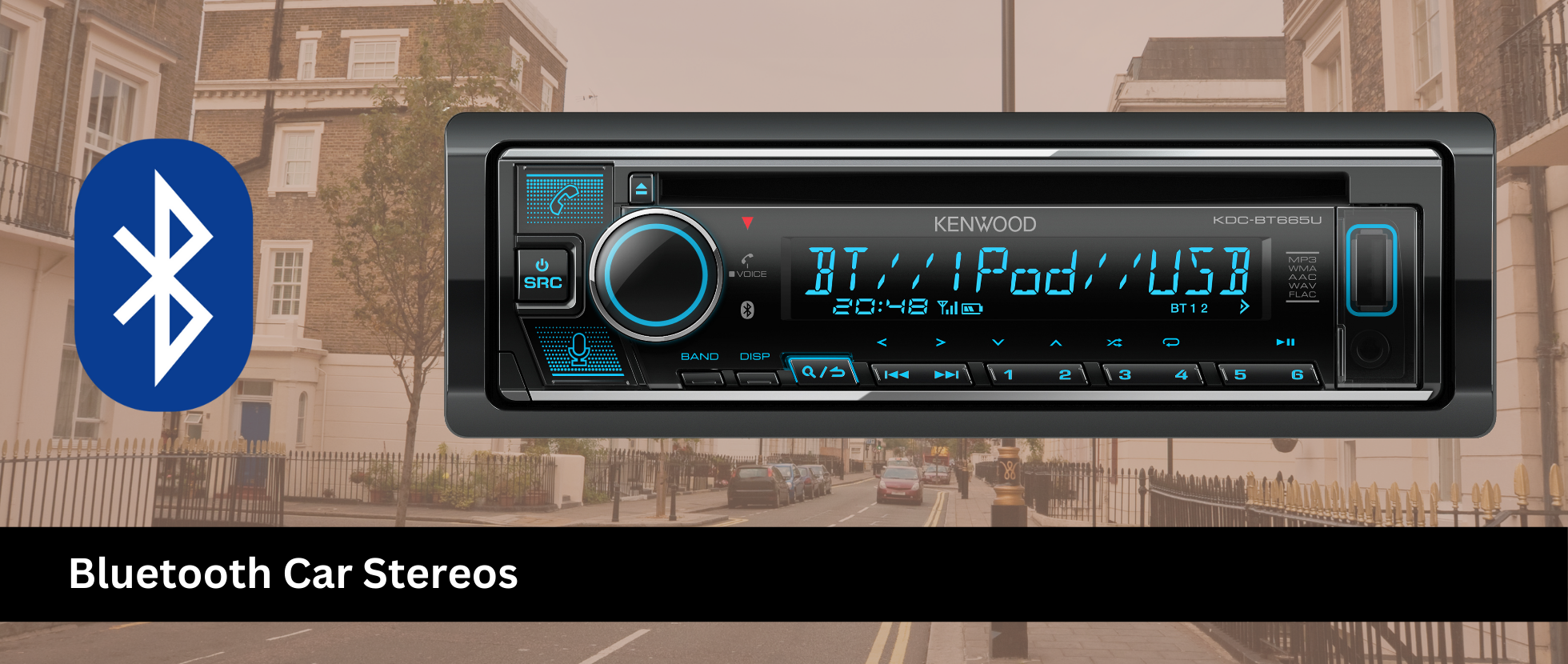
Bluetooth is the easiest way to connect Spotify without any cables. Most modern cars come with built-in Bluetooth, allowing you to pair your phone wirelessly.
To confirm, check your car stereo’s manual or look for a Bluetooth symbol on the dashboard. If your stereo supports Bluetooth, you can stream music directly from your phone with decent sound quality.
Have you ever tried pairing your phone to a car stereo only to realize the connection dropped repeatedly? That’s often a sign of outdated or weak Bluetooth support.
Auxiliary Input
If your stereo lacks Bluetooth, an auxiliary (AUX) input is a reliable fallback. It’s a simple 3.5mm headphone jack that lets you plug your phone directly into the stereo.
Look for a small circular port labeled “AUX” or “Line In” on your stereo or dashboard. All you need is a standard AUX cable, which is inexpensive and easy to use.
While this method requires a physical connection, it usually offers solid sound quality and is compatible with almost any phone.
Usb Port
Some car stereos include a USB port that supports audio playback and phone charging simultaneously. Connecting your phone via USB can sometimes allow control of Spotify through the car’s interface.
Check if your car stereo’s USB port supports media playback, not just charging. Your car’s manual or manufacturer’s website can provide this detail.
Using a USB connection often delivers better sound quality than Bluetooth or AUX and may provide access to song info and playlists on your car’s display.
Apple Carplay And Android Auto
For a more integrated experience, many newer cars support Apple CarPlay or Android Auto. These systems let you control Spotify using your car’s touchscreen or voice commands.
Verify if your car stereo is compatible by looking for CarPlay or Android Auto logos or checking the specifications online. Both systems require a compatible smartphone and usually a USB connection.
Are you ready to navigate your playlists hands-free while driving? These platforms make it safer and easier to enjoy Spotify on the road.

Credit: www.macsome.com
Prepare Your Phone And Spotify App
Before you connect Spotify to your car stereo, it’s important to get your phone and the Spotify app ready. This ensures a smooth and hassle-free connection so you can enjoy your favorite tunes without interruptions.
Update Spotify App
Keeping your Spotify app updated is crucial. Developers frequently release updates that fix bugs and improve connectivity features.
Open your app store and check if there’s an update available for Spotify. An outdated app might cause connection issues or limit functionality.
Enable Bluetooth On Phone
Bluetooth is the most common way to link your phone to your car stereo. Make sure Bluetooth is turned on in your phone’s settings.
If your phone doesn’t show the car stereo in the list of available devices, try toggling Bluetooth off and on again. Sometimes a quick reset helps your phone detect new devices.
Check Subscription Status
Your Spotify subscription type affects how you can use the app in your car. Free users might face ads or limited playback options.
Verify your subscription in the Spotify app under Account settings. Having an active Premium plan will give you uninterrupted access and offline listening features, which can be very handy on the road.
Connect Via Bluetooth
Connecting Spotify to your car stereo via Bluetooth offers a wireless and easy way to enjoy music on the go. Bluetooth lets your phone communicate with your car’s audio system without cables. This setup keeps your dashboard neat and your music flowing seamlessly. Follow simple steps to pair your phone and start streaming Spotify instantly.
Pair Your Phone With Car Stereo
Turn on your car stereo and activate Bluetooth mode. On your phone, open Bluetooth settings and search for available devices. Select your car stereo from the list of devices shown.
Confirm the pairing code on both your phone and car stereo. Accept the connection request to complete pairing. Once paired, your phone can send Spotify audio directly to the car speakers.
Keep your phone’s Spotify app open and start playing your favorite songs. Adjust volume and tracks using your car’s controls or phone screen.
Troubleshoot Common Bluetooth Issues
If your phone doesn’t find the car stereo, check if Bluetooth is enabled on both devices. Make sure they are close to each other without obstacles.
Restart your phone and car stereo to refresh connections. Delete old paired devices from Bluetooth settings to avoid conflicts.
Check for software updates on your phone and car stereo. Updated software improves compatibility and fixes bugs.
Ensure your phone’s media volume is turned up. Sometimes, Bluetooth connects but audio volume is low or muted.
If problems continue, consult your car’s manual for specific Bluetooth instructions. Many car models have unique pairing steps or limits.

Credit: www.youtube.com
Connect Using Auxiliary Cable
Connecting Spotify to your car stereo using an auxiliary cable is one of the simplest and most reliable ways to enjoy your favorite tunes on the road. It doesn’t require Bluetooth or Wi-Fi, making it perfect for older car models or areas with poor signal. Plus, the setup is straightforward and usually takes just a few minutes.
Locate Aux Port
First, find the auxiliary (aux) port in your car. It looks like a small, round headphone jack, often labeled as “AUX” or marked with a headphone icon. The port is commonly found on the dashboard, center console, or inside the glove compartment.
If you can’t spot it right away, check your car’s manual or look near the USB ports and power outlets. Some vehicles hide the aux port under a flap or inside a storage compartment, so a quick search might be necessary.
Plug And Play Setup
Once you find the aux port, plug one end of your 3.5mm auxiliary cable into it. Then, connect the other end to your phone’s headphone jack or adapter. If your phone doesn’t have a headphone jack, use the appropriate adapter for your device.
Next, set your car stereo to “AUX” mode. You’ll usually find this option by pressing the “Source” or “Media” button on the stereo. Start playing Spotify on your phone, and the sound should come through the car’s speakers immediately.
Have you noticed how quickly you can switch playlists or adjust volume right from your phone? The aux connection gives you total control without any lag or complex setup.
Connect Through Usb Cable
Connecting Spotify to your car stereo through a USB cable is one of the simplest ways to enjoy your favorite playlists while driving. This method offers a stable connection and often better sound quality compared to Bluetooth. You just need the right cable and some basic steps to get everything working smoothly.
Use Compatible Usb Cable
Not all USB cables work the same when connecting your phone to your car stereo. To ensure a seamless connection, use a USB cable that supports both charging and data transfer. Many charging-only cables won’t allow your car’s system to recognize Spotify or other apps on your phone.
For instance, if you use an iPhone, a Lightning to USB cable that came with your device is usually the best choice. Android users should look for a USB-C or micro-USB cable that supports data transfer, not just charging. Trying to save money with cheap or worn-out cables might leave you frustrated with connection drops or no recognition at all.
Access Spotify Controls On Car Display
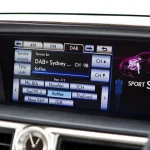
Once connected, your car’s stereo display often shows basic Spotify controls. This lets you play, pause, skip tracks, and browse playlists without touching your phone. You can keep your eyes on the road while managing your music safely.
However, the level of control depends on your car’s infotainment system. Some systems provide full access to playlists and search options, while others only offer simple play/pause and skip buttons. If your car’s display doesn’t show Spotify controls, check if your stereo supports Apple CarPlay or Android Auto for enhanced control.
Have you noticed how much easier it is to manage music when the controls are right on the screen? This small convenience can make a big difference during your drive.
Use Apple Carplay Or Android Auto
Using Apple CarPlay or Android Auto lets you connect Spotify to your car stereo easily. These systems mirror your phone’s apps on the car screen. You can play music, control playback, and use voice commands. Both options make listening to Spotify safer and more convenient while driving.
Set Up Carplay Or Android Auto
Start by checking your car supports Apple CarPlay or Android Auto. Use a USB cable or wireless connection to link your phone to the car. Follow on-screen prompts to enable the system.
- For Apple CarPlay, unlock your iPhone and connect it via USB or Bluetooth.
- For Android Auto, download the app if needed, then connect your phone using a USB cable or wireless.
- Agree to permissions and allow access to your apps.
- Spotify will appear on the car’s display once connected.
Control Spotify Safely While Driving
Use voice commands to keep your hands on the wheel. Say “Hey Siri, play Spotify” or “OK Google, play my playlist.” Use the car’s touchscreen or steering wheel buttons for simple controls.
- Pause, skip, or rewind tracks without looking at your phone.
- Adjust volume using voice or car controls.
- Browse playlists and albums using the car interface.
- Stay focused on the road while enjoying your music.
Optimize Sound Quality
Optimizing sound quality makes your music experience in the car much better. Clear and balanced sound helps you enjoy every beat and lyric. Small changes in settings can improve audio without special equipment.
Adjust Car Stereo Settings
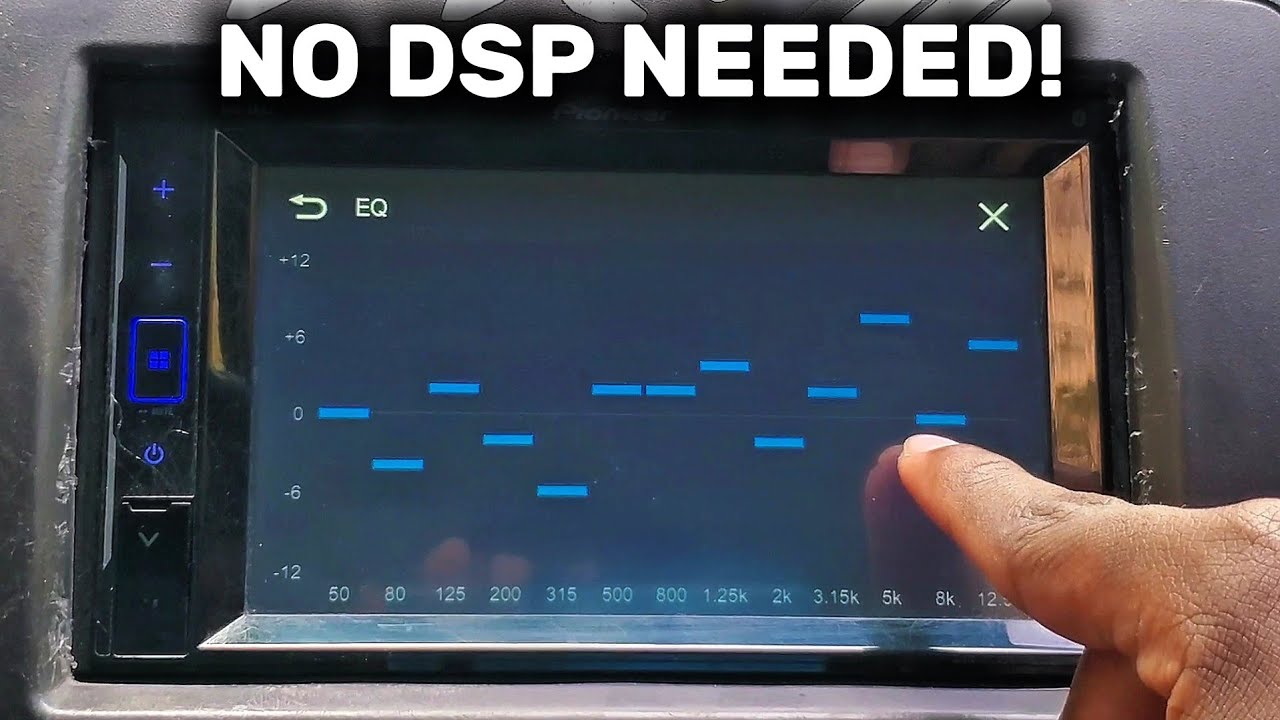
Start by checking your car stereo’s sound settings. Adjust the bass, treble, and midrange to suit the music style. Avoid setting any frequency too high to prevent distortion.
- Set bass around medium for deep, rich sounds.
- Raise treble slightly for clearer vocals.
- Balance midrange to keep instruments natural.
Use the “loudness” option if your stereo has it. This setting boosts sound at low volumes. Also, balance left and right speakers for even sound throughout the car.
Use Spotify Equalizer
Spotify has a built-in equalizer to fine-tune music. Open the Spotify app, go to settings, and find “Equalizer.” Choose presets like “Rock,” “Pop,” or create your own.
- Use presets for quick sound changes.
- Adjust sliders to increase or decrease bass and treble.
- Save custom settings that match your car’s audio system.
Testing different equalizer settings while playing music helps find the best sound. Small tweaks can bring out details in your favorite songs.
Troubleshoot Connection Problems
Connection problems between Spotify and your car stereo can be frustrating, especially when you’re eager to enjoy your favorite playlists on the road. Before giving up or assuming the issue is complex, try some straightforward troubleshooting steps. These can quickly resolve common glitches and get your music flowing smoothly again.
Reset Bluetooth Connections
Sometimes, the Bluetooth link between your phone and car stereo gets tangled. Removing the existing pairing and setting it up again can clear out any confusion.
- Go to your phone’s Bluetooth settings and find your car stereo on the paired devices list.
- Choose to “Forget” or “Remove” the device.
- Turn off Bluetooth on both your phone and car stereo, then turn them back on.
- Pair the devices fresh, just like the first time.
Have you noticed that resetting Bluetooth often fixes unexpected dropouts? It’s like giving your connection a fresh start.
Restart Devices
Restarting your phone and car stereo can clear temporary bugs that interfere with Spotify’s connection. It’s a simple action but surprisingly effective.
- Power off your phone completely, wait 30 seconds, and turn it back on.
- Do the same with your car’s infotainment system—some models have a restart option, others require turning the car off and on.
After a restart, try connecting Spotify again. Could a quick reboot be the key to smooth playback?
Update Firmware And Apps
Outdated software can cause compatibility issues between your phone, Spotify, and the car stereo. Keeping everything updated ensures you benefit from the latest fixes and features.
- Check your phone’s app store for Spotify updates and install any available.
- Visit your car manufacturer’s website or use the infotainment system’s update feature to update its firmware.
- Don’t forget to update your phone’s operating system for optimal performance.
Regular updates can prevent many connection headaches. When was the last time you checked for updates?
Credit: www.engadget.com
Frequently Asked Questions
How Do I Connect Spotify To My Car Stereo?
To connect Spotify to your car stereo, use Bluetooth or an auxiliary cable. Enable Bluetooth on your phone and pair it with the car’s system. Alternatively, plug one end of an auxiliary cable into your phone and the other into your car’s aux input.
Enjoy your favorite tracks effortlessly!
Can I Use Spotify Without Internet In My Car?
Yes, you can use Spotify offline in your car. Download your favorite playlists or albums while connected to Wi-Fi. Once downloaded, access them offline through Spotify’s app on your phone. This way, you can enjoy uninterrupted music without relying on an internet connection.
Why Won’t Spotify Play Through My Car Speakers?
If Spotify isn’t playing, check your Bluetooth or auxiliary connections. Ensure your phone is paired or plugged in properly. Also, verify your car stereo is set to the correct input source. Restarting your phone or car stereo may also resolve the issue, restoring your music experience.
Is There A Spotify App For Car Stereos?
Yes, some car stereos support Spotify directly. Check if your car stereo supports Spotify Connect or has a dedicated app. If so, you can control Spotify from your car’s infotainment system. This integration provides a seamless and convenient way to enjoy music on the road.
Conclusion
Connecting Spotify to your car stereo brings music to your drives. It makes trips more fun and relaxing. Just follow the steps carefully for a smooth setup. Remember to check your car’s compatibility and Bluetooth settings. Keep your phone charged and your app updated.
Enjoy your favorite playlists without distractions. Music on the road feels better this way. Now, driving and listening go hand in hand. Simple, quick, and enjoyable.

Similar Posts