How to Connect My Android Phone to My Car Stereo: Easy Steps Guide
Do you want to enjoy your favorite music, podcasts, or calls right through your car stereo? Connecting your Android phone to your car can make every drive more enjoyable and hands-free.
But if you’re not sure where to start or worried it might be complicated, don’t worry—you’re in the right place. This guide will walk you through simple, step-by-step ways to link your Android device to your car stereo quickly and easily.
Keep reading, and you’ll be ready to take control of your car’s sound system in no time.
Check Car Stereo Compatibility
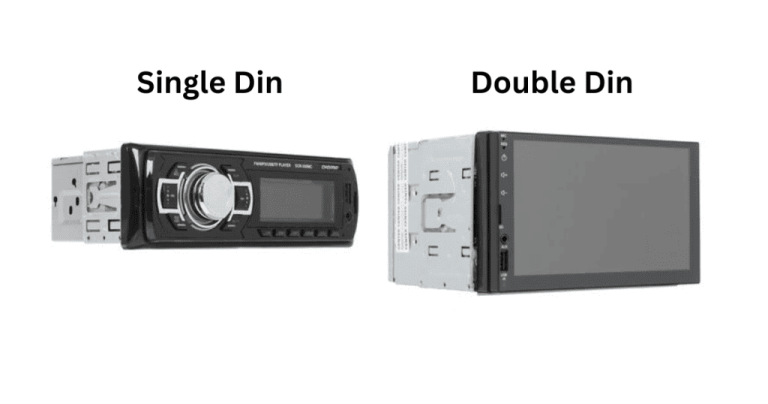
Before you try connecting your Android phone to your car stereo, it’s crucial to check if your car stereo supports the connection method you prefer. Knowing your stereo’s compatibility saves time and avoids frustration. It also helps you choose the best way to enjoy your music or calls on the road.
Bluetooth Availability
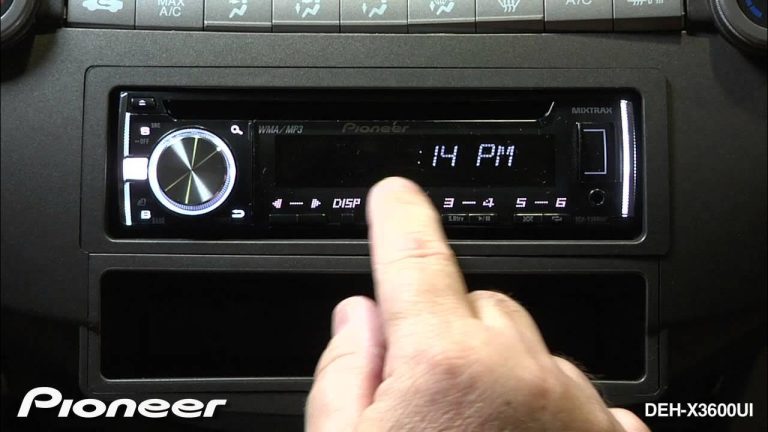
Does your car stereo have Bluetooth? This is the most convenient way to connect wirelessly. You can check your car’s user manual or look for the Bluetooth logo on the stereo panel.
Many modern cars come with Bluetooth, but some older models might not. If your stereo supports Bluetooth, pairing your phone is usually simple and quick. Have you tried pairing devices before? If it was tricky, double-check if your phone and stereo support the same Bluetooth profiles.
Auxiliary Input Options
If Bluetooth isn’t available, look for an auxiliary (AUX) input. This is usually a small 3.5mm jack where you can plug in a headphone cable. It’s a straightforward way to connect your phone’s headphone output to your car stereo’s input.
Some cars hide the AUX port in the glove compartment or center console, so don’t forget to check those places. Using an AUX cable is a reliable option, especially if you want to avoid Bluetooth connectivity issues. Do you have an AUX cable handy? It can be a lifesaver in cars without wireless options.
Usb Connection Possibilities
Another option is connecting via USB. Many newer car stereos have a USB port that can link directly to your phone. This connection often allows charging your device while playing music or accessing phone features through the stereo interface.
Check if your stereo’s USB port supports Android devices specifically. Sometimes, the port is only for charging or works better with certain phone brands. Have you noticed if your stereo displays your phone’s name or music library when connected via USB? That’s a good sign it’s compatible.
Prepare Your Android Phone
Before you connect your Android phone to your car stereo, it’s essential to get your phone ready. Proper preparation can save you time and frustration during the pairing process. Taking a few simple steps ensures a smooth and reliable connection every time you hit the road.
Enable Bluetooth
Start by turning on Bluetooth on your Android phone. You can find this option in the Settings menu under “Connections” or “Bluetooth.” Make sure your phone is visible to other devices so your car stereo can detect it easily.
Have you ever struggled to find your device because Bluetooth was off? Enabling it upfront prevents that annoying delay and keeps your focus on driving.
Update Software
Check if your Android phone’s software is up to date. Updates often include bug fixes and improvements for Bluetooth connectivity. Go to Settings, then “System” or “Software Update,” and install any available updates before pairing.
Keeping your software current can prevent unexpected disconnections or pairing failures, which are more common with outdated versions.
Gather Necessary Cables
Sometimes, Bluetooth isn’t enough or available. Having the right cables ready can be a lifesaver, especially if your car stereo supports auxiliary or USB connections. Common cables include:
- 3.5mm auxiliary cable
- USB Type-C or Micro-USB charging/data cable
Carrying these cables ensures you can connect your phone no matter the stereo’s capabilities. Have you checked what ports your car stereo offers before heading out?
Connect Via Bluetooth
Connecting your Android phone to your car stereo via Bluetooth offers a wireless and convenient way to enjoy music and calls. Bluetooth links your devices without any cables, keeping your car interior neat and your phone accessible. Most modern car stereos support Bluetooth, making the connection process straightforward and fast.
Bluetooth also allows hands-free calling, helping you stay safe on the road. The setup requires pairing your phone with the stereo, which usually takes just a few moments. Once paired, the devices remember each other and connect automatically in the future.
Pairing Your Phone And Stereo
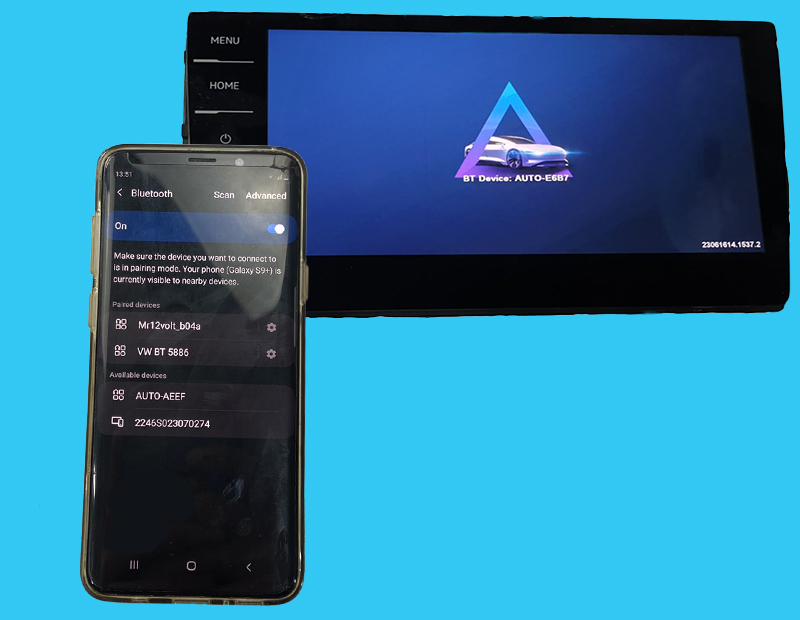
Start by turning on Bluetooth on your Android phone. Open the Settings app, then tap on “Bluetooth” and switch it on.
Next, power on your car stereo and enter its Bluetooth pairing mode. Check your car’s manual if unsure how to do this.
On your phone, look for your car stereo’s name under available devices. Tap it to start pairing.
You might need to enter a PIN or confirm a code shown on both devices. Common default PINs include “0000” or “1234”.
Once paired, your phone will connect automatically every time you enter the car with Bluetooth on.
Troubleshooting Connection Issues
If your phone does not find the car stereo, ensure the stereo is in pairing mode. Sometimes it times out if not paired quickly.
Restart your phone and car stereo to refresh Bluetooth settings. This simple step often fixes connection glitches.
Remove old Bluetooth connections from your phone and stereo to avoid conflicts. Too many saved devices can cause problems.
Make sure both devices are close to each other, without metal or other objects blocking the signal.
Check if your car stereo or phone software needs an update. Updates can improve Bluetooth compatibility and performance.
Credit: www.carplay.lt
Use Auxiliary Cable Connection
Using an auxiliary cable to connect your Android phone to your car stereo is one of the simplest and most reliable ways to play your favorite tunes on the road. This wired connection doesn’t rely on Bluetooth or Wi-Fi, so you avoid any lag or dropouts. Plus, it’s compatible with nearly every car stereo that has an aux port.
Locate Aux Port
First, find the auxiliary (aux) port in your car. It usually looks like a small, round headphone jack and is often labeled “AUX.” Common places to check include the dashboard, center console, or inside the glove compartment.
If you don’t see it immediately, consult your car’s manual or look for a small icon that resembles a headphone or sound wave. Some newer cars may hide the aux port behind a cover or inside the armrest storage.
Plug And Play Setup
Once you have the aux cable, plug one end into your phone’s headphone jack or adapter, and the other into the car’s aux port. Turn on your car stereo and select the “AUX” input mode.
Play any audio on your phone, and the sound should come through your car’s speakers instantly. You don’t need to adjust any settings on your phone, making this a quick and hassle-free way to enjoy your music.
Connect Using Usb Cable
Connecting your Android phone to your car stereo using a USB cable is one of the simplest ways to enjoy your music and apps on the road. This method offers a stable connection and usually provides faster response times compared to Bluetooth. Plus, it charges your phone while you drive, which is a handy bonus on long trips.
Set Up Usb Mode On Phone
After plugging your phone into the car’s USB port, you’ll often see a notification prompting you to select a USB mode. Typically, you want to choose “Media Transfer Protocol (MTP)” or “File Transfer” mode. This allows the car stereo to access your phone’s media files directly.
If you don’t see the notification right away, swipe down from the top of your screen to check the notifications panel. Sometimes the USB options are hidden there. Selecting the correct USB mode is crucial, or your car stereo won’t be able to read your music.
Access Media Through Stereo
Once your phone is set up, use your car stereo’s interface to browse your music library. Most car stereos will have a “USB” or “Media” option on their main menu—select this to start exploring your playlists, albums, or folders.
Some car stereos even support touchscreens or voice commands, making navigation easier while driving. If your music doesn’t show up immediately, try unplugging and plugging the USB cable back in or restarting your phone. Have you noticed how some stereos load music faster than others? That’s usually due to the car’s software and hardware capabilities.

Credit: manuals.plus
Explore Android Auto Features
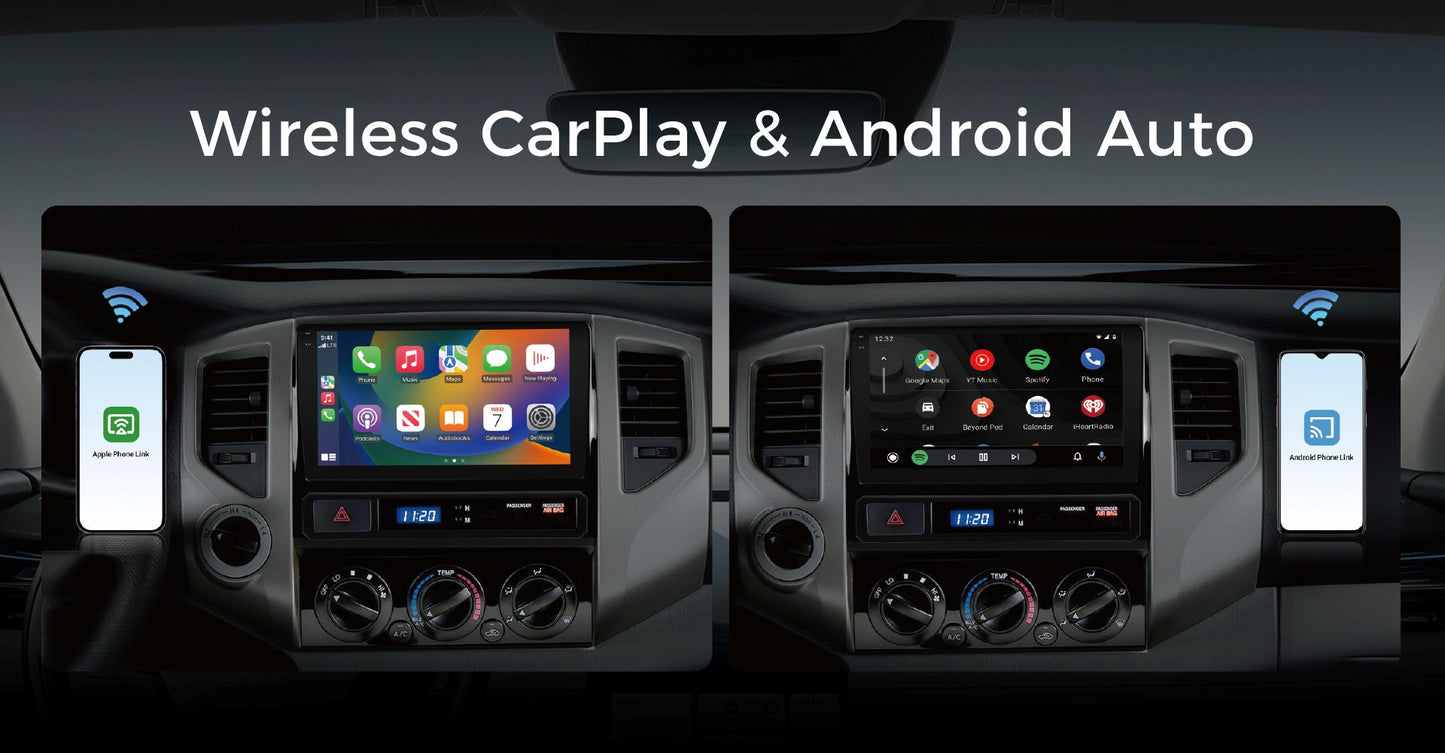
Android Auto offers a seamless way to integrate your phone with your car stereo, making driving safer and more enjoyable. It brings your favorite apps, navigation, music, and communication tools right to your dashboard. Let’s dive into how you can get started and make the most of Android Auto features in your vehicle.
Install Android Auto App
First, you need to have the Android Auto app on your phone. Most modern Android devices come with it pre-installed, but if you don’t see it, download it from the Google Play Store. The app is free and only takes a few minutes to install.
Once installed, open the app and check that your phone’s software is up to date. This helps avoid compatibility issues with your car stereo. Also, make sure your car supports Android Auto; this information is usually available in your car’s manual or manufacturer’s website.
Set Up And Use Android Auto
Connecting your phone to your car stereo is straightforward. Use a high-quality USB cable to plug your phone into the car’s USB port. Some newer cars support wireless Android Auto, which lets you connect without cables—check your car’s settings if you want to try this option.
After connecting, your car’s display will prompt you to complete the setup. You’ll need to allow permissions on your phone for Android Auto to access apps, contacts, and notifications. This step ensures you can use voice commands and see messages safely while driving.
- Use voice commands to make calls, send texts, or get directions without taking your hands off the wheel.
- Stream music or podcasts from your favorite apps like Spotify or Google Podcasts.
- View real-time traffic updates and reroute quickly to avoid delays.
Have you ever missed an important call or message while driving? Android Auto helps you stay connected without distraction. Try customizing your app layout for quick access to what you use most—it saves time and keeps your focus on the road.
Optimize Audio Settings
Optimizing your audio settings can dramatically improve your listening experience once your Android phone is connected to your car stereo. It’s not just about turning up the volume; it’s about balancing sound levels and tailoring the audio output to suit your preferences and the acoustics of your vehicle. Small tweaks can make your music sound clearer and more enjoyable during every drive.
Adjust Volume Levels
Start by setting a comfortable volume on both your Android phone and car stereo. If your phone’s volume is too low, the sound may be weak or distorted when amplified by the car speakers.
Try adjusting the volume on your phone first, then fine-tune the car stereo’s volume. This prevents distortion and protects your speakers from damage. Have you noticed some songs sound louder than others? That’s where consistent volume control helps maintain a smooth listening experience.
Customize Equalizer Settings
Most Android phones and car stereos have equalizer (EQ) settings that let you boost or reduce specific sound frequencies. This lets you emphasize bass, enhance vocals, or reduce high-pitched noises depending on what you enjoy most.
Experiment with presets like Rock, Jazz, or Pop, but don’t hesitate to create your own custom setting. Adjusting the midrange frequencies can make voices clearer, while tweaking bass and treble can add depth or brightness. What kind of sound do you prefer—deep bass or crisp highs? Fine-tuning your EQ can turn your car into your personal concert hall.
Credit: www.vinlandautomotive.com
Common Connection Problems
Connecting your Android phone to a car stereo can sometimes face issues. These common problems can stop the connection or affect sound quality. Knowing the causes helps fix them quickly. Below are frequent problems users face and simple ways to address them.
Phone Not Detecting Stereo
Your phone may fail to find the car stereo during pairing. This often happens due to Bluetooth settings. Make sure Bluetooth is turned on for both devices. Restarting your phone and stereo can clear temporary glitches. Also, check if the stereo is in pairing mode.
Another cause is interference from other devices nearby. Move away from other Bluetooth gadgets. Sometimes, deleting old paired devices from your phone helps. This frees up space and avoids confusion during new connections.
Audio Lag Or Dropouts
Audio lag or dropouts disrupt smooth music playback. This issue often comes from weak Bluetooth signals or interference. Keep your phone close to the stereo to maintain a strong connection. Avoid obstacles like metal or thick walls between devices.
Updating your phone’s software and the stereo firmware can improve stability. Also, turn off apps using Bluetooth on your phone that run in the background. These apps may cause conflicts and reduce audio quality.
Frequently Asked Questions
How Do I Connect Android To Car Stereo?
You can connect your Android phone using Bluetooth, a USB cable, or an AUX cable. First, ensure your car stereo supports the connection type. For Bluetooth, enable it on both devices and pair them. For USB and AUX, simply plug the cable into the respective ports.
Why Won’t My Phone Connect To My Car?
Check if Bluetooth is enabled on both devices and they are discoverable. Ensure your phone and car stereo are compatible. Try restarting both devices and resetting the Bluetooth settings. If using a cable, ensure it’s properly connected and undamaged.
Can I Use Android Auto Without Usb?
Yes, you can use Android Auto wirelessly if your car stereo supports it. Ensure both your phone and car are connected to the same Wi-Fi network. Enable Bluetooth and Wi-Fi on your phone. Follow the prompts on your car’s display to complete the setup.
What Apps Enhance Android Car Connectivity?
Several apps can improve your car connectivity experience. Android Auto is a popular choice for navigation, music, and calls. Spotify and Google Maps work seamlessly with car stereos. Other useful apps include Waze for navigation and Audible for audiobooks.
Conclusion
Connecting your Android phone to your car stereo makes driving more fun. You can play music, use maps, and take calls safely. Most methods are easy to follow and quick to set up. Try Bluetooth, USB, or auxiliary cables to find what works best.
Keep your phone charged and check your car’s manual for details. Enjoy hands-free control on the road. Now, your drives can be safer and more enjoyable every day.