How to Make Mp3 Cd for Car Stereo: Easy Steps for Perfect Playback
Master Automotive Systems Engineer & Performance Vehicle Specialist at CarSpeedNest Automotive Testing Lab · ASE Certified Master Technician, Mobile Electronics Certified Professional (MECP Master), Certified Dyno Diagnostic Specialist · 14+ years in dyno testing, electronic sensor calibration, automotive wiring harnesses, and precision drivetrain maintenance
Want to enjoy your favorite music in your car without relying on Bluetooth or streaming? Making an MP3 CD for your car stereo is a simple and affordable way to do just that.
If you’ve ever felt frustrated trying to figure out how to create a CD that actually works in your car, you’re not alone. This guide will walk you through every step, using easy instructions anyone can follow. By the end, you’ll have a custom music CD ready to play on your next drive.
Let’s get started and make your car rides more enjoyable!

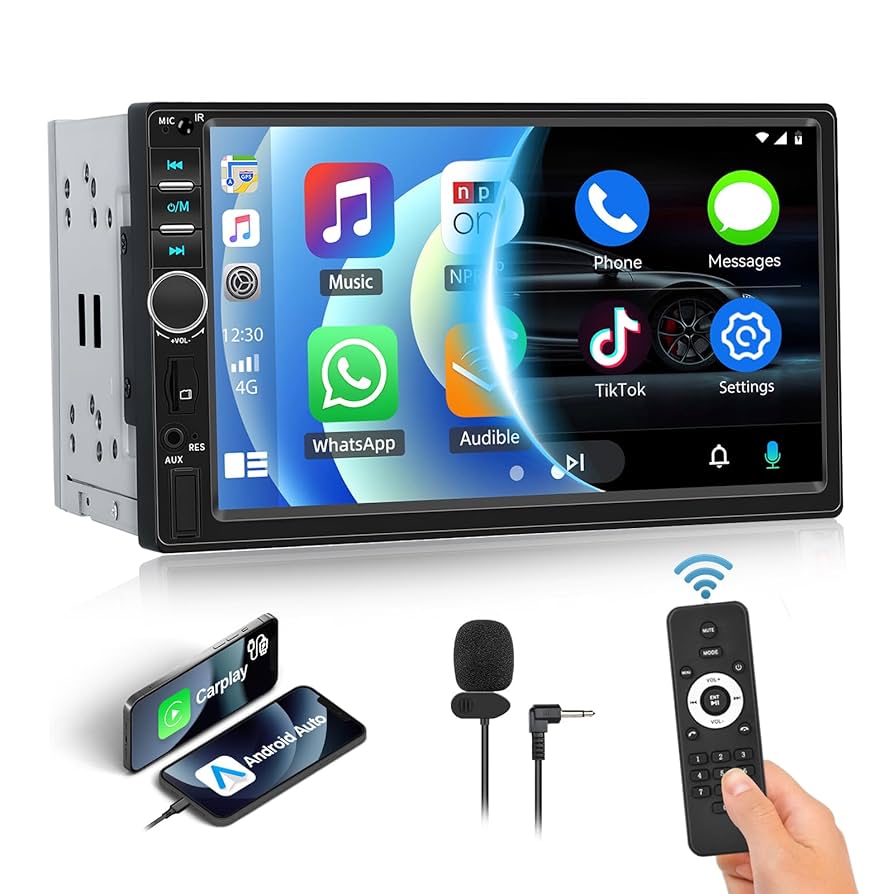
Credit: www.amazon.com
Choosing The Right Cd
Choosing the right CD is crucial for creating a reliable MP3 CD that plays smoothly in your car stereo. Not all CDs are the same, and selecting the wrong type can lead to playback issues or wasted storage space. Understanding the differences between CD types and how much music you can store will save you time and frustration on the road.
Cd-r Vs Cd-rw
CD-R (Compact Disc-Recordable) and CD-RW (Compact Disc-Rewritable) are two common options for burning MP3 CDs. CD-R discs allow you to write data once, making them ideal for permanent music collections. They tend to be more compatible with car stereos and are usually less expensive.
On the other hand, CD-RW discs can be erased and rewritten multiple times. This flexibility is useful if you want to update your playlist regularly. However, many older car stereos might not recognize CD-RWs, causing playback problems. Ask yourself: do you want a one-time playlist or the ability to change tracks often?
Storage Capacity Considerations
Standard CDs hold up to 700 MB of data, which translates to about 80 minutes of audio in regular CD format. When burning MP3 files, you can fit many more songs because MP3s are compressed. Typically, you can store 10 to 12 hours of music on a single 700 MB disc, depending on the bitrate of your MP3 files.
Keep in mind, some car stereos have limits on how many files or folders they can read. It’s a good idea to organize your songs into folders with manageable sizes rather than dumping hundreds of tracks into one directory. Have you checked your car stereo’s manual for file and folder limits before burning?
Credit: www.santaclaritaautosound.com
Selecting Mp3 Files
Choosing the right MP3 files for your car stereo CD is more than just picking your favorite songs. It’s about ensuring the files play smoothly and sound great in your vehicle’s audio system. Paying attention to file format and how you organize your playlist can save you from frustrating skips or unreadable discs.
File Format Compatibility
Not all MP3 files are created equal, especially when it comes to car stereos. Some players only support specific bitrates or formats like MP3, WMA, or even AAC. Before burning your CD, check your car stereo manual to see which formats it supports.
MP3 files with a bitrate between 128 kbps and 320 kbps usually provide a good balance of sound quality and file size. Avoid using unusual formats or very high bitrates, as they might cause playback issues or the CD not to be recognized at all.
Have you ever tried to play a disc only to hear silence or strange noises? That’s often a sign your files aren’t compatible. Testing a few tracks on your stereo before burning the whole CD can save time and disappointment.
Organizing Your Playlist
How you arrange your MP3 files affects your listening experience. Group songs by mood, genre, or even driving route to keep your drives enjoyable and engaging. Think about the flow — do you want energetic tracks first or calm tunes to start your journey?
Use clear file names and consistent tags so your car stereo can display the correct song and artist information. Many stereos sort tracks alphabetically, so naming files with track numbers can keep your playlist in the desired order.
- Create folders for different playlists or themes.
- Number your files like 01-SongName.mp3, 02-SongName.mp3 for easy navigation.
- Remove duplicate or low-quality files to avoid confusion and wasted space.
Imagine cruising on a long drive with a playlist perfectly tailored to your mood. Doesn’t that sound better than random songs popping up? Organizing your files might take a bit of effort, but the result is a smoother, more enjoyable ride.
Using Burning Software
Using burning software is essential to create an MP3 CD for your car stereo. This software helps organize your music files and writes them correctly onto the disc. It ensures the files are compatible with most car players and can be accessed easily while driving.
Burning software often includes features like file management, speed control, and error checking. These options improve the quality of the final CD. Choosing the right program and setting it up properly makes the process smooth and efficient.
Recommended Programs
- Windows Media Player – simple and pre-installed on Windows PCs
- ImgBurn – free, lightweight, and supports various formats
- CDBurnerXP – easy to use with MP3 and data disc options
- BurnAware Free – clean interface and reliable burning process
- iTunes – good for Apple users who want to burn MP3 CDs
Setting Up The Burn Process
Start the software and select the option to create a new audio or MP3 CD. Add the music files you want from your computer. Make sure the total size fits on the CD, usually 700 MB.
Choose the burning speed carefully. Slower speeds reduce errors during the process. Set the software to finalize the disc, so it works on other devices without extra steps.
Check the list of songs and their order. Some programs allow you to rearrange tracks before burning. Click the burn button and wait for the software to finish writing the CD.

Credit: medium.com
Burning The Mp3 Cd
Burning an MP3 CD is a crucial step in making sure your car stereo plays your favorite tunes without interruption. This process requires attention to detail to avoid errors that could cause skipping or unreadable discs. Let’s look at two important aspects that can improve your burning experience and the final quality of your MP3 CD.
Adjusting Burn Speed
Choosing the right burn speed can make a big difference in how well your MP3 CD works in your car stereo. Burning at a very high speed might seem faster, but it often leads to errors and playback issues.
Slower speeds, such as 8x or 16x, give the burner more time to write data accurately. This reduces the chance of corrupted files and ensures smoother playback. Have you ever had a CD that skips or won’t play certain tracks? The burn speed could be the reason.
Verifying Burn Quality
After burning your MP3 CD, it’s smart to verify the burn quality. Many burning programs offer a verification option that compares the data on the CD with your original files.
This step helps catch any mistakes before you finalize the disc. If errors are found, you can reburn the CD without wasting time or discs. Think about how frustrating it is to drive around with a CD that skips or stops playing—verification helps you avoid that hassle.
Testing The Cd In Your Car
After burning your MP3 CD, it’s time to test it in your car stereo. This step ensures the disc works smoothly and sounds great while driving. Testing helps you catch any issues early, saving frustration on the road.
Troubleshooting Playback Issues
If your car stereo doesn’t recognize the CD or skips tracks, don’t panic. First, check if the disc is clean and free from scratches or smudges. A quick wipe with a soft cloth can often fix reading problems.
Sometimes, the file format or bitrate might not be compatible with your car’s player. Try burning a new disc with a lower bitrate or using a different MP3 encoding. Does your stereo support MP3 CDs, or only audio CDs? Confirming this can save you from unnecessary rewrites.
Also, some players have trouble with discs burned at very high speeds. Burning at a slower speed, like 4x or 8x, can improve compatibility. Have you noticed any error messages on your stereo display? They can provide clues about what’s wrong.
Optimizing Sound Quality
Sound quality can vary depending on how you prepare your MP3 CD. Use high-quality MP3 files with bitrates of 192 kbps or higher to ensure clear audio. Lower bitrates might save space but often result in tinny or muffled sound.
Adjusting the equalizer settings in your car stereo can also make a big difference. Experiment with bass, treble, and midrange settings to find the balance that suits your music and car acoustics. Have you tried listening to different genres? Some sound better with tailored EQ tweaks.
Remember, the quality of your car speakers plays a huge role too. Even the best MP3 CD won’t sound great on worn-out or cheap speakers. If you want the best experience, consider upgrading your car’s audio system over time.
Maintaining Your Mp3 Cds
Keeping your MP3 CDs in good condition ensures they play smoothly in your car stereo without skipping or errors. Regular maintenance protects your investment and saves you from the frustration of damaged discs. Let’s look at simple ways to care for your MP3 CDs so they last longer and perform better.
Proper Storage Tips
Store your MP3 CDs in protective cases immediately after use to prevent scratches and dust buildup. Avoid leaving discs in direct sunlight or extreme temperatures, which can warp or damage the material.
Keep your collection organized in a cool, dry place away from magnetic sources like speakers or phones. Using labeled sleeves or cases can help you find the right CD quickly without unnecessary handling.
Handling And Cleaning
Always hold your MP3 CDs by the edges or the center hole to avoid fingerprints on the shiny surface. Fingerprints and smudges can interfere with the laser reading your disc and cause playback issues.
If a CD gets dirty, clean it gently with a soft, lint-free cloth. Wipe from the center outward in straight lines rather than in circles to avoid scratches that follow the track path.
- Use water or a mild soap solution for stubborn dirt, but never harsh chemicals.
- Dry the disc completely before putting it back in its case or playing it.
Have you ever noticed how a small scratch can ruin your favorite playlist? Taking a few moments to handle and clean your MP3 CDs carefully can keep your music playing without interruption for years.
Frequently Asked Questions
How To Burn Mp3 Songs To A Cd?
To burn MP3 songs to a CD, use a computer with a CD burner. Select the MP3 files and use software like iTunes, Windows Media Player, or any CD burning software. Choose the ‘Burn to disc’ option. Ensure your CD player supports MP3 CDs for compatibility.
What Cd Format Is Best For Car Stereo?
For car stereos, MP3 CDs are ideal. They offer more storage than standard audio CDs. Ensure your car stereo supports MP3 format. Always check your car stereo’s manual for compatibility. MP3 CDs allow you to store hundreds of songs in a compressed format.
Can All Car Stereos Play Mp3 Cds?
Not all car stereos play MP3 CDs. Older models may only support standard audio CDs. Check your car stereo’s manual or specifications for MP3 compatibility. Most modern car stereos support MP3 format. If unsupported, consider upgrading your stereo for better functionality.
Why Won’t My Mp3 Cd Play In Car?
If your MP3 CD won’t play, it might be incompatible with your stereo. Ensure the CD is finalized after burning. Check if your stereo supports MP3 format. Also, verify the disc is clean and free from scratches. Try another CD to rule out hardware issues.
Conclusion
Creating an MP3 CD for your car stereo is simple and quick. Choose the right software and files carefully. Make sure your car stereo supports MP3 CDs. Burn the files at a moderate speed to avoid errors. Test the CD before hitting the road.
Enjoy your favorite music without hassle. This small skill adds great value to your drives. Keep practicing to improve your burning skills. Soon, making MP3 CDs will feel easy and natural.

Similar Posts