How to Mirror Phone to Car Stereo: Easy Steps for Instant Connection
Master Automotive Systems Engineer & Performance Vehicle Specialist at CarSpeedNest Automotive Testing Lab · ASE Certified Master Technician, Mobile Electronics Certified Professional (MECP Master), Certified Dyno Diagnostic Specialist · 14+ years in dyno testing, electronic sensor calibration, automotive wiring harnesses, and precision drivetrain maintenance
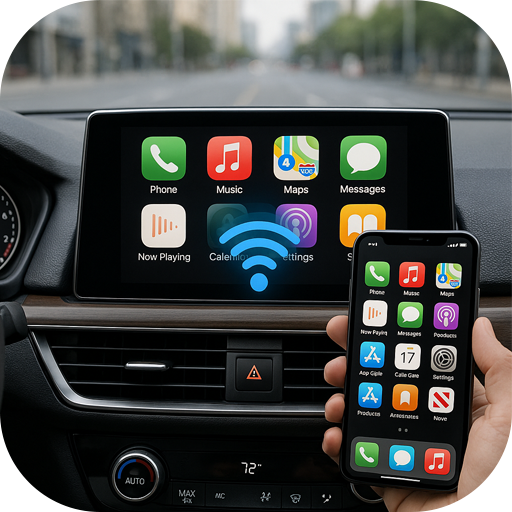
Imagine turning your car’s stereo into a powerful screen that shows everything from your phone—maps, music, videos, and more—all while you drive. Sounds great, right?
If you’ve ever wondered how to mirror your phone to your car stereo, you’re in the right place. This simple trick can make your drive safer and more enjoyable by putting your favorite apps right where you need them. Keep reading, and you’ll learn easy steps to connect your phone to your car stereo without any hassle.
Your drive is about to get a serious upgrade!

Credit: www.amazon.com
Choose The Right Connection Method
Choosing the right connection method is crucial when mirroring your phone to your car stereo. The connection you pick affects the quality, ease of use, and reliability of your experience. Before you dive in, consider what fits your tech setup and driving habits best.
Wired Vs Wireless Options
Wired connections usually offer a more stable and faster connection. Using a USB cable can reduce lag and avoid interruptions caused by signal interference. However, cables can clutter your dashboard and limit your phone’s placement.
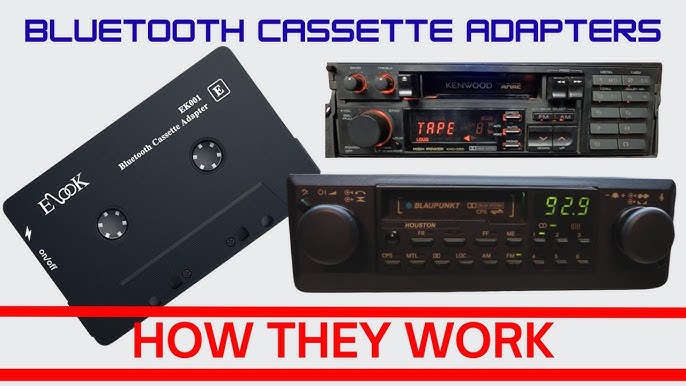
Wireless options provide more freedom and convenience. Technologies like Bluetooth or Wi-Fi let you connect without physical cables, keeping your car neat. But wireless connections may suffer from occasional drops or lower video quality, especially in areas with lots of wireless traffic.
- Wired:Reliable, fast, no lag
- Wireless:Convenient, clutter-free, occasional connection issues
Compatibility With Your Car Stereo
Not all car stereos support every mirroring method. Check if your stereo supports Apple CarPlay, Android Auto, or Miracast, as these platforms often dictate what connection method works best. Older systems might only work with wired connections, while newer models might handle wireless streaming smoothly.
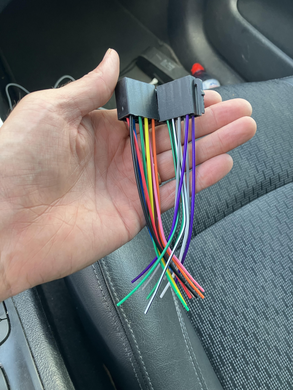
Look up your stereo’s manual or manufacturer website to confirm compatibility. This simple step can save you from buying cables or adapters that won’t work.
Phone Operating System Considerations
Your phone’s operating system plays a big role in which mirroring method you should use. iPhones work best with Apple CarPlay, which favors wired or wireless connections depending on your car model. Android phones usually pair well with Android Auto, but some support wireless connections only on newer devices.
If you use less common OS like Windows Phone, options are limited and might require third-party apps or cables. Knowing your phone’s capabilities helps you avoid frustration and ensures a smoother setup.
Prepare Your Devices
Preparing your devices is a key step before mirroring your phone to the car stereo. Proper setup ensures a smooth connection and clear display. Taking time to get your phone and car ready saves frustration and delays.
Follow these simple checks to prepare your devices. Each step helps avoid common connection problems and improves the overall experience.
Enable Bluetooth Or Wi-fi
Check that Bluetooth or Wi-Fi is active on both devices. Most car stereos use Bluetooth, but some support Wi-Fi connections. Turn on the matching feature on your phone to make it discoverable.
- Open your phone’s settings app.
- Tap on Bluetooth or Wi-Fi.
- Switch the toggle to “On.”
- Keep your phone visible to new devices.
Make sure your car stereo’s wireless feature is also enabled. This allows your phone to find and connect quickly.
Update Software And Apps
Old software can block phone-to-car connections. Check for updates on your phone and car stereo system. Updated versions fix bugs and add new features.
- Go to your phone’s system update section.
- Install any available updates.
- Update the apps used for mirroring.
- Check the car stereo’s firmware through the manual or settings menu.
Keeping software current boosts compatibility and reduces errors during mirroring.
Check Car Stereo Settings
Open your car stereo’s settings menu. Look for options related to phone connectivity or screen mirroring. Enable these features if they are off.
- Set your stereo to discoverable mode.
- Allow new device connections.
- Adjust permissions for screen sharing.
- Consult the user manual for specific mirroring settings.
Correct settings ensure your car stereo is ready to receive your phone’s screen signal.
Connect Via Bluetooth
Connecting your phone to your car stereo via Bluetooth is one of the easiest ways to mirror your device and enjoy hands-free control over music, calls, and navigation. This wireless connection eliminates the need for cables, giving you more freedom while driving. Understanding how to pair your phone correctly and troubleshoot common issues can save you time and frustration on the road.
Pairing Your Phone With The Stereo
Start by turning on Bluetooth on both your phone and car stereo. Your car stereo should be in pairing mode—check your stereo’s manual if you’re unsure how to activate this.
On your phone, go to the Bluetooth settings and look for your car’s stereo name in the list of available devices. Tap on it to initiate pairing.
You might be asked to enter a PIN or confirm a code shown on both devices. Once confirmed, your phone and stereo will connect.
After pairing, your phone should automatically connect to the stereo whenever you get into your car with Bluetooth enabled. Have you noticed that sometimes your phone doesn’t reconnect automatically? This often means the devices need to be paired again or the Bluetooth settings require a reset.
Troubleshooting Common Issues
If your phone doesn’t appear in the list of available devices, try turning Bluetooth off and on again on both devices. Restarting your phone or car stereo can also clear temporary glitches.
Sometimes, the stereo might be connected to another device. Make sure to disconnect any previous connections before pairing your phone.
Keep in mind that some car stereos support only certain Bluetooth profiles. Check if your phone and stereo are compatible for audio streaming and phone calls.
If you’re still having trouble, deleting the old Bluetooth connection from both your phone and stereo and setting it up again often fixes persistent issues.

Credit: www.amazon.com
Mirror Using Usb Cable
Mirroring your phone to your car stereo using a USB cable offers a stable and fast connection. Unlike wireless methods, this approach minimizes lag and provides better video and audio quality. It’s a perfect choice if you want a reliable way to display apps, maps, or media directly on your car’s screen.
Connecting Your Phone Via Usb
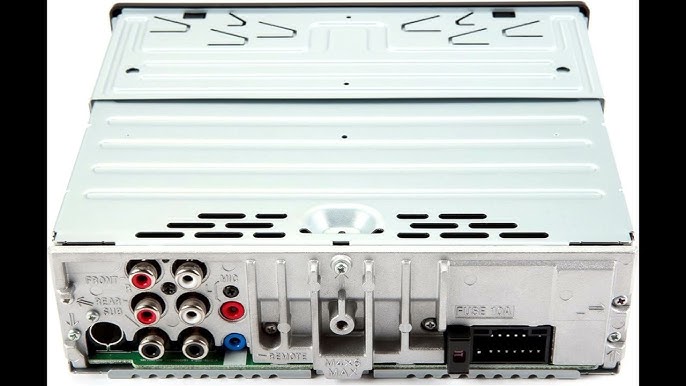
Start by locating the USB port on your car stereo. Most modern vehicles have at least one, often near the dashboard or center console. Use a compatible USB cable—preferably the one that came with your phone—to ensure a secure connection.
Once connected, your phone may prompt you to allow data transfer. Accept any permissions to enable full interaction between your phone and the car system. Keep your phone unlocked during this process to avoid connection issues.
Activating Screen Mirroring Mode
After connecting your phone, check your car stereo’s menu for the screen mirroring option. This might be labeled as “Smart View,” “Screen Cast,” or “MirrorLink,” depending on the brand. Selecting this option allows your phone’s display to appear on the car screen.
On your phone, you might need to open the settings or notification panel and choose the screen mirroring or USB display option. If your phone doesn’t automatically start mirroring, try restarting the connection. Have you noticed that some phones activate mirroring instantly, while others require manual input? This difference can affect your setup speed.
Use Third-party Apps
Using third-party apps to mirror your phone to your car stereo can be a game changer. These apps often provide features that your car’s built-in system might not support. Plus, they offer flexibility across different phone models and car brands.
Popular Screen Mirroring Apps
There are several apps that stand out for their reliability and ease of use. Android Autoworks well with many Android phones and offers seamless integration with car stereos. For iPhone users, Apple CarPlayis a solid choice, though it requires compatible hardware.
Other versatile apps include ApowerMirrorand MirrorLink. These support both Android and iOS devices and allow you to control apps, play media, and even navigate right from your car screen. Have you tried any app that surprised you with its performance?
Setup And Permissions
Setting up these apps usually involves downloading the app on your phone and connecting to your car stereo via Bluetooth, Wi-Fi, or USB cable. You’ll often need to grant permissions for screen sharing, microphone access, and sometimes location.
Don’t overlook these permissions—they are essential for full functionality. If your app isn’t working as expected, double-check that all permissions are enabled. Have you ever missed a permission and wondered why the app wasn’t responding?
App Performance Tips
Performance can vary based on your phone’s model, operating system, and the app itself. To get the best experience, keep both your phone’s OS and the app updated. Closing background apps can also free up resources for smoother mirroring.
Using a wired connection usually offers better stability than wireless options, especially for video playback. If you notice lag or disconnects, try switching cables or restarting your phone and stereo. What tricks have you found useful to keep your connection strong on the road?
Optimize Mirror Experience
Optimizing your phone-to-car stereo mirror experience can make a huge difference in usability and safety. Simple tweaks to your display and audio settings can enhance clarity and sound quality, making your drive more enjoyable. But how do you balance these adjustments without distracting yourself behind the wheel?
Adjusting Display Settings
Start by tweaking your car stereo’s brightness and contrast settings. A screen that’s too bright can strain your eyes, especially at night, while a dim screen might make it hard to see during the day.
Most car stereos allow you to adjust these settings manually or enable automatic brightness. Try setting the brightness to a comfortable level before you start driving and use night mode if available.
Also, consider the screen orientation and zoom options on your phone. Adjusting these can help fit the display better on your car stereo, preventing important buttons or notifications from being cut off.
Managing Audio Output
Audio is just as important as visuals. Check if your car stereo supports multiple audio outputs—like Bluetooth, AUX, or USB—and choose the one that delivers the clearest sound.
Keep volume levels consistent. Sudden loud noises can startle you or other passengers. If your phone or stereo has an equalizer, play around with it to get richer bass or clearer vocals.
Have you tried muting notifications or calls through your phone when mirroring? It reduces interruptions and keeps your focus on the road.
Ensuring Safety While Driving
Your safety should always come first. Avoid interacting with your phone or stereo while driving. Instead, set up your playlist, GPS, or other apps before you hit the road.
Voice commands and steering wheel controls are handy tools that let you keep your hands on the wheel and eyes on the road. Are you using these features to their full potential?
Remember, even the best mirror setup can’t replace cautious driving. If you need to adjust settings mid-drive, pull over safely before doing so.
Troubleshoot Connection Problems
Connection problems can spoil the fun of mirroring your phone to the car stereo. Troubleshooting these issues quickly helps you get back on the road with your favorite apps and music. Understanding common connection errors and how to fix them saves time and frustration.
Common Errors And Fixes
- No Signal:Check if Bluetooth or Wi-Fi is turned on both devices.
- Screen Not Mirroring:Ensure the correct input source is selected on the stereo.
- Audio Not Playing:Verify volume levels on both phone and car stereo.
- Connection Drops:Move closer to the car’s receiver to improve signal strength.
- App Not Responding:Close and reopen the mirroring app on your phone.
Resetting Devices
Sometimes, a simple reset clears connection glitches. Turn off your phone and car stereo. Wait for about 30 seconds before turning them back on. This step refreshes the system and often resolves minor bugs.
Reset network settings on your phone to fix persistent wireless issues. Keep in mind, this action removes saved Wi-Fi passwords and Bluetooth pairings. After the reset, reconnect your phone to the car stereo carefully.
When To Seek Professional Help
Persistent problems might indicate hardware or software faults. Visit a car audio specialist if resets and fixes do not work. A professional can diagnose and repair complex issues faster.
Contact your phone’s support center if the problem seems phone-related. Getting expert advice prevents wasting time on trial and error. Don’t ignore recurring connection failures; they could worsen over time.

Credit: www.amazon.com
Frequently Asked Questions
How Do I Connect My Phone To Car Stereo Wirelessly?
To connect wirelessly, enable Bluetooth on both devices. Pair your phone with the car stereo via settings. Some cars support Wi-Fi or Apple CarPlay/Android Auto for wireless mirroring. Follow your car manual for specific instructions.
What Apps Work Best For Phone-to-car Mirroring?
Apps like Apple CarPlay, Android Auto, and MirrorLink are popular. They offer seamless integration, easy controls, and safety features. Choose an app compatible with your phone and car stereo for best performance.
Can I Mirror My Phone Without Internet Connection?
Yes, most mirroring methods like Bluetooth or USB don’t require internet. Your phone and car stereo communicate directly for screen sharing or media playback. Internet is only needed for streaming apps.
Is Phone Mirroring Safe While Driving?
Phone mirroring is designed to minimize distractions. Use voice commands and simple interfaces for safer use. However, avoid interacting with your phone manually while driving to stay focused on the road.
Conclusion
Mirroring your phone to your car stereo enhances your driving experience. It allows for easy access to apps, music, and navigation. Follow the steps carefully to ensure a smooth setup. Always use compatible apps and devices for best results. Stay updated with new features and software updates.
This keeps your system running efficiently. Safety should be your top priority. Use these features responsibly while driving. Explore your phone’s settings to discover more connectivity options. Enjoy the convenience of accessing your phone from your car stereo.

Similar Posts