How to Update Android Car Stereo: Easy Steps for a Smooth Upgrade
Is your Android car stereo feeling a bit outdated or sluggish? Updating it can unlock new features, improve performance, and enhance your driving experience.
But if you’re not sure where to start, don’t worry—you’re in the right place. In this guide, you’ll discover simple, step-by-step instructions to update your Android car stereo quickly and safely. Keep reading, and you’ll have your system running like new in no time.
Credit: www.diymobileaudio.com
Preparing For The Update
Before you dive into updating your Android car stereo, setting the stage properly can save you from headaches later. Preparing for the update ensures a smooth process and protects your data. Taking these initial steps seriously is key to avoiding common pitfalls that many users overlook.
Check Current Software Version
Knowing the current software version of your car stereo helps you determine if an update is necessary. You can usually find this information in the settings menu under “About” or “System.”
Checking this detail prevents unnecessary updates and helps you download the correct software version, avoiding compatibility issues.
Backup Important Data
Your car stereo may store contacts, music playlists, or navigation favorites. Backing up this data before the update protects it from being lost during the process.
Use a USB drive or connect to your phone to save important files. It only takes a few minutes but can save hours of frustration if something goes wrong.
Gather Necessary Tools
Having the right tools ready makes the update process faster and less stressful. This usually includes a USB drive, your car stereo’s user manual, and a stable internet connection to download the update file.
Double-check the type of USB port your stereo uses—some require USB-A, others USB-C. Missing the correct cable can stall the entire update.
Finding The Right Firmware
Finding the right firmware is key to updating your Android car stereo safely. Using incorrect firmware can cause serious problems. The correct firmware ensures your stereo runs smoothly and gains new features or bug fixes.
Start by identifying your stereo’s exact model number. This helps locate the firmware designed for your device. Firmware updates vary by manufacturer and model, so precision matters.
Visit Manufacturer’s Website
Check the official website of your stereo’s manufacturer first. This site hosts the latest and most secure firmware versions. Avoid third-party sources to reduce risks of malware or incompatible files.
Look for a support or downloads section. Enter your stereo’s model number or search by product category. The website often provides step-by-step guides and download links.
Download Compatible Firmware
Download only the firmware that matches your stereo model exactly. Compatibility avoids update failures or hardware damage. Some manufacturers offer multiple firmware versions, so choose the newest stable release.
Save the firmware file to a USB drive or SD card as instructed. Prepare the storage device by formatting it if required. This prevents errors during installation.
Verify File Integrity
After downloading, verify the firmware file’s integrity. Manufacturers often provide checksums like MD5 or SHA-256. Use these to confirm the file is complete and uncorrupted.
Tools for checksum verification are freely available online. This step protects your stereo from faulty updates that can cause malfunctions.
Updating Via Usb Drive
Updating your Android car stereo via a USB drive is a straightforward way to keep your system running smoothly and enjoy the latest features. This method doesn’t require an internet connection directly on the stereo, making it ideal if you have limited data access or prefer using a computer to manage updates.
Format Usb Drive Correctly
Start by preparing your USB drive. It’s crucial to format it to FAT32 or exFAT, as most car stereos won’t recognize other file systems like NTFS.
Use your computer’s built-in formatting tool. Remember, formatting erases all data on the USB, so back up important files first.
Keeping the USB drive clean and properly formatted avoids update errors and makes the process smoother.
Transfer Firmware To Usb
Next, download the correct firmware update file from your car stereo manufacturer’s official website. Always double-check that the file matches your stereo’s model and version.
Once downloaded, copy the file directly to the root directory of your USB drive—don’t place it inside any folders.
Have you ever struggled with updates not starting? Often, it’s because the file isn’t in the right location or the wrong file was used.
Initiate Update On Stereo
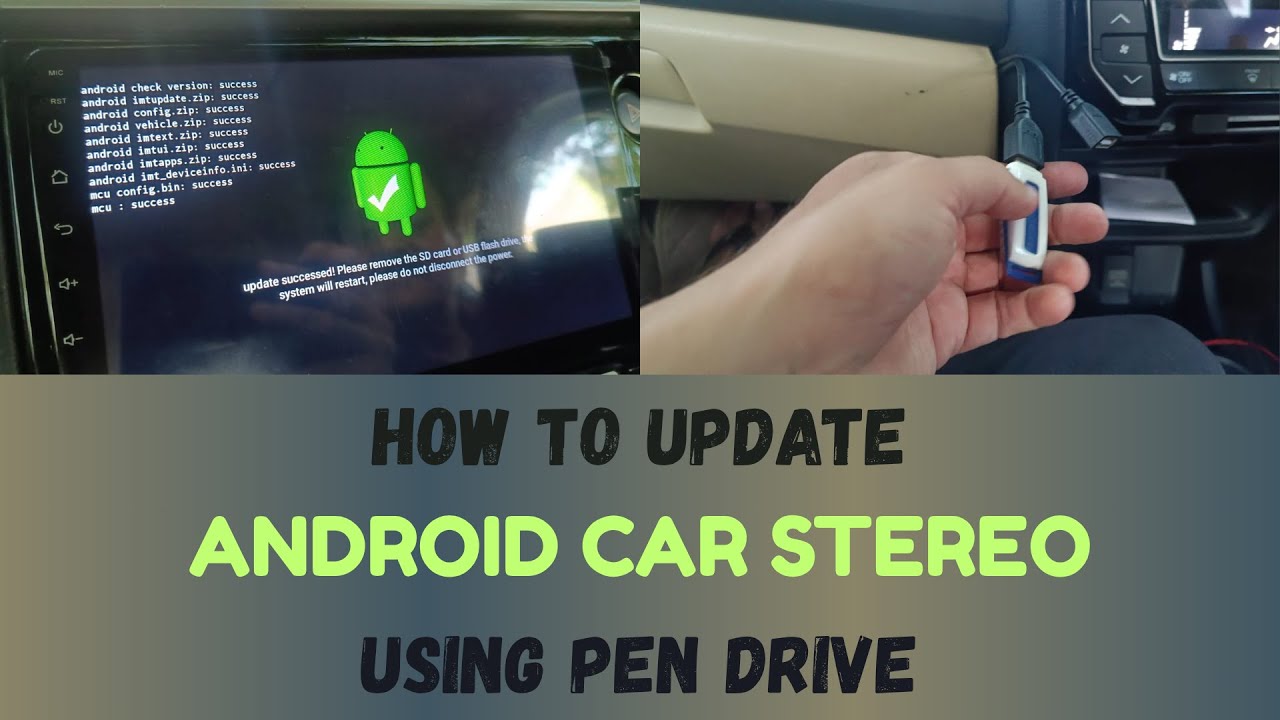
Plug the USB drive into your car stereo’s USB port. Then, access the update menu via the stereo’s settings.
Look for options like “System Update” or “Firmware Update” and select USB as the source. The stereo will detect the file and begin installing.
Patience is key here—interrupting the update can cause issues. Have your engine running or the car in accessory mode to avoid power loss during the process.

Credit: deanauto.in
Updating Via Sd Card
Updating your Android car stereo via SD card is a simple and reliable way to ensure your system stays current. This method does not require internet access and helps avoid errors during the update. Follow the steps carefully to complete the process smoothly.
Prepare Sd Card
Use a clean SD card with enough free space for the update files. Format the card to FAT32 to avoid compatibility issues. Make sure no other files are stored on the card to prevent confusion.
Load Firmware Files
Download the correct firmware for your car stereo model from the manufacturer’s website. Transfer the files to the root directory of the SD card. Avoid placing files inside folders to ensure the stereo can find them.
Start Update Process
Insert the SD card into the car stereo’s SD slot. Power on the stereo and access the settings menu. Find the update option and select update via SD card. Follow on-screen instructions to complete the update safely.
Using Mobile Apps For Update
Using mobile apps to update your Android car stereo simplifies the process and keeps your device running smoothly. Many car stereo manufacturers provide dedicated apps that connect your smartphone directly to the stereo system. This method offers a user-friendly way to download and install the latest software without needing complicated tools or technical skills.
Connect Stereo To Smartphone
Start by ensuring your car stereo and smartphone can communicate. Most modern stereos support Bluetooth or Wi-Fi connections, so check your stereo’s manual for the exact method.
Once you know the connection type, pair your phone with the stereo device. This step is crucial for the update app to detect your car stereo correctly.
Install Official Update App
Next, download the official app provided by your car stereo manufacturer. These apps are usually available on the Google Play Store or the manufacturer’s website.
Using the official app ensures you get authentic updates tailored for your specific model. Avoid third-party apps to prevent compatibility issues or security risks.
Follow On-screen Instructions
Open the update app and allow it to scan for your connected car stereo. The app will notify you if any updates are available.
Carefully follow the step-by-step instructions on your phone’s screen. These typically include downloading the update, transferring it to the stereo, and restarting the system.
Have you ever hesitated to update your stereo because the process seemed too complex? This approach turns a daunting task into a few simple taps on your phone.
Troubleshooting Common Issues
Updating your Android car stereo can sometimes bring unexpected hurdles. Troubleshooting these common issues will save you time and frustration. Let’s look at practical ways to fix update glitches so your stereo works smoothly again.
Update Fails To Start
If the update doesn’t begin, the first thing to check is your internet connection. A weak or unstable Wi-Fi can stop the process before it even starts.
Also, make sure your device has enough storage space. Lack of storage often causes the update to fail silently.
Try restarting your car stereo and reconnecting to Wi-Fi. If it still won’t start, download the update file manually from the manufacturer’s website and install it via USB.
Device Freezes During Update
Freezing during an update is frustrating but common. This usually happens when the update file is corrupted or the system runs out of memory.
To fix this, force restart your stereo by holding the power button for about 10 seconds. Then, clear any unnecessary apps or files to free up memory.
If freezing continues, consider performing a factory reset, but back up your settings first. This often resolves deeper software conflicts blocking the update.
Post-update Performance Problems
After updating, your stereo might act slower or some features could malfunction. This could mean the update didn’t install properly or is incompatible with your current setup.
Check for any additional patches or hotfixes from the manufacturer. Sometimes updates come in stages, and missing a follow-up patch can cause issues.
If problems persist, rolling back to the previous software version might be necessary. It’s frustrating, but stability is more important than having the latest features.
Maintaining Your Car Stereo
Maintaining your car stereo ensures it runs smoothly and stays updated. Regular care helps avoid issues and extends its lifespan. Simple practices keep your device performing well and prevent unexpected problems.
Regular Software Checks
Check your car stereo software often. Updates fix bugs and add new features. Set a schedule to review the software at least once a month. This habit helps spot problems early and keeps your system reliable.
Avoiding Corrupt Updates
Download updates only from official sources. Corrupt files can damage your stereo’s system. Use a stable internet connection during updates. Avoid interrupting the update process to prevent errors.
Keeping Firmware Up-to-date
Firmware controls your stereo’s core functions. Keeping it current improves performance and compatibility. Follow the manufacturer’s instructions for firmware updates. Regular updates enhance sound quality and system stability.

Credit: www.youtube.com
Frequently Asked Questions
How Do I Check My Android Car Stereo Version?
Go to the settings menu on your stereo. Look for “About device” or “System info. ” The software version will be displayed there.
What Are The Steps To Update Android Car Stereo?
Download the latest firmware from the manufacturer’s website. Transfer it to a USB or SD card. Insert it into your stereo and follow on-screen update prompts.
Can I Update My Android Car Stereo Without Wi-fi?
Yes, you can update via USB or SD card using a computer. Download the update file first, then transfer it to your stereo device.
Why Is My Android Car Stereo Update Failing?
Update failures can occur due to low battery, corrupted files, or incompatible firmware. Ensure your stereo has enough power and use the correct update file.
Conclusion
Updating your Android car stereo is simple and rewarding. It enhances your driving experience. Follow the steps mentioned in our guide. They ensure your system runs smoothly. Remember to check for software updates regularly. This keeps your stereo up-to-date. Always back up your data before updating.
It prevents data loss. With these tips, enjoy a seamless audio journey. Safe travels and happy listening!