How to Connect Android to Jvc Car Stereo: Easy Step-by-Step Guide
Master Automotive Systems Engineer & Performance Vehicle Specialist at CarSpeedNest Automotive Testing Lab · ASE Certified Master Technician, Mobile Electronics Certified Professional (MECP Master), Certified Dyno Diagnostic Specialist · 14+ years in dyno testing, electronic sensor calibration, automotive wiring harnesses, and precision drivetrain maintenance
Are you ready to enjoy your favorite music, podcasts, and calls right through your JVC car stereo? Connecting your Android device might seem tricky at first, but it doesn’t have to be.
Whether you want crystal-clear sound or hands-free control, this guide will show you exactly how to link your phone to your JVC stereo step by step. Keep reading, and you’ll be cruising with seamless audio in no time.

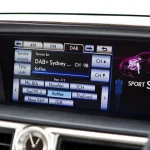
Credit: www.dynamicsounds.co.uk
Check Compatibility
Before you try to connect your Android device to your JVC car stereo, it’s essential to check if they are compatible. Compatibility ensures a smoother connection and avoids frustrating issues like unresponsive controls or poor audio quality. Let’s look at how to verify your Android version and confirm your JVC model’s features to make sure they work well together.
Verify Android Version
Your Android phone’s operating system version plays a big role in compatibility. Most modern JVC car stereos support Android 5.0 (Lollipop) and above, but newer features like Android Auto require at least Android 6.0 (Marshmallow).
To check your Android version, go to Settings > About Phone > Android Version. If your version is below 6.0, some features might not work, or the connection could be unstable.
Have you ever tried connecting an older phone and wondered why the stereo didn’t respond? That’s often the Android version causing the problem.
Confirm Jvc Model Features
Not all JVC car stereos support Android connectivity in the same way. Some models offer Bluetooth audio streaming only, while others support Android Auto or wired USB connections.
Check your JVC stereo’s manual or official website for features such as:
- Android Auto compatibility
- Bluetooth version and profiles supported
- USB input capabilities
- App control options
If your stereo supports Android Auto, you’ll get a better, safer experience with voice commands and navigation. If not, you might be limited to basic Bluetooth audio streaming.
Knowing your stereo’s exact capabilities can save you time and frustration. Have you checked your stereo’s specs recently? It might surprise you what features are available with a simple update or different connection method.

Credit: caraudiocentre.co.uk
Prepare Your Devices
Preparing your devices is essential before connecting your Android phone to a JVC car stereo. Proper preparation ensures smooth communication and avoids connection issues. Take a moment to get your phone and car stereo ready for the best experience.
Update Android Software
Keep your Android software up to date for better compatibility. Updates fix bugs and improve connection features. Go to your phone’s settings, find the system update option, and install the latest version available.
Charge Your Phone
Charge your phone fully or at least above 50% before connecting. A low battery can interrupt the connection process. Charging also prevents your phone from shutting down during use.
Inspect Usb Cable Condition
Use a good-quality USB cable without damage. Check for frayed wires or bent connectors. A faulty cable can cause connection failures or poor data transfer. Replace the cable if it looks worn out.
Connect Via Usb Cable
Connecting your Android phone to a JVC car stereo using a USB cable is a simple way to enjoy music and use apps safely while driving. This method offers a stable connection and allows you to control your phone through the stereo interface. Follow these easy steps to get started quickly.
Locate Usb Port On Jvc Stereo
First, find the USB port on your JVC car stereo. It is usually on the front panel or inside the center console. Look for a small rectangular slot labeled “USB” or with a USB icon. This port is designed to connect external devices like smartphones and flash drives.
Plug In And Select Usb Mode
Use a compatible USB cable to connect your Android phone to the stereo’s USB port. Once connected, the stereo will detect your phone and prompt you to select a mode. Choose “USB” or “Media Player” mode to allow music playback and phone control. The screen may show your phone’s name or USB connection status.
Enable File Transfer On Android
On your Android device, pull down the notification panel after plugging in the cable. Tap the USB connection notification and select “File Transfer” or “MTP” mode. This setting allows the stereo to access your music files and apps. Without this step, the connection may only charge your phone.
Connect Via Bluetooth
Connecting your Android phone to a JVC car stereo via Bluetooth offers a wireless and convenient way to play music and handle calls. This connection enhances your driving experience without the hassle of cables. Follow these simple steps to activate Bluetooth, pair your devices, and manage settings for audio and calls.
Activate Bluetooth On Android
Open the Settings app on your Android phone. Locate the Bluetooth option and tap to open it. Toggle the Bluetooth switch to turn it on. Your phone will start searching for nearby Bluetooth devices automatically.
Pair With Jvc Stereo
Turn on your JVC car stereo and access the Bluetooth menu. Set the stereo to pairing mode. On your Android device, look for the JVC stereo name in the list of available devices. Tap the name to pair. Confirm any pairing codes that appear on both devices. Wait for a connection confirmation.
Manage Audio And Calls Settings
- Open Bluetooth settings on your Android.
- Find the connected JVC stereo device.
- Tap the settings icon next to the device name.
- Enable options for media audio and phone calls.
- Adjust volume levels on both devices as needed.
These steps ensure you can listen to music and take calls through the car stereo seamlessly.
Use Android Auto
Using Android Auto is one of the easiest ways to connect your Android phone to a JVC car stereo. It offers seamless integration, letting you access navigation, music, calls, and messages safely while driving. The system is designed to keep distractions minimal, giving you control through voice commands and a simplified interface.
Install Android Auto App
First, check if your Android phone has the Android Auto app installed. Most newer devices come with it pre-installed, but if you don’t see it, visit the Google Play Store. Download and install the app to ensure compatibility with your JVC stereo.
Keep your phone’s software updated. An outdated version might cause connection issues or limit features. Also, make sure you have a good quality USB cable ready for a stable connection.
Set Up Android Auto On Jvc Stereo
Turn on your JVC stereo and connect your phone using the USB cable. The stereo should detect your device and prompt you to start Android Auto. If not, look for the Android Auto icon on the home screen or menu.
Follow the on-screen instructions to grant permissions on your phone. This step allows the stereo to access your phone’s apps and data. Once connected, your JVC screen will mirror Android Auto’s simplified interface.
Navigate And Control Features
Use your JVC stereo’s touchscreen or physical buttons to navigate through Android Auto’s apps. You can access Google Maps, Spotify, phone calls, and messages easily. Voice commands via Google Assistant make it safer to keep your eyes on the road.
Have you tried using voice commands instead of touch controls while driving? It can significantly reduce distractions and improve safety. Experiment with saying “Hey Google” to start calls or play your favorite playlist without lifting a finger.

Credit: jcinstalls.co.nz
Troubleshoot Connection Issues
Connection issues between your Android device and JVC car stereo can be frustrating. Troubleshooting these problems helps restore smooth audio and control functions. Most issues arise from simple causes and can be fixed quickly.
Follow these steps to identify and solve common connection problems. Each step targets a specific potential cause. This approach ensures your devices sync properly for a better driving experience.
Restart Devices
Restart your Android phone and JVC stereo to clear temporary glitches. Power off both devices completely. Wait for about 30 seconds before turning them back on. Restarting refreshes system processes and can fix minor bugs affecting connectivity.
Check Cable And Ports
Inspect the USB or AUX cable for damage or dirt. Use a clean, undamaged cable to connect the devices. Check the ports on both your phone and stereo. Remove any dust or debris gently with a soft brush. Loose or faulty connections often cause failure to pair or play music.
Reset Jvc Stereo Settings
Resetting the JVC stereo settings restores factory defaults and clears errors. Navigate to the stereo’s settings menu and select the reset option. Confirm your choice and allow the stereo to restart. This step solves deeper software problems that prevent proper Android connection.
Frequently Asked Questions
How Do I Pair My Android With Jvc Stereo?
To pair your Android with a JVC stereo, enable Bluetooth on both devices. Search for nearby devices on your Android phone and select the JVC stereo from the list. Confirm the pairing request, and your devices will connect. Ensure both devices are in close proximity for a stable connection.
Why Won’t My Android Connect To Jvc Stereo?
If your Android won’t connect, ensure Bluetooth is enabled on both devices. Restart both the Android device and the JVC stereo. Check for any software updates on your Android phone. Reset the JVC stereo’s Bluetooth settings if necessary. Consult your car stereo’s manual for specific troubleshooting steps.
Can I Use An App To Connect My Android?
Yes, you can use the JVC Remote app for easier connectivity. Download the app from the Google Play Store. Follow the app’s instructions to connect your Android device to the JVC stereo. The app provides additional features and controls for a seamless experience.
Ensure your devices are connected via Bluetooth.
Does My Android Need A Specific Version?
Your Android should ideally run on version 4. 1 or higher. This ensures compatibility with most JVC stereos. Check your device’s current Android version in the settings menu. Update your Android if necessary. Compatibility may vary based on your specific JVC stereo model, so refer to the manual for guidance.
Conclusion
Connecting your Android to a JVC car stereo is simple and quick. Follow the steps carefully, and you will enjoy music and calls hands-free. Make sure your devices are compatible and the Bluetooth is on. Use USB cables for better sound quality and charging.
Test the connection before driving for safety. Enjoy clear audio and easy control on the road. Stay connected without distractions. This guide helps you get started with confidence and ease.

Similar Posts