How to Connect Iphone to Car Stereo With Usb: Easy Step-by-Step Guide
Want to enjoy your favorite music, podcasts, or calls through your car’s stereo using your iPhone? Connecting your iPhone to your car stereo with a USB cable is one of the simplest and best ways to get clear sound and easy control.
But if you’ve never done it before, it might feel confusing. Don’t worry—you’re just a few easy steps away from turning your car into a perfect audio zone. Keep reading, and you’ll learn exactly how to connect your iPhone to your car stereo with USB, so every drive sounds better than ever.

Credit: aluratek.com
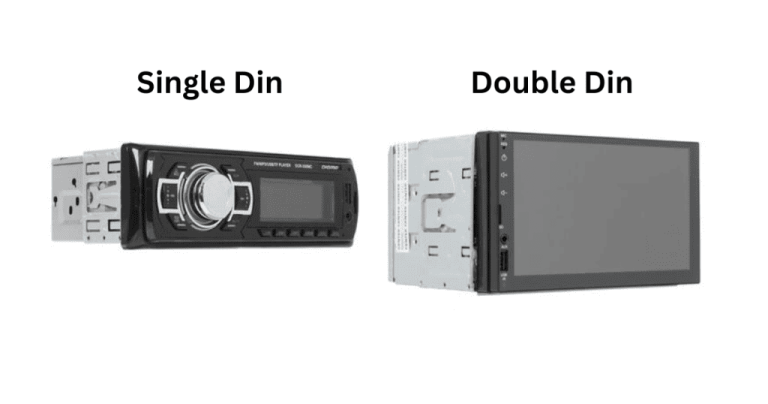
Check Car Stereo Compatibility
Before you try to connect your iPhone to your car stereo with a USB cable, it’s crucial to check if your car stereo supports this type of connection. Not all car stereos have USB ports designed for audio playback, and even if they do, they might not support the formats your iPhone uses. Making sure your car stereo is compatible can save you time and frustration.
Identify Usb Ports
Look closely at your car stereo or its manual to find the USB port. Some cars have USB ports on the dashboard, center console, or even inside the glove compartment.
Not all USB ports serve the same purpose. Some are meant only for charging devices and won’t play audio from your iPhone. You can usually tell by checking if the port is labeled with a music note or “USB Audio.”
If you’re unsure, plug in your iPhone and see if the stereo recognizes it as a media device. If it just starts charging without showing any music controls, your stereo might not support audio playback via USB.
Supported Audio Formats
Even if your car stereo has a USB port for audio, it’s important to check what audio formats it supports. iPhones commonly use AAC, MP3, and ALAC formats, but some car stereos only support MP3 and WAV files.
Check your car stereo’s manual or the manufacturer’s website for a list of supported audio formats. If your stereo doesn’t support the format your music is in, you might experience playback issues or no sound at all.
Consider converting your music files to a compatible format if necessary. Have you ever tried playing a song only to find it won’t load? That might be why.

Credit: aluratek.com
Prepare Your Iphone
Preparing your iPhone before connecting it to your car stereo via USB can save you from frustrating issues like connection failures or poor audio quality. Ensuring your device is ready helps maintain smooth communication between your phone and the car system. Let’s focus on two key areas to get your iPhone set up perfectly.
Update Ios
Keeping your iPhone’s iOS updated is crucial. Updates not only improve security but also fix bugs that might affect USB connectivity. Sometimes, your car’s stereo system may require the latest iOS to recognize your phone properly.
Check your settings regularly. Go to Settings > General > Software Updateto see if there’s a new version available. If you’ve ever struggled with your phone not being detected, a quick update might be the solution.
Use Certified Lightning Cable
Not all cables are created equal. Using a certified Lightning cable ensures reliable data transfer and charging while connected. Non-certified or cheap cables can cause intermittent connections or stop working altogether.
I once tried using a generic cable and my car stereo kept disconnecting. Switching to an Apple-certified cable fixed the problem instantly. Don’t overlook this simple step—it can save you time and hassle.
- Look for “Made for iPhone” (MFi) certification on the cable packaging.
- Avoid cables with visible damage or frayed ends.
- Consider cables with reinforced connectors for durability.
Connect Iphone To Car Stereo
Connecting your iPhone to a car stereo using a USB cable is a simple way to enjoy music and calls through your vehicle’s sound system. This connection also allows you to charge your phone while driving. Many cars support this feature, making it a popular choice for drivers.
Using a USB cable provides better sound quality than Bluetooth. It also reduces connection interruptions. The process involves plugging the cable into the car and linking the other end to the iPhone.
Plug Usb Cable Into Car
Locate the USB port on your car’s dashboard or center console. It might be labeled with a USB symbol. Insert the USB cable firmly into this port. Make sure the connection is secure to avoid disconnections while driving.
Connect To Iphone
Take the other end of the USB cable and plug it into your iPhone’s Lightning port. Your iPhone should unlock automatically or prompt you to trust the car’s system. Tap “Trust” on the screen to allow data transfer.
The car stereo will detect your iPhone and display its name. You can now control music and calls using the car’s interface or steering wheel controls. This setup also lets you access apps like Apple Music or Spotify directly from the stereo.
Configure Car Stereo Settings
Configuring your car stereo settings is essential for a smooth connection between your iPhone and the car stereo via USB. This step ensures your stereo recognizes the iPhone and plays audio correctly. Adjusting these settings improves sound quality and user experience during your drive.
Select Usb Source
Start by accessing your car stereo’s input options. Use the menu button or touchscreen to find the source list. Look for the USB option and select it. This tells the stereo to receive audio from the iPhone connected through the USB cable.
Some car stereos automatically switch to USB when a device is plugged in. If it does not, manually selecting USB is necessary. Confirm the connection by checking for your iPhone’s name or “USB” on the display screen.
Adjust Audio Preferences
Once the USB source is active, adjust the audio settings for better sound. Navigate to the audio or sound settings menu on your car stereo. Adjust bass, treble, and balance to suit your taste.
Set the volume level on both your iPhone and car stereo. Avoid maxing out either to reduce distortion. Check if the stereo has a specific iPhone or USB audio mode and enable it for optimal performance.
Troubleshoot Common Issues
Troubleshooting common issues helps keep your iPhone connected to your car stereo smoothly. Problems may arise due to hardware or settings. Identifying the exact cause saves time and frustration.
No Sound Or Connection
Check if your car stereo is set to the correct input mode, usually labeled “USB” or “iPod.” Confirm the iPhone is unlocked and awake during connection. Restart both devices to refresh their settings.
Adjust the volume on both your iPhone and car stereo. Sometimes, muted audio or low volume causes the issue. Verify the iPhone’s audio output is set to the car stereo under Bluetooth or audio settings.
Cable Or Port Problems
Inspect the USB cable for any visible damage or frayed ends. Use an Apple-certified cable to avoid compatibility issues. Try connecting with another cable if available.
Clean the USB port on both your iPhone and car stereo gently. Dust or dirt can block proper connection. Test a different USB port in your car if possible.
Loose connections can cause intermittent or no connection. Make sure the cable fits snugly into both devices without wiggling.
Enhance Audio Experience
Enhancing your audio experience when connecting your iPhone to a car stereo via USB can transform your daily drives. Crisp sound, easy control, and seamless interaction make every trip more enjoyable. Small upgrades in how you connect and control your music can make a noticeable difference.
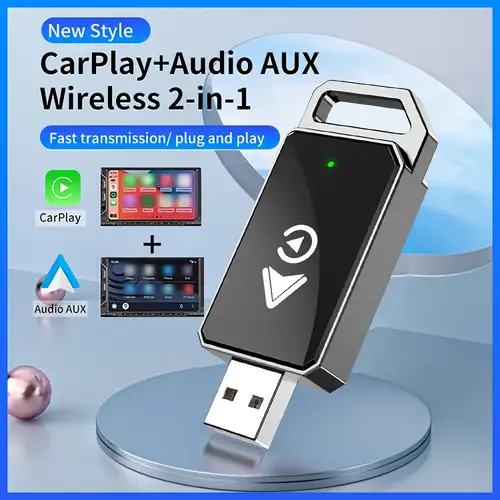
Use Carplay If Available
CarPlay offers a smarter way to connect your iPhone to your car’s stereo system. It not only plays your music through the car speakers but also organizes your apps for easy access on the dashboard display.
With CarPlay, you get clear album art, smooth transitions between songs, and access to playlists without fumbling with your phone. It supports popular apps like Apple Music, Spotify, and Podcasts, keeping your favorite content at your fingertips.
Think about how often you struggle to find the right song while driving. CarPlay lets you focus on the road while still enjoying your music with minimal distraction. If your car supports CarPlay, it’s worth using this feature to boost your audio experience.
Control Music Via Steering Wheel
Controlling music through your steering wheel buttons adds safety and convenience. You can skip tracks, pause, or adjust volume without taking your hands off the wheel or your eyes off the road.
This simple control method helps maintain your focus while driving. It also avoids the hassle of reaching for your phone or car stereo interface.
Ask yourself: how often do you find yourself distracted when trying to change songs? Using steering wheel controls keeps your attention where it belongs, making your music experience smoother and safer.
Credit: www.temu.com
Frequently Asked Questions
How To Connect Iphone To Car Stereo Usb?
To connect your iPhone to a car stereo using USB, use an Apple-certified USB cable. Plug one end into your iPhone and the other into the car’s USB port. Your car stereo should automatically recognize the iPhone. Ensure your car stereo is set to USB mode to enjoy music or other audio.
Why Won’t My Iphone Connect To Car Usb?
If your iPhone won’t connect, check the USB cable for damage. Ensure the car stereo is in USB mode. Restart your iPhone and the car stereo. Also, check for any software updates on your iPhone. If problems persist, consult your car stereo’s manual for further troubleshooting steps.
Can I Charge My Iphone Via Car Usb?
Yes, you can charge your iPhone using the car’s USB port. Simply connect the iPhone using a USB cable. Ensure the car is on or in accessory mode. Charging speed may vary depending on the car’s USB port specifications. It’s a convenient way to keep your device powered during drives.
Does Connecting Via Usb Affect Audio Quality?
Connecting via USB typically offers better audio quality than Bluetooth. USB provides a direct digital connection, minimizing interference and maintaining sound clarity. This connection allows for the transmission of higher-quality audio files. Enjoy your favorite music with enhanced sound fidelity when using USB over other methods.
Conclusion
Connecting your iPhone to your car stereo with a USB is simple and quick. Just use the right cable and follow the steps carefully. This connection lets you play music, use apps, and charge your phone while driving. It improves your driving experience and keeps you focused on the road.
Now, enjoy your favorite songs and podcasts without hassle. Try it out and see how easy it is to stay connected on the go.