
Want to enjoy your favorite music and take calls hands-free while driving? Connecting your iPhone to your car’s Bluetooth stereo makes this simple and safe.
But if you’ve ever felt stuck trying to pair your devices, you’re not alone. This guide will walk you through each step clearly and quickly, so you can get your phone connected without frustration. Keep reading, and you’ll be ready to hit the road with seamless sound and total control.

Credit: www.amazon.com
Prepare Your Iphone And Car Stereo
Getting your iPhone ready to connect with your car’s Bluetooth stereo is a simple but essential part of the process. Before you start pairing, make sure both devices are prepared to communicate smoothly. This avoids the frustration of failed connections and lets you enjoy hands-free calls and music quickly.
Check Bluetooth Compatibility
Not all car stereos support Bluetooth, and some only work with specific phone models or Bluetooth versions. Check your car stereo’s manual or manufacturer website to confirm it supports Bluetooth audio or hands-free calling. If your stereo is older, it might need a Bluetooth adapter to connect with your iPhone.
Enable Bluetooth On Iphone
Turning on Bluetooth on your iPhone is straightforward. Open the Settingsapp, tap on Bluetooth, and toggle it on. Your iPhone will start searching for nearby Bluetooth devices automatically.
Have you noticed how quickly your iPhone can list devices once Bluetooth is active? That’s your first signal that it’s ready to pair.
Turn On Car Stereo Bluetooth Mode
Your car stereo needs to be discoverable to your iPhone, which means activating its Bluetooth pairing mode. This usually involves pressing a dedicated Bluetooth button or navigating the stereo’s menu to find the Bluetooth settings.
- Look for a symbol that looks like a stylized “B” or the word “Bluetooth.”
- Press and hold the Bluetooth button until the display shows “Pairing” or “Searching.”
- Some stereos may flash a blue light to indicate they’re ready to connect.
Getting this step right speeds up the whole process. If you don’t see your stereo on your iPhone’s device list, it’s often because the stereo isn’t in pairing mode yet.

Credit: www.amazon.com
Pair Iphone With Car Stereo
Pairing your iPhone with a Bluetooth car stereo lets you enjoy hands-free calls and wireless music. The process is simple and fast. Follow these steps to connect your iPhone to your car’s audio system.
Search For Available Devices
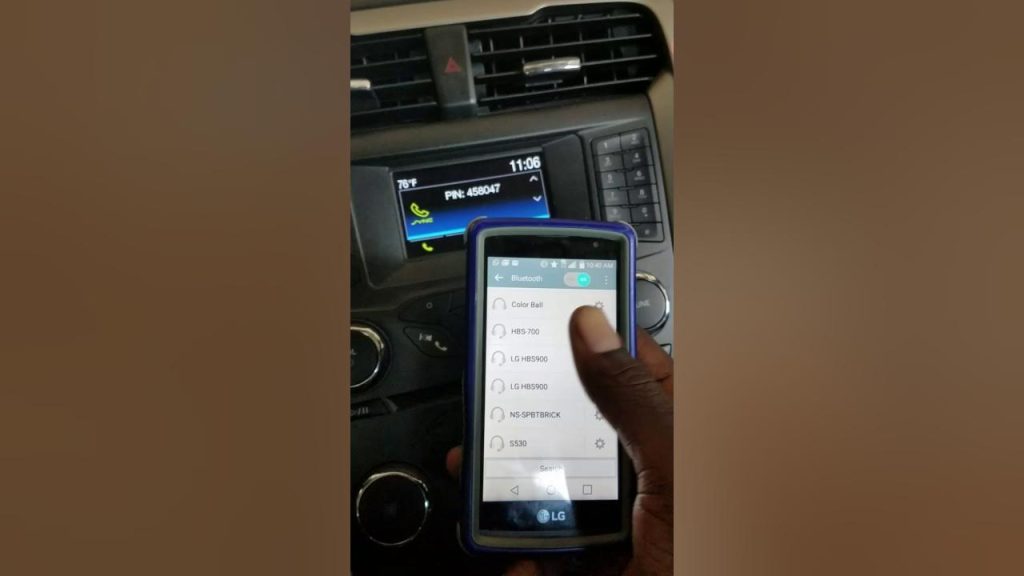
Open the Settings app on your iPhone. Tap on Bluetooth and turn it on. Your iPhone will start searching for nearby devices automatically. Make sure your car stereo’s Bluetooth is in pairing mode. Wait a few moments until your car stereo appears on the list of devices on your iPhone screen.
Select Your Car Stereo
Look for your car stereo’s name on the Bluetooth device list. Tap the name to select it. This tells your iPhone to connect to the car stereo. The connection process will begin immediately. Stay close to your car stereo during this step for a stronger signal.
Enter Or Confirm Passcode
Sometimes, a passcode is needed to pair devices. If your car stereo shows a code, enter it on your iPhone. Or your iPhone may display a code that you must confirm on the car stereo. Usually, the code is simple, like 0000 or 1234. Confirming the code completes the pairing. Your iPhone and car stereo are now connected.
Troubleshoot Connection Issues
Dealing with Bluetooth connection issues between your iPhone and car stereo can be frustrating, especially when you just want to enjoy your favorite tunes on the road. Troubleshooting these problems doesn’t have to be complicated. A few simple steps often fix the most common issues quickly, so you can get back to your drive without stress.
Restart Devices
Sometimes, the easiest fix is the most effective. Restart your iPhone and your car stereo system to clear any temporary glitches. This simple reset can refresh the Bluetooth connection and resolve minor software hiccups.
Have you noticed your devices acting slow or unresponsive before? Restarting often helps speed things up and reestablish a clean connection. It’s like giving your tech a quick break before trying again.
Forget And Re-pair Devices
If restarting doesn’t solve the problem, try forgetting the Bluetooth connection on your iPhone. Go to Settings > Bluetooth, tap the info icon next to your car stereo, and select Forget This Device. Then, re-pair your iPhone with the car stereo as if it’s the first time.
This step clears out any corrupted pairing data that might be causing the issue. Think of it as wiping the slate clean and starting fresh, which can make a surprising difference in connection stability.
Update Iphone And Car Stereo Firmware
Outdated software can create compatibility problems. Check if your iPhone’s iOS is up to date by visiting Settings > General > Software Update. Similarly, consult your car stereo’s manual or manufacturer website for firmware updates.
Updating both devices ensures they speak the same language when connecting over Bluetooth. It’s an often overlooked step but crucial for smooth and reliable pairing.
Optimize Bluetooth Audio Experience
Optimizing your Bluetooth audio experience can transform every drive into a clear, enjoyable journey. It’s not just about connecting your iPhone to your car stereo; it’s about fine-tuning settings to match your preferences and environment. Small adjustments can make a big difference in sound quality and ease of use.
Adjust Volume Settings
Start by balancing the volume between your iPhone and car stereo. If your music or calls sound too loud or too soft, tweak the volume on both devices.
Try setting your iPhone’s volume to around 70-80% and then adjust your car stereo to a comfortable level. This prevents distortion and sudden loud noises.
Have you noticed some songs sound louder than others? Check your iPhone’s volume limit under Settings > Music, and disable any sound check features that might automatically change the volume.
Manage Call And Media Audio
Your car stereo may handle call audio and media audio separately. Make sure your iPhone routes both correctly for seamless switching between music and calls.
Go to Settings > Bluetooth, tap the info icon next to your car stereo, and ensure both “Call Audio” and “Media Audio” are enabled.
Ever missed a call because the audio didn’t switch? This simple step ensures your calls come through loud and clear without interrupting your music flow.
Use Voice Commands With Siri
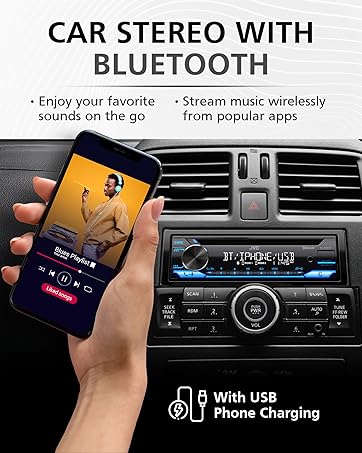
Using Siri hands-free keeps your focus on the road while controlling your audio. Activate Siri by saying “Hey Siri” or pressing your car’s voice command button.
You can ask Siri to play specific songs, adjust volume, or even read messages aloud. This makes your drive safer and more convenient.
Wondering how to get Siri to understand you better? Speak clearly and use natural commands like “Play my workout playlist” or “Call Mom.” Your iPhone adapts quickly to your voice over time.
Credit: www.amazon.com
Frequently Asked Questions
How Do I Pair My Iphone With A Car Stereo?
To pair your iPhone with a car stereo, first enable Bluetooth on your iPhone. Then, switch your car stereo to pairing mode. On your iPhone, select your car stereo from the list of available devices. Follow any additional prompts to complete the pairing process.
Why Won’t My Iphone Connect To My Car Bluetooth?
If your iPhone won’t connect, ensure Bluetooth is enabled on both devices. Check if your car stereo is discoverable. Restart both devices if needed. Ensure your iPhone’s software is up to date. If problems persist, refer to your car stereo’s manual for troubleshooting.
Can I Play Music Via Bluetooth In My Car?
Yes, you can play music via Bluetooth in your car. Once your iPhone is paired with your car stereo, open your preferred music app. Start playing music, and the audio should automatically stream through your car’s speakers, providing a seamless experience.
Is There A Way To Improve Bluetooth Audio Quality?
To improve Bluetooth audio quality, ensure your car stereo supports high-quality audio codecs. Keep devices close to minimize interference. Regularly update your iPhone’s software. Avoid running multiple apps that might affect performance. Consider upgrading your car stereo if audio quality remains unsatisfactory.
Conclusion
Connecting your iPhone to a Bluetooth car stereo is easy and quick. Just follow the steps carefully for a smooth connection. Once paired, you can enjoy music and calls hands-free while driving. Keep your phone’s Bluetooth on and check your car’s settings.
This simple setup improves safety and comfort on the road. Try it today and enjoy wireless freedom during every trip.

