How to Connect My Smartphone to My Car Stereo: Easy & Fast Guide
Master Automotive Systems Engineer & Performance Vehicle Specialist at CarSpeedNest Automotive Testing Lab · ASE Certified Master Technician, Mobile Electronics Certified Professional (MECP Master), Certified Dyno Diagnostic Specialist · 14+ years in dyno testing, electronic sensor calibration, automotive wiring harnesses, and precision drivetrain maintenance
Want to play your favorite songs or make hands-free calls while driving? Connecting your smartphone to your car stereo makes it simple and safe.
But if you’ve ever felt confused about which steps to take, you’re not alone. This guide will walk you through easy, clear steps to link your phone to your car’s audio system. By the end, you’ll enjoy seamless music, calls, and more—right from your dashboard.
Ready to get started? Let’s dive in!
Credit: global.geelycv.com
Prepare Your Devices
Getting your smartphone ready before connecting it to your car stereo can save you time and frustration. Proper preparation ensures a smooth connection and better sound quality. Let’s look at what you need to do with your devices before you start pairing them.
Check Compatibility
Not every car stereo works with every smartphone. Check if your car stereo supports Bluetooth, USB, or auxiliary input depending on your phone’s options. You can find this information in your car manual or on the stereo itself.
Is your smartphone’s operating system up to date? Sometimes outdated software can prevent proper connection. Updating your phone can fix bugs that interfere with pairing.
Charge Your Smartphone
Connecting your phone to the car stereo can drain your battery faster than usual. Make sure your phone is fully charged before hitting the road. If you plan a long drive, bring a car charger just in case.
Have you ever lost connection because your phone died mid-trip? Avoid that by charging your device to at least 50% before pairing. This simple step keeps your music and calls uninterrupted.
Turn On Car Stereo
Before you connect, turn on your car stereo and set it to the correct mode—Bluetooth, USB, or AUX. This prepares the system to recognize your smartphone quickly. It’s easier to spot your device on the stereo’s display when it’s already active.
Sometimes the stereo takes a moment to detect new devices. Give it a few seconds after turning it on before you start pairing. This small pause can save you from repeated connection attempts later.
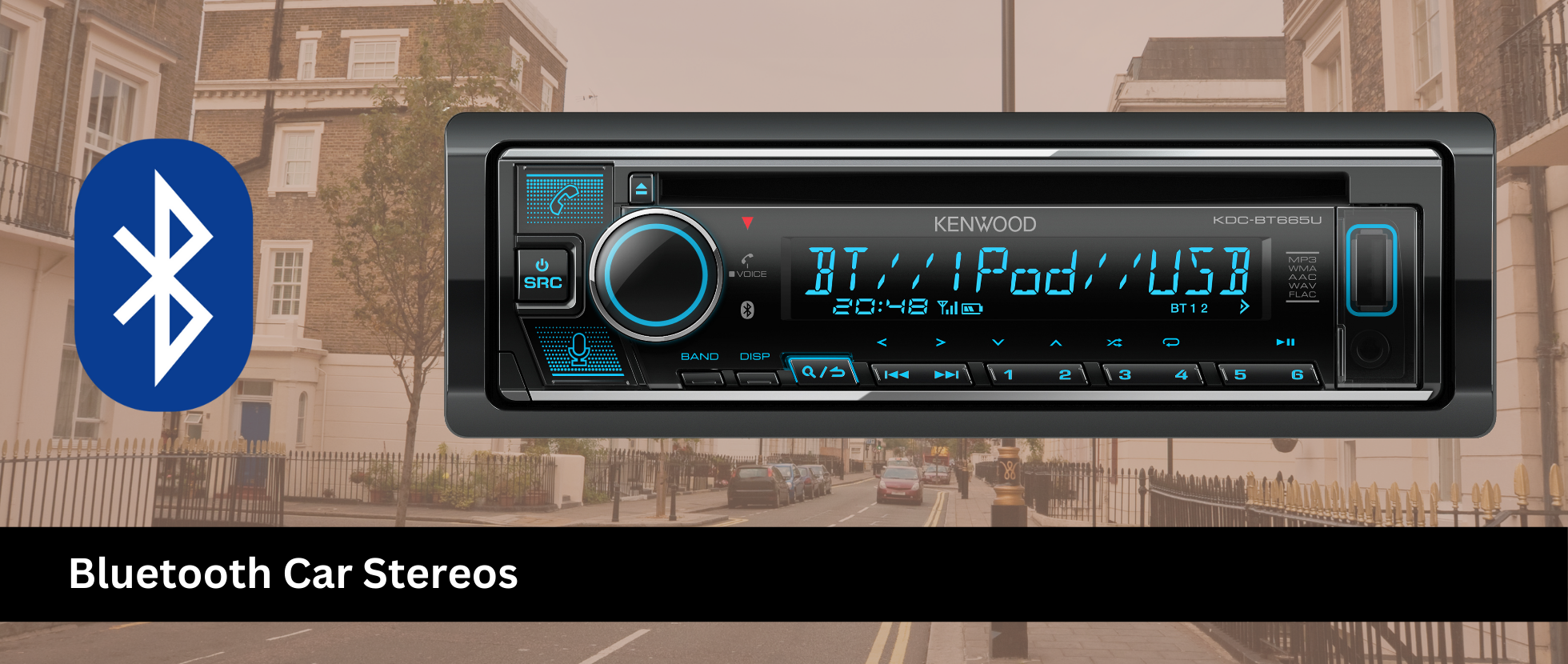
Connect Via Bluetooth
Connecting your smartphone to your car stereo via Bluetooth makes hands-free calls and music streaming easy. Bluetooth is a wireless technology that links your phone with your car without cables. This connection lets you enjoy your favorite tunes and stay safe while driving.
Enable Bluetooth On Phone
Open your phone’s settings menu. Find and tap the Bluetooth option. Switch Bluetooth to the “On” position. Keep your phone visible to nearby devices. This step allows your car stereo to detect your phone.
Pair With Car Stereo
Turn on your car stereo and access its Bluetooth settings. Select the option to add or pair a new device. On your phone, scan for available Bluetooth devices. Choose your car stereo’s name from the list. Confirm the pairing request by matching the PIN or code shown on both devices. Wait for the confirmation message. Your phone and car stereo are now connected.
Troubleshoot Connection Issues
Check if Bluetooth is active on both devices. Restart your phone and car stereo to refresh connections. Remove old or unused paired devices from your phone’s Bluetooth list. Ensure your phone is within the car stereo’s range. Update your phone’s software and car stereo firmware if available. Reset Bluetooth settings if problems continue. Try pairing again after these steps.
Use Usb Cable Connection
Using a USB cable to connect your smartphone to your car stereo is one of the most reliable and straightforward ways to enjoy your music, podcasts, and calls on the road. Unlike Bluetooth, a USB connection often provides better sound quality and faster response times. Plus, it charges your phone while connected, so you don’t have to worry about battery drain during long drives.
Locate Usb Port In Car
Start by finding the USB port in your vehicle. Most modern cars have at least one USB port located near the center console, glove compartment, or dashboard. If you’re unsure, check your car manual or look for a small rectangular slot labeled “USB.”
Some cars have multiple USB ports; choose the one labeled for media or smartphone connection rather than just charging.
Connect Smartphone With Cable
Use a compatible USB cable—usually the one that came with your phone. Plug one end into your smartphone and the other into the car’s USB port. Make sure the connection is secure to avoid interruptions while driving.
Once connected, your phone might prompt you to allow data access. Accepting this step is crucial for your car stereo to read your phone’s media files.
Access Media Through Stereo
After connecting, switch your car stereo’s input to USB mode. This option is often found on the media or source button on your stereo or touchscreen. Your phone’s music library should then appear on the car’s display.
You can now browse playlists, albums, or podcasts directly from the stereo interface. Want to skip a song or adjust the volume? Use your car’s controls instead of reaching for your phone, keeping your focus on the road.

Credit: aluratek.com
Try Auxiliary Cable Method
Using an auxiliary cable is one of the simplest ways to connect your smartphone to your car stereo. This method doesn’t require Bluetooth or any special apps, just a straightforward wired connection. It’s perfect when you want clear sound without worrying about wireless interference or battery drain.
Find Aux Input
Start by locating the aux input on your car stereo. It usually looks like a small, round headphone jack labeled “AUX” or “Line In.” Common places include the dashboard, center console, or near the gear shift.
If you don’t see an obvious port, check your car’s manual or look for a small cover that might be hiding it. Have you ever missed a simple port just because it was tucked away? This step saves you time and frustration.
Plug In Aux Cable
Grab a 3.5mm auxiliary cable and plug one end into your smartphone’s headphone jack or adapter. Insert the other end into the aux input you found on your car stereo.
Make sure both ends are firmly connected to avoid any audio cutting out. A loose connection can sound worse than no connection at all.
Adjust Car Stereo Settings
Turn on your car stereo and switch the input source to “AUX” or “Line In.” This setting tells your stereo to play audio from the cable rather than the radio or CD player.
Next, play music or a podcast on your phone and adjust the car stereo volume to a comfortable level. Sometimes you might need to tweak both your phone’s and stereo’s volume for the best sound quality.
Utilize Carplay Or Android Auto
Utilizing CarPlay or Android Auto simplifies connecting your smartphone to your car stereo. These systems create a smart bridge between your phone and vehicle. They let you control apps, music, and navigation safely while driving. Both offer a user-friendly interface designed for distraction-free use. This makes your drives easier and more enjoyable.
Set Up Carplay
CarPlay works with iPhones running iOS 7.1 or later. Connect your phone to the car using a USB cable. Some cars support wireless CarPlay, allowing connection via Bluetooth or Wi-Fi. Once connected, CarPlay appears on your car’s screen automatically.
Follow these steps:
- Unlock your iPhone and plug it into the car’s USB port.
- Allow CarPlay access if prompted on your phone.
- Use the car’s touchscreen or voice commands to control CarPlay.
- Customize your CarPlay layout in your iPhone’s settings for ease of use.
Set Up Android Auto
Android Auto is compatible with phones running Android 6.0 or higher. Connect your smartphone to the car stereo via USB cable or wirelessly if supported. The Android Auto app may need to be installed on your phone first.
To set up Android Auto:
- Download and open the Android Auto app on your phone.
- Connect the phone to the car’s USB port or pair wirelessly.
- Follow on-screen prompts to grant permissions.
- Start using Android Auto through the car’s display or voice commands.
Explore App Integration
Both CarPlay and Android Auto support many apps. These include music, messaging, maps, and podcasts. The apps appear on the car’s screen with large icons for easy access.
Popular apps you can use:
- Music: Apple Music, Spotify, Google Play Music
- Navigation: Apple Maps, Google Maps, Waze
- Messaging: Messages, WhatsApp, Google Messages
- Podcasts and audiobooks: Apple Podcasts, Audible
Use voice commands to keep your hands on the wheel. This keeps you focused and safe while driving.

Credit: aluratek.com
Optimize Audio Settings
Optimizing your car stereo’s audio settings improves sound quality and listening comfort. Proper adjustments make music clearer and calls easier to hear. Small changes can enhance your driving experience significantly.
Adjust Volume Levels
Set the volume to a comfortable level for both music and calls. Avoid very high volume to protect your hearing. Balance the volume so you hear notifications without distraction. Test volume in different driving conditions to find the best setting.
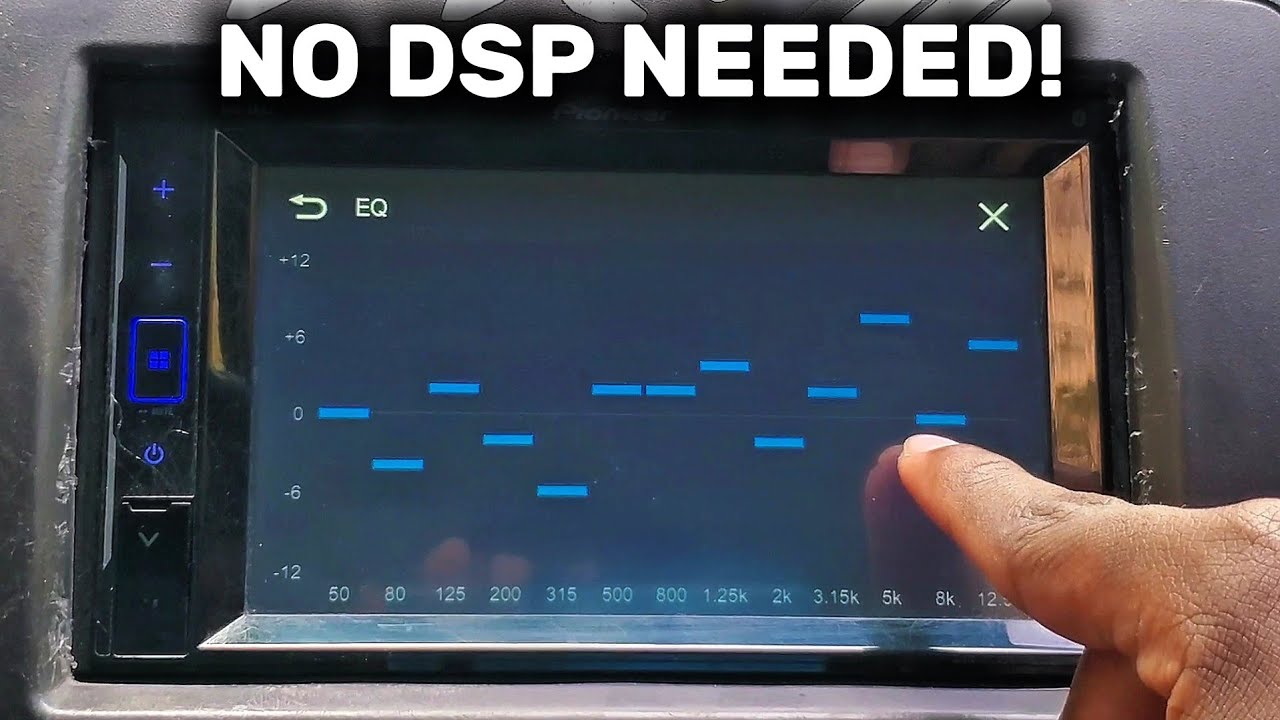
Fine-tune Equalizer
Use the equalizer to customize sound frequencies. Increase bass for deeper beats and boost treble for clearer vocals. Adjust midrange to enhance instruments and voices. Many car stereos offer presets like Rock, Jazz, or Pop. Experiment to find the sound that suits your taste.
Manage Call Settings
Set call volume separately from music volume for clarity. Enable noise reduction features to reduce background sounds. Use echo cancellation if your stereo supports it. Check microphone placement to ensure your voice is clear. These settings help make hands-free calls easier and safer.
Frequently Asked Questions
How Do I Connect My Smartphone Via Bluetooth?
To connect your smartphone via Bluetooth, first, enable Bluetooth on both devices. Then, search for available devices on your car stereo and select your smartphone. Confirm pairing if prompted. Once connected, you can enjoy hands-free calls and music streaming.
Can I Use A Usb Cable For Connection?
Yes, you can use a USB cable to connect your smartphone to your car stereo. Simply plug the cable into both devices. This method allows for charging and, depending on your stereo, music playback. Ensure your car stereo supports USB audio input for seamless connectivity.
What If My Car Stereo Lacks Bluetooth?
If your car stereo lacks Bluetooth, consider using an auxiliary cable. Connect one end to your smartphone’s headphone jack and the other to the car’s AUX input. Alternatively, use a Bluetooth adapter, which plugs into the AUX port, offering wireless connectivity.
Is Android Auto Or Apple Carplay Better?
Both Android Auto and Apple CarPlay offer seamless integration with your smartphone. Android Auto is ideal for Android users, providing Google services. Apple CarPlay is designed for iPhone users, offering Siri and Apple apps. Choose based on your smartphone’s operating system for optimal experience.
Conclusion
Connecting your smartphone to your car stereo is simple and quick. Choose the method that fits your devices best. Bluetooth offers wireless freedom and good sound quality. Using a USB cable can charge your phone while playing music. Auxiliary cables work well for older stereos.
Remember to keep safety in mind while driving. Enjoy hands-free calls and your favorite tunes on the road. Stay connected and make every trip more fun and convenient.

Similar Posts