How to Plug an Iphone into a Car Stereo: Easy Steps for Perfect Sound
Want to play your favorite music or podcasts from your iPhone through your car stereo but don’t know where to start? You’re not alone.
Connecting your iPhone to your car can seem tricky at first, but it’s easier than you think. Imagine driving with crystal-clear sound, hands-free calls, and all your playlists right at your fingertips. In this guide, you’ll learn simple, step-by-step ways to plug your iPhone into your car stereo—no tech skills required.
Keep reading, and you’ll be enjoying your music on the road in no time.
Check Your Car Stereo Options
Before connecting your iPhone to a car stereo, check the stereo’s input options. Different cars have different ways to play music from your device. Knowing what your stereo supports helps you choose the best connection method. It also ensures clear sound and easy control while driving.
Identify Available Inputs
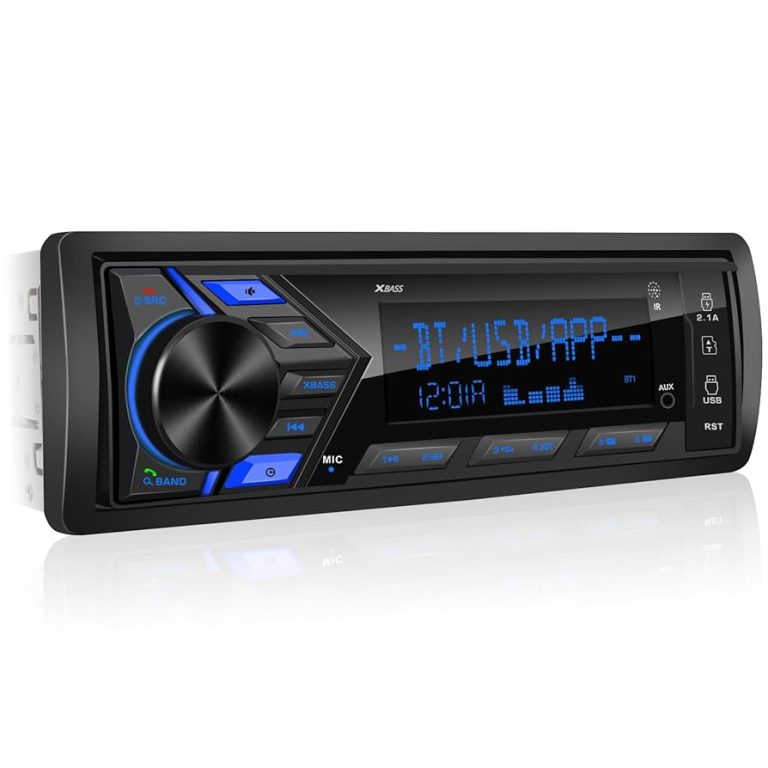
Look at your car stereo panel and read the manual if needed. Common inputs include Bluetooth, auxiliary (AUX) ports, USB ports, and FM transmitters. Some newer models offer multiple input types. Older cars might have fewer options.
Bluetooth Connectivity
Many modern car stereos support Bluetooth. This allows wireless music streaming from your iPhone. Check if your stereo has a Bluetooth symbol or pairing mode. Bluetooth offers hands-free control and good sound quality without cables.
Auxiliary Input
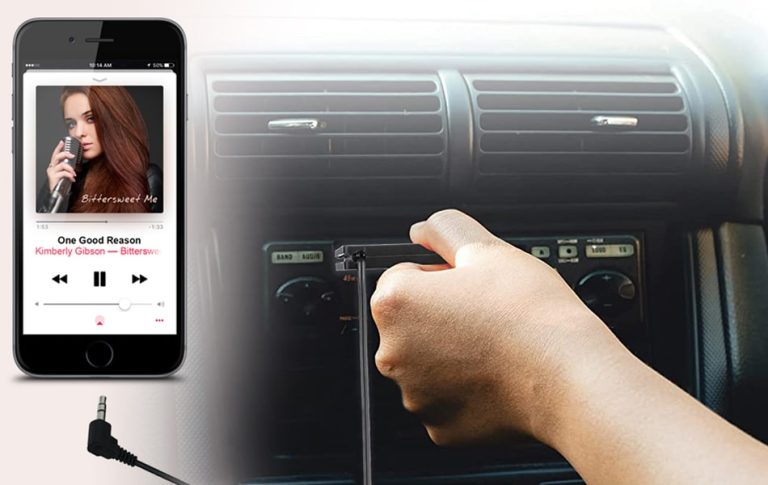
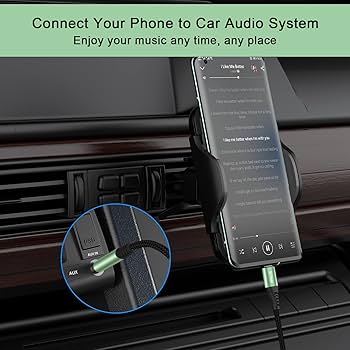
The AUX input is a small round port labeled “AUX” or with a headphone icon. It uses a 3.5mm cable to connect your iPhone’s headphone jack or Lightning adapter. AUX inputs are common and easy to use but require a cable.
Usb Ports
USB ports let you connect your iPhone with a charging cable. This connection charges your phone and plays music through the stereo. USB also allows you to control songs using the car’s buttons or touchscreen. Check if the port is for data, not just charging.
Fm Transmitter Compatibility
FM transmitters send audio from your iPhone to the car stereo via radio waves. Some stereos support this feature. It works by tuning the radio to a specific FM frequency. This option suits cars without AUX or USB inputs but may have lower sound quality.

Credit: www.amazon.co.uk
Select The Right Cable Or Adapter
Choosing the right cable or adapter is key to connecting your iPhone to your car stereo smoothly. The options vary depending on your car’s stereo inputs and your iPhone model. Picking the wrong accessory can lead to poor sound quality or no connection at all.
Think about your car’s audio system. Does it have an auxiliary port, USB input, or only a radio? Knowing this will help you decide which cable or adapter fits best.
Lightning To Aux Cable
This cable connects your iPhone’s lightning port directly to your car’s aux input. It offers a simple, wired connection and usually delivers clear sound. If your car stereo has a 3.5mm aux jack, this is often the most straightforward choice.
Keep in mind, some cheaper cables may cause static or lower audio quality. Investing in a well-reviewed lightning to aux cable can save you from frustration.
Lightning To Usb Cable
If your car has a USB port, this cable is a solid option. It not only plays audio but can also charge your iPhone while connected. Plus, some car stereos allow you to control music playback through the car’s interface when connected via USB.
Check if your car stereo supports audio over USB. If it doesn’t, this cable won’t work for playing music, only charging.
Fm Transmitter Devices
For older cars without aux or USB inputs, an FM transmitter can be a lifesaver. These devices plug into your iPhone and broadcast audio to a specific FM frequency that your car radio can tune into. This wireless option avoids cables but may suffer from interference or lower sound quality.
Think about your local FM stations. If the airwaves are crowded, finding a clear frequency might be tricky, affecting your listening experience.
Bluetooth Adapters
Bluetooth adapters let you connect your iPhone wirelessly to your car stereo, even if your car doesn’t have built-in Bluetooth. They plug into the aux or USB port and pair with your phone for wireless streaming. This option offers convenience without cables cluttering your dashboard.
However, some adapters introduce a slight audio delay or dropouts. Testing different brands can help you find one that works reliably for your setup.
Connect Your Iphone To The Stereo
Connecting your iPhone to your car stereo allows you to enjoy music, podcasts, and calls hands-free. There are several ways to link your device, depending on your car’s features and cables you have. Each method offers a simple setup to get sound playing through your car speakers quickly.
Using Aux Input
Check if your car stereo has an aux input jack, usually a 3.5mm port. Use a male-to-male aux cable to connect your iPhone’s headphone jack or Lightning to 3.5mm adapter. Plug one end into your phone and the other into the car’s aux port. Switch the stereo source to “Aux” or “Line In” to hear audio. This method delivers clear sound and is easy to set up.
Using Usb Port
Many modern cars have a USB port for audio and charging. Connect your iPhone using a Lightning to USB cable. The car stereo will recognize your device and may show playlists or control options on the display. This connection also charges your iPhone while playing music. Select “USB” or similar input on your stereo to start listening.
Pairing Via Bluetooth
Bluetooth allows wireless audio playback and hands-free calls. Enable Bluetooth on your iPhone in the settings menu. On your car stereo, activate Bluetooth pairing mode. Find your car stereo’s name in the iPhone’s Bluetooth list and tap to connect. Once paired, audio plays wirelessly. This method offers freedom from cables and easy control.
Setting Up Fm Transmitter
An FM transmitter works by sending your iPhone’s audio to a free FM radio frequency. Plug the transmitter into your iPhone’s headphone jack or Lightning port. Tune your car radio to the same FM frequency as the transmitter. Play music or calls on your iPhone, and the sound will broadcast through the car stereo. This is useful for older cars without aux or Bluetooth.

Credit: www.amazon.com
Adjust Car Stereo Settings
Adjusting your car stereo settings is key to getting the best audio experience from your iPhone. Proper settings ensure clear sound, avoid interference, and make switching between devices smooth. Without tweaking these settings, you might miss out on the full potential of your music or calls.
Selecting The Correct Input Source
Start by choosing the right input source on your car stereo. This could be Bluetooth, AUX, USB, or Apple CarPlay, depending on how you connected your iPhone. If you don’t select the correct input, your car won’t play anything from your phone.
Look for labels like “Media,” “Aux,” or “USB” on your stereo display. Sometimes the input can be selected via a physical button or through the touchscreen menu. If your car supports Apple CarPlay, it usually switches automatically once connected, but double-check to avoid frustration.
Adjusting Volume And Sound Quality
Volume levels on both your iPhone and car stereo affect the sound quality. Start with your phone’s volume at about 70% and adjust your car stereo volume to a comfortable level. This avoids distortion and sudden loud bursts of sound.
Many car stereos have equalizer settings to tweak bass, treble, and balance. Try adjusting these to suit your music style or driving environment. You might find that a little boost in bass makes your favorite songs come alive during your commute.
Troubleshooting Connection Issues
If your iPhone isn’t playing through the car stereo, check the connection first. Make sure your cable is firmly plugged in or your Bluetooth is paired correctly. Sometimes, simply unplugging and reconnecting solves the problem.
Restarting both your iPhone and the car stereo can clear minor glitches. Also, check your iPhone’s settings for any restrictions on audio output or Bluetooth devices. Have you ever noticed your music stops randomly? This could be due to interference or software updates needing attention.
Optimize Sound For Best Experience
Optimizing sound enhances your music and call experience in the car. Clear audio makes every drive more enjoyable. Small tweaks can improve sound quality significantly. Follow these tips to get the best sound from your iPhone and car stereo connection.
Using Equalizer Settings
The equalizer controls the balance of sound frequencies. Adjust bass, midrange, and treble for clear audio. Use your iPhone’s built-in equalizer or your car stereo’s settings.
- Boost bass for deeper sounds in music.
- Increase treble to make vocals clearer.
- Lower midrange to reduce harsh sounds.
Try different presets like Rock, Pop, or Jazz. Find the one that matches your music style best. Small changes can make a big difference.
Avoiding Interference
Interference causes static and noise during playback. Keep your iPhone away from other electronic devices. Devices like chargers or GPS units can cause interference.
- Use shielded cables to reduce signal noise.
- Turn off Bluetooth if using a wired connection.
- Keep your cable and phone away from power cords.
Clean your car’s audio jack and connectors regularly. Dirty contacts can cause sound issues and interruptions.
Maintaining Cable Quality
High-quality cables ensure stable and clear sound transfer. Avoid cheap or worn-out cables that degrade audio quality.
- Choose cables with good shielding and connectors.
- Replace cables showing frays or damage immediately.
- Store cables properly to prevent tangling and wear.
Use the original or certified cables for your iPhone. This helps maintain strong connections and sound clarity.
Alternative Methods To Play Music
Plugging your iPhone directly into a car stereo isn’t the only way to enjoy your music on the road. There are several alternative methods that can give you more control, better sound quality, or simply more convenience. Whether your car supports modern tech or you prefer offline options, you’ll find a method that fits your style.
Using Carplay
CarPlay transforms your car’s dashboard into an extension of your iPhone. It lets you access music, messages, maps, and more through your car’s touchscreen or voice commands. If your car supports CarPlay, connecting is as simple as plugging in your iPhone or using wireless CarPlay in some models.
CarPlay offers a user-friendly interface designed to keep your eyes on the road. You can ask Siri to play specific songs or playlists, which means no fumbling with your phone while driving. Have you tried using CarPlay on a long drive? It can make the journey much more enjoyable and safer.
Streaming Via Apps
If your car stereo has Bluetooth or supports Wi-Fi, streaming music from apps is a great alternative. Apps like Spotify, Apple Music, or Pandora offer endless playlists and personalized mixes. You just need to pair your iPhone with your car’s system and start streaming.
One tip: download your favorite playlists before driving through areas with poor signal. Streaming apps also let you explore new artists and genres without cluttering your phone’s storage. Do you notice how easy it is to switch songs or create a mood with streaming?
Offline Playback Options
Sometimes, you won’t have internet access during your drive. Offline playback ensures you still have your favorite tunes ready. You can download songs or playlists directly to your iPhone through apps like Apple Music or Spotify.
Another option is to use a USB drive or SD card if your stereo supports it. Loading your music onto these devices gives you a reliable music source without relying on your phone’s battery or data. Have you prepared offline music for your last road trip? It can prevent boredom when signals drop.

Credit: aluratek.com
Frequently Asked Questions
How Do I Connect My Iphone To My Car Stereo?
To connect your iPhone, use a USB cable or Bluetooth. For USB, simply plug the cable into the car’s USB port. For Bluetooth, enable Bluetooth on your iPhone and pair it with your car’s system. This allows you to play music and make hands-free calls.
Can I Use An Aux Cable For Connection?
Yes, you can use an aux cable if your car stereo has an aux input. Plug one end into your iPhone’s headphone jack using an adapter if necessary, and the other end into the car’s aux input. This method provides a direct audio connection for playing music.
What If My Car Doesn’t Have Bluetooth?
If your car lacks Bluetooth, consider using a Bluetooth adapter. These adapters plug into the aux port or power outlet. They enable wireless streaming from your iPhone to the car stereo. This solution is affordable and effective for hands-free music and calls.
Is There A Wireless Option To Connect Iphone?
Yes, you can use Apple CarPlay for a wireless connection if your car supports it. CarPlay allows you to access iPhone apps on your car’s display. It provides a seamless integration for navigation, music, and calls, enhancing your driving experience.
Conclusion
Plugging an iPhone into a car stereo is simple and quick. Just follow the right steps to connect your device safely. Use the correct cable or Bluetooth for the best sound quality. This lets you enjoy music, calls, and navigation while driving.
Keep your phone charged and secure for a smooth experience. Stay safe and focused on the road. Now, your car rides can feel more fun and connected. Try these tips next time you drive.