
How to Play Iphone Through Car Speakers: Easy & Quick Guide
Want to enjoy your iPhone’s music, podcasts, or calls through your car speakers without any hassle? You’re in the right place.
Connecting your iPhone to your car’s sound system can seem tricky, but it doesn’t have to be. Imagine driving with your favorite playlists playing loud and clear, making every trip more enjoyable. You’ll discover simple and effective ways to link your iPhone to your car speakers, no matter what kind of car or setup you have.
Keep reading—you’re just a few easy steps away from transforming your driving experience.

Credit: aluratek.com
Connect Iphone Via Bluetooth
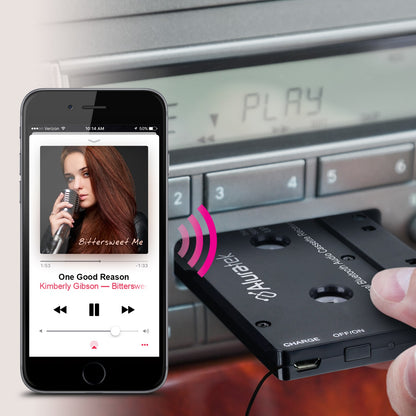
Connecting your iPhone to your car speakers via Bluetooth offers a wireless and convenient way to enjoy music and calls. This connection frees you from cables and lets you control audio easily through your car’s system. Setting up Bluetooth is simple and works with most modern vehicles.
Activate Bluetooth On Iphone
Start by opening the Settings app on your iPhone. Tap on “Bluetooth” to enter the Bluetooth menu. Switch the toggle to turn Bluetooth on. Your iPhone will now scan for nearby Bluetooth devices automatically. Keep this screen open for easy access to available connections.
Pair With Car Audio System
Turn on your car’s audio system and activate its Bluetooth pairing mode. This option is usually found in the audio or settings menu. On your iPhone’s Bluetooth screen, look for your car’s name under “Other Devices.” Tap the name to connect. You may need to confirm a code on both devices to pair successfully.
Troubleshoot Connection Issues
If your iPhone does not connect, try these tips:
- Make sure Bluetooth is enabled on both devices.
- Restart your iPhone and car audio system.
- Delete old Bluetooth connections on your iPhone.
- Ensure your car is in pairing mode.
- Move closer to your car audio system.
These steps solve common problems and help establish a stable connection.
Use Auxiliary Cable
Using an auxiliary cable is one of the simplest ways to play your iPhone through your car speakers. It offers a straightforward connection without relying on Bluetooth or other wireless options. Plus, it often delivers clear, uninterrupted sound, making it a reliable choice during your drives.
Locate Aux Port In Car
First, you need to find the auxiliary port in your car. Look around the center console, near the radio, or inside the glove compartment. It usually looks like a small, round headphone jack.
If you don’t see it immediately, check your car’s manual or search online for your car model’s aux port location. Some cars even have multiple ports, so choose the one labeled “AUX” or “Audio In.”
Plug In The Cable
Grab a 3.5mm auxiliary cable and plug one end into your iPhone’s headphone jack or Lightning-to-3.5mm adapter if your iPhone lacks a headphone jack. Then, insert the other end into the car’s aux port.
Make sure both ends are firmly connected. Loose connections can cause static or no sound at all. You’ll know it’s connected when your car’s audio system switches to the auxiliary input.
Adjust Iphone Audio Settings
After connecting, check your iPhone’s volume and playback settings. Start by increasing the volume on your iPhone to at least 50% or more to ensure good sound quality.
Also, disable any Bluetooth connections on your iPhone to avoid audio conflicts. Finally, open your favorite music or podcast app and press play—your sound should now come through the car speakers clearly.
Utilize Usb Connection
Utilizing a USB connection provides a reliable way to play iPhone audio through car speakers. It delivers clear sound quality and charges your device simultaneously. This method often offers better control over music playback than Bluetooth.
Find Usb Port In Vehicle
Locate the USB port in your car. Common places include the center console, dashboard, or glove compartment. Some vehicles have a dedicated media port labeled “USB.”
Check your car’s manual for exact USB port location if unsure. Using the correct port ensures stable audio transmission.
Connect Iphone With Lightning Cable
Use your iPhone’s Lightning cable to connect it to the car’s USB port. Make sure the cable is in good condition for uninterrupted connection.
Once plugged in, your iPhone may prompt you to trust the car’s system. Confirm this to allow music access.
Control Music Through Car Interface
After connection, control your music via the car’s audio system. Use the touchscreen or physical buttons to play, pause, or skip tracks.
The car’s interface often shows song information and playlists from your iPhone. This makes managing music easier and safer while driving.
Employ Apple Carplay
Apple CarPlay offers a simple way to play your iPhone audio through car speakers. It connects your iPhone to your car’s infotainment system, making music control easy and safe. CarPlay supports apps like Apple Music, Spotify, Podcasts, and more. It also lets you use voice commands via Siri, so you can keep your eyes on the road.
Check Carplay Compatibility
Not all cars support Apple CarPlay. Check your car’s manual or manufacturer website to see if it is compatible. Look for the CarPlay logo on your car’s infotainment screen or dashboard. Your iPhone must run iOS 7.1 or later to use CarPlay. Most iPhone models from iPhone 5 and newer support it.
Set Up Carplay On Iphone
Use a certified Lightning cable to connect your iPhone to the car’s USB port. Some cars also support wireless CarPlay over Bluetooth or Wi-Fi. Unlock your iPhone and allow CarPlay access on the screen prompt. Go to Settings > General > CarPlay to customize your CarPlay preferences. You can rearrange app icons and enable or disable certain apps.
Navigate And Play Music
Use the car’s touchscreen, knobs, or buttons to open the CarPlay interface. Tap the Music app icon to browse playlists, albums, or songs on your iPhone. Press the Play button to start listening through the car speakers. Use Siri voice commands to play specific songs or playlists hands-free. You can also control volume and skip tracks directly from your car controls.
Stream Music Wirelessly
Streaming music wirelessly from your iPhone to car speakers offers great convenience. It removes the need for cables and keeps your dashboard tidy. Wireless streaming uses technologies like Bluetooth and Wi-Fi to send sound directly to your car’s audio system.
Enjoy your favorite playlists and podcasts without interruptions. Wireless connections also allow easy control of music right from your phone or car display. This section explains simple ways to stream music wirelessly and improve sound quality.
Use Airplay With Compatible Systems
AirPlay is Apple’s wireless streaming feature. It works best with car systems that support Wi-Fi or Apple CarPlay. Connect your iPhone and car audio to the same Wi-Fi network. Then select your car speakers as the AirPlay device.
This method streams high-quality audio with low delay. You can control playback using your iPhone or car controls. AirPlay also supports multi-room audio for cars with multiple speakers.
Leverage Third-party Apps
Several apps help stream music wirelessly if your car lacks AirPlay support. Apps like Bluetooth Audio Widget and SoundSeeder work well. They connect your iPhone to the car’s Bluetooth system for easy playback.
Some apps offer extra features like playlist management and sound customization. Make sure to choose apps that match your car’s audio system. Keep apps updated for best performance and security.
Optimize Wireless Audio Quality
Good sound depends on strong wireless signals and settings. Keep your iPhone close to the car speakers to reduce dropouts. Avoid obstacles like metal or glass between devices.
- Turn off other Bluetooth devices to limit interference.
- Use high-quality audio files for clearer sound.
- Adjust volume levels on both iPhone and car system.
- Update your car’s audio firmware regularly.
Checking these points ensures smooth and clear wireless music streaming. Enjoy your drive with crisp, uninterrupted sound from your iPhone.
Adjust Car Audio Settings
Adjusting your car’s audio settings can make a huge difference in how your iPhone sounds through the speakers. It’s not just about blasting the volume; it’s about balancing the sound to fit your car’s unique acoustics. Small tweaks can bring out details in your music you didn’t notice before.
Balance And Fade Controls
The balance control lets you shift sound between the left and right speakers. If you often drive alone, you might want to push the sound slightly toward your side for a richer experience.
Fade adjusts the sound from front to back speakers. Playing with fade helps if your car seats absorb some sound or if you want more bass from the rear speakers.
Try adjusting these controls until the music feels centered and full. Have you noticed how a slight shift can make vocals clearer or the bass punchier?
Equalizer Settings
The equalizer (EQ) changes the tone of your music by boosting or cutting specific frequencies. Most car systems offer presets like “Rock,” “Jazz,” or “Pop,” but you can also create a custom setting.
Boost the bass frequencies if your music lacks depth, or increase the treble for clearer vocals. Experiment with midrange adjustments to bring out instruments like guitars or keyboards.
Think about the genres you listen to most—do you prefer punchy beats or smooth vocals? Tailoring the EQ to your taste transforms your drive into a personal concert.
Volume Leveling
Volume leveling helps maintain a consistent sound level across different songs or sources. This is especially useful if your playlist includes tracks recorded at varying volumes.
Enabling this feature prevents sudden jumps in loudness that can be distracting or even unsafe while driving. It keeps your focus on the road without constant volume adjustments.
Have you ever been startled by a loud track after a quiet one? Volume leveling can solve that problem and make every song flow smoothly.
Maintain Iphone And Car System
Keeping your iPhone and car system in good shape is key to enjoying seamless audio playback through your car speakers. Regular maintenance not only prevents unexpected glitches but also boosts the overall performance of your devices. Let’s look at how you can take simple steps to maintain both your iPhone and car audio system for the best listening experience.
Update Software Regularly
Software updates often include important fixes and improvements for connectivity and audio features. Make it a habit to check for updates on your iPhone and car system, especially if you notice lag or connection drops.
Apple frequently releases iOS updates that enhance Bluetooth stability and audio quality. Similarly, your car’s infotainment system might have firmware updates available through the manufacturer’s website or app.
Have you ever experienced sudden disconnections during your drive? Updating software could be the simple solution you’re missing.
Clean Ports And Connectors
Dirt and dust in charging ports or auxiliary inputs can cause poor connections or static noise. Use a soft brush or compressed air to gently clean these areas on both your iPhone and car system.
Be careful not to insert anything sharp that might damage the connectors. Regular cleaning prevents audio interruptions and keeps your devices working smoothly.
Think about the last time your music cut out suddenly—could a dirty port have been the culprit?
Manage Battery Usage
Playing music through your car speakers can drain your iPhone’s battery, especially if you use wireless connections like Bluetooth. To avoid interruptions, monitor your battery level and close unused apps running in the background.
Consider enabling Low Power Mode during longer drives to extend playback time without affecting performance. Also, keep a charger handy in your car to stay powered up.
Have you noticed your phone dying mid-trip? Managing battery usage helps keep your tunes going without surprise shutdowns.
Credit: aluratek.com

Credit: www.amazon.com.au
Frequently Asked Questions
How Can I Connect My Iphone To Car Speakers?
To connect your iPhone to car speakers, use Bluetooth or an AUX cable. Ensure Bluetooth is enabled on both devices. If using an AUX cable, plug it into your car’s AUX port. For cars with Apple CarPlay, simply connect your iPhone via USB for seamless integration.
Does My Car Need Bluetooth To Connect Iphone?
Yes, Bluetooth is necessary for wireless connection. If your car doesn’t have Bluetooth, you can use an AUX cable. Alternatively, consider using a Bluetooth adapter for older car models. This allows wireless music streaming and hands-free calling from your iPhone.
Can I Use Apple Carplay With My Iphone?
Yes, Apple CarPlay is available for compatible cars and iPhones. Connect your iPhone via USB to access it. CarPlay lets you use Siri, Maps, and other apps on your car’s display. Ensure your car model supports CarPlay for a seamless experience.
What Should I Do If My Iphone Won’t Connect?
Ensure Bluetooth is enabled on both devices. Restart your iPhone and your car’s audio system. Delete any old connections from your device’s Bluetooth settings. Finally, try reconnecting. If issues persist, consult your car’s manual or seek professional assistance.
Conclusion
Playing your iPhone through car speakers is simple and fun. Just connect your phone using Bluetooth, an AUX cable, or USB. Choose the method that fits your car and phone best. Adjust the volume and enjoy clear sound while driving.
Remember to keep your focus on the road. Now, your favorite music and podcasts can travel with you easily. Try these steps today and make your drives more enjoyable.