Can I Connect My Ipad to My Car Stereo: Easy Guide to Sync Audio
Have you ever wanted to play your favorite music, podcasts, or even videos from your iPad through your car’s speakers? Connecting your iPad to your car stereo can turn your drive into a much more enjoyable experience.
But how exactly do you do it? And is it even possible with your current setup? If you’ve been wondering, “Can I connect my iPad to my car stereo? ” you’re in the right place. Keep reading, and you’ll discover simple ways to make it happen, no matter what kind of car or stereo system you have.

Credit: soundman.co
Check Your Car Stereo Compatibility
Before you try to connect your iPad to your car stereo, it’s important to check if your stereo supports the connection methods your iPad offers. Not all car stereos have the same input options or wireless capabilities. Knowing what your car stereo can handle will save you time and frustration.
Identify Audio Input Options
Start by looking at your car stereo’s manual or the unit itself to spot audio input options. Some stereos have multiple ways to connect devices, while others are more limited.
Common input types include Bluetooth, auxiliary (AUX) ports, and USB ports. Each has different compatibility and sound quality levels. Have you ever tried plugging in a device only to find the wrong port or a missing cable? Checking this first avoids that hassle.
Bluetooth Capability
If your car stereo supports Bluetooth, connecting your iPad can be simple and cable-free. Bluetooth lets you stream music, podcasts, or even use navigation audio without any wires.
To check for Bluetooth, look for a Bluetooth symbol on the stereo or check the settings menu. If your stereo is older, it might not have Bluetooth built-in, but you might add it with an adapter. Do you want to keep your dashboard clean and wire-free? Bluetooth is your best bet.
Auxiliary And Usb Ports
Auxiliary (AUX) ports are a common way to connect devices using a simple 3.5mm audio cable. If your iPad doesn’t have a headphone jack, you’ll need a Lightning to 3.5mm adapter.
USB ports can serve two purposes: charging your iPad and playing audio files directly. Some car stereos allow you to control music playback through the stereo interface when connected via USB.
Check if your stereo’s USB port supports audio input or just charging. This small detail changes how you’ll connect and control your iPad in the car.

Credit: soundman.co
Connecting Via Bluetooth
Connecting your iPad to your car stereo via Bluetooth is one of the most convenient ways to enjoy your favorite music, podcasts, and audiobooks on the road. It frees you from the hassle of wires and lets you control playback directly from your device or steering wheel controls. Plus, it keeps your focus on driving while still giving you access to rich audio content.
Pairing Your Ipad With The Stereo
Start by turning on Bluetooth on both your iPad and car stereo. On your iPad, go to Settings > Bluetoothand make sure it’s set to discoverable.
Next, activate the pairing mode on your car stereo. This usually involves pressing a button labeled “Bluetooth” or navigating through the stereo’s menu to find the Bluetooth settings. Check your car’s manual if you’re unsure.
Once your stereo appears on the iPad’s list of available devices, tap its name to connect. You might need to confirm a pairing code on both devices. After that, your iPad should automatically connect whenever Bluetooth is on and you’re in the car.
Troubleshooting Bluetooth Issues
If your iPad doesn’t connect, try turning Bluetooth off and on again on both devices. Sometimes, the devices need a quick reset to recognize each other.
Still no connection? Forget the device from your iPad’s Bluetooth settings and try pairing again. This clears any previous connection data that might be causing conflicts.
Check if your car stereo’s firmware is up to date. Manufacturers sometimes release updates that improve Bluetooth compatibility. Also, ensure your iPad’s iOS is current.
Consider interference too. Other nearby Bluetooth devices might disrupt the connection. Turning off those devices or moving away from crowded areas can help.
Have you ever found your music cutting out during a drive? These simple checks often solve that annoying problem and get you back to enjoying your audio hassle-free.
Using Auxiliary And Usb Connections
Connecting your iPad to your car stereo can be straightforward if you have the right cables. Using auxiliary (aux) and USB connections are two common ways to play your favorite music or podcasts through your car’s sound system. These options often offer better sound quality and easier controls compared to wireless methods.
Connecting With An Aux Cable
To connect your iPad using an aux cable, you’ll need a 3.5mm headphone jack on both your iPad (or adapter if your iPad lacks a headphone port) and your car stereo. Simply plug one end into your iPad and the other into the car’s aux input.
This connection lets you play any audio directly from your iPad, and you control everything from the device. However, you won’t be able to use your car’s steering wheel controls or display track info on the stereo screen.
Have you noticed how some aux cables produce static or poor sound? Investing in a good-quality cable can make a big difference in clarity and volume.
Using A Usb Cable For Audio
A USB connection offers more features than an aux cable. When you connect your iPad via USB, your car stereo can often display song titles, artists, and even album art. Plus, you can control playback using the car’s buttons.
You’ll need a USB cable compatible with your iPad’s charging port—Lightning or USB-C—and a USB input on your car stereo. Once connected, the stereo may recognize your iPad as a media device, allowing you to browse playlists or albums right from the screen.
Have you ever wondered if charging your iPad while playing music affects battery life? Using USB for both audio and charging keeps your iPad powered during long drives without interrupting your tunes.
Utilizing Carplay For Enhanced Syncing
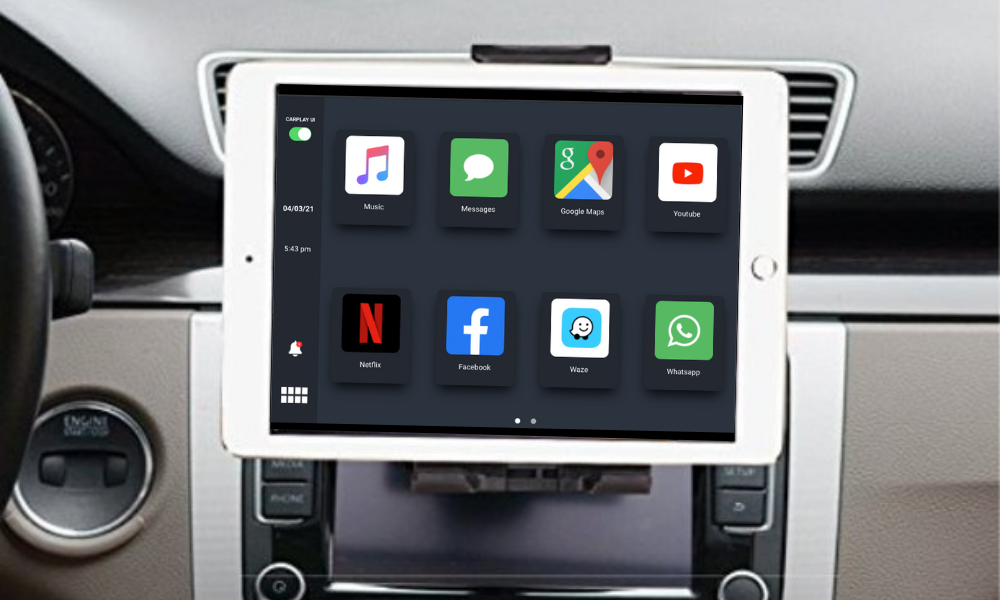
Utilizing CarPlay transforms how you connect your iPad to your car stereo. It creates a seamless link between your device and your vehicle’s display. This connection not only plays music but also offers navigation, calls, and messaging features in a safer, more organized way.
Requirements For Carplay
Not every car supports CarPlay, so first, check if your vehicle’s stereo system is compatible. Most models from 2016 onward have built-in CarPlay support, but it’s best to verify with your car manufacturer.
Your iPad must run iOS 13 or later to use CarPlay effectively. Also, you’ll need a Lightning to USB cable or a wireless CarPlay-compatible system for connection.
- Compatible vehicle stereo system
- iPad with iOS 13 or later
- Lightning to USB cable or wireless CarPlay setup
- Active internet connection for apps
Setting Up Carplay With Your Ipad
Start by connecting your iPad to your car’s USB port using the Lightning cable. If your car supports wireless CarPlay, enable Bluetooth and Wi-Fi on your iPad.
Once connected, your car’s display will prompt you to enable CarPlay. Follow the on-screen instructions to grant necessary permissions and customize your app layout.
After setup, you can control your iPad through your car’s touchscreen, steering wheel buttons, or voice commands. This makes managing music, maps, and calls easier and safer while driving.
Have you ever tried navigating with your iPad on the dashboard? CarPlay takes that experience to a new level by integrating everything into one system that’s designed for driving. How might this change your daily commute or road trips?
Alternative Audio Connection Methods
Connecting your iPad to your car stereo does not always require cables or direct inputs. Several alternative audio connection methods let you enjoy music or podcasts from your device easily. These options work well even if your car stereo lacks modern connection ports.
Alternative methods often rely on wireless or simple plug-in devices. They offer flexibility and can improve your driving experience without complex setups. Explore these practical solutions to find what fits your car and iPad best.
Fm Transmitter Use
An FM transmitter broadcasts audio from your iPad to your car radio. It works by sending a signal on an unused FM frequency. You tune your car stereo to that frequency to hear the sound.
Most FM transmitters plug into the iPad’s headphone jack or Lightning port. They are small and easy to carry. The signal quality depends on your location and radio interference. Still, it provides a quick way to play audio without cables or Bluetooth.
Portable Bluetooth Adapters
Portable Bluetooth adapters turn your car stereo into a wireless receiver. They plug into the stereo’s AUX or USB input. The adapter pairs with your iPad via Bluetooth.
This setup allows wireless music streaming with clear sound. It avoids cables and gives freedom to control playback from your iPad. Many adapters also support hands-free calling through your car speakers.
Optimizing Audio Quality
Optimizing audio quality is key to enjoying music from your iPad through your car stereo. Clear, balanced sound makes every drive better. Small tweaks can improve how your music sounds inside the car. Focus on volume and sound settings first. Then, reduce interference for smooth playback.
Adjusting Volume And Sound Settings
Start by setting your iPad’s volume to about 75%. Avoid maxing it out to prevent distortion. Use your car stereo’s volume controls to fine-tune sound levels. Adjust bass, treble, and balance settings on your stereo to match your taste.
Many car stereos offer presets like rock, jazz, or pop. Try these to see which suits your music style best. Keep the sound clear without too much bass or treble. Balanced settings reduce ear fatigue during long drives.
Managing Interference And Connectivity
Wireless connections can sometimes cause static or dropouts. Keep your iPad close to the stereo for a stronger signal. Avoid placing the iPad near other electronics that may cause interference.
If using Bluetooth, remove other devices paired to the stereo. This reduces connection conflicts. For wired connections, use high-quality cables without damage. Loose or low-quality cables can cause noise or cutouts.
Restarting your iPad and car stereo can also clear minor connection issues. Regularly update your iPad’s software to improve Bluetooth performance. Clean your stereo’s input ports to maintain good contact.

Credit: soundman.co
Frequently Asked Questions
How Do I Connect My Ipad To My Car Stereo?
You can connect your iPad to your car stereo using Bluetooth, an AUX cable, or a USB port. Bluetooth is wireless and convenient. An AUX cable is a simple wired option. A USB connection can charge your device while playing audio.
Can I Use Bluetooth To Connect My Ipad?
Yes, you can use Bluetooth to connect your iPad to your car stereo. Ensure both devices have Bluetooth enabled. Pair them by selecting your car stereo from the list of available Bluetooth devices on your iPad. Once paired, you can stream audio wirelessly.
What Cables Do I Need For A Wired Connection?
For a wired connection, you need an AUX cable or a USB cable. An AUX cable connects via the headphone jack or a Lightning-to-AUX adapter. A USB cable connects through the car’s USB port, if available, allowing audio playback and charging.
Does My Car Stereo Support Ipad Connection?
Check your car stereo’s manual or online specifications to confirm iPad compatibility. Most modern car stereos support Bluetooth, AUX, or USB connections. If your stereo lacks these features, consider using an FM transmitter for wireless audio streaming from your iPad.
Conclusion
Connecting your iPad to your car stereo is simple and useful. You can enjoy music, podcasts, and navigation sounds clearly. Use Bluetooth, USB, or an auxiliary cable depending on your car model. Each method offers good sound quality and easy control.
Try the option that fits your car and iPad best. Keep your drives fun and safe with hands-free audio. Now, your iPad can be a great travel companion in your car. Give it a try and enjoy the ride!