
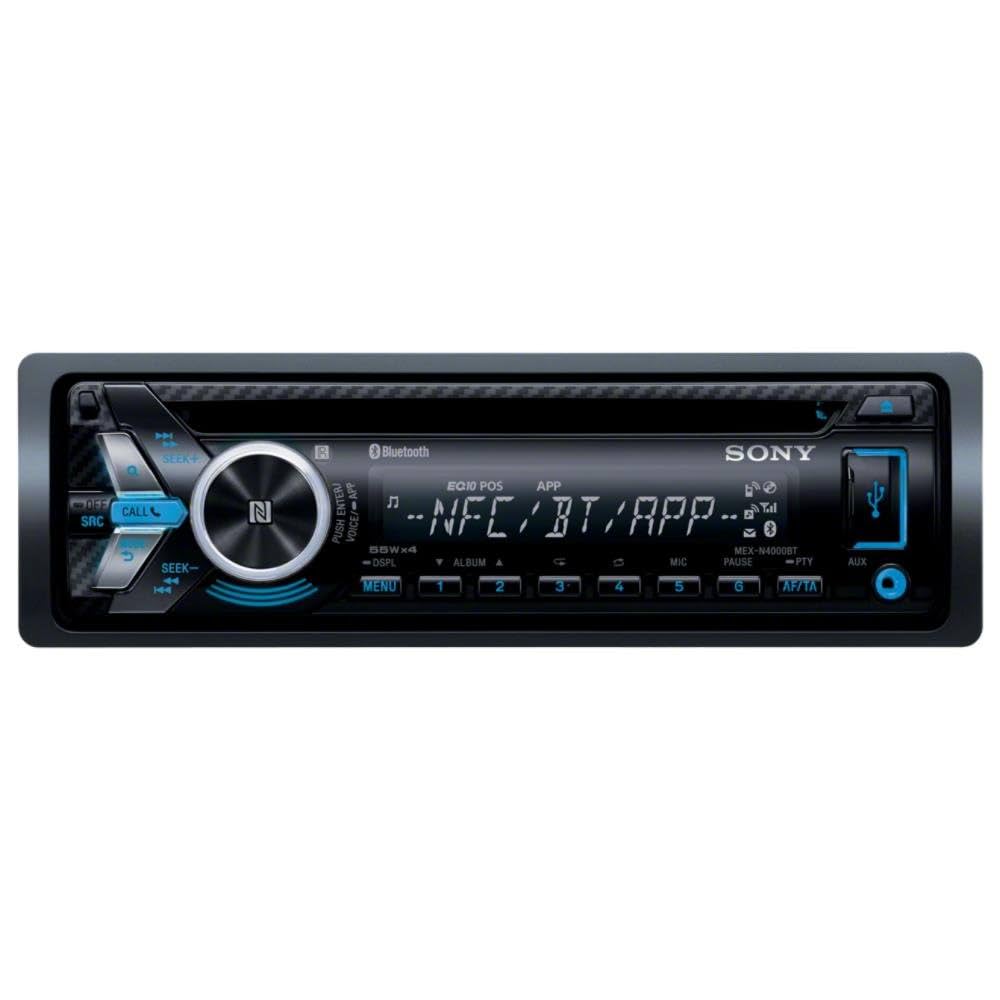
Want to enjoy your favorite music and calls hands-free while driving? Connecting your iPhone to your Sony car stereo via Bluetooth makes it simple and safe.
But if you’ve never done it before, the process might seem tricky or confusing. Don’t worry—you’re about to discover easy, step-by-step instructions that will have your phone and stereo working together in no time. Keep reading, and you’ll be cruising with clear sound and full control right from your car’s dashboard.
Credit: www.youtube.com
Prepare Your Iphone And Car Stereo
Getting your iPhone ready to connect with your Sony car stereo via Bluetooth is the first step to enjoying hands-free calls and your favorite tunes on the road. Preparing both devices properly can save you from frustrating connection issues later. Let’s look at what you need to do before pairing them.
Check Bluetooth Compatibility
Not all car stereos support every Bluetooth version. Make sure your Sony stereo supports Bluetooth audio streaming (A2DP profile) and phone connectivity (HFP or HSP). You can find this information in your stereo’s user manual or on Sony’s official website.
Does your iPhone model support Bluetooth? Since most iPhones from the last decade do, this usually isn’t a problem. But confirming compatibility avoids surprises once you start pairing.
Turn On Bluetooth On Iphone
Before your stereo can detect your iPhone, Bluetooth must be active on your phone. Open the Settings app, tap “Bluetooth,” and toggle it on. You’ll see a list of available devices once it’s searching.
Keep your iPhone unlocked and nearby during this process. Staying on the Bluetooth screen helps your stereo find your phone faster, speeding up the connection.
Enable Pairing Mode On Sony Stereo
Your Sony stereo needs to be discoverable for your iPhone to connect. Most models enter pairing mode by pressing and holding the Bluetooth button until the indicator light blinks rapidly or you hear an audio cue.
If you’re unsure how to activate pairing mode, check your stereo’s manual. Some models require navigating through the menu to find the Bluetooth settings and select “Pairing.”
Once pairing mode is active, your stereo will appear on your iPhone’s list of available devices, ready for connection.

Credit: www.ebay.com
Pair Iphone With Sony Car Stereo
Pairing your iPhone with a Sony car stereo opens up a world of hands-free calls, music streaming, and seamless control over your audio experience. Getting these two devices to communicate over Bluetooth is straightforward, but it requires a few precise steps. Once paired, you’ll enjoy clear sound and easy access to your favorite playlists without distractions while driving.
Search For Devices On Iphone
Start by unlocking your iPhone and opening the Settingsapp. Tap on Bluetoothand make sure it’s turned on. Your iPhone will begin searching for nearby Bluetooth devices automatically.
Keep your Sony car stereo in pairing mode, usually by pressing a specific button or navigating through the stereo’s menu to the Bluetooth settings. You’ll see the stereo’s name appear under “Other Devices” on your iPhone’s Bluetooth screen. If it doesn’t show up immediately, try toggling Bluetooth off and on again or restarting your car stereo.
Select Sony Stereo From List
Once your Sony stereo appears on the iPhone’s list, tap on its name to initiate pairing. It’s important to select the correct device if multiple Bluetooth devices are nearby, so look for the exact model number or name displayed on your stereo.
After you select the device, your iPhone will attempt to connect. This connection process typically takes just a few seconds. If your stereo doesn’t respond, double-check that it’s still in pairing mode and within range.
Enter Or Confirm Passcode
Some Sony car stereos require a passcode to complete pairing. The passcode is often “0000” or “1234,” but your stereo manual will have the exact number if it’s different. Your iPhone will prompt you to enter this code or ask for confirmation if the code appears on both devices.
Make sure the code on your iPhone matches the one displayed on your car stereo screen before confirming. This security step prevents accidental pairing with other devices. Once confirmed, your iPhone and Sony stereo should connect successfully, ready to stream audio or take calls.
Troubleshoot Common Connection Issues
Connecting your iPhone to a Sony car stereo via Bluetooth should be seamless, but sometimes issues pop up that interrupt your music or calls. Troubleshooting common connection problems can save you time and frustration. Let’s look at some straightforward fixes that have helped many users regain a smooth connection quickly.
Reset Bluetooth Settings
Resetting your Bluetooth settings can clear out any glitches that block your devices from pairing properly. On your iPhone, go to Settings > Bluetooth, find your Sony stereo in the list, and tap Forget This Device. This removes any saved connection data that might be causing conflicts.
After that, try pairing again as if it’s the first time. This often resolves issues where the devices seem stuck or won’t recognize each other.
Restart Devices
Restarting both your iPhone and your Sony car stereo can refresh their Bluetooth modules and clear temporary bugs. Turn off your iPhone completely, wait about 10 seconds, then power it back on.
Do the same with your car stereo by turning off the ignition and switching the stereo off, then turning it back on after a moment. Have you noticed better performance after a simple reboot in other tech problems? This trick often works here too.
Update Firmware And Ios
Outdated software can cause compatibility problems. Check if your iPhone’s iOS is up to date by going to Settings > General > Software Update. Install any available updates to ensure your phone has the latest Bluetooth improvements.
Similarly, check your Sony car stereo’s firmware version. Visit Sony’s support website or use their app if available to download and install firmware updates. Keeping both devices updated helps prevent connection hiccups that stem from software mismatches.

Credit: aluratek.com
Optimize Bluetooth Audio Experience
Optimizing your Bluetooth audio experience when connecting your iPhone to a Sony car stereo can make a huge difference in sound quality and ease of use. Small tweaks help you enjoy clear music and seamless calls without distractions. Let’s look at some practical ways to get the most out of your connection.
Adjust Volume Levels
Set the volume on both your iPhone and the Sony car stereo to balanced levels. If your phone’s volume is too low, the audio might sound weak even if the car stereo is loud. Conversely, having the phone volume maxed out can cause distortion.
Try starting with the phone volume around 70% and adjust the car stereo volume to your comfort. This approach prevents sudden loud bursts and keeps the sound clear. Have you noticed your music sounding muddy or too quiet? This simple adjustment often fixes it.
Manage Bluetooth Connections
Keep your Bluetooth connection clean by removing unused devices from your iPhone’s paired list. Multiple active connections can cause interference or automatic switching, disrupting playback. Only keep your Sony car stereo and essential devices paired.
If your car stereo struggles to connect, try toggling Bluetooth off and on both devices. This refresh often resolves glitches quickly. Have you ever lost connection mid-drive? Managing your devices prevents that frustrating experience.
Use Siri With Car Stereo
Using Siri hands-free while driving lets you keep your focus on the road. You can ask Siri to play music, make calls, or send texts without touching your phone. Just press the voice control button on your Sony stereo or say “Hey Siri” if your iPhone supports it.
Make sure Siri’s volume is audible through the car speakers but not overpowering. This balance helps you hear commands clearly without drowning out your music. How often do you rely on voice control during drives? It’s a simple way to stay connected safely.
Frequently Asked Questions
How Do I Pair My Iphone With A Sony Car Stereo?
To pair your iPhone with a Sony car stereo, activate Bluetooth on both devices. Search for available devices on your iPhone. Select your Sony stereo from the list. Confirm any pairing prompts, and ensure both devices are within range. Your iPhone should now be connected to the stereo.
Why Won’t My Iphone Connect To The Car Stereo?
If your iPhone won’t connect, check if Bluetooth is enabled on both devices. Ensure your iPhone isn’t already connected to another device. Restart both devices to reset connections. If issues persist, update your iPhone and stereo software, and retry the pairing process.
Can I Play Music From Iphone On Sony Stereo?
Yes, once your iPhone is paired with the Sony stereo via Bluetooth, you can play music. Use your music app on the iPhone to select tracks. The audio will stream through the car’s speakers, allowing you to enjoy your favorite tunes on the go.
Is There An App For Sony Car Stereo Bluetooth?
Sony offers the “Sony | Music Center” app to enhance your car stereo experience. This app allows you to control music and sound settings directly from your iPhone. Download it from the App Store for a more integrated and seamless connection with your Sony car stereo.
Conclusion
Connecting your iPhone to a Sony car stereo via Bluetooth is quick and easy. Follow simple steps to pair both devices and enjoy hands-free calls and music. Keep your phone’s Bluetooth on and select your car stereo from the list.
This connection improves driving safety and convenience. Once paired, your devices will connect automatically next time. Enjoy clear sound and control from your car’s dashboard. Stay focused on the road while staying connected. Bluetooth makes your drive more enjoyable and safer every time.

