How to Mirror Android to Car Stereo: Easy Steps for Seamless Connectivity
Master Automotive Systems Engineer & Performance Vehicle Specialist at CarSpeedNest Automotive Testing Lab · ASE Certified Master Technician, Mobile Electronics Certified Professional (MECP Master), Certified Dyno Diagnostic Specialist · 14+ years in dyno testing, electronic sensor calibration, automotive wiring harnesses, and precision drivetrain maintenance
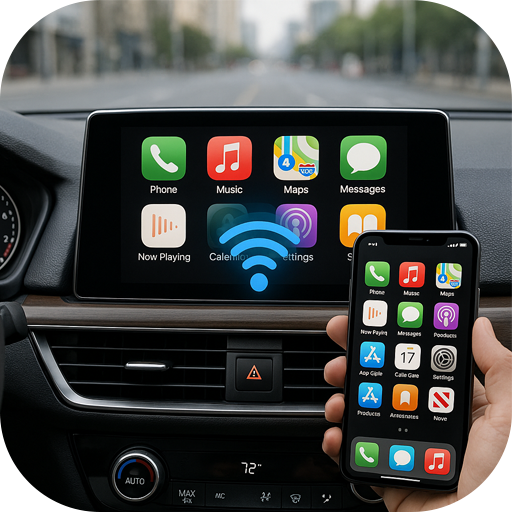
Imagine turning your car’s stereo into a powerful screen that shows exactly what’s on your Android phone. Whether it’s navigation, music, or your favorite apps, mirroring your Android to your car stereo can make your drive safer and more enjoyable.
But how do you do it without complicated setups or expensive tools? In this guide, you’ll discover simple, step-by-step ways to connect your phone to your car’s system effortlessly. Keep reading, because once you know how to mirror your Android, your driving experience will never be the same.

Credit: www.amazon.in
Benefits Of Mirroring Android To Car Stereo
Mirroring your Android device to your car stereo brings a range of benefits that can enhance your driving experience. It allows you to access your favorite apps, navigate with ease, and stay connected without constantly handling your phone. These advantages not only make your journeys more enjoyable but also help keep you safer on the road.
Enhanced Navigation And Real-time Updates
Seeing navigation apps like Google Maps or Waze directly on your car’s screen makes following directions simpler. You get real-time traffic updates, alternate routes, and clear visuals that are easier to glance at while driving. This reduces the chances of missing a turn or getting distracted by your phone.
Access To Music And Entertainment
You can stream music, podcasts, and audiobooks effortlessly through your car’s sound system. Instead of fiddling with your phone, control your playlists or apps right from the stereo display. This means your favorite tunes or podcasts are always just a tap away, making long drives feel shorter and more enjoyable.
Hands-free Communication For Safety
Mirroring lets you handle calls and messages without taking your eyes off the road. Voice commands and on-screen controls make it easier to stay connected while keeping your hands on the wheel. How often do you find yourself tempted to check your phone? This setup helps break that habit and focus on driving.
Improved User Interface And Convenience
Your car’s larger screen offers a better view than your phone, making it easier to interact with apps. Whether it’s reading messages or adjusting settings, the bigger display reduces eye strain and enhances usability. This convenience changes the way you interact with your device during your trips.
Cost-effective Upgrade
Instead of buying an expensive infotainment system, mirroring your Android phone can be a budget-friendly way to boost your car’s tech. Many apps and mirroring options are free or low-cost. This lets you enjoy modern features without a hefty price tag.
Requirements For Android To Car Stereo Mirroring
Before you can mirror your Android phone to your car stereo, it’s important to understand the key requirements that make this possible. Not all devices and connections support mirroring, so knowing what you need can save you time and frustration. Let’s break down the essentials to get your setup right.
Compatible Devices And Software
Not every Android phone or car stereo supports screen mirroring. Your phone should run on Android 5.0 (Lollipop) or higher for better compatibility. Some car stereos come with built-in Android Auto or MirrorLink, which are popular platforms for mirroring.
Check if your car stereo supports these standards or if it offers its own proprietary mirroring app. You might find that newer models from brands like Pioneer, Kenwood, or Sony support wireless mirroring, while older models might only work via cable.
Necessary Cables And Adapters
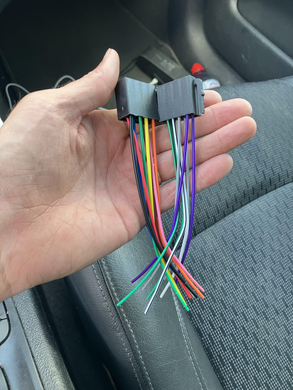
Wired connections often provide the most stable experience for mirroring. A USB-C to USB cable is usually needed if your phone supports Android Auto via USB. Some older phones with micro-USB ports will require a compatible micro-USB to USB cable.
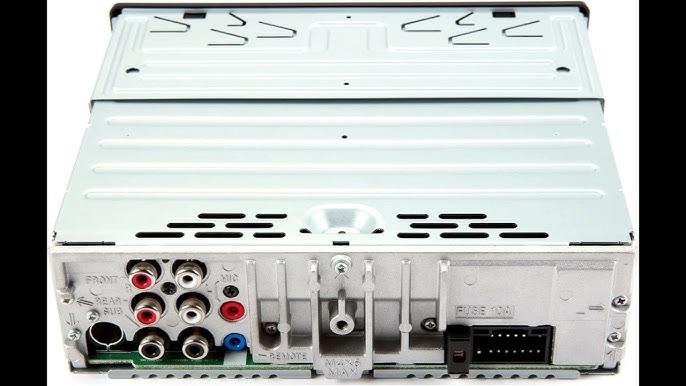
If your car stereo lacks a USB port, you might need an HDMI adapter that connects your phone to the stereo’s HDMI input. It’s wise to check your phone and stereo ports before buying cables or adapters to avoid compatibility issues.
Wi-fi And Bluetooth Connectivity
Many modern car stereos support wireless mirroring through Wi-Fi or Bluetooth. A strong Wi-Fi connection between your phone and the car stereo ensures smooth video and audio streaming without lag. Bluetooth usually handles audio but may not support full screen mirroring on its own.
To get wireless mirroring working, your car’s infotainment system and phone must be on the same Wi-Fi network or paired correctly via Bluetooth. Have you checked if your car stereo offers Wi-Fi Direct or hotspot capabilities? These features can simplify the connection process.
Methods To Mirror Android To Car Stereo
Mirroring your Android phone to a car stereo lets you enjoy apps, maps, and media on a bigger screen. There are several ways to connect your phone and stereo. Each method suits different car models and phone settings. Choose the one that fits your needs and setup.
Using Usb Cable Connection
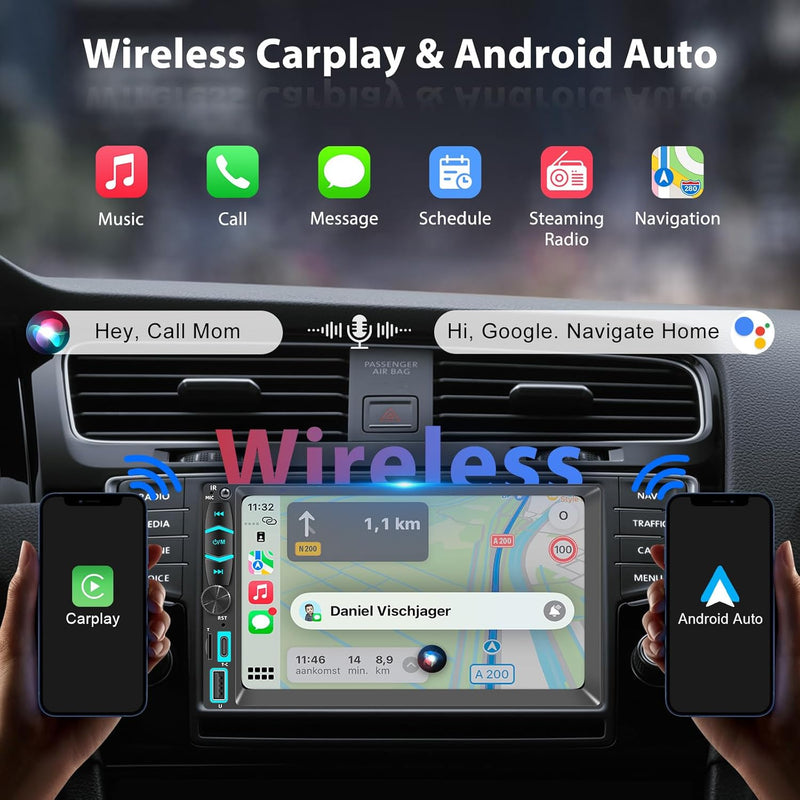
Connect your Android phone to the car stereo using a USB cable. This method offers a stable and fast connection. Most modern cars support Android Auto through USB. Once connected, the car screen shows your phone’s compatible apps. You can control navigation, music, and calls safely while driving.
Wireless Screen Mirroring Via Wi-fi
Wireless mirroring uses your phone’s Wi-Fi to connect to the car stereo. Many cars with smart systems support this feature. It lets you mirror the phone’s screen without cables. The connection may have slight delays but offers convenience. Make sure both devices are on the same Wi-Fi network.
Bluetooth Streaming Options
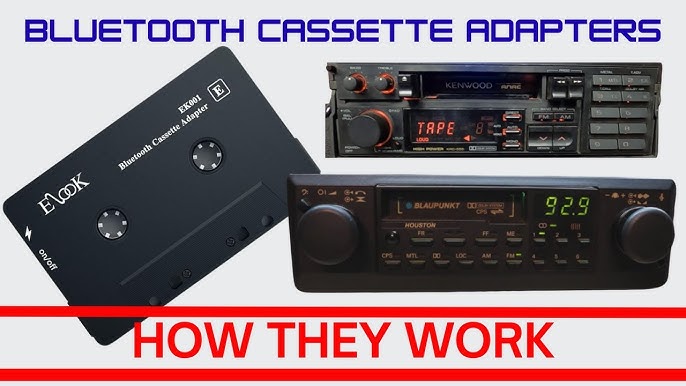
Bluetooth can stream audio from your Android to the car stereo. It does not mirror the screen but plays music and calls wirelessly. Pair your phone with the car’s Bluetooth system. Use this method for audio playback without extra cables or Wi-Fi.
Third-party Apps For Mirroring
Several apps help mirror Android to car stereos. These apps work over Wi-Fi or USB connections. Some popular choices include Screen Stream, Car Link, and MirrorLink. They offer easy setups and extra features. Check app compatibility with your car system before use.
Step-by-step Guide For Usb Connection
Mirroring your Android device to your car stereo via USB can provide a seamless and reliable connection, perfect for navigation, music, and hands-free control. Using a wired connection often means fewer interruptions compared to wireless options, ensuring your content stays visible and responsive. Let’s walk through the essential steps to get your Android screen mirrored on your car’s display using a USB cable.
Enable Developer Options And Usb Debugging
To start, you need to unlock Developer Options on your Android device. Go to Settings > About Phone, then tap the Build Numberseven times until you see a message confirming you’re a developer.
Next, return to Settings and open Developer Options. Scroll to find USB Debuggingand turn it on. This setting lets your phone communicate with your car’s system when connected via USB.
Connect Android Device To Car Stereo
Use a high-quality USB cable to connect your phone to the car’s USB port. Not all cables support data transfer; some are charge-only, so make sure your cable can handle data.
Once connected, your phone may prompt you to allow USB debugging access from your car stereo. Tap Allowto establish the connection. If you don’t see a prompt, check your phone’s notification panel for USB options and select File Transferor MTP.
Configure Car Stereo Settings
On your car stereo, navigate to the input or connectivity settings menu. Look for an option labeled Android Auto, Screen Mirroring, or USB Mode.
Enable the mirroring feature or Android Auto mode to start projecting your phone’s display. If your car stereo supports it, you might see your Android home screen or compatible apps appearing automatically.
Does your car stereo support multiple USB modes? Testing each mode can help you find the most stable and responsive connection. Sometimes, toggling between modes like Media Transferand Charging Onlycan make a difference.
Step-by-step Guide For Wireless Mirroring
Wireless mirroring lets you display your Android screen on your car stereo without cables. This guide shows easy actions to connect your phone to the car display. Follow clear steps to enjoy apps, maps, and music safely while driving.
Activate Screen Mirroring On Android
Open the Settings app on your Android device. Look for “Connected devices” or “Connection preferences.” Find and tap on “Cast” or “Screen mirroring.” Turn on the feature by toggling the switch. Your phone will start searching for available devices nearby.
Connect To Car Stereo’s Wi-fi Or Hotspot
On your car stereo, open the Wi-Fi settings menu. Check if your car offers a Wi-Fi hotspot or direct connection. Select the car’s network from your phone’s Wi-Fi list. Enter the password shown on the car display if needed. Wait until your phone confirms the connection.
Launch Mirroring On Car Display
Access the car stereo’s screen mirroring or smart device menu. Choose your Android phone from the list of connected devices. Accept the connection request on your phone if prompted. Your phone screen will appear on the car display. Use your car controls to navigate or pause content.

Credit: www.amazon.in
Troubleshooting Common Mirroring Issues
Mirroring your Android device to your car stereo should be seamless, but sometimes issues pop up. These glitches can be frustrating, especially when you’re trying to enjoy your favorite apps or navigation on the road. Understanding common problems helps you fix them quickly and get back to a smooth driving experience.
Connection Failures
One of the most common headaches is the connection simply not establishing. This can happen if your phone’s Bluetooth or Wi-Fi isn’t turned on or isn’t working correctly. Sometimes, your car stereo might fail to recognize your phone due to outdated software or a weak signal.
Try these fixes:
- Restart both your phone and car stereo system to refresh their settings.
- Check if your phone is properly paired and visible in the car’s device list.
- Update your car stereo firmware and phone OS to the latest versions.
- Ensure no other devices are interfering by disconnecting them.
Audio Or Video Lag
Noticing a delay between your phone and the car stereo can ruin the experience. This lag usually happens when the wireless connection is weak or overloaded. It can also be caused by apps running in the background, eating up resources.
To reduce lag:
- Close unnecessary apps on your phone before mirroring.
- Move closer to the car stereo to improve signal strength.
- Use a wired connection if your car supports it for faster data transfer.
- Lower the video quality settings in your mirroring app to ease bandwidth use.
Compatibility Problems
Sometimes your car stereo just doesn’t play nice with your phone’s mirroring features. Not all Android versions or car systems support every mirroring app or protocol. This mismatch can cause the mirroring feature to crash or not display correctly.
Ask yourself:
- Is your car stereo compatible with Android Auto or other mirroring apps?
- Does your phone’s Android version meet the app’s requirements?
- Have you tried alternative apps that might work better with your setup?
Checking compatibility before you start saves you a lot of headaches. If your device or stereo isn’t compatible, consider upgrading or using different connection methods like USB.
Tips For Optimizing Mirroring Experience
Optimizing your Android-to-car stereo mirroring experience can make a huge difference in how smoothly everything runs. Small tweaks can improve video clarity, reduce lag, and keep your connection reliable. Let’s look at some practical tips that you can apply right now to get the most out of your setup.
Maintain Stable Network Connection
Your mirroring experience depends heavily on a strong and steady network connection. If you’re using wireless mirroring methods like Wi-Fi Direct or Chromecast, make sure your phone and car stereo are close to the router or each other.
Interference from other devices or walls can cause lag or disconnections. Try switching to a less crowded Wi-Fi channel or disabling other devices that consume bandwidth. Have you noticed your mirroring stutters more when multiple devices connect to the same network?
Use Quality Cables And Adapters
Not all cables and adapters are created equal. Using cheap or damaged HDMI or USB cables can cause signal drops or poor image quality. Investing in high-quality, shielded cables ensures your connection remains stable and your video stays crisp.
Be cautious when using adapters—some may not support the full data transfer speed needed for smooth mirroring. I once struggled with a laggy display until I replaced a low-cost adapter with a branded one, which instantly fixed the issue.
Update Software And Firmware
Outdated software on your phone or car stereo can cause compatibility issues. Regularly check for updates for your Android OS, mirroring apps, and your car’s infotainment system firmware.
Updates often include bug fixes and performance improvements that can enhance your mirroring experience. Have you ever ignored an update only to find later that it fixed exactly the problem you were facing?
Credit: shoppurilite.ca
Frequently Asked Questions
How Can I Mirror Android To My Car Stereo?
You can mirror Android to your car stereo using a USB cable, Bluetooth, or Wi-Fi connection. Apps like Android Auto or third-party mirroring tools help display your phone screen on the car’s infotainment system easily and safely.
What Apps Support Android Screen Mirroring In Cars?
Popular apps that support Android screen mirroring in cars include Android Auto, MirrorLink, and third-party apps like ApowerMirror. These apps enable you to display navigation, music, and other apps on your car’s screen for a seamless driving experience.
Is Wi-fi Or Usb Better For Android Mirroring?
USB offers a more stable and faster connection for Android mirroring, minimizing lag and disconnections. Wi-Fi provides wireless convenience but might experience occasional delays or interruptions depending on signal strength and interference.
Can I Mirror Android Without A Car Stereo System?
Yes, you can mirror Android to external displays using portable monitors or headrest screens with HDMI or wireless connections. However, built-in car stereos often provide better integration and additional controls for safer use.
Conclusion
Mirroring Android to your car stereo enhances your driving experience. It offers easy access to apps and navigation. You’ll enjoy music, maps, and calls seamlessly. Just follow our simple steps for setup. Remember to use the right cables and apps.
A stable connection is key for smooth operation. Always prioritize safety while driving. Keep your focus on the road. Technology makes driving more convenient and enjoyable. Try it today and explore new possibilities. Your car stereo and Android can be best friends.
Simple steps, big difference. Enjoy your drive!

Similar Posts