How to Listen to Iphone Through Car Speakers: Easy & Fast Guide
Master Automotive Systems Engineer & Performance Vehicle Specialist at CarSpeedNest Automotive Testing Lab · ASE Certified Master Technician, Mobile Electronics Certified Professional (MECP Master), Certified Dyno Diagnostic Specialist · 14+ years in dyno testing, electronic sensor calibration, automotive wiring harnesses, and precision drivetrain maintenance
Want to enjoy your favorite music, podcasts, or calls from your iPhone through your car speakers? It’s easier than you think.
Imagine driving with clear sound, no annoying cables, and full control right from your dashboard. Whether your car supports Bluetooth, AUX, or USB, this guide will help you connect your iPhone quickly and hassle-free. Keep reading, and you’ll discover simple steps to transform your driving experience with crystal-clear audio.
Connect Via Bluetooth
Connecting your iPhone to your car speakers via Bluetooth offers a wireless and convenient way to enjoy your favorite tunes, podcasts, or calls while driving. This method eliminates the clutter of cables and keeps your device safely in your pocket or bag. Let’s break down how to get your iPhone and car audio system talking seamlessly.
Enable Bluetooth On Iphone
First, unlock your iPhone and open the Settingsapp. Tap on Bluetoothand toggle it on if it’s not already enabled.
Your iPhone will start searching for nearby Bluetooth devices automatically. Keep the screen active so you can see the list of available connections.
Pair With Car Audio System
Turn on your car’s audio system and activate its Bluetooth pairing mode—this usually involves pressing a button labeled “Bluetooth” or navigating through the system’s menu to find pairing options.
Back on your iPhone, look for your car’s name in the list of devices under Bluetooth settings. Tap it to initiate pairing.
You may be asked to enter a code, typically shown on the car’s display, or to confirm a matching number. Accept it to complete the connection.
Troubleshoot Connection Issues
If your iPhone doesn’t appear in the car’s Bluetooth device list, try turning Bluetooth off and on again on both your phone and car system. Restarting your iPhone can also help resolve minor glitches.
Clear any old or unused Bluetooth connections in your iPhone’s Bluetooth settings—sometimes too many saved devices can cause conflicts.
Still no luck? Check if your car’s firmware needs an update or consult the manual for specific Bluetooth compatibility details. Sometimes, the issue lies in the car system rather than the phone.
Use Auxiliary Cable
Using an auxiliary cable is a simple way to play iPhone audio through car speakers. This method works well for cars with an aux port. It offers clear sound without needing Bluetooth or Wi-Fi. Connect the iPhone directly to the car stereo for reliable music playback.
Locate Aux Port In Car
The aux port often looks like a small headphone jack. It is usually near the car stereo or on the dashboard. Sometimes it can be in the center console or glove box. Look for a label that says “AUX” or a headphone symbol. This port allows you to plug in an auxiliary cable easily.
Connect Iphone With Aux Cable
Use a 3.5mm aux cable to connect the iPhone to the car. Plug one end into the iPhone’s headphone jack or lightning adapter. Insert the other end into the car’s aux port. Ensure both ends are fully connected for good sound. This direct connection sends audio from the iPhone to the car speakers.
Adjust Car Audio Settings
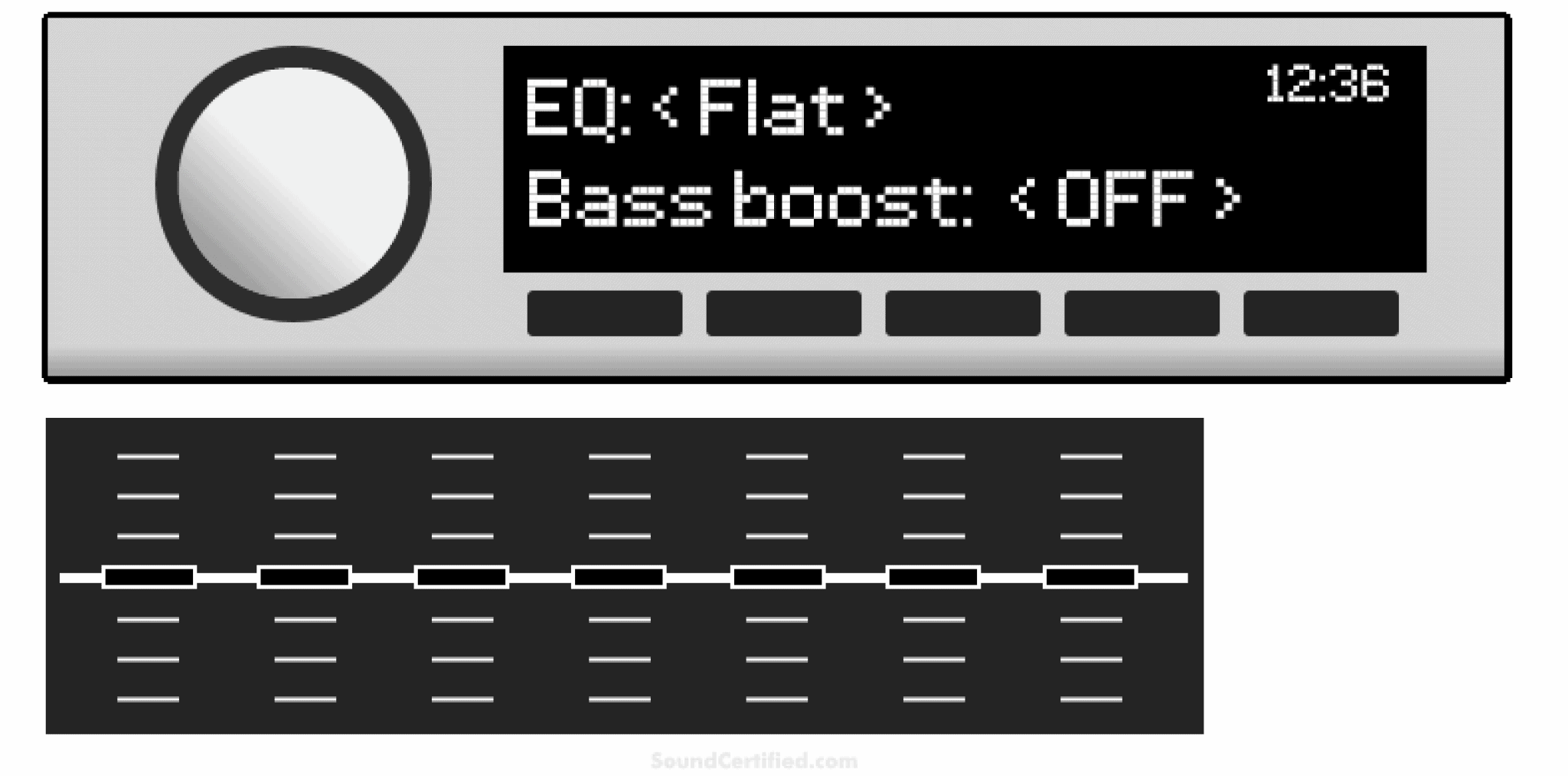
Turn on the car stereo and select the “AUX” input mode. This tells the system to play sound from the aux port. Adjust the volume on both the car stereo and the iPhone. Check the car’s equalizer settings to improve sound quality. Fine-tune bass, treble, and balance for the best experience.
Utilize Usb Connection
Using a USB connection is a simple way to play your iPhone’s audio through car speakers. It offers clear sound and often charges your phone while connected. This method usually works with most modern car models and requires only a Lightning cable.
Check Car Usb Compatibility
Look at your car’s dashboard or center console for a USB port. Some cars label the port specifically for media or iPhone use. Check the car’s manual if unsure about the USB port functions. Older cars may not support audio over USB, so confirm compatibility.
Plug In Iphone With Lightning Cable
Connect your iPhone to the car’s USB port using a Lightning cable. Use an original or certified cable to avoid connection issues. Make sure the cable is fully inserted into both the phone and the USB port. Your iPhone screen may show a prompt to trust the car device; tap “Trust.”
Control Music Through Car Display
After connecting, your car’s display should show music apps or playlists from your iPhone. Use the car’s touchscreen or buttons to play, pause, and skip tracks. Volume controls on the car and iPhone both work for sound adjustments. Some cars also show album art and track info for easier navigation.

Credit: aluratek.com
Stream With Apple Carplay
Streaming audio from your iPhone through car speakers feels effortless with Apple CarPlay. It offers a seamless way to enjoy your music, podcasts, and apps while driving. CarPlay also keeps your focus on the road by simplifying controls and voice commands.
Set Up Carplay On Iphone
Start by unlocking your iPhone and opening the Settings app. Tap on “General,” then select “CarPlay.” Choose your car from the list of available connections. If your car does not appear, make sure Bluetooth and Wi-Fi are turned on. Confirm the connection by following the on-screen prompts.
Connect To Car Via Usb Or Wireless
You can connect your iPhone to the car using a USB cable or wirelessly, depending on your vehicle’s capabilities.
- USB connection:Plug your iPhone into the car’s USB port using a Lightning cable. This is the most common method.
- Wireless connection:Enable Bluetooth and Wi-Fi on your iPhone. Pair the phone with the car’s infotainment system following the car’s instructions.
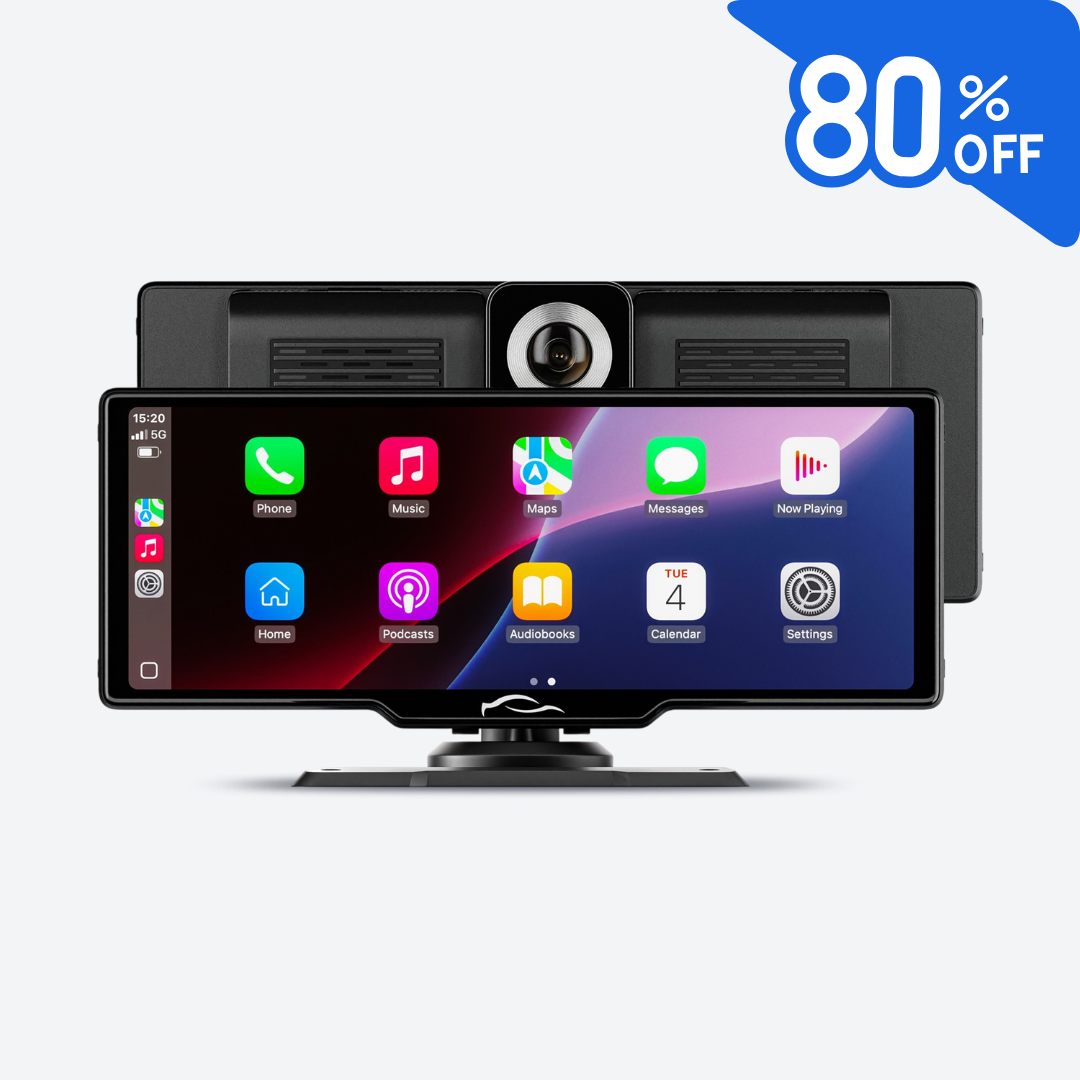
After connection, CarPlay will launch automatically on the car’s display.
Access Music And Apps Safely
CarPlay offers a simple interface to control your audio without distraction. Use Siri voice commands to play songs, playlists, or podcasts. You can also browse music apps on the car’s touchscreen. Popular apps like Apple Music, Spotify, and Audible are fully supported. This setup helps keep your hands on the wheel and eyes on the road.
Play Audio Via Fm Transmitter
Playing audio from your iPhone through your car speakers using an FM transmitter is a simple and effective way to enjoy your favorite music, podcasts, or calls without needing advanced car stereo systems. This option works well, especially in older vehicles that lack Bluetooth or auxiliary inputs. The process involves selecting the right transmitter, syncing it with your car radio, and pairing it with your iPhone.
Choose A Suitable Fm Transmitter
Not all FM transmitters are created equal. Look for one that supports the latest Bluetooth versions for better connection stability and sound quality. Features like a built-in microphone for hands-free calls and USB ports for charging add extra convenience.
Consider the size and design—some transmitters plug directly into your cigarette lighter, while others come with flexible arms for easier placement. Checking user reviews can help you avoid models prone to static or interference in busy radio areas.
Tune Car Radio To Transmitter Frequency
Once you have your FM transmitter, the next step is to set your car radio to a frequency that matches the transmitter’s broadcast channel. Choose a frequency with minimal or no local radio stations to reduce static and interference.
Many transmitters allow you to cycle through frequencies easily, so you can find the clearest channel. Ask yourself: Have you noticed static or overlapping voices when tuning to certain frequencies? Avoid those to get crisp sound.
Pair Iphone With Fm Transmitter
Pairing your iPhone with the FM transmitter is usually done via Bluetooth. Turn on Bluetooth on your iPhone and select the transmitter’s device name from the available list.
Some transmitters might require a PIN code, typically “0000” or “1234.” Once paired, your iPhone audio will play through the car speakers on the chosen FM frequency. Try playing a song or podcast to confirm the connection before you hit the road.

Credit: aluratek.com
Optimize Sound Quality
Optimizing sound quality enhances your listening experience through car speakers. Clear, balanced audio makes every song enjoyable. Small adjustments can make a big difference. Focus on settings and environment to get the best sound from your iPhone.
Adjust Equalizer Settings
Equalizer settings shape how music sounds. Use your iPhone’s built-in equalizer to boost bass or treble. Choose presets like “Rock,” “Pop,” or “Jazz” based on your music style. Customizing these settings balances frequencies for clearer sound. Experiment with different options to find what suits your ears best.
Manage Volume Levels
Set the volume at a moderate level to avoid distortion. Loud volume can cause sound to crack or lose clarity. Match the volume on your iPhone and car stereo for smooth audio flow. Keep volume steady during playback to prevent sudden jumps that affect sound quality.
Reduce Interference And Noise
Interference lowers sound quality and creates static. Turn off other Bluetooth devices to reduce signal disruption. Avoid areas with strong radio or electronic interference. Keep your iPhone close to the car’s receiver for a strong connection. Use quality cables if connecting via AUX for clear sound without noise.

Credit: www.amazon.com.au
Frequently Asked Questions
How Do I Connect My Iphone To Car Speakers?
Connect your iPhone to car speakers via Bluetooth or an AUX cable. For Bluetooth, enable it on both devices and pair them. For an AUX connection, simply plug the cable into both your car’s AUX input and the iPhone’s headphone jack or Lightning port with an adapter.
Can I Use A Usb Cable To Play Music?
Yes, you can use a USB cable to connect your iPhone to your car. Plug the cable into the car’s USB port and your iPhone. Your car stereo should detect the iPhone and play music directly. Ensure your car supports USB audio playback for this method.
Why Isn’t My Iphone Connecting To Bluetooth?
Ensure Bluetooth is enabled on both your iPhone and car. Forget the car device on your iPhone and reconnect. Restart both devices if issues persist. Check for any software updates on your iPhone. Sometimes, interference from other Bluetooth devices can cause connection problems.
Does My Car Need Special Equipment?
Most modern cars come equipped with Bluetooth and AUX inputs. Older models might require an aftermarket Bluetooth adapter or AUX input converter. Ensure your car’s stereo system supports these features for seamless iPhone connectivity. Consult your car’s manual for specific compatibility details.
Conclusion
Connecting your iPhone to car speakers makes driving more enjoyable. Use Bluetooth, AUX, or USB cables for easy setup. Check your car’s manual for specific instructions. Keep your device charged and paired before starting your trip. Listening to music or calls through car speakers improves safety and comfort.
Try different methods to find what works best for you. Now, every drive can have clear, quality sound from your iPhone. Simple steps lead to better sound and a great ride.

Similar Posts